Gone are the days of leaving a piece of paper and a pen on a clipboard next to your register! The Constant Contact ListBuilder App lets you collect names and email addresses through your tablet and adds them to the list of your choosing in your Constant Contact account.
You don't even need to have service—the app collects the contact information and stores it, and once you have internet access again, it syncs with your Constant Contact account to add the new contacts.
Device requirements
This Constant Contact ListBuilder App is for tablets only.
- iPads - The ListBuilder App can be downloaded from the Apple App Store for iOS 17.6 or higher.
- Android tablets -The ListBuilder App can be downloaded from the Google Play Store for Android 6.0 or higher.
Logging in and choosing a PIN
- Log in to the ListBuilder App using your Constant Contact username and password. You're prompted for multi-factor authentication as part of the login process, too.

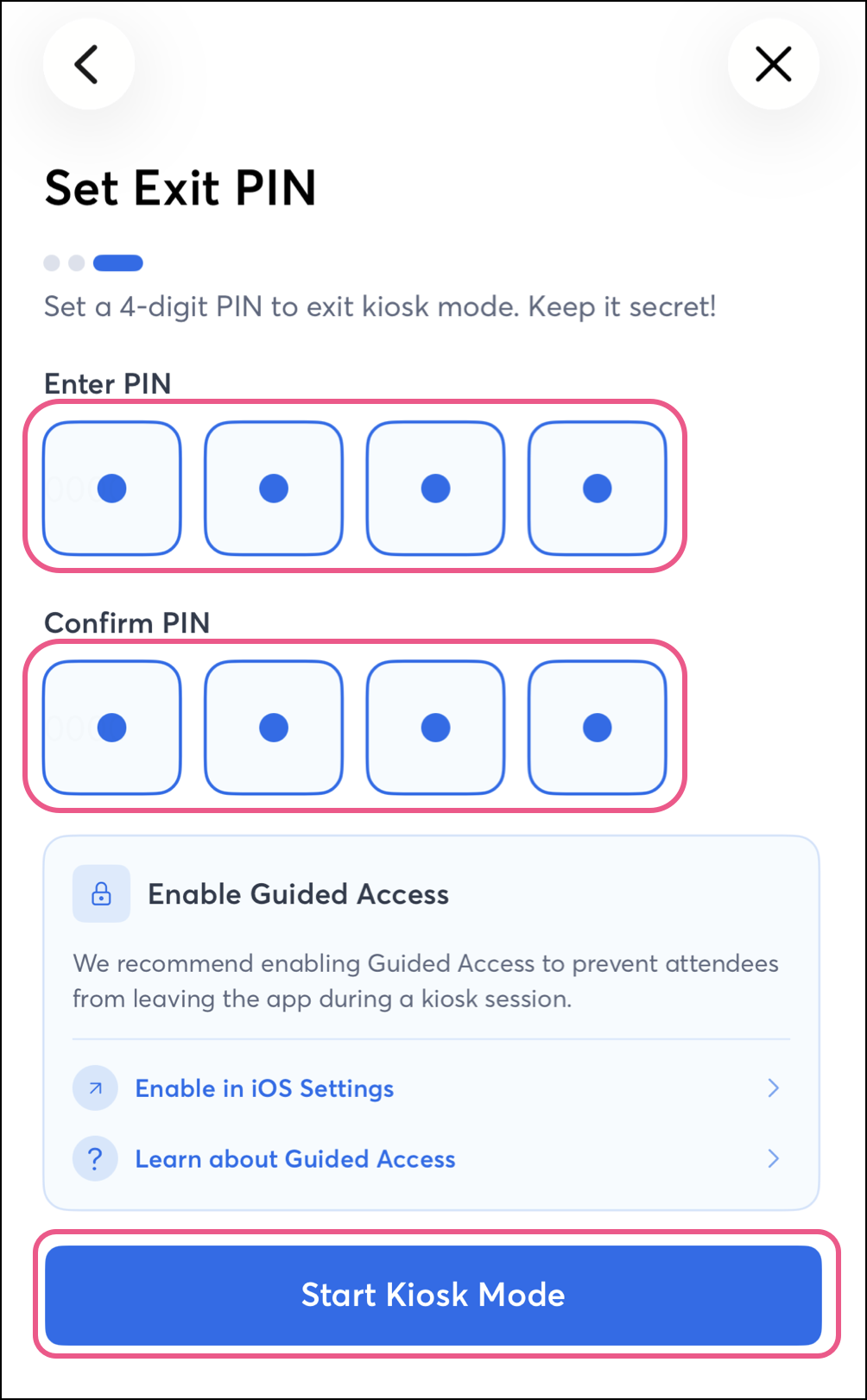
- (Optional) Tap the Admin PIN toggle to set a four-digit Personal Identification Number (PIN). This PIN prevents your sign-ups from leaving the sign-up form and accessing the settings for the ListBuilder app. The PIN doesn't prevent the app from being minimized to access other apps on your tablet.
Note: To prevent your tablet from being able to move away from the ListBuilder App, for example, if you're collecting contacts at a public event, and you want to keep the ListBuilder App up on your screen, you'll want to use Kiosk Mode.
- Tap Set PIN.

- Enter the PIN and then tap Submit.
- Enter the PIN again to confirm it, then tap Submit again.

Once the PIN is entered, you can disable it at any time by tapping on the Admin PIN toggle switch. If you need to change the PIN, tap Edit PIN beneath the Admin PIN field.
Select the list to add new contacts to
- Tap the Choose List button to select the lists to which your contacts are added when they sign up. You need to select at least one list, and your contacts never see which lists they're being added to.

- Tap the lists you want to select, or tap + New Email List to create a new list for the occasion.
- Tab Done to return to the settings page.

Selecting the contact details to collect
An email address is always required, but you have some flexibility in the additional information you ask for from your contacts. Not all contact fields are available, but you can collect more details by reaching out to your contacts later or by pointing them to the Update Profile link in the email footer.
- In the Collect this information section, tap on the details you want to include on your sign-up form. Tapping a checked contact detail removes it.
Design tip: In general, people can be put off by asking for too many details at once. Keeping the fields to a minimum can encourage more people to join your list.

Adding a logo or background image for branding
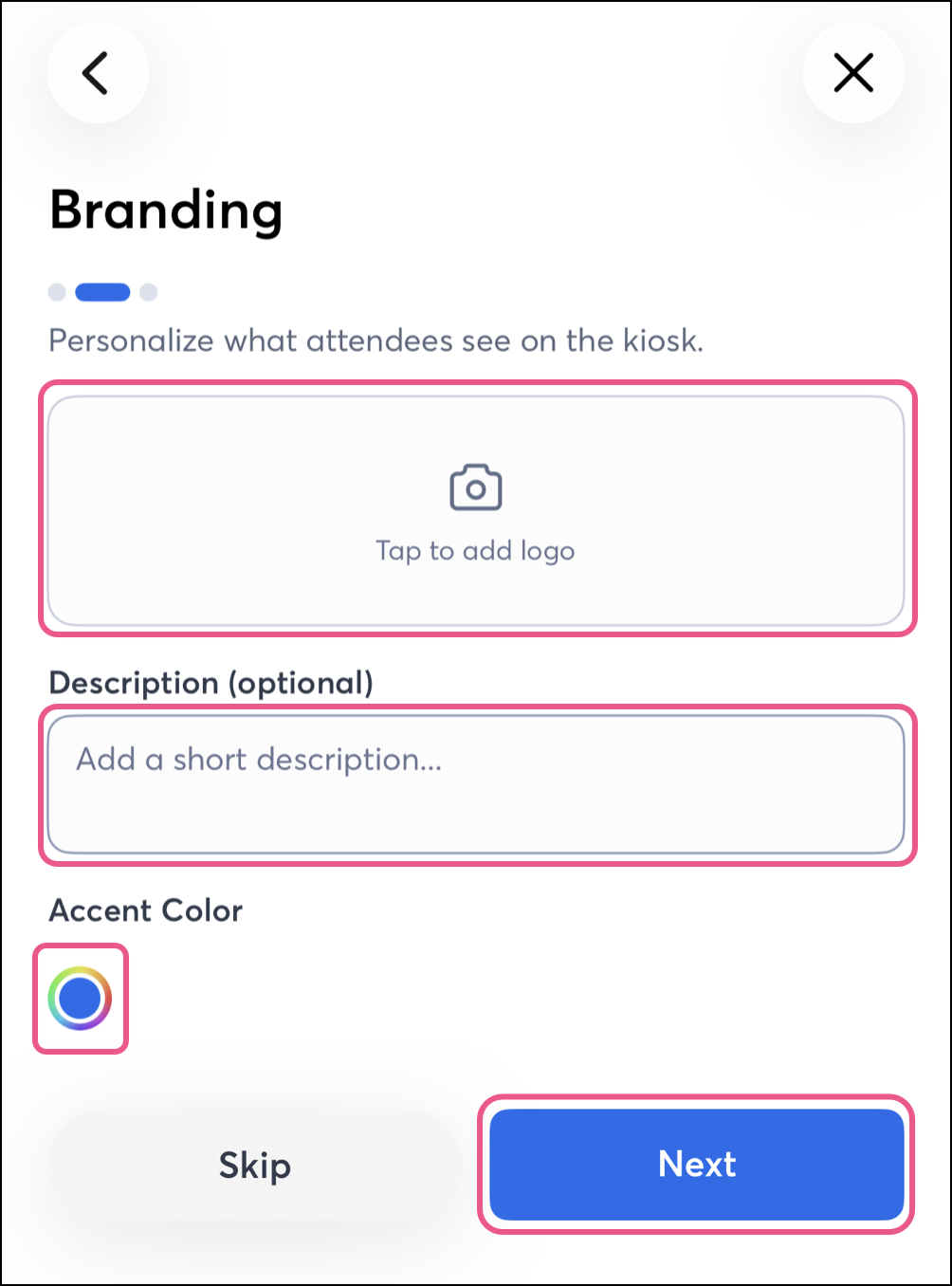
The ListBuilder App uses aspect fill to resize an image—it fills the space while preserving the image's aspect ratio, but this can result in image cropping. For a perfect size, we recommend using square images (1:1 ratio) for the logo and horizontal images (1.91:1 ratio) or banner images (3:1 ratio) for the background.
- Tap the Logo or Background image.

- Choose how to upload your image—you can select an image from your tablet gallery, take an image with your tablet camera, or access images from your Constant Contact Library.
Note: When selecting a logo, you can also pull it from your account settings.

Repeat the process until you have uploaded both a Background image and a Logo image. To remove an image, tap the Background or Logo space and select Remove Image.
Entering a message for your sign-ups
Letting people know what kind of content they can expect when they sign up for your list can help them decide whether to complete the sign-up form.
- Add a message to your ListBuilder Sign-up Form in up to 50 characters.

Collecting sign-ups
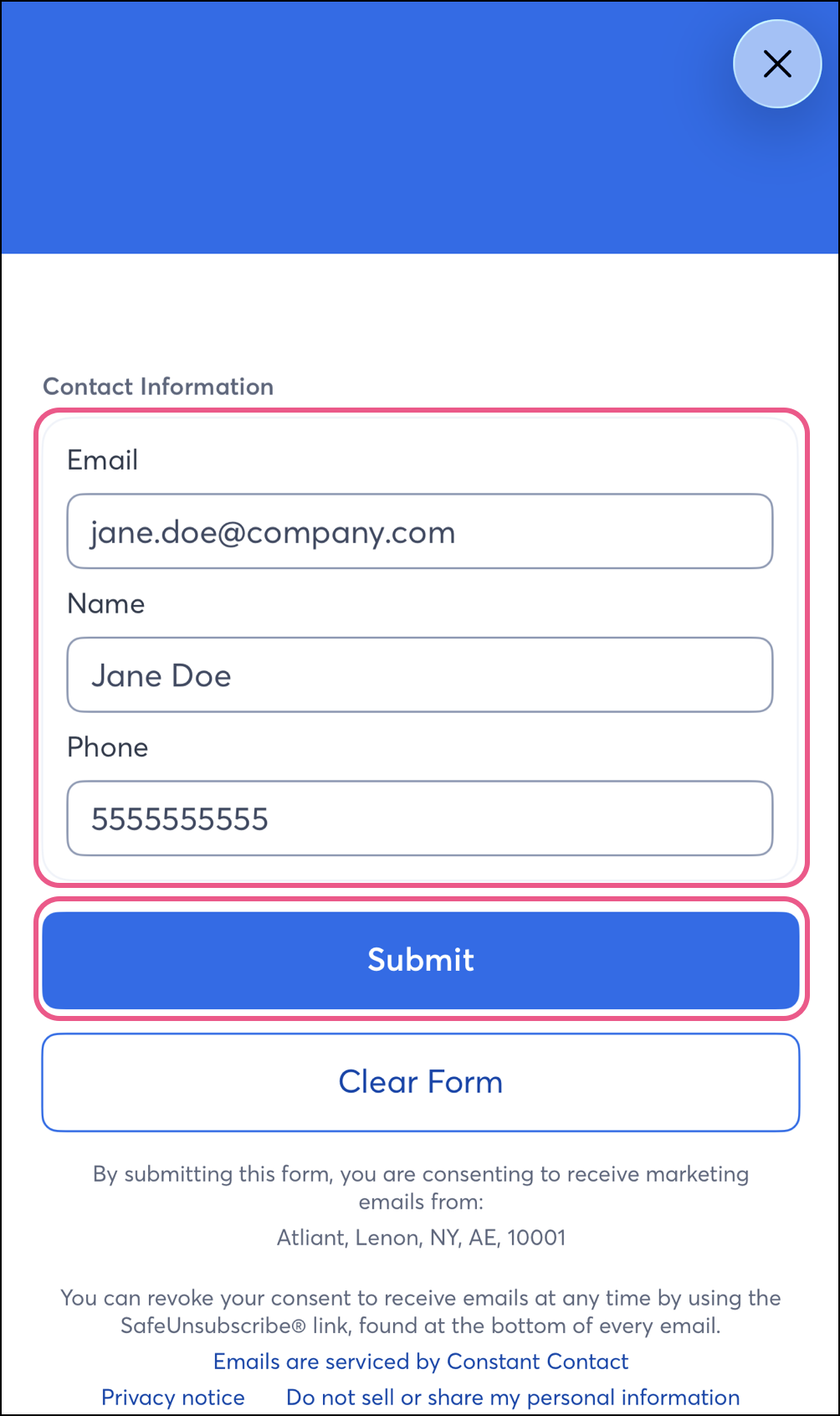
- Tap Next in the upper right-hand corner to leave the settings page and open the sign-up form.

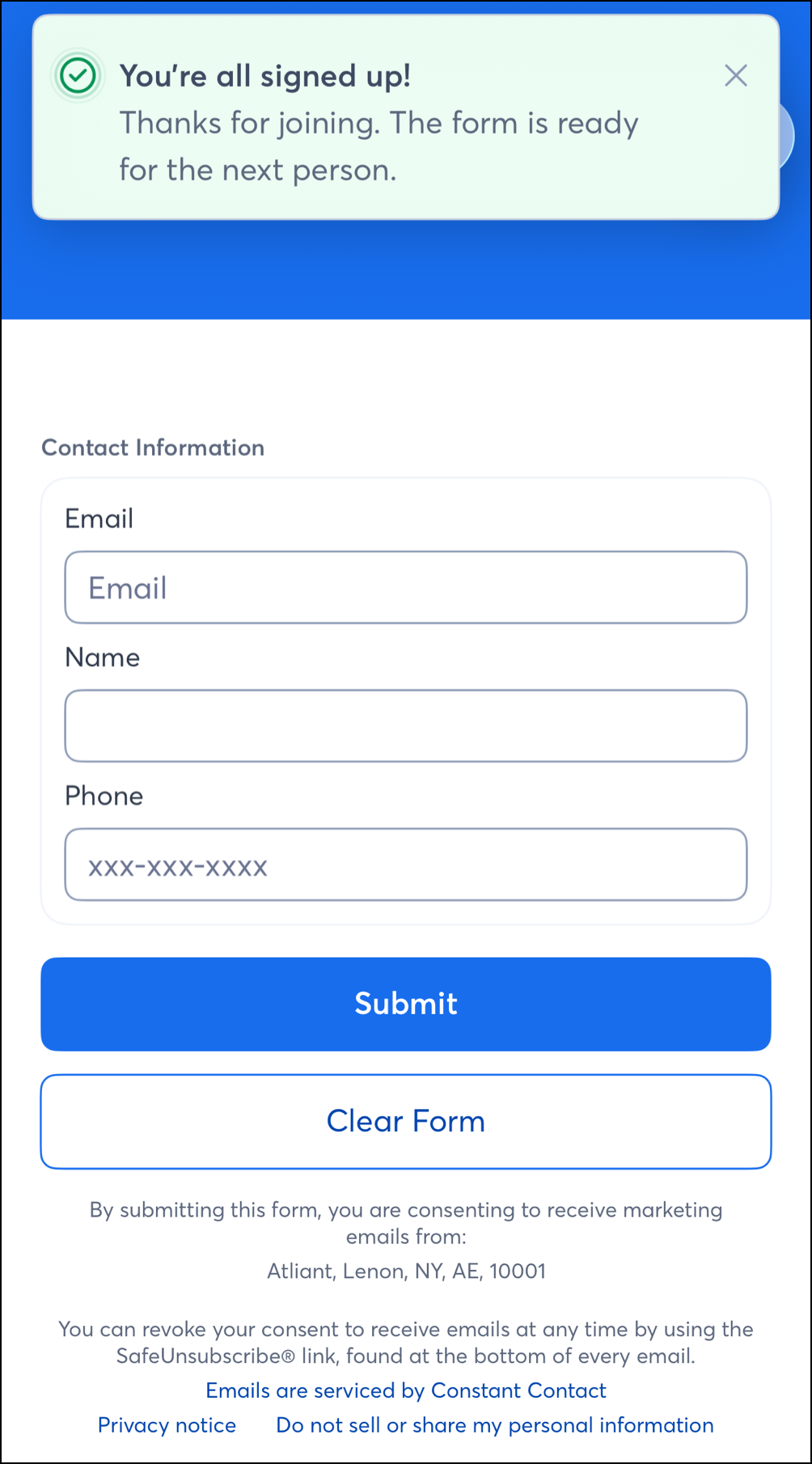
- Each person can enter their contact information and click the SUBMIT button.
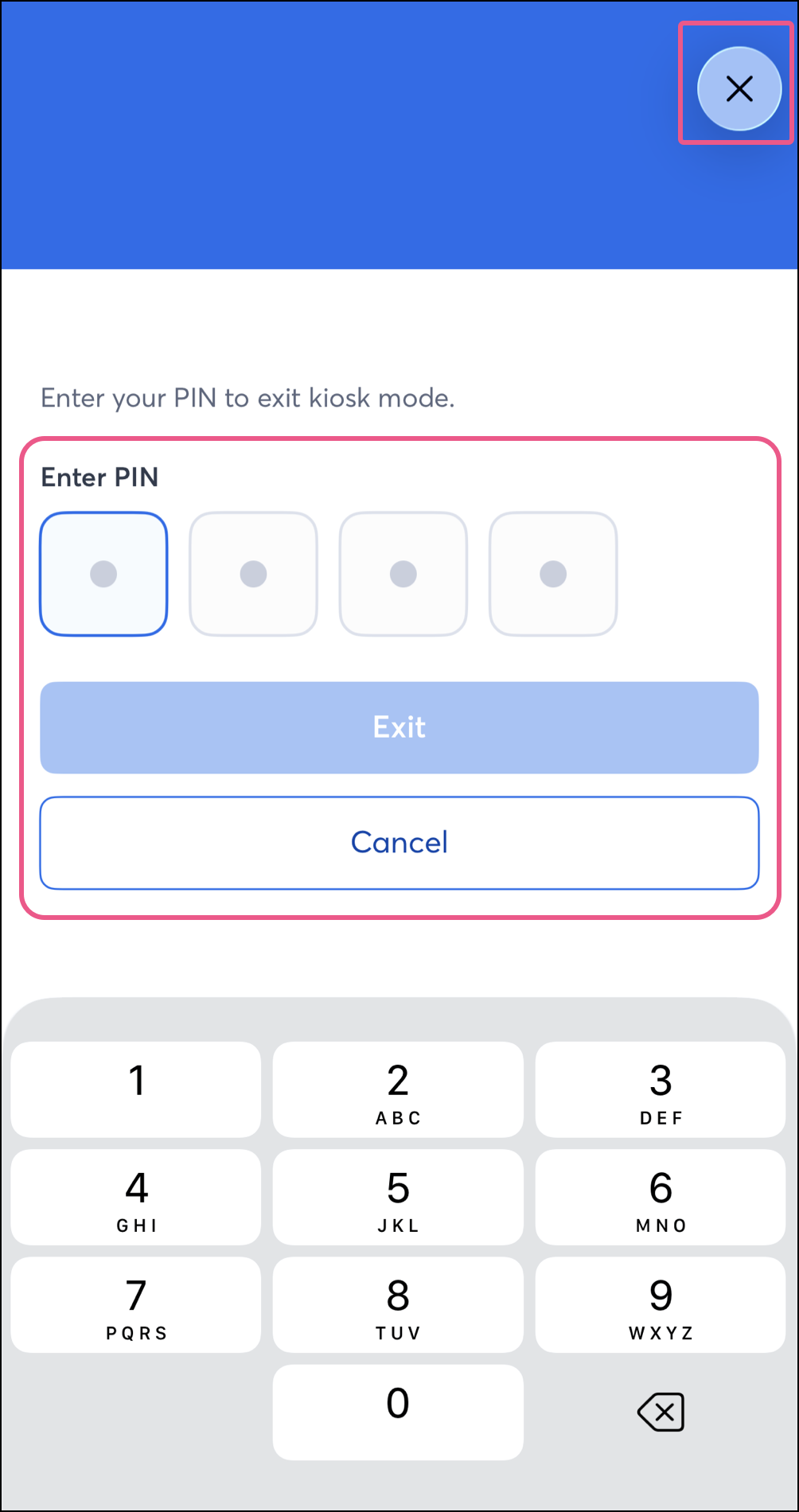
Note: The menu icon in the upper left-hand corner of the page lets you return to the app settings. You're prompted for your PIN if you chose to use one.

- Your new subscriber is presented with confirmation that their email address has been added to your list. Click "Edit Form" in the upper left-hand corner to return to the sign-up form for the next person.
Note: If you're offline while collecting sign-ups, the contact information is still saved and syncs to your Constant Contact account once you're back online.

 | Important: Put your device into "kiosk mode" to prevent people from accessing or using other applications on your tablet. If you don't want your device to power down when it becomes inactive, update its "sleep mode" settings, too. |