Email and Digital Marketing
How can we help you?
Search our help articles, video tutorials, and quickstart guides

You've got this. You've got us. Search our Knowledge Base to quickly find answers to your questions.

Import contact tags through a file

Article: 000005957
Updated: March 19, 2026

Include a "Tags" column in a spreadsheet to import and assign tags to contacts

Exclamation Point IconImportant: In order to import a contact list that includes tags, you must first create the tags in your Constant Contact account. If you have new tags included in your spreadsheet, they're ignored during the import process.


Updating a single contact with a tag is quick and easy, but if you have lots of contacts and multiple tags, importing them through a file is the most efficient way to keep your contact records up to date.
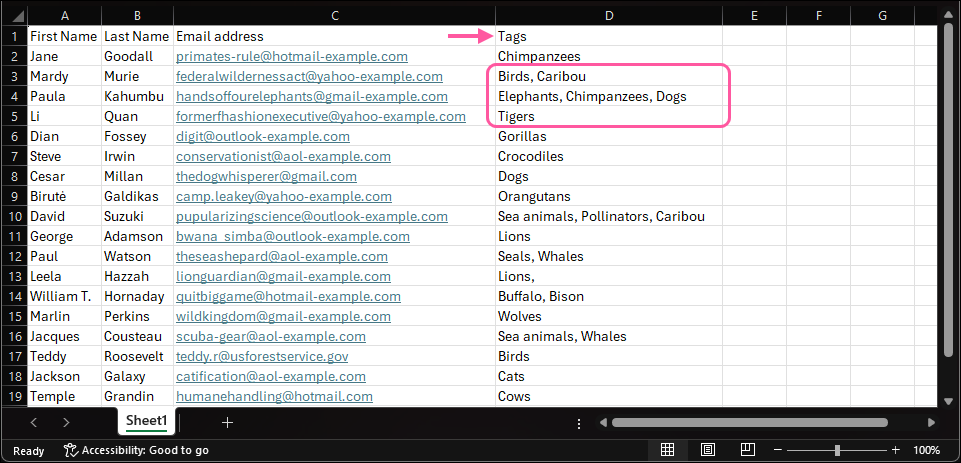
  1. In your spreadsheet, label a single column with "Tags."
  2. Add the tags for each contact into the Tags column, separating multiple tags with commas. Your tags must exactly match the existing tags within your account. Make sure your tags don't have any special characters that cause file import errors.

    Example Spreadsheet with Tags column and cells with single tags and multiple tags separated by a comma

  3. Make sure your file is formatted correctly, and then save your file.
  4. Import your file into Constant Contact.

Any new contacts on your spreadsheet are added to your account with tags. Any contacts on your spreadsheet that are already in your account are updated to include the tags.


Light Bulb IconDid you know? Importing a file with tags can't be used to remove tags from existing contacts by leaving the Tags column blank. Tags can instead be removed manually from a single contact or from a group of contacts from within your account.


Questions?

Ask the Community

Did this article answer your question?


Constant Contact Logo

Copyright © 2026 · All Rights Reserved · Constant Contact · Privacy Center