Email and Digital Marketing
How can we help you?
Search our help articles, video tutorials, and quickstart guides

You've got this. You've got us. Search our Knowledge Base to quickly find answers to your questions.

Edit an image's description or alt text

Article: 000005815
Updated: October 21, 2025

Edit the alt text that displays when an image doesn't, or when recipients are using screen readers

An image description, also known as "alt text," is a message that displays to recipients who cannot see the images in your email.

If an image doesn't display, either because your contacts haven't enabled images in their email program or they're using an email client that doesn't allow images, your contact will only see a broken image. By adding a description, you can tell your contacts what they should be seeing.
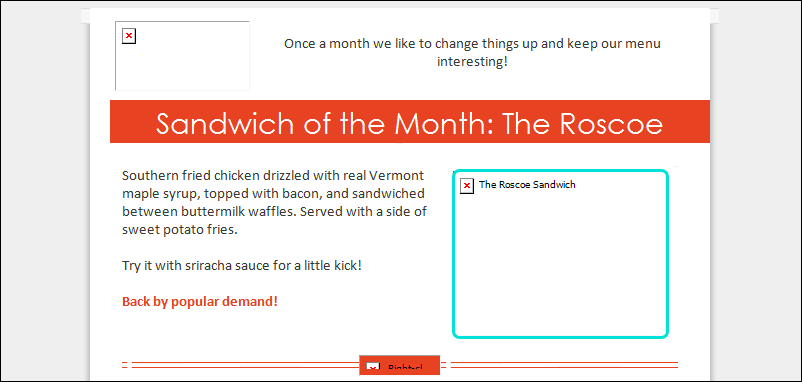

Broken Image Link with Description
 

did you knowDid you know? By adding an image description, those who read online content with screen readers and assistive technology are able to read your content. The best descriptions for images don't just repeat what is already in your email.


Change an image description in your Library

To edit the description of an image that's already been uploaded to your Library:
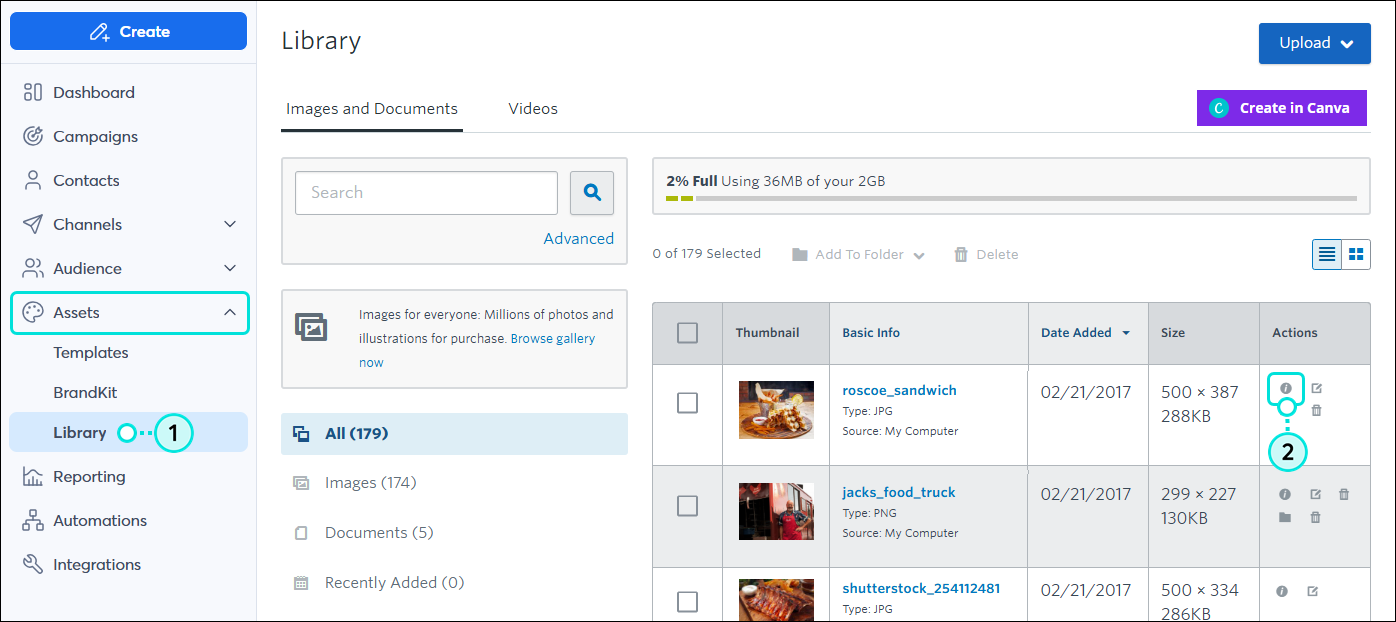
  1. Click Assets Library.
  2. Click the information icon next to the image you want to edit.

    Library option in the left navigation and information icon next to the image
     
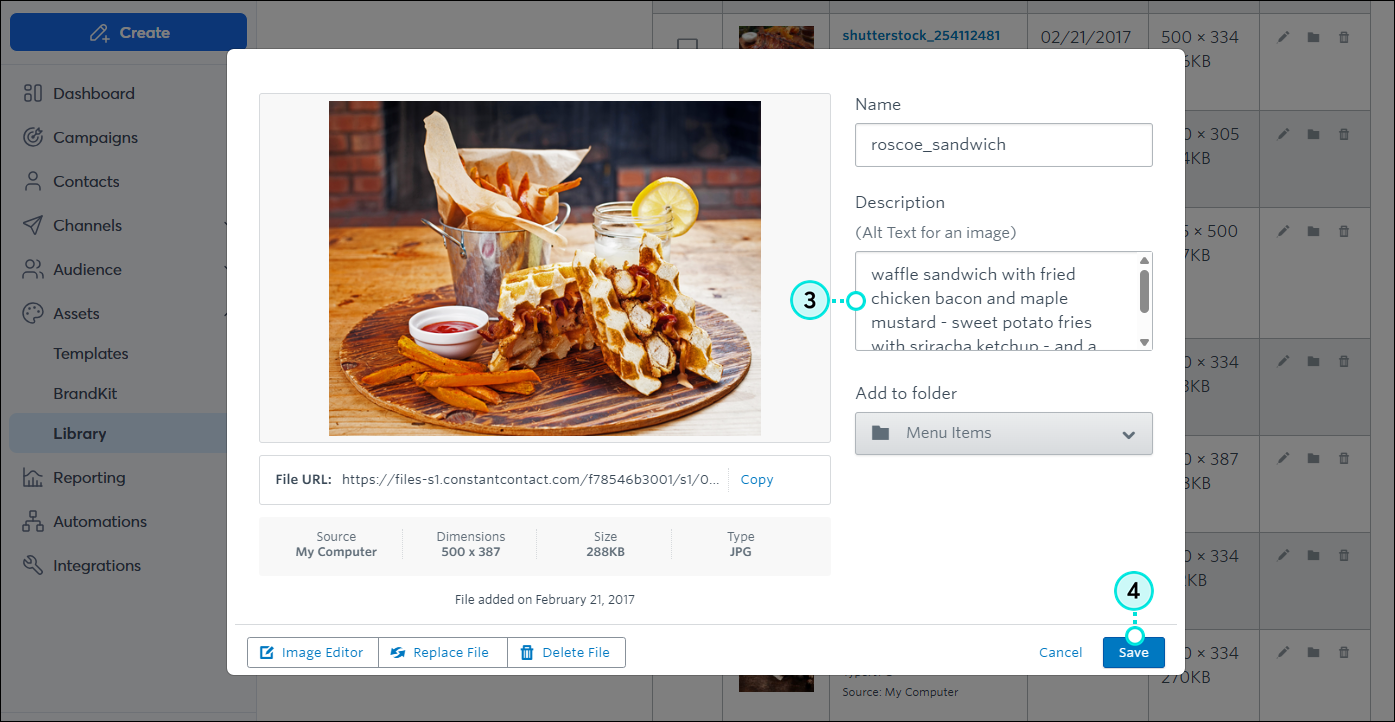
  3. Add or change the description in the Description field to the right of the image. The description can be up to 256 characters long.
  4. Click Save to return to the Library.

    Description field with alt text entered and Save button


Change an image description while editing an email

While editing your email, you can add a one-time image description or make a quick edit to a description you already added through the Library. The description won't save if you use the same image in another email. To make the description permanent, you need to edit it from the Library.
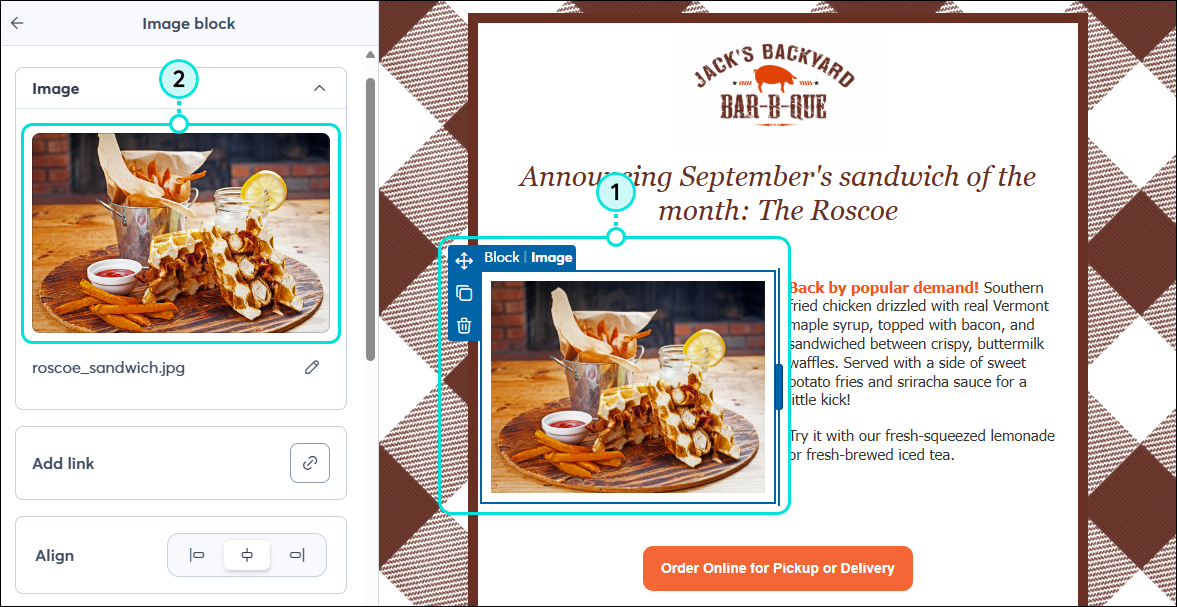
  1. Click on the image block. 
  2. From the panel on the left, click on the image to edit it.

    Email editor with Image block panel and image selected
     
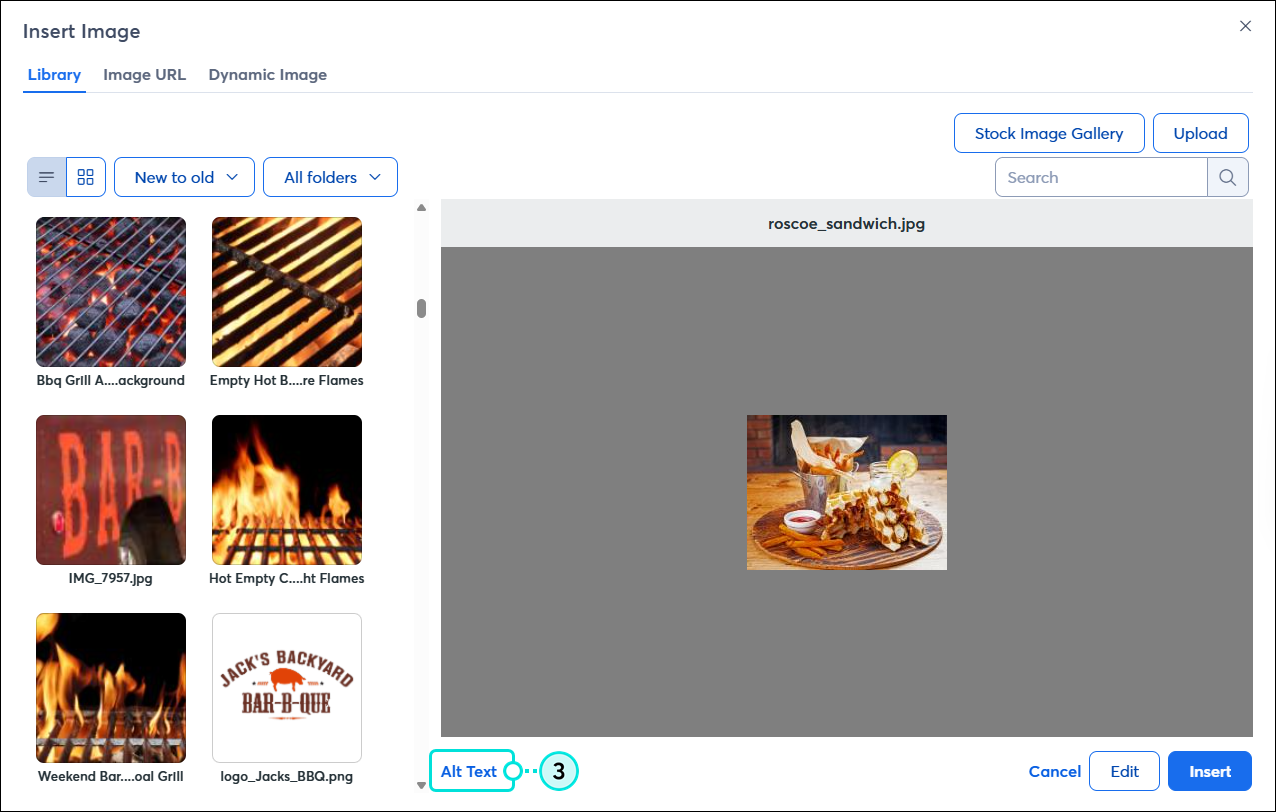
  3. Click "Alt Text."

    Insert Image pop-up with Alt Text link
     
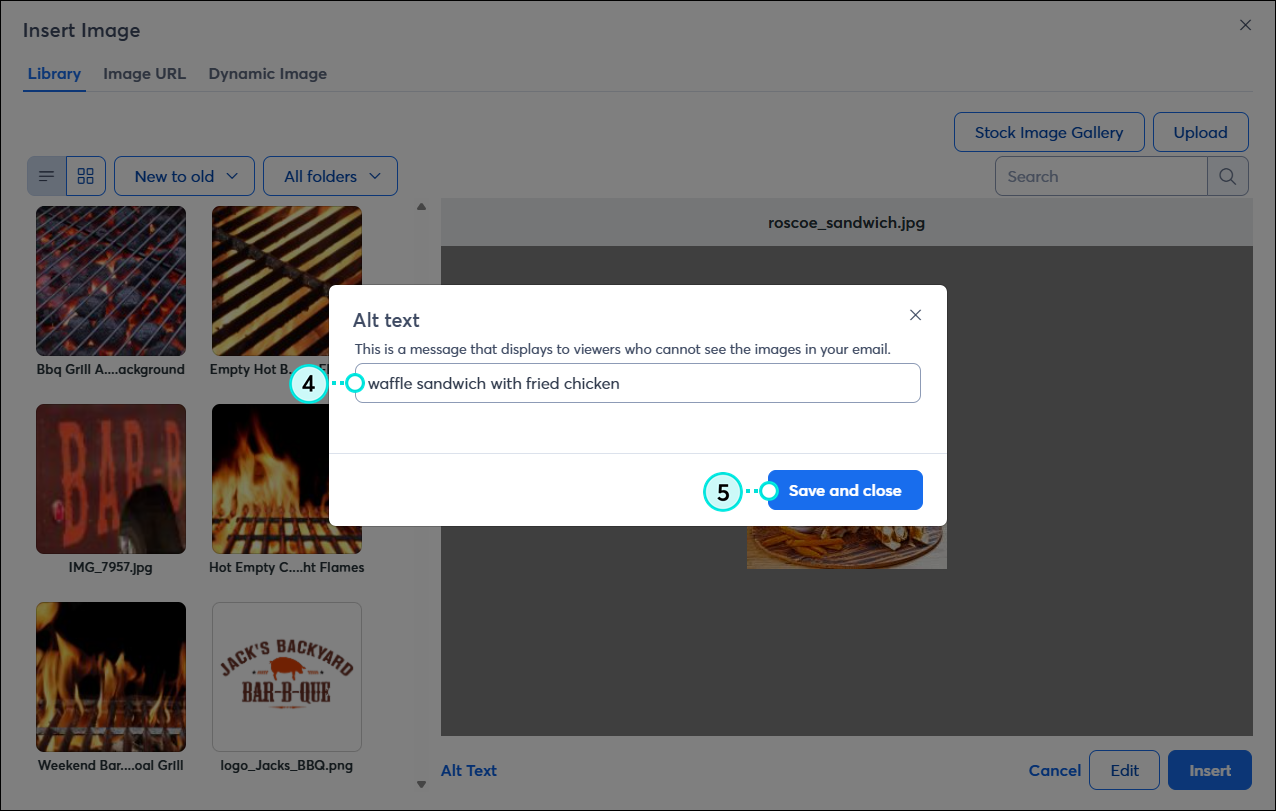
  4. Enter a description for your image. The description can be up to 256 characters long.
  5. Click Save and close.

    Alt Text field and Save and Close button
     
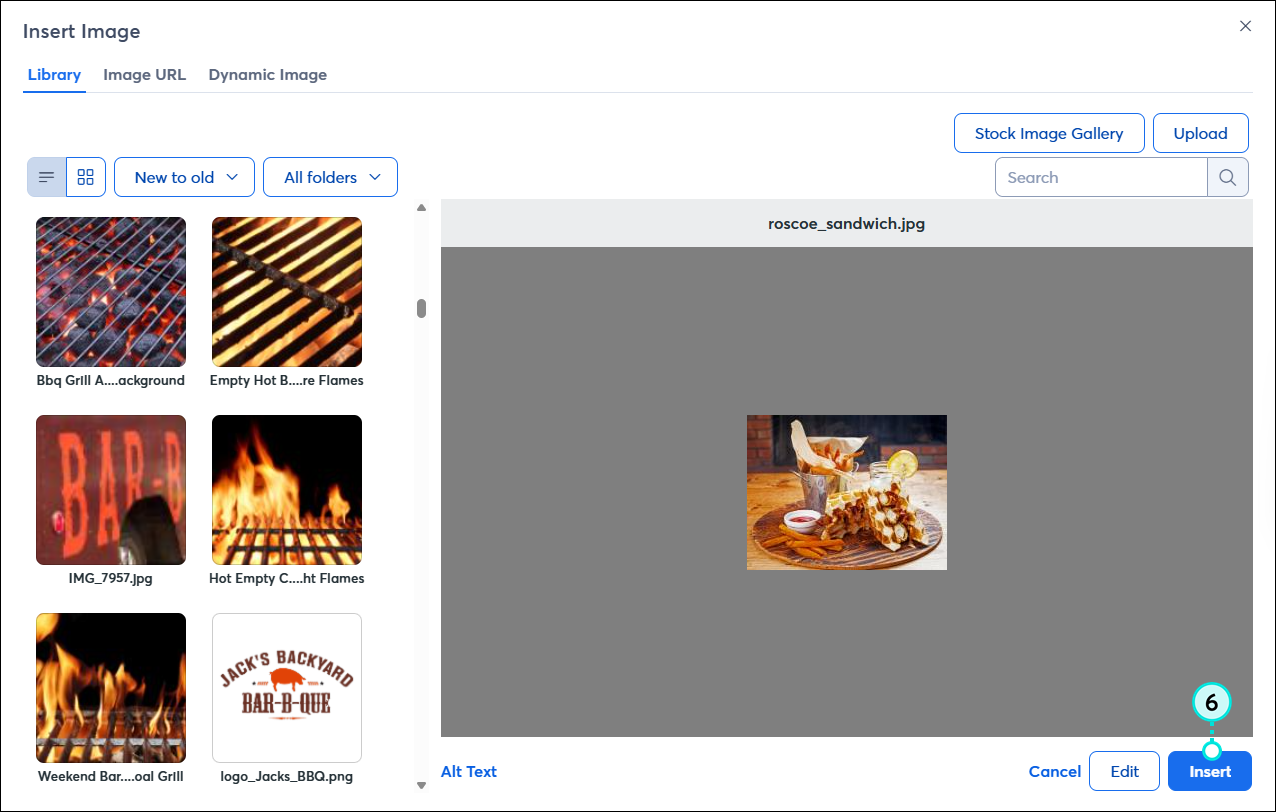
  6. Click Insert.

    Insert Image pop-up with Insert button


Light Bulb IconTip: Include an image caption as part of your email design when your image requires additional explanation. Captions can also add a little visual appeal.    


Questions?

Ask the Community

Did this article answer your question?


Constant Contact Logo

Copyright © 2026 · All Rights Reserved · Constant Contact · Privacy Center