Email and Digital Marketing
How can we help you?
Search our help articles, video tutorials, and quickstart guides

You've got this. You've got us. Search our Knowledge Base to quickly find answers to your questions.

Upload a document to your Library

Article: 000005642
Updated: October 28, 2025

Upload a PDF, Word document, Excel spreadsheet, or PowerPoint presentation to the Library

Word documents, Excel spreadsheets, PowerPoint presentations, and PDFs can be hosted in the Library and then added to a campaign. If you're uploading a PDF, you have the option to create a thumbnail image of the first page at the same time. The image is auto-generated, but you can delete it to prevent it from uploading. Word documents can be converted to PDFs before you upload them to auto-generate the thumbnail image.


    best practiceDid you know? If your file is too large to upload to your Constant Contact Library, you can host it using a third-party service, such as Google Drive or Dropbox, and then link to the file from your email.


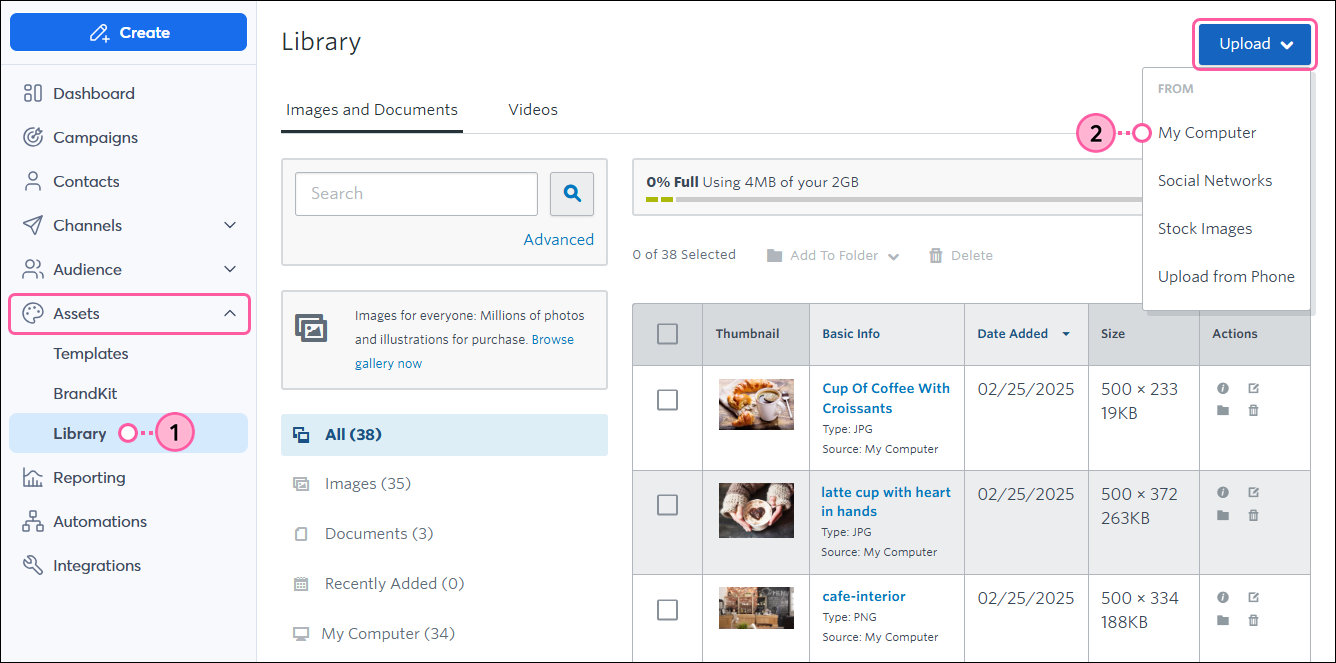
    1. Click Assets > Library.
    2. Click Upload > My Computer.

      Left navigation with Library tab, Upload button, and My Computer option
       
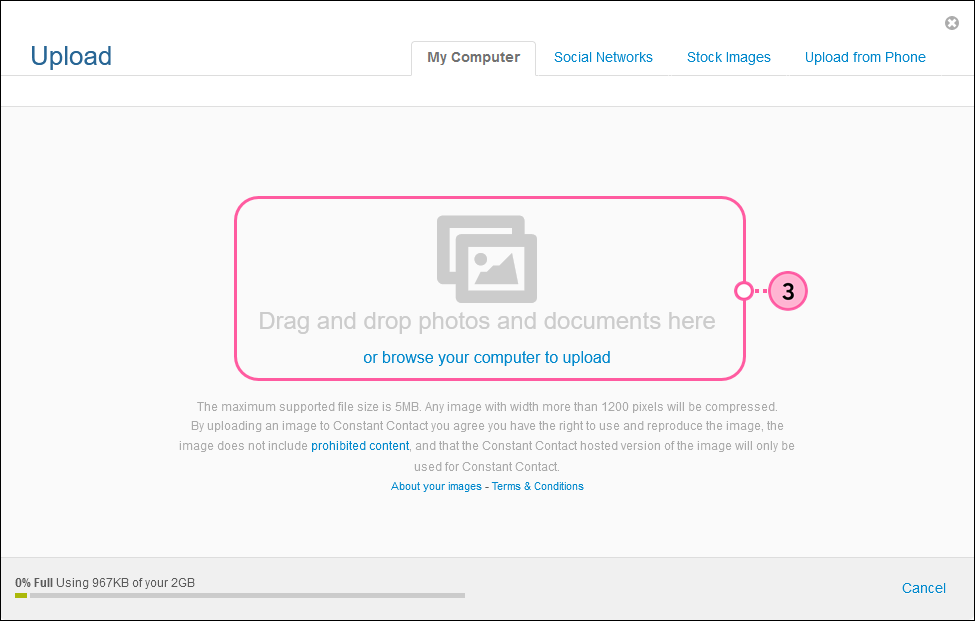
    3. Drag and drop your document from your computer, or click "or browse your computer to upload."

      Upload overlay with My Computer tab selected, drag and drop photos and documents here instructions, and or browse your computer to upload link
       
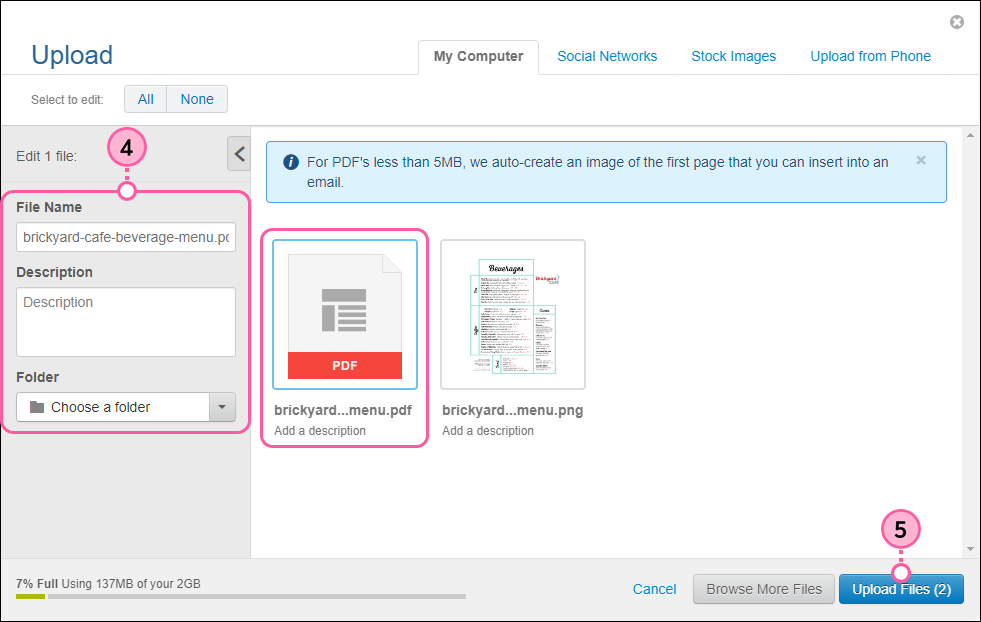
    4. (Optional) Click on the document to edit the file name, add a brief description, or add the document to a Library folder. 
    5. When finished, click Upload Files.

      Upload overlay with PDF and PNG files, PDF document selected, file name, description, and folder options, and Upload Files button
       
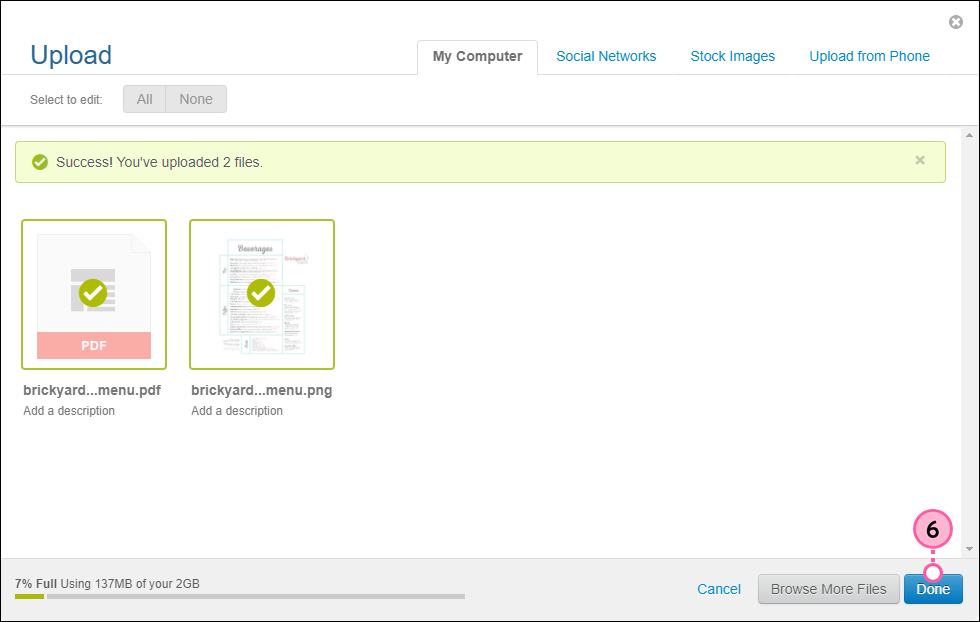
    6. Click Done to return to your Library.

      Files uploaded success message and Done button
       

    Now you can insert a link to your document in a campaign or turn a thumbnail image of your document into a clickable link.


    Exclamation point iconImportant: The URL provided for images and documents hosted in the Library are intended for use within Constant Contact emails only. Any use outside of Constant Contact is a violation of our terms.

    Any links we provide from non-Constant Contact sites or information about non-Constant Contact products or services are provided as a courtesy and should not be construed as an endorsement by Constant Contact.


    Questions?

    Ask the Community

    Did this article answer your question?


    Constant Contact Logo

    Copyright © 2026 · All Rights Reserved · Constant Contact · Privacy Center