Email and Digital Marketing
How can we help you?
Search our help articles, video tutorials, and quickstart guides

You've got this. You've got us. Search our Knowledge Base to quickly find answers to your questions.

Make it easy for contacts to forward your email to a friend

Article: 000040536
Updated: November 11, 2025

Insert a Share button in your email so contacts can easily send it to others via email


When you insert a Social Share block in an email, in addition to giving your contacts the option to share your email on their social media pages, like Facebook, X (formerly known as Twitter), and LinkedIn, you can also include an option for them to share your email with others directly from their inbox. Giving your contacts the ability to share your email helps to extend the reach of your message and could result in new subscribers!
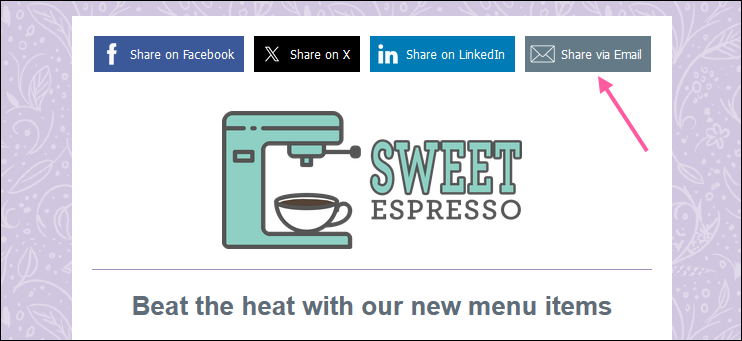
Email example with Share via Email button


While editing your email:

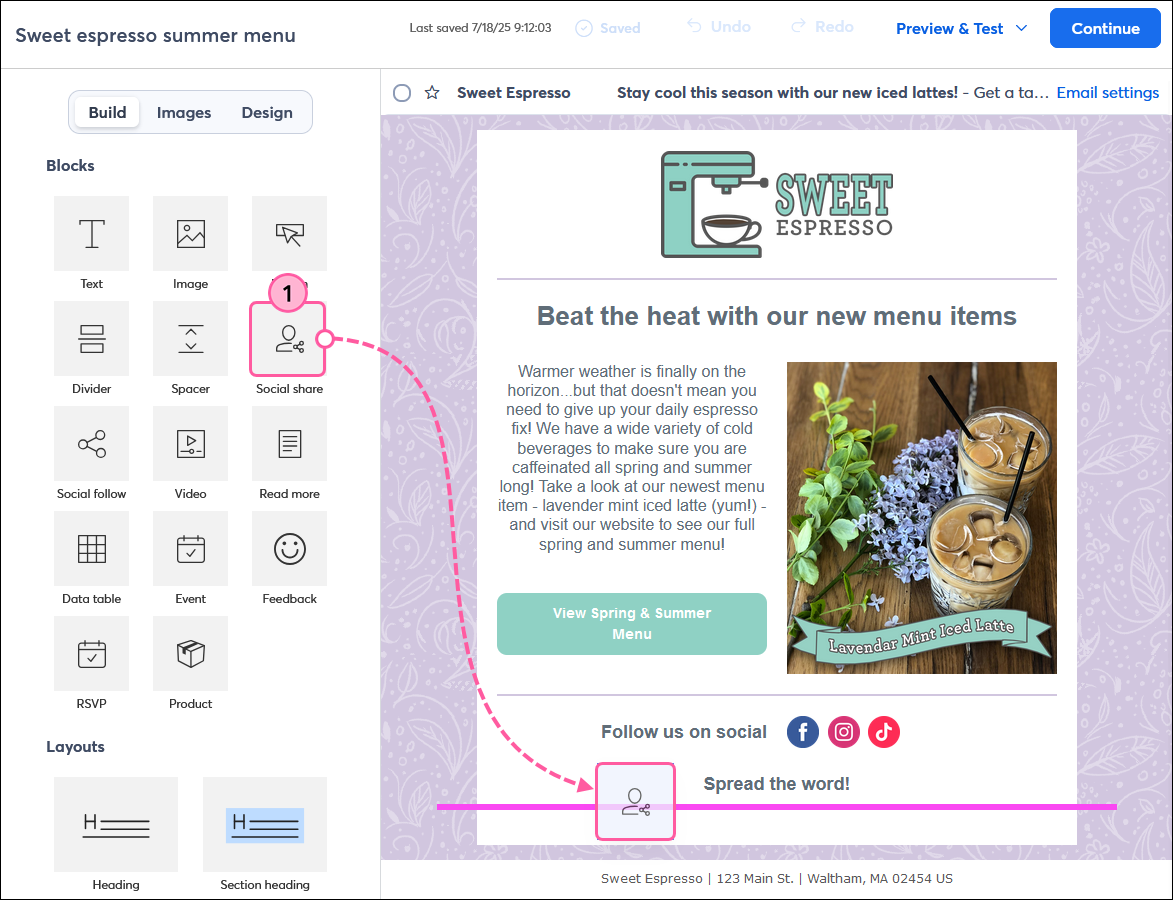
  1. Drag-and-drop or click-and-stick the Social Share block into your template, using the pink guideline to help you find the right spot.

    Build tab and Social Share block
     
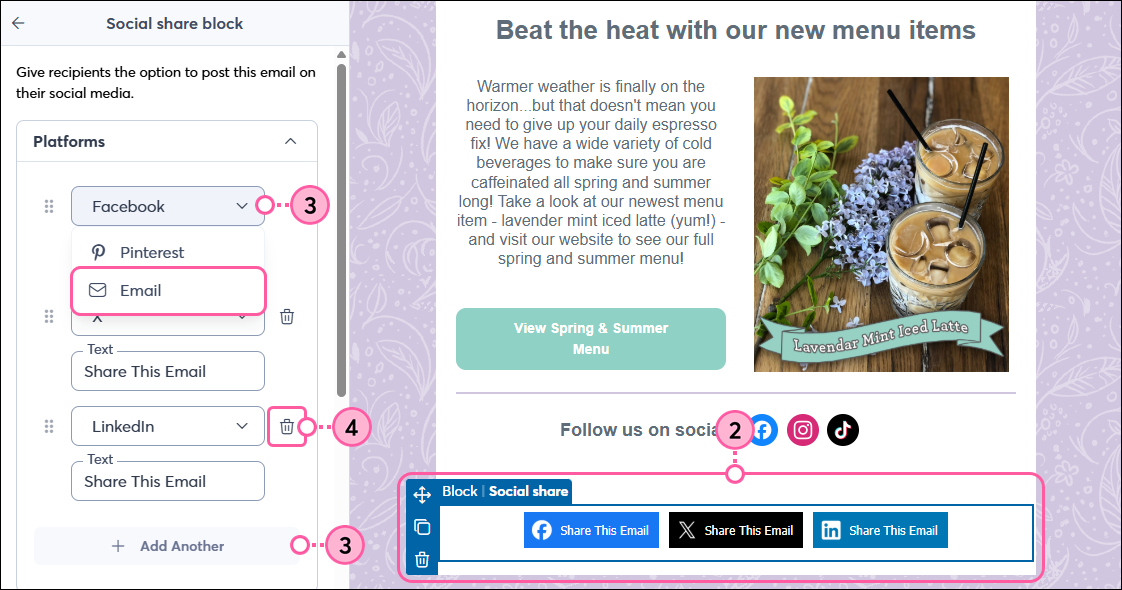
  2. Click on the Social Share block to open the left-hand panel.
  3. By default, the Social Share block includes buttons to share your email on Facebook, X, and LinkedIn. Click Add Another > Email to add a button for sharing via email, or click the drop-down for one of the default networks and select Email to replace it.
  4. (Optional) Click the trash can icon next to any network you want to remove.

    Social Share block panel with Platform drop-down and Email option, Add Another button, and Trash can icon

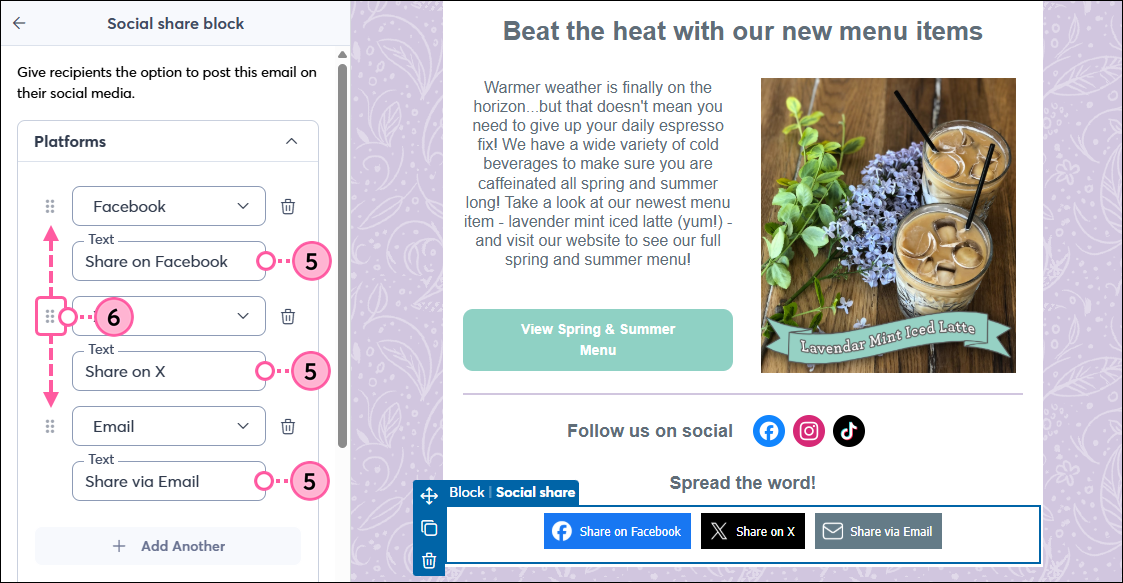
  5. (Optional) Update the text that displays on each button. 
  6. (Optional) Change the order in which the buttons appear in your email by clicking the stacked dots and dragging them up or down to a new location.

    Social Share block panel with button text fields and stacked dots to drag and button text fields
     
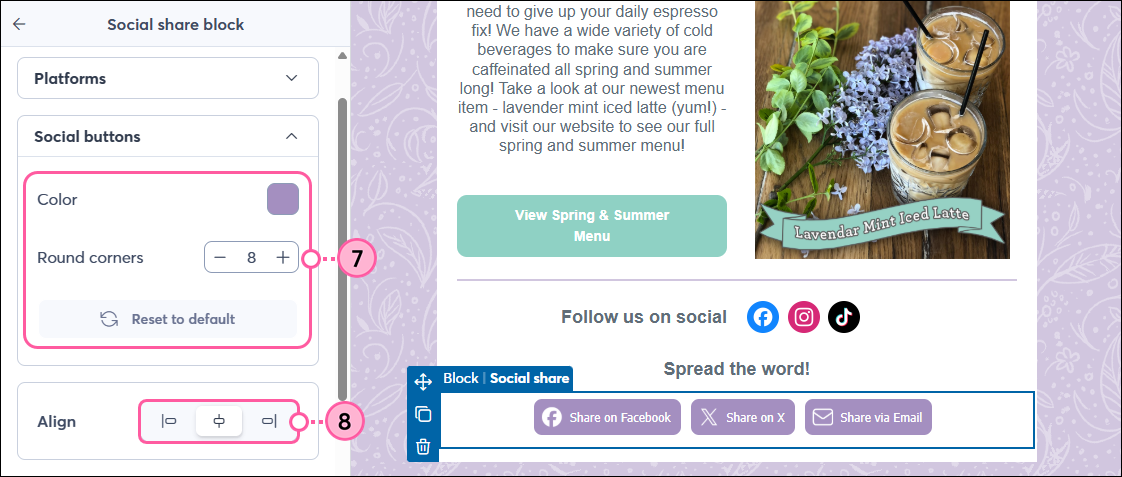
  7. (Optional) In the Social buttons section, choose a color for the Social Share buttons in your email and adjust the Round corners amount if you want to make the buttons rounded. Click "Reset to default" to undo your changes.
  8. (Optional) Change the alignment of the buttons.

    Social Share block panel with Social Buttons section, color and round corners options

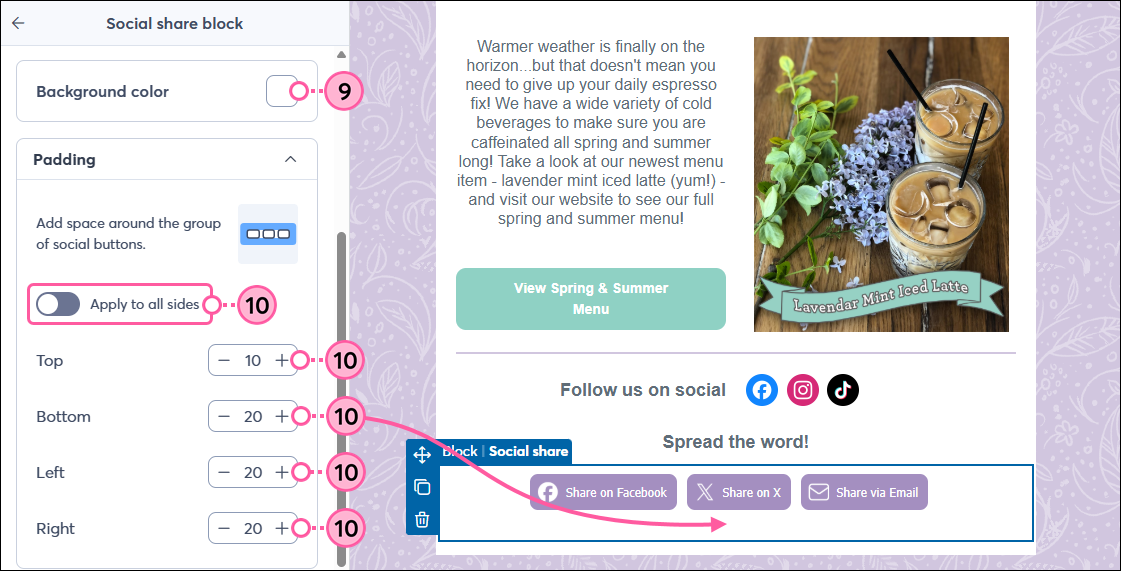
  9. Click the Background color swatch to choose a background color for the Social Share block.
  10. In the Padding section, you can adjust the space around each side of the button group, or click the toggle to apply the same amount of padding to all sides.

    Social Share block panel with Background Color and Padding options
     

Once you're done, simply click outside of the Social Share block to continue editing your email.

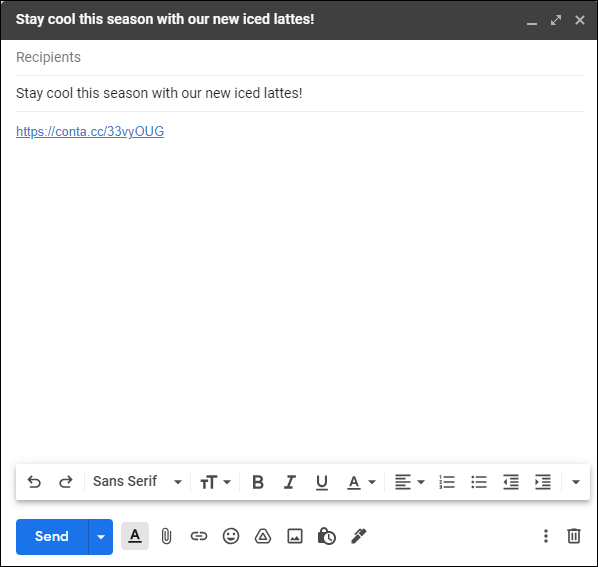
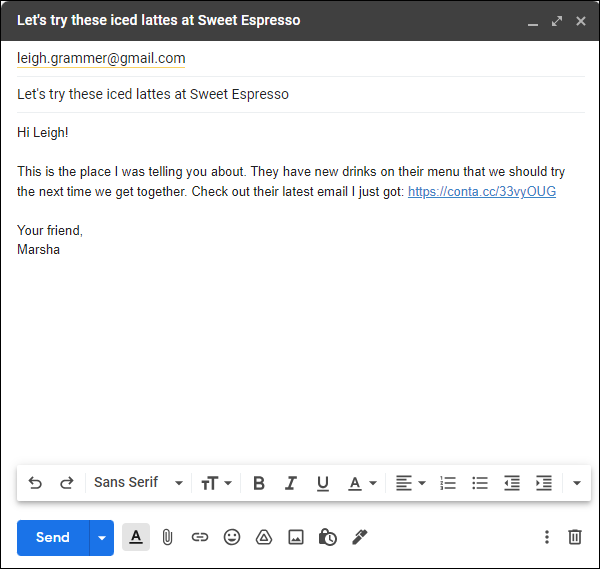
When contacts click the Share via Email button in your email, a new message will open in their email client with your subject line and the permanent link for your campaign automatically included in the message body. They’ll then be able to customize the rest of the message and send it to their friends’ email addresses.
 

Example default email forward draftExample email forward draft with customized message
Example of a draft forwarded email with the default subject line and message with permanent email linkExample of a draft forwarded email with customized subject line and message with permanent email link


Because the email forward shares the permanent link for the sent campaign, the Share via Email button in your email won’t work properly when previewing or sending a test email. If you want to test the email forward functionality, make a copy of the email and send it to your email address. 

Note: Clicks on the Share via Email button, as well as clicks on the permanent link for your email, aren't trackable and will not be included in the click reporting for your email. 


Questions?

Ask the Community

Did this article answer your question?


Constant Contact Logo

Copyright © 2026 · All Rights Reserved · Constant Contact · Privacy Center