If you have an Eventbrite account, take advantage of our Eventbrite integration to make event marketing even easier! When you sync your Eventbrite account to your Constant Contact account, you can select which events to import contacts from, allowing you to send targeted emails to your registrants based on the events they're attending.
Get started by connecting your Eventbrite account to your Constant Contact account and then importing contacts. You can disconnect your Eventbrite account at any time and connect a different one, if need be.
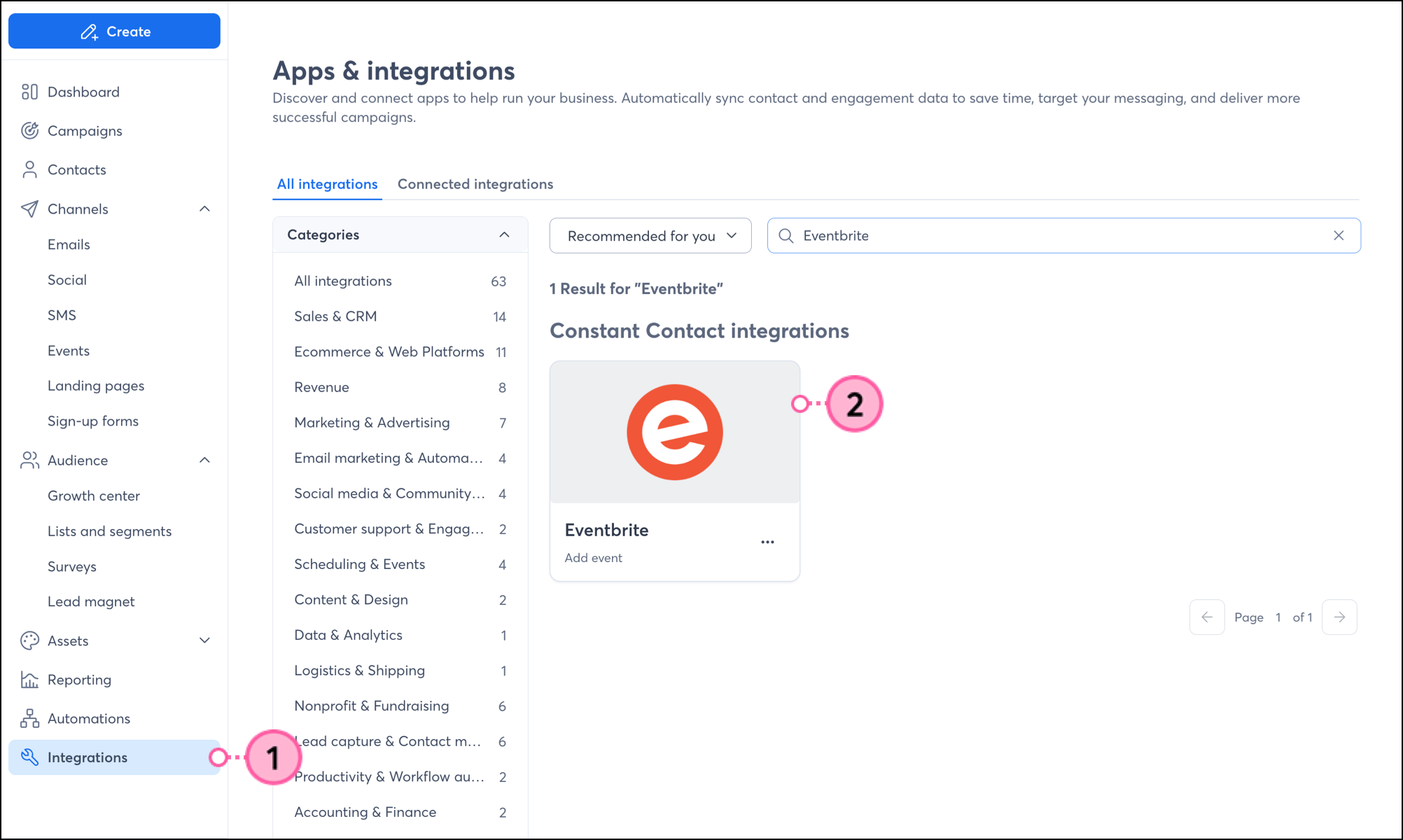
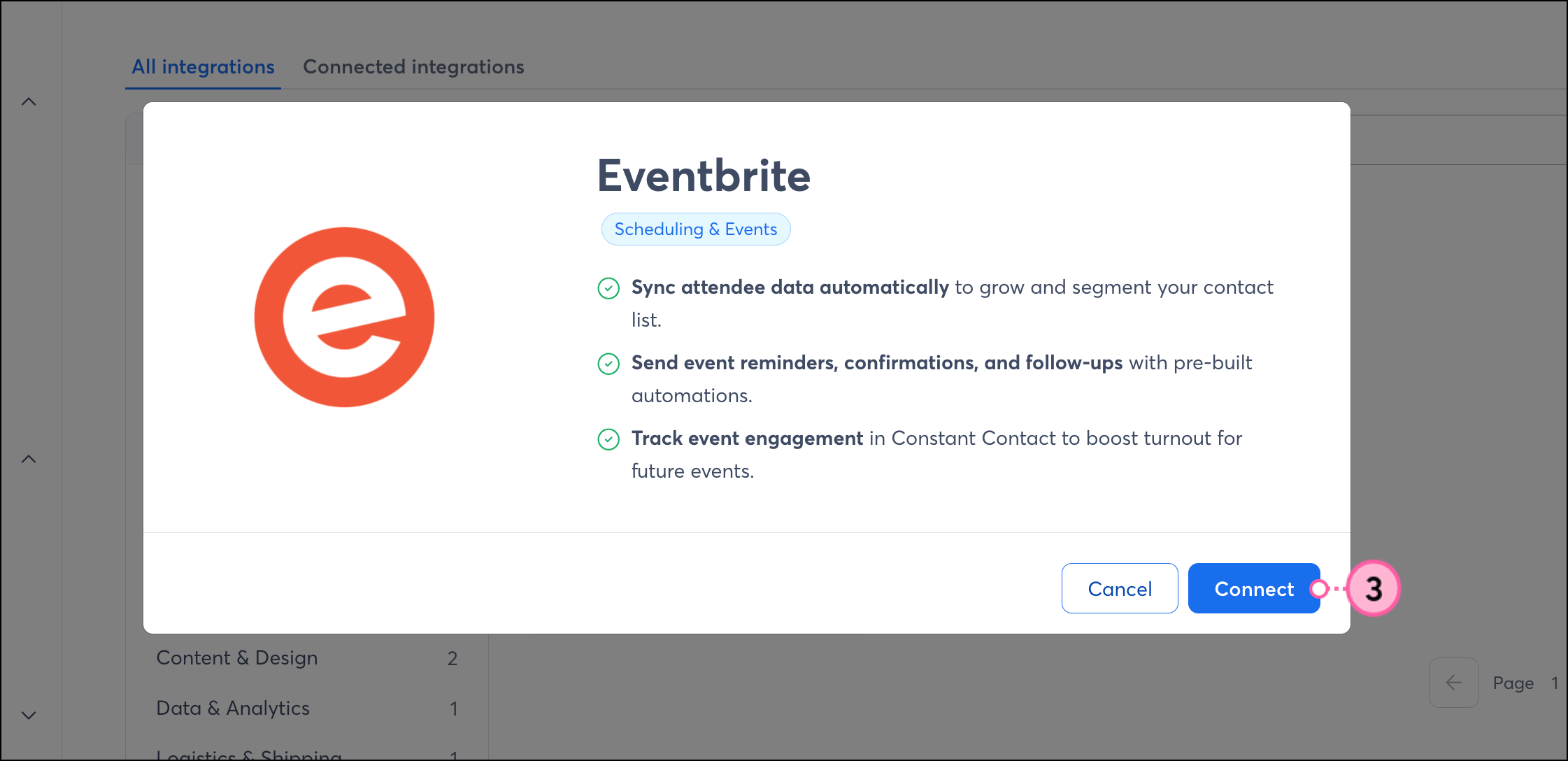
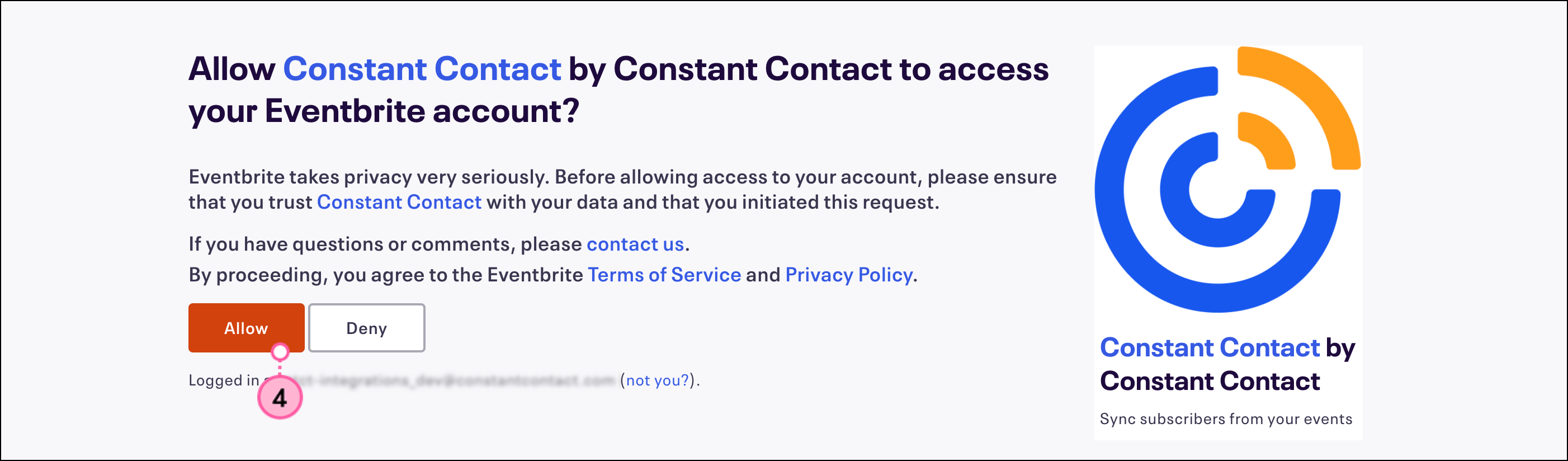
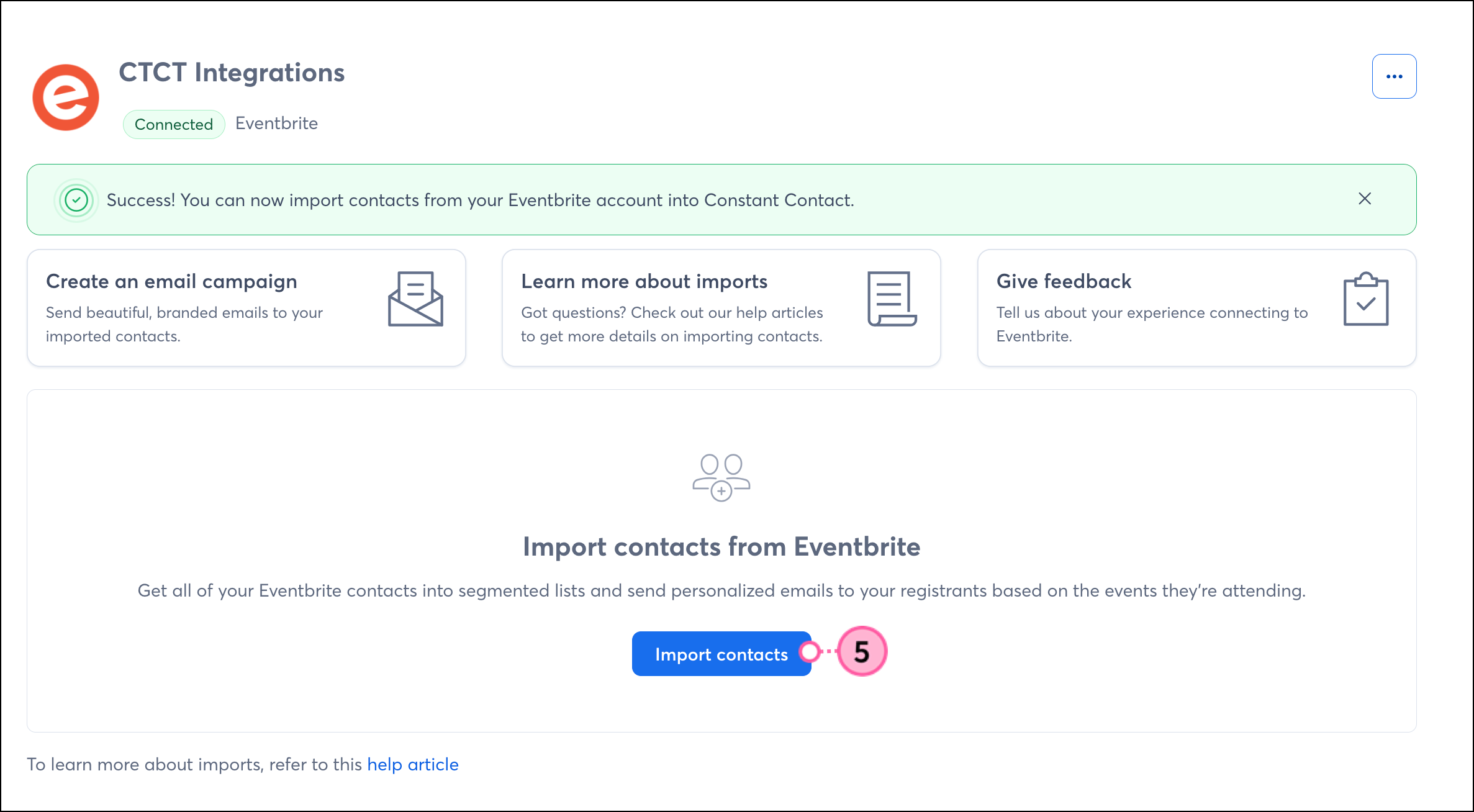
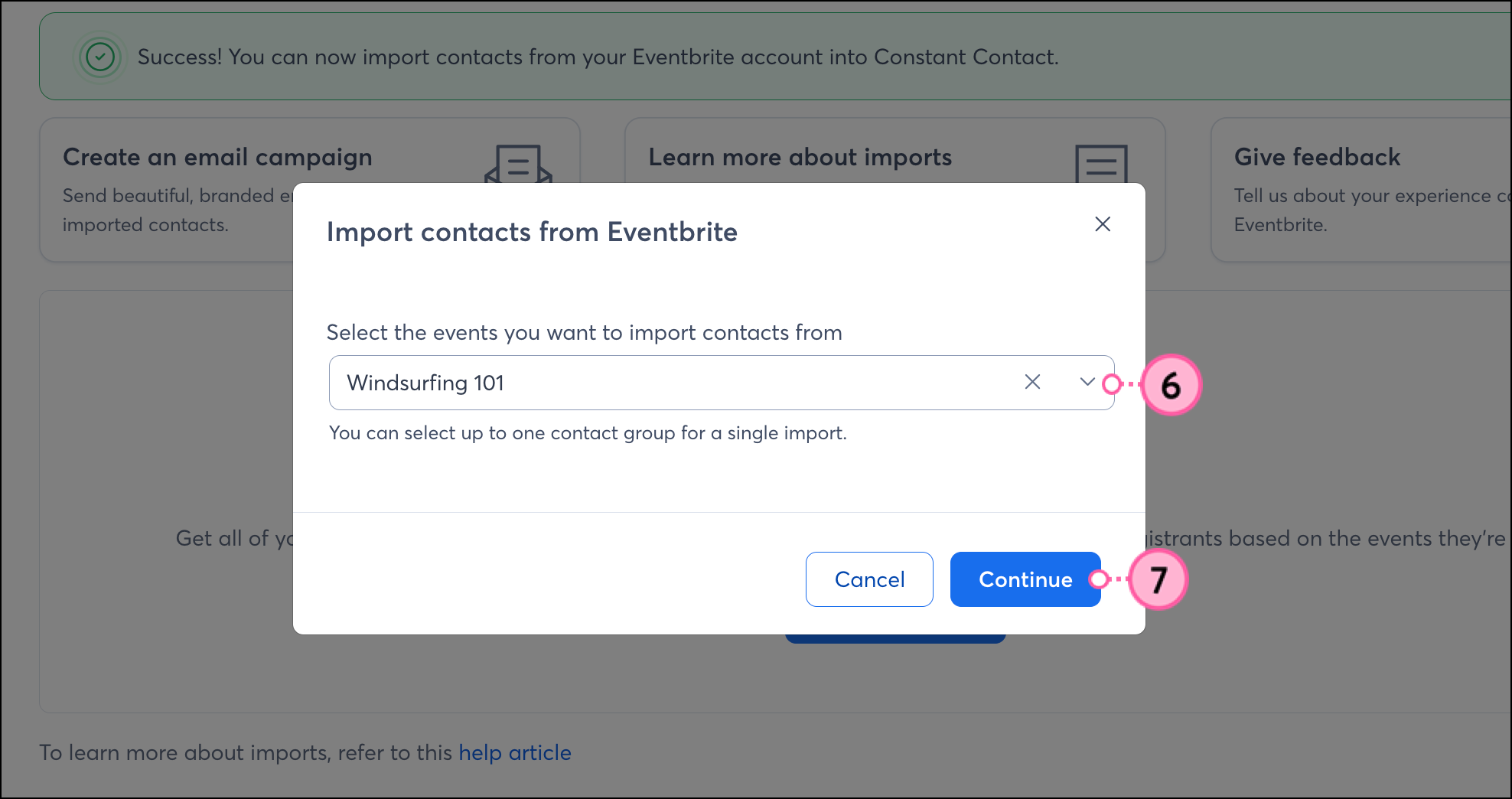
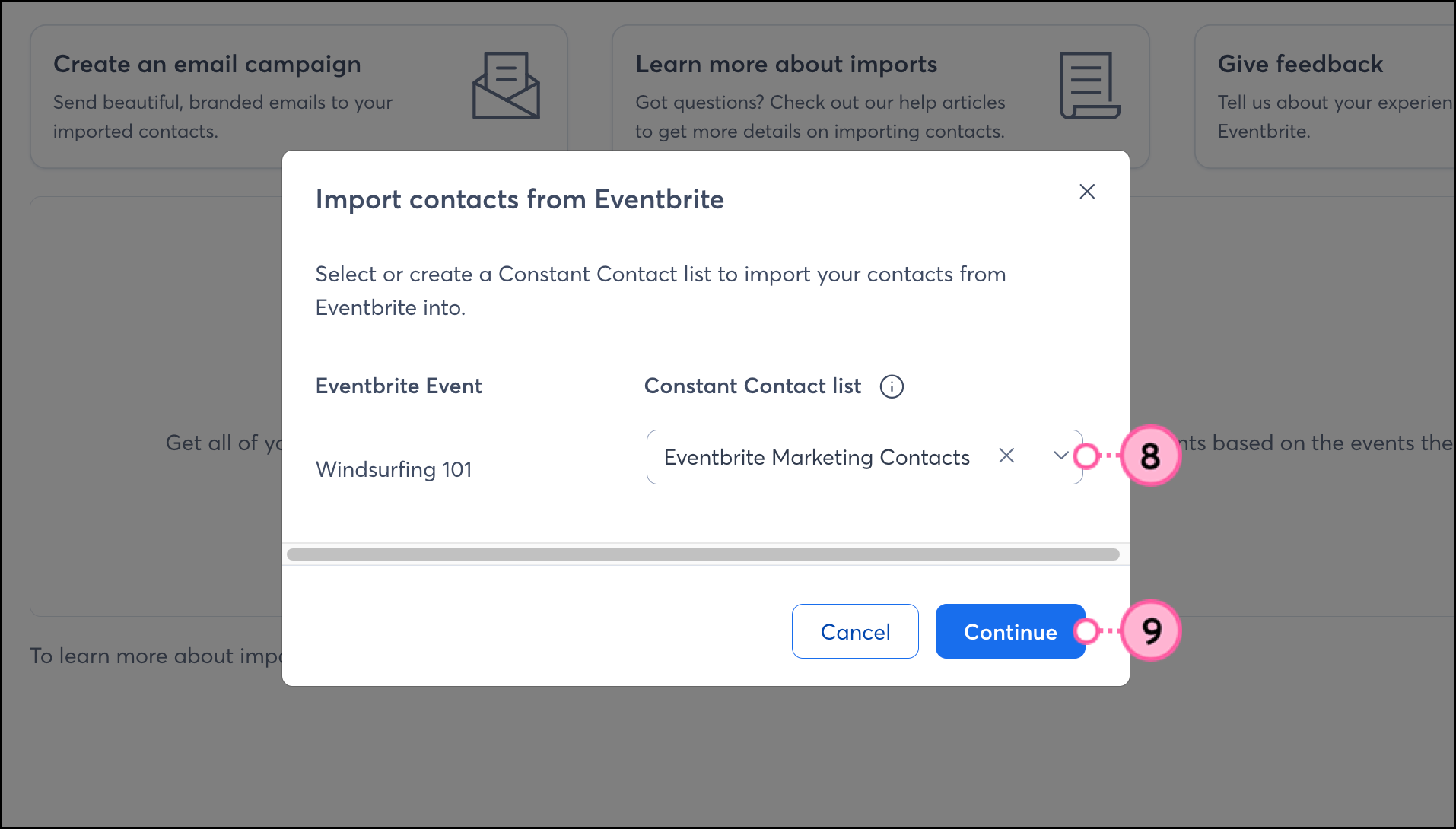
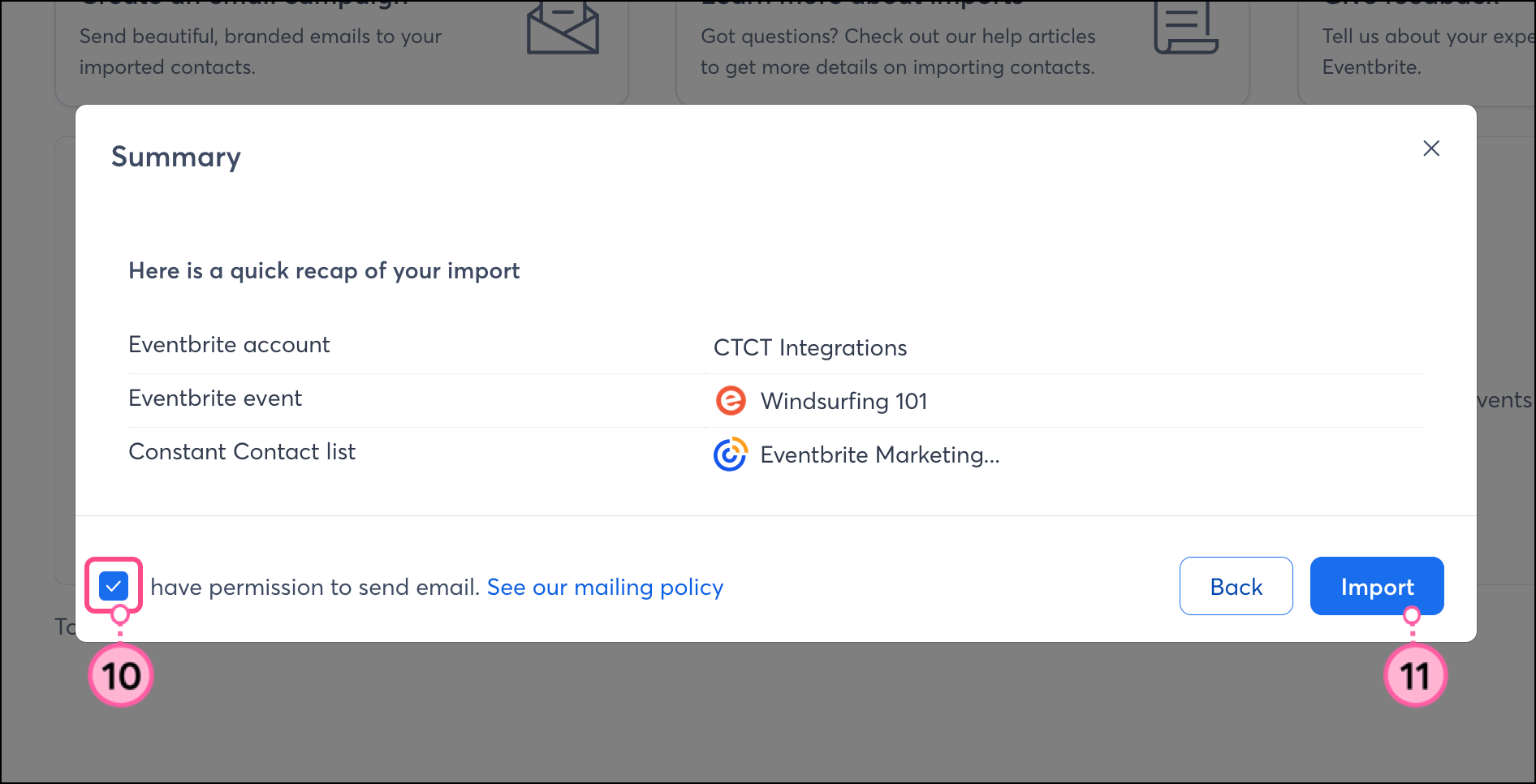
You are brought to the Eventbrite integration dashboard, where you'll see an import confirmation message indicating how many contacts were successfully imported.
 | Important: After you sync contacts from Eventbrite into Constant Contact for a particular event, any new registrants for that event thereafter will not automatically sync. You will need to run "Import Contacts" again to pull those new contacts into Constant Contact manually. |
Not an Eventbrite customer, but interested in using this integration? Compare plan and pricing information on Eventbrite's website and create an account.
If you have multiple Eventbrite accounts and would like to change the account you have connected to Constant Contact, you'll first need to disconnect the account currently connected.
Click Integrations.
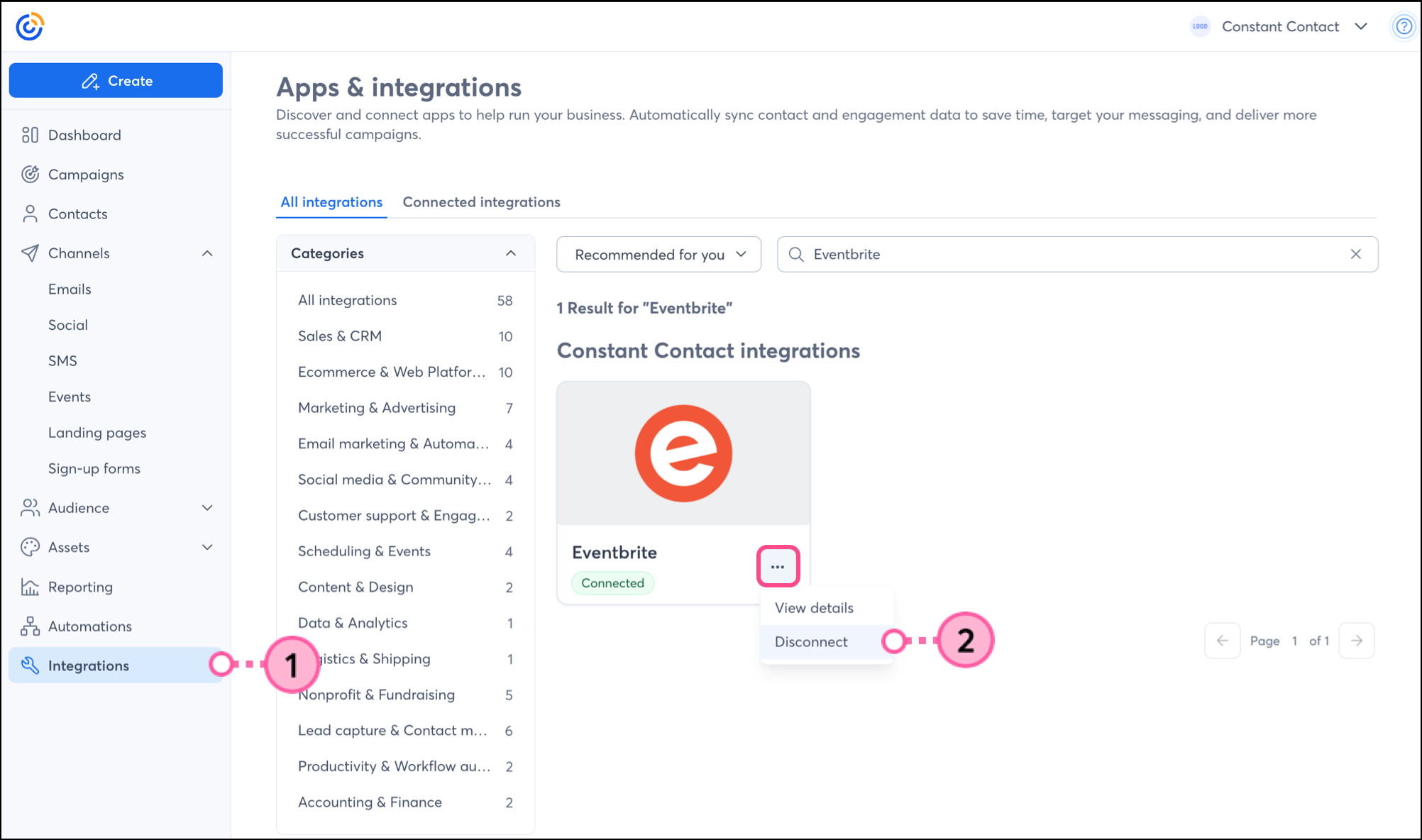
Once the account is disconnected, you can connect a different Eventbrite account to Constant Contact. Existing contacts and lists will remain in your account.
Once your Eventbrite account is synced with Constant Contact, you can use the integration in several ways throughout your Constant Contact account.
When importing contacts from Eventbrite, you can choose which events to sync, allowing you to create segmented lists within your Constant Contact account. But you may want to segment these contacts even further to send specific, targeted messaging. You can create a custom segment of contacts.
Create personalized automated communications via email and SMS for your customers based on their actions, including welcome emails, thank you series, requests for review, and more.
Any links we provide from non-Constant Contact sites or information about non-Constant Contact products or services are provided as a courtesy and should not be construed as an endorsement by Constant Contact.
Copyright © 2026 · All Rights Reserved · Constant Contact · Privacy Center