 | Important: The WordPress Forms plugin can display a maximum of 100 contact lists. If you have more than 100 lists in your Constant Contact account, your newest lists are shown first. This doesn't prevent you from creating new lists from within WordPress. |
Once you've installed the Constant Contact Forms plugin in your WordPress account, you can import your Constant Contact lists or create new lists that will sync in your Constant Contact account. You can see the total number of contacts for each list in your WordPress account, but you can only view the detailed contact information from within your Constant Contact account.
The lists from your Constant Contact account are automatically synced the first time you install the WordPress plugin and are synced approximately every 12 hours. If you create new lists in your Constant Contact account and don't see them as options when you create a new form, you can perform a manual sync.
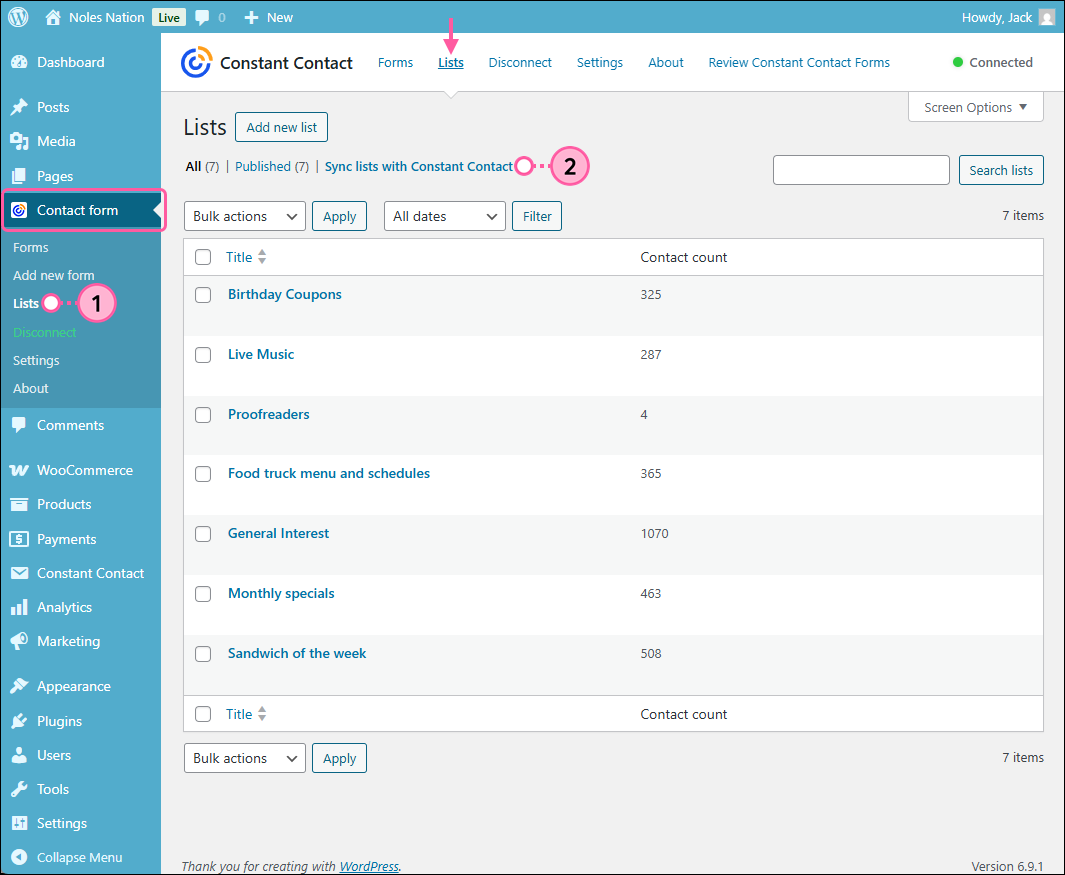
There isn't a confirmation message when this is complete, but it doesn't take long to sync. Lists sync automatically approximately every 15 minutes.
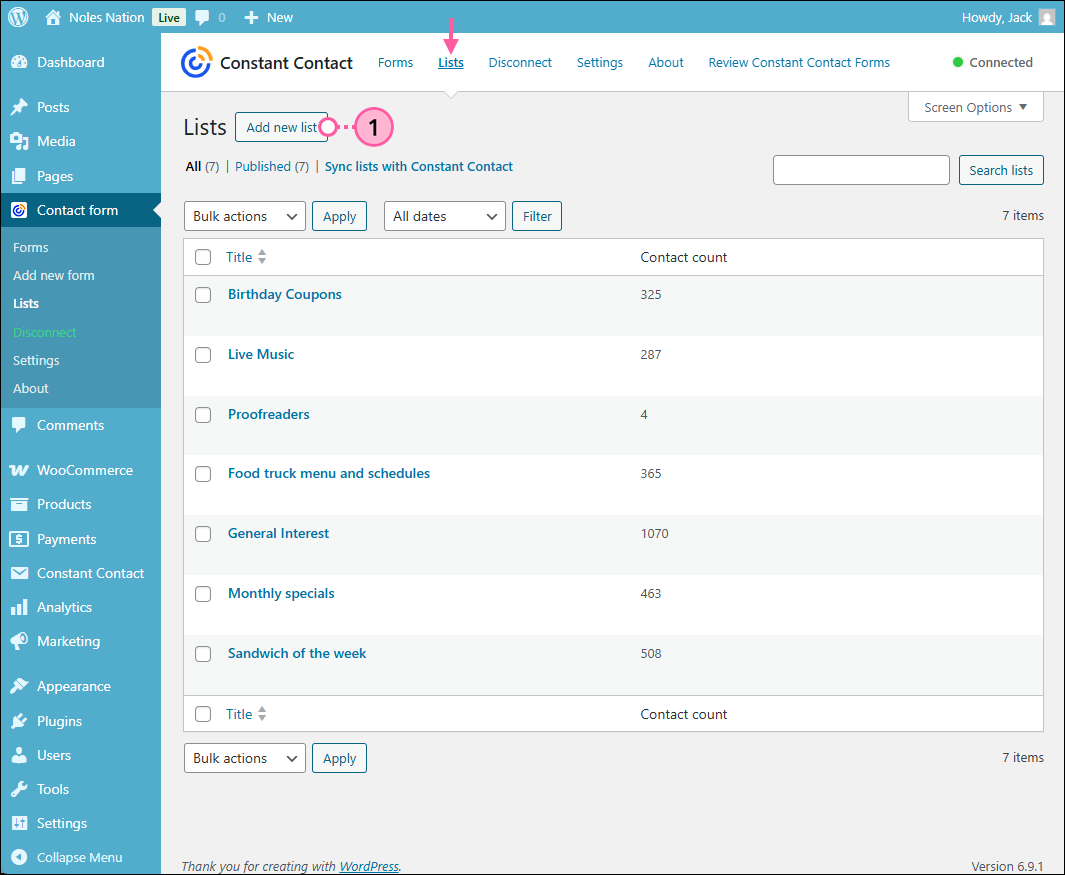
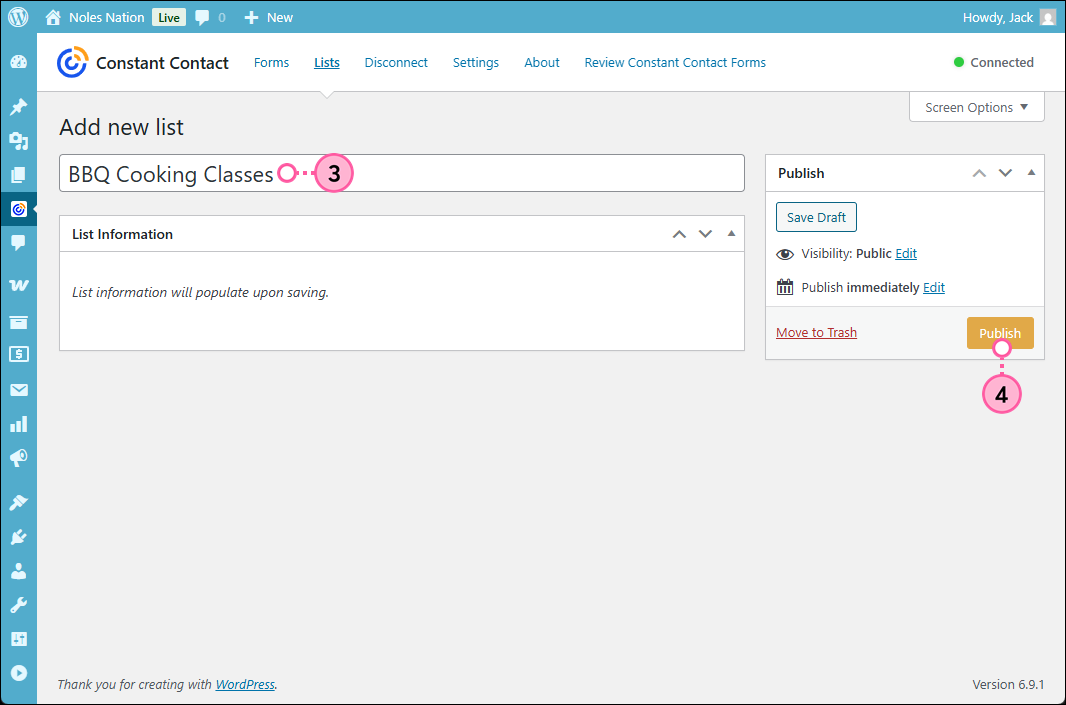
Anytime you add a new list through the WordPress Form plugin, it automatically syncs with your Constant Contact account.
Deleting a contact list within the WordPress plugin also removes it from your Constant Contact account, but doesn't delete the contacts that are on the list. If you want to delete the contacts with the list, delete the list from your Constant Contact account instead.
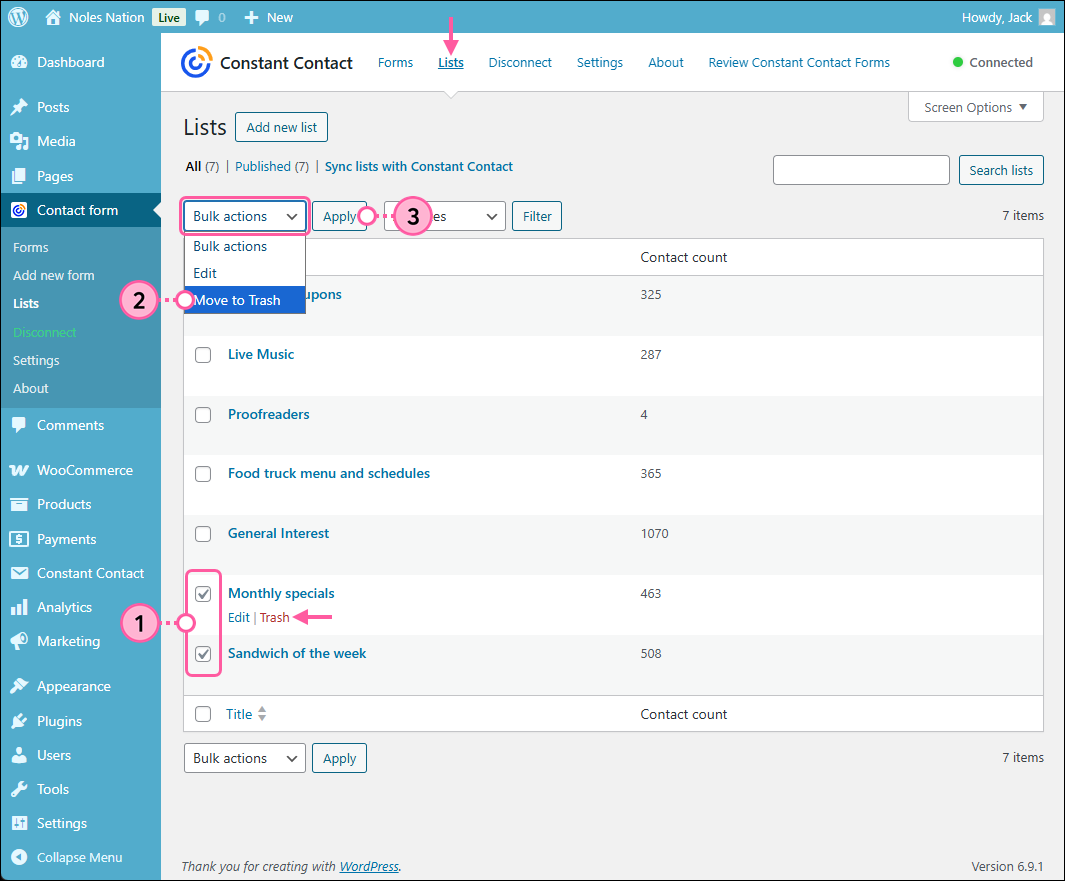
Lists that are in the Trash can be either restored or deleted permanently.
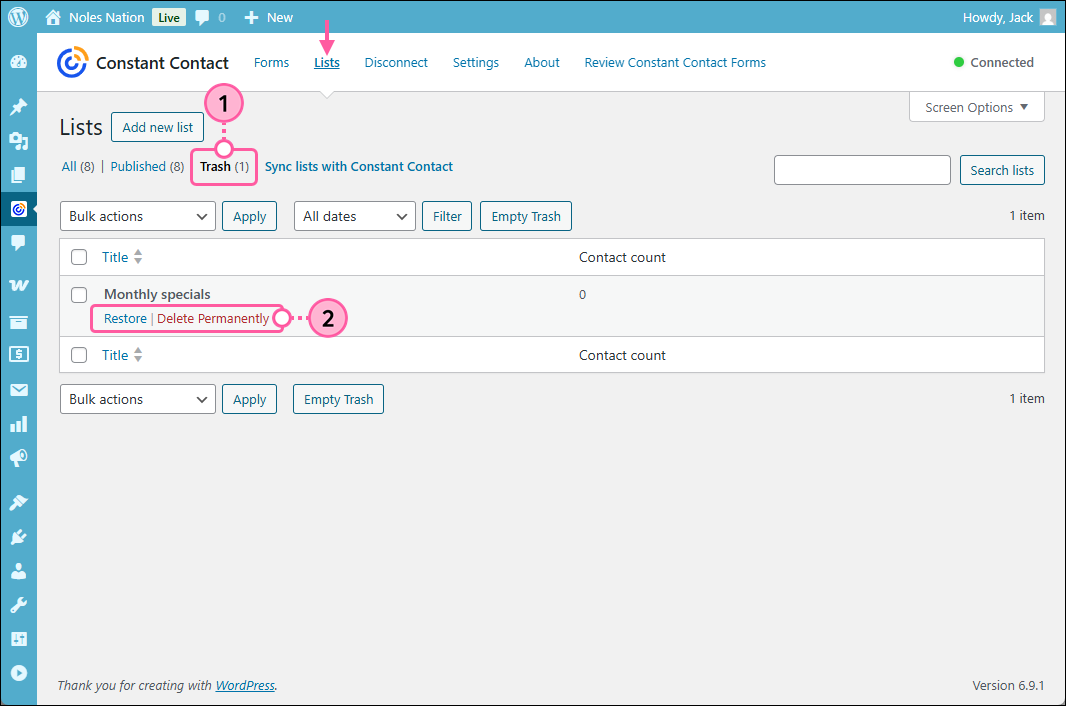
| Important: Restored lists don't retain their original contacts. Contacts can be added to the empty list from within your Constant Contact account and the contact count updates after the next list sync. Permanently deleted lists can be restored, but you can always create a new list to replace it, if needed. |
Copyright © 2026 · All Rights Reserved · Constant Contact · Privacy Center