Whether you have an organized spreadsheet or a bowl full of business cards, it’s easy to add your contacts to an email list! This guide will go over all the ways you can add contacts to your Constant Contact account:
Once you've added your contacts, you'll update and create lists as you develop your email marketing campaigns. Be sure to download our Segmenting and Managing Your Contacts guide to keep your engagement high and your account clean and manageable.
 | Download our guide: Want to be able to reference this later? You can download the guide to view and save it as a PDF. |
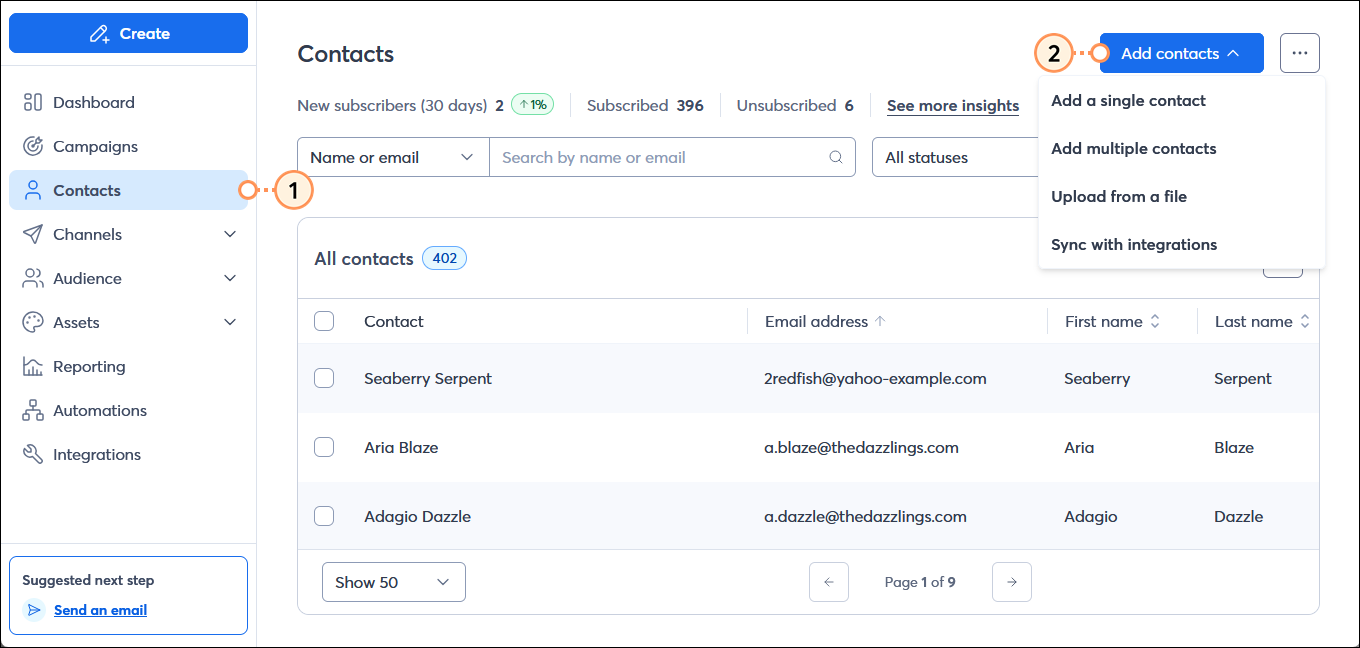
From your contacts dashboard, you can add your contacts and do so much more!
 | Get permission: In order to be compliant with Constant Contact's email permission policy as well as CAN-Spam, and GDPR and CASL regulations, you need to have permission to send email to your contacts. |
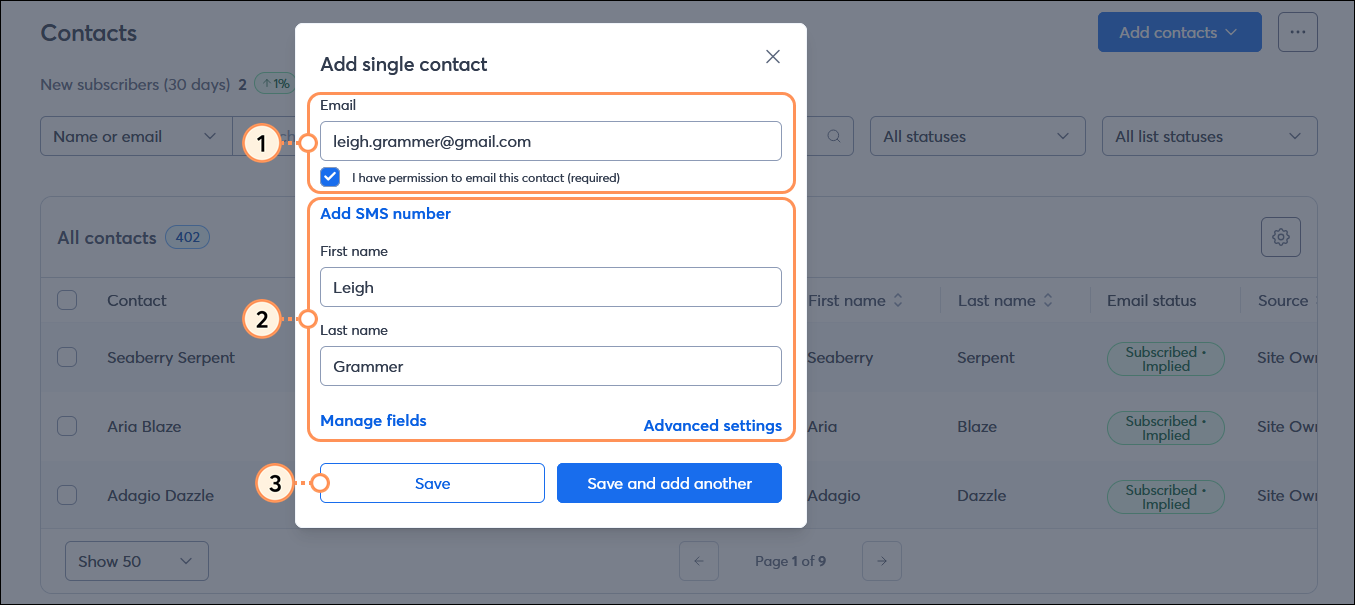
If you have just a single contact to add to your account, you can easily enter the new contact’s details manually.
 | Save time: If you have more than 20 contacts to add, or you collect more than just contact names and email addresses, we recommend using a spreadsheet and uploading them from a file instead. |
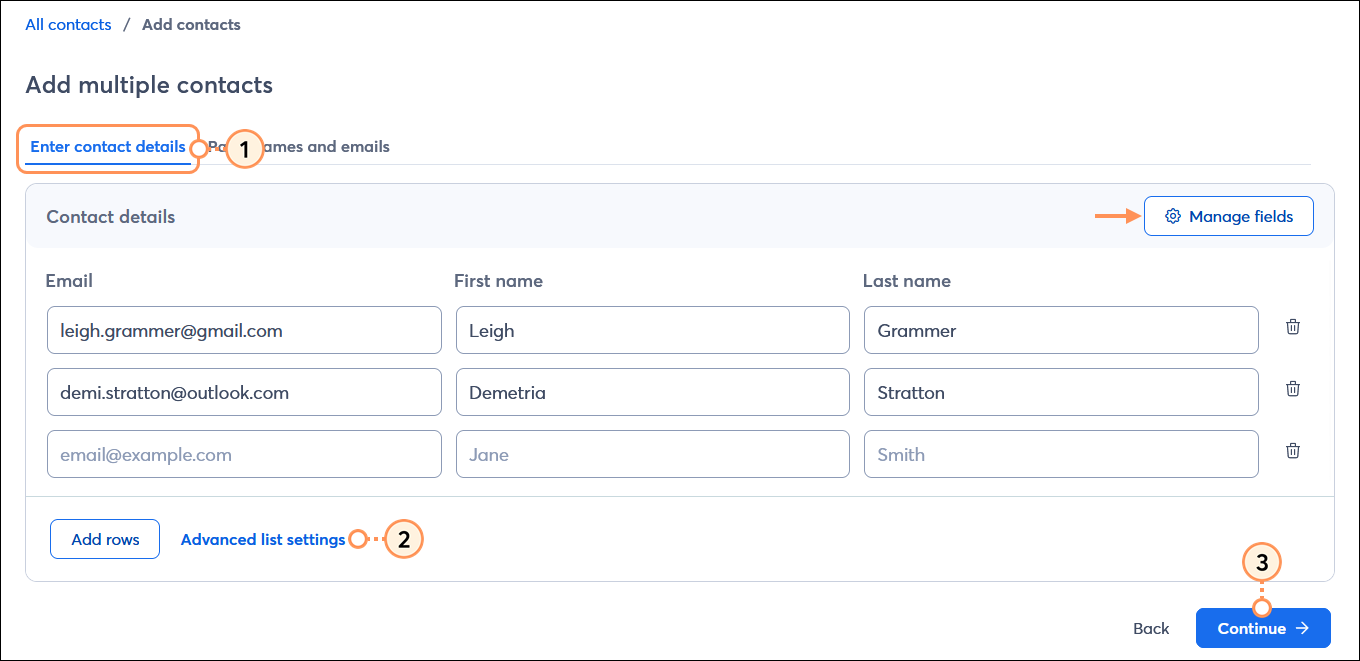
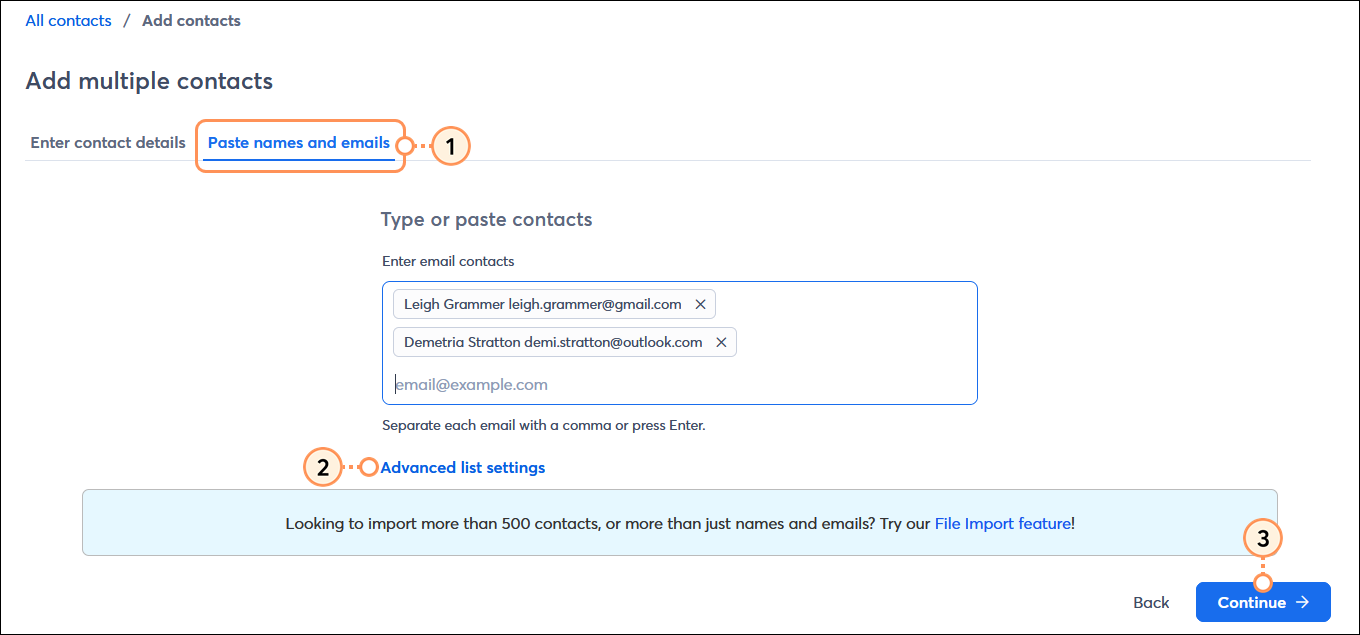
You can add a small group of contacts to your account by typing them in individually or pasting them all at once.
| Save time: Before you upload, make sure that your file is formatted properly. Don’t worry about any duplicates in your spreadsheet because we take care of those for you! |
If your contacts are stored in an .XLS, .XLSX, .CSV, .VCF, or plain text file, you can easily import them.
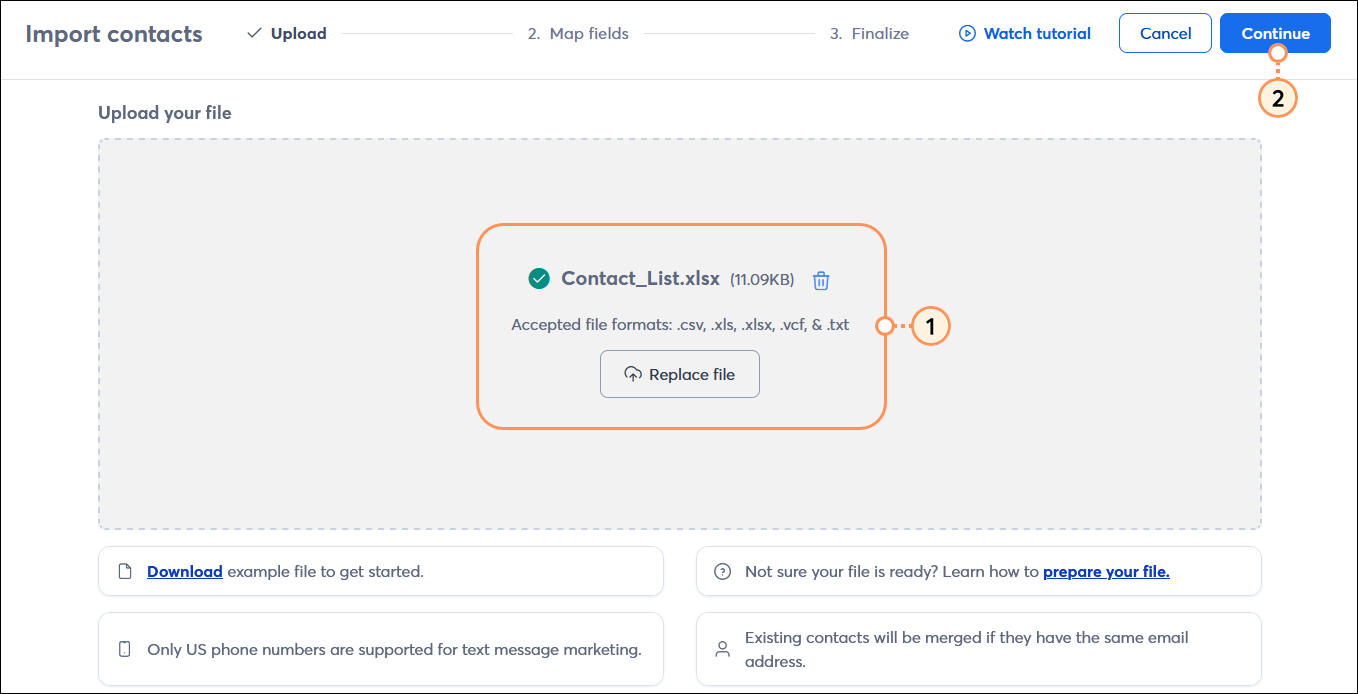
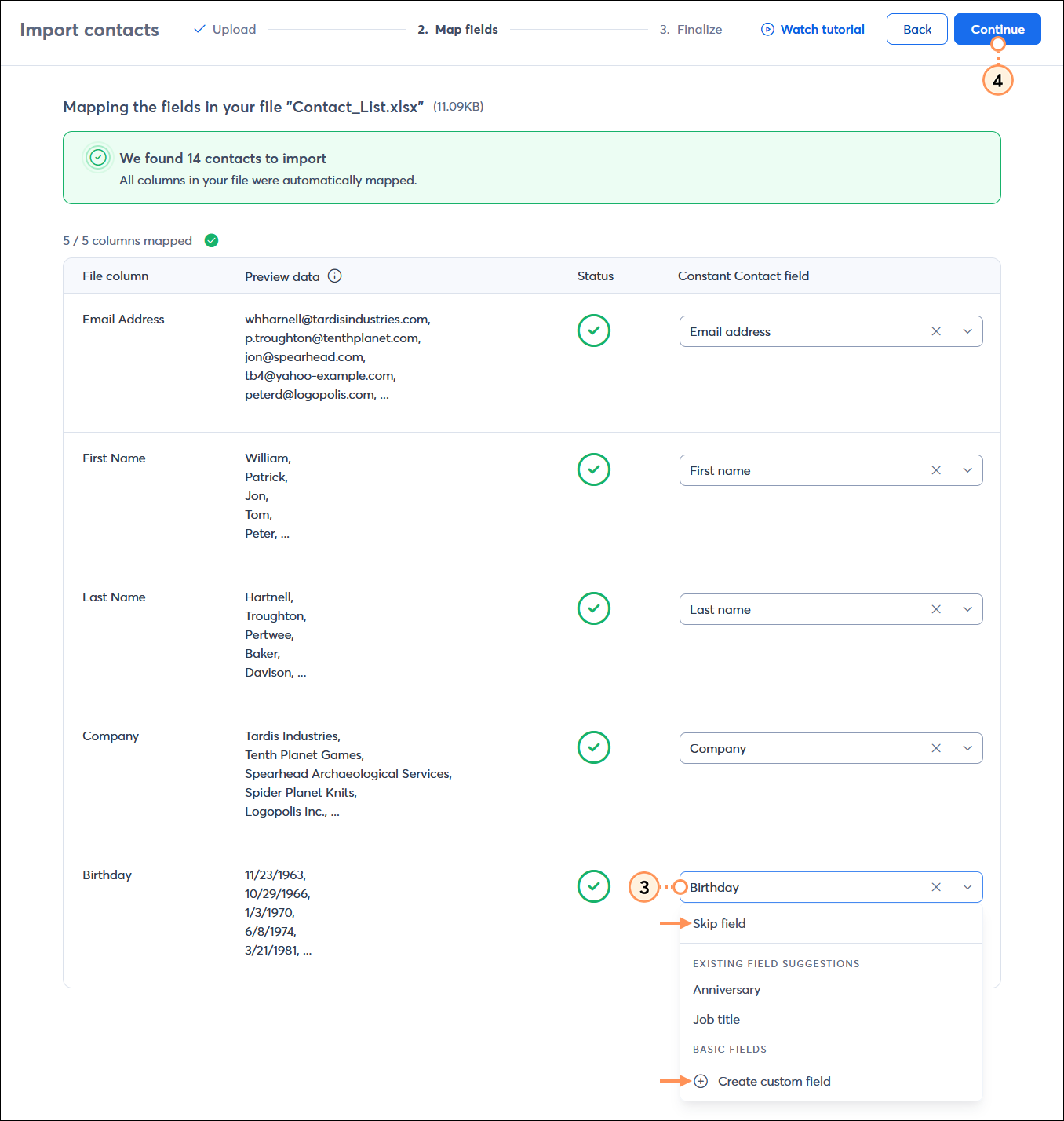
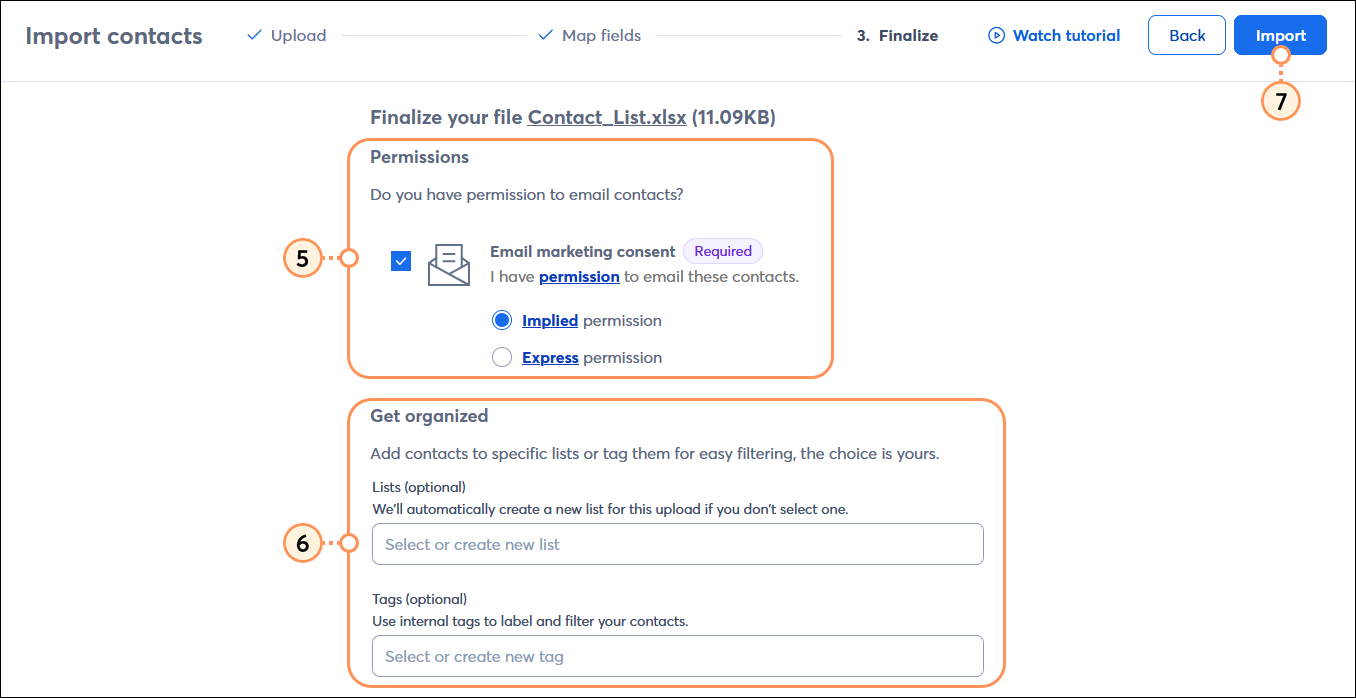
 | Did you know? As you're getting ready to upload your file, make sure to review the common questions and issues people run into to make sure your import goes as smoothly as possible! |
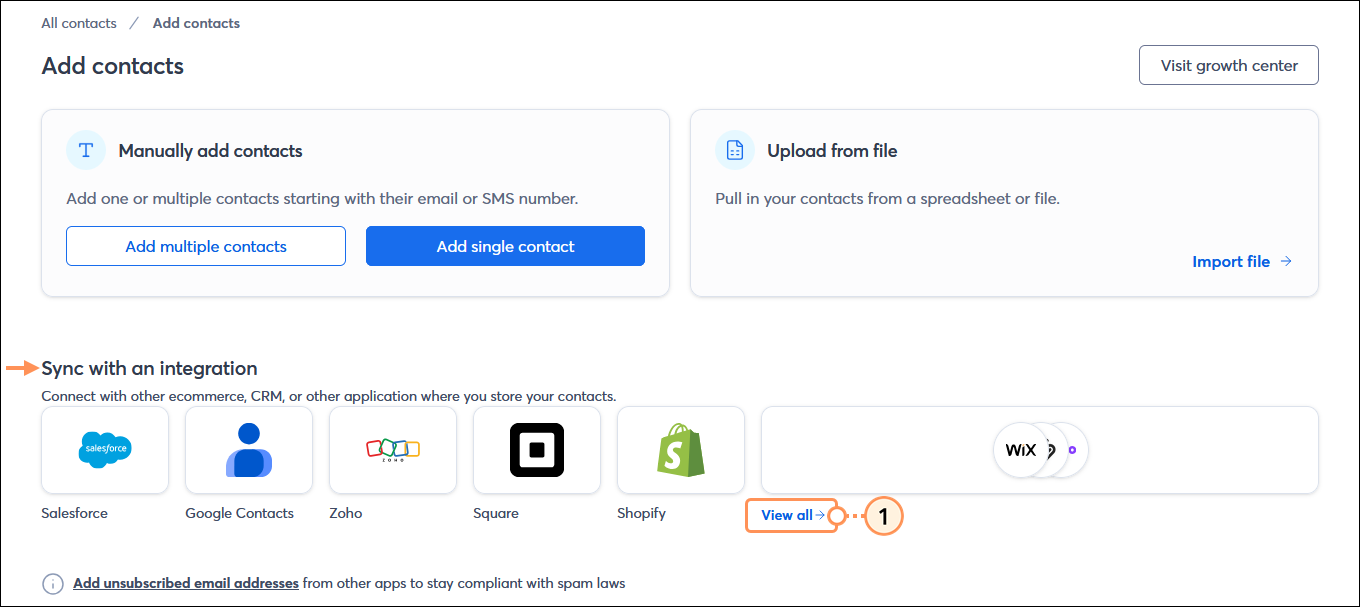
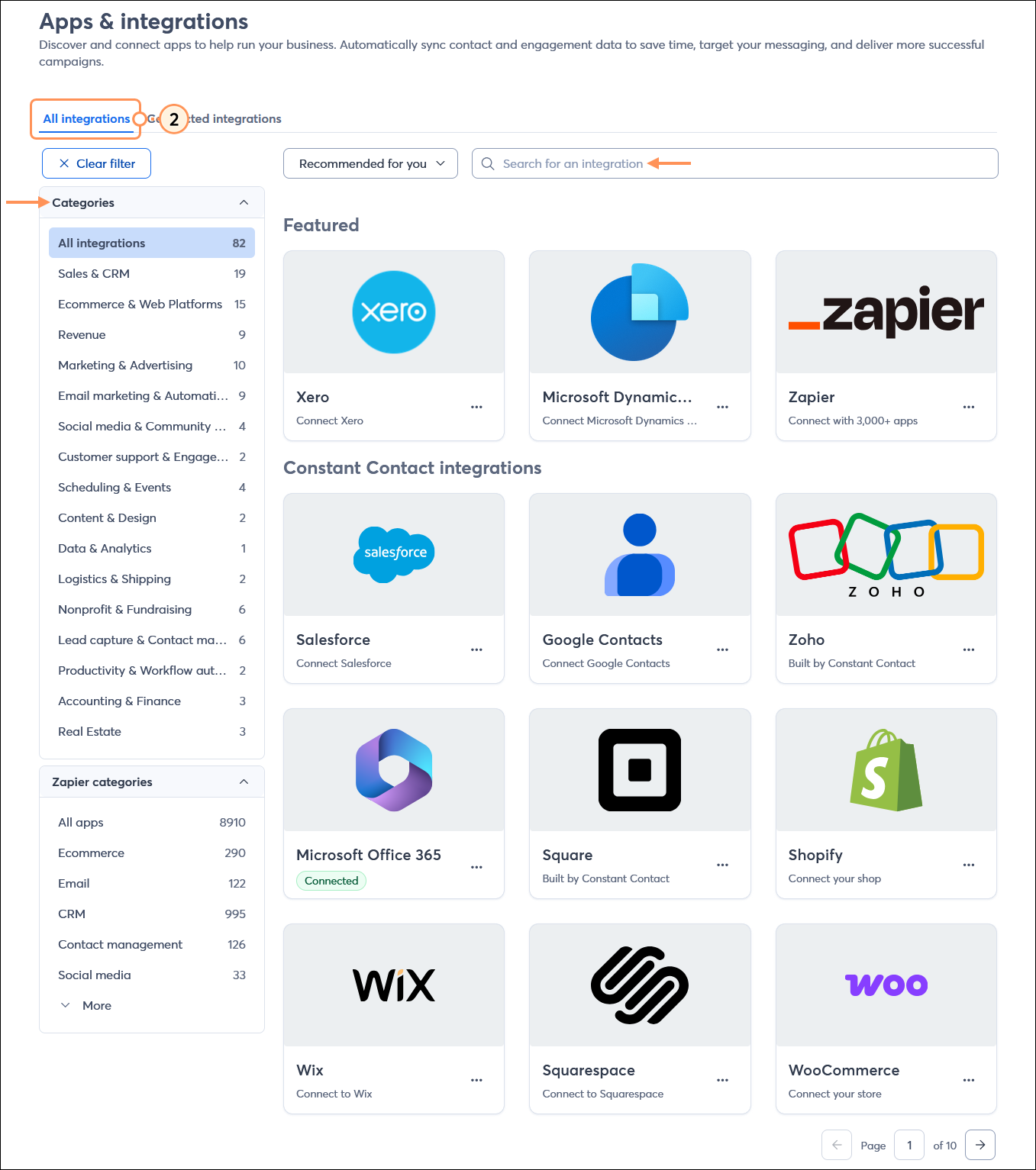
If you’ve been collecting contacts in an email client, email marketing service, or another business or marketing platform, you can easily sync your lists and keep them up-to-date in your Constant Contact account with an integration.
Copyright © 2026 · All Rights Reserved · Constant Contact · Privacy Center