Keep your Library clean and organized by removing old images or documents.
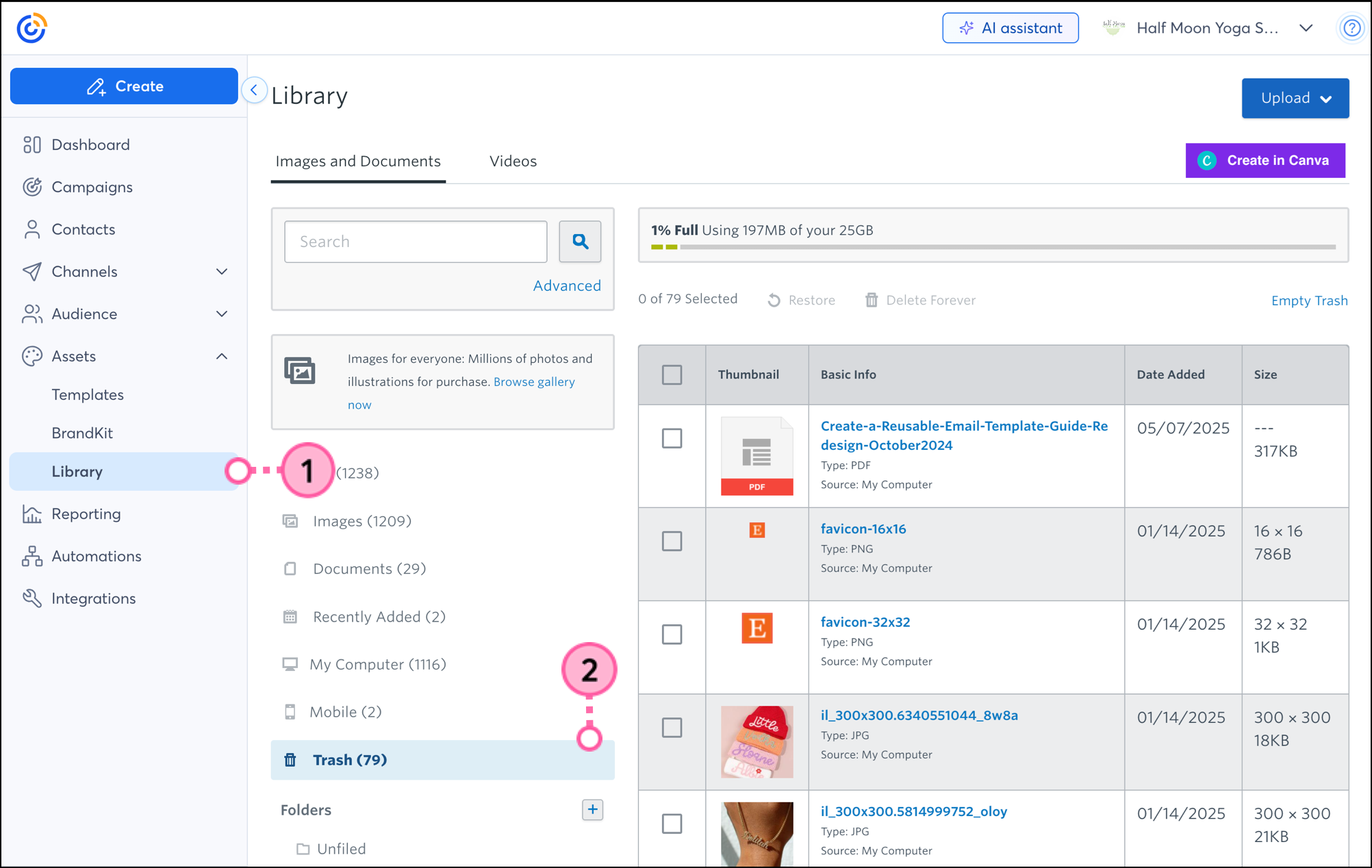
Desktop instructions:
Mobile web instructions:
 | Design tip: Need to freshen up your images? Use our stock image gallery to find both free and purchasable images. |
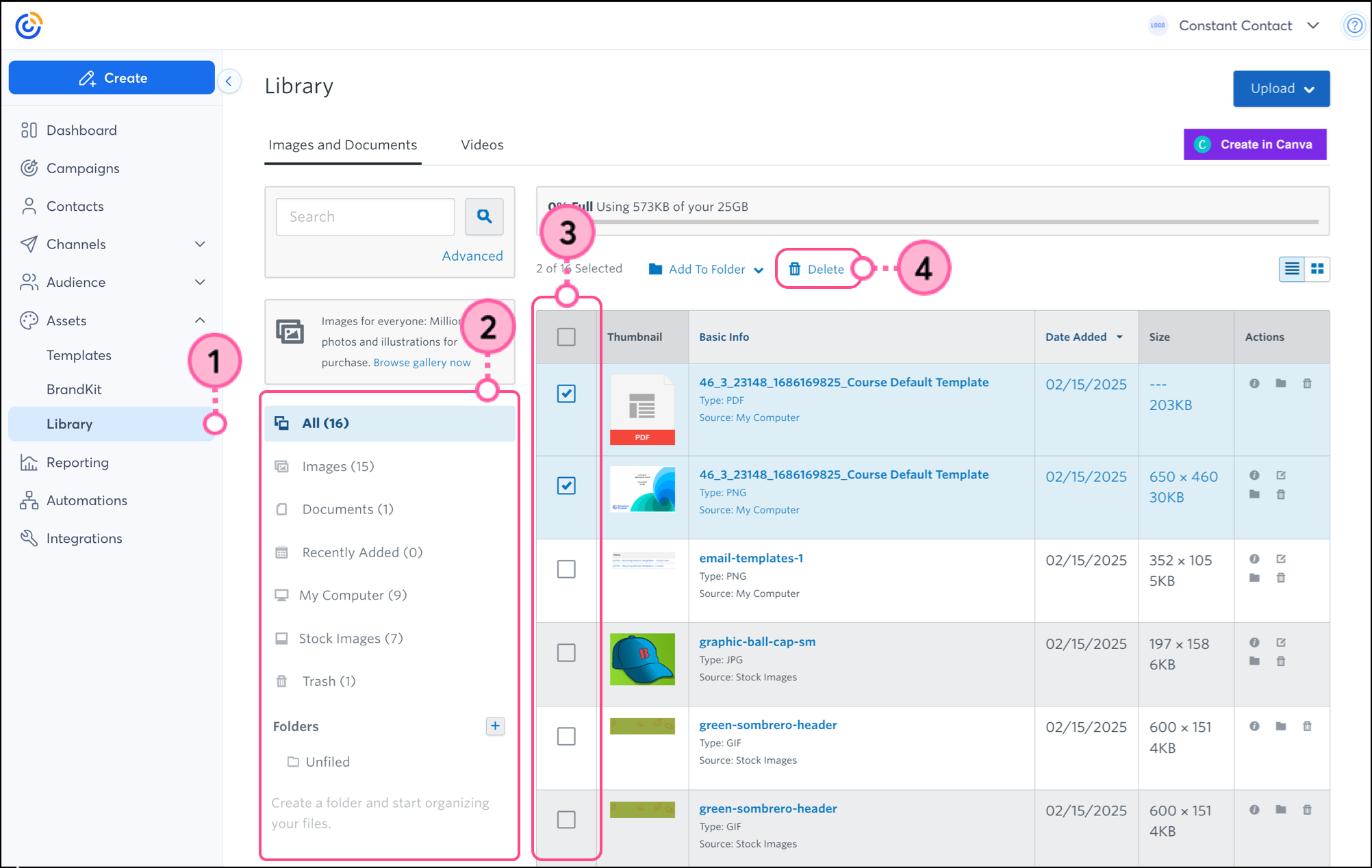
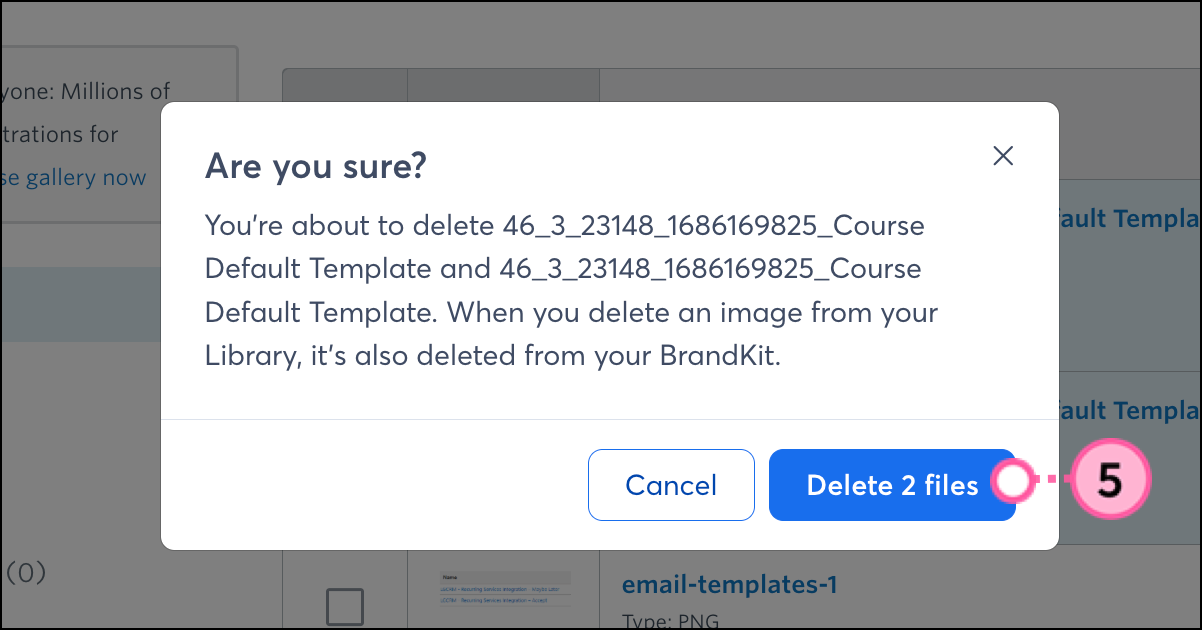
Moving files from the Library to the Trash frees up storage space in your Library, but it doesn't automatically remove the files from any draft campaigns you've added the files to. Moving files to the Trash also doesn't break the image or document URLs in any sent emails or published landing pages that include them, so you don't have to worry about missing images or broken links. You can always restore files from the Trash at any time, too.
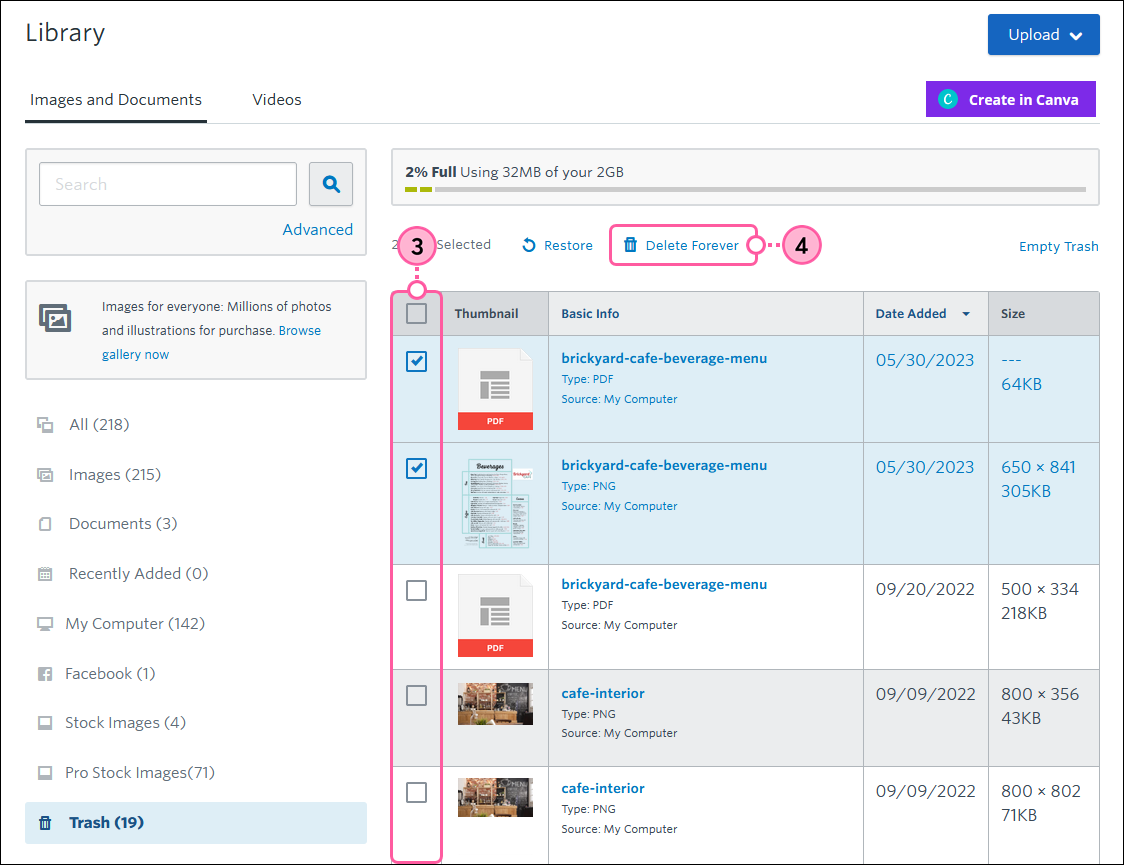
If you're in list view:
If you're in tile view:
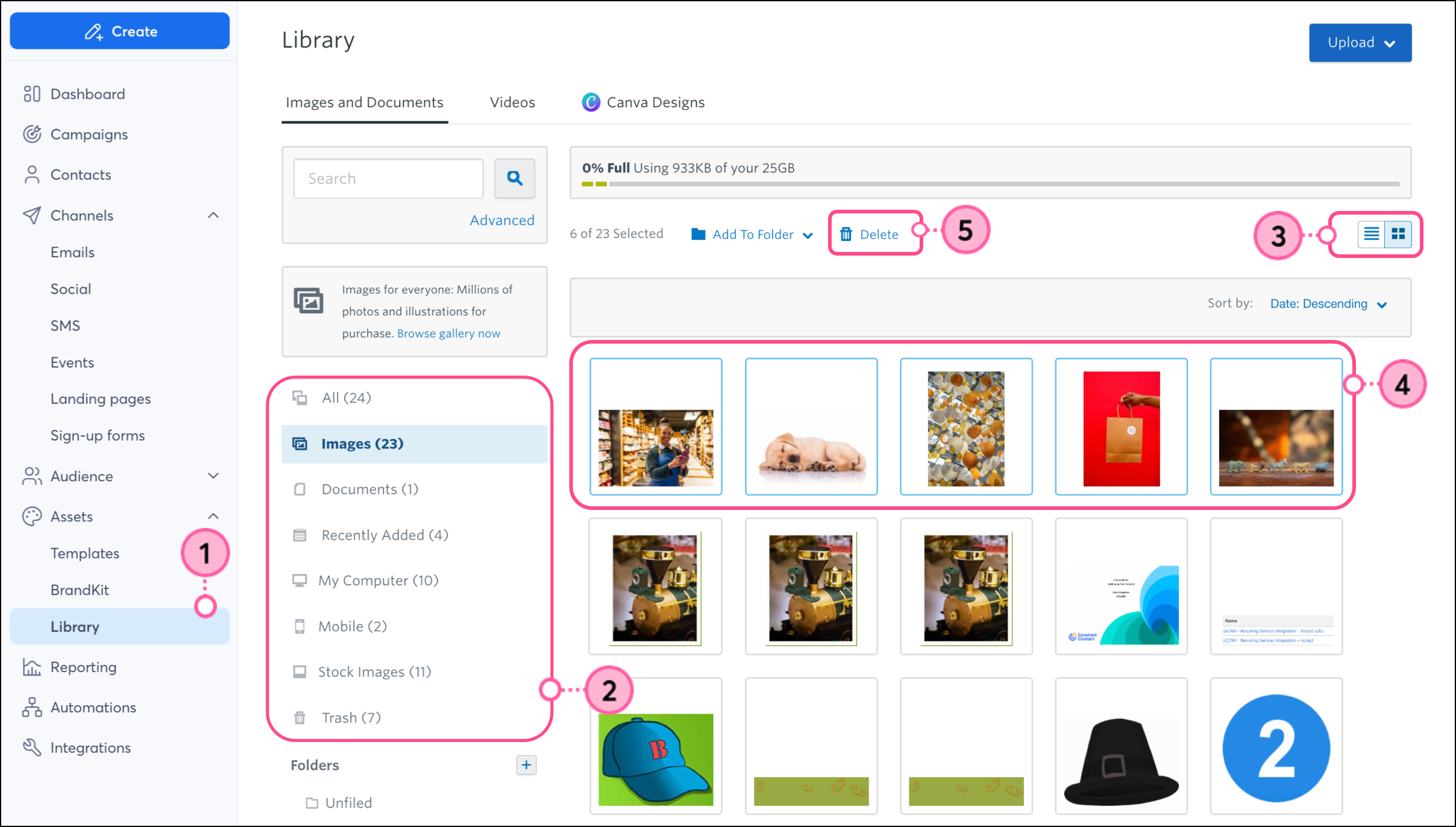
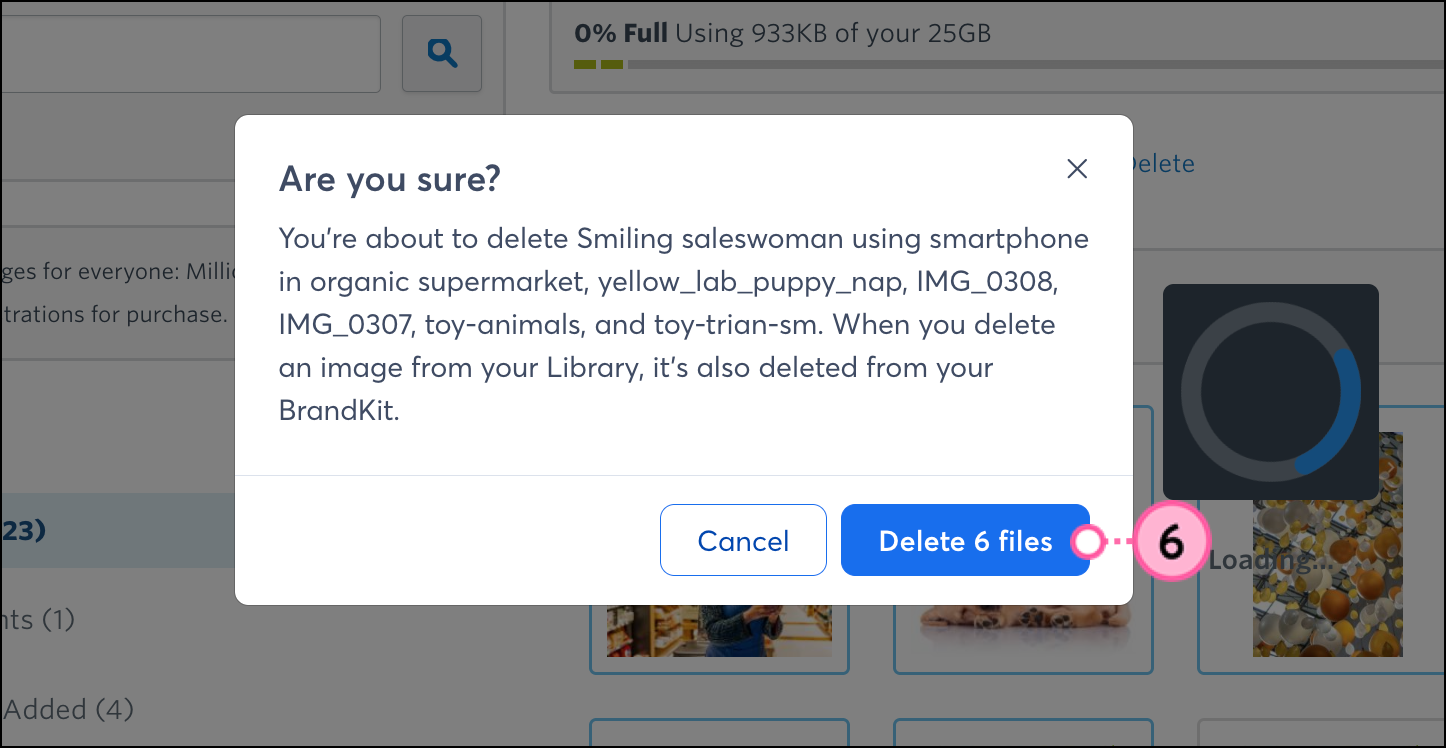
In addition to the Delete button, you can also drag individual image thumbnails into the Trash folder on the lower left-hand side of the page.
| Did you know? If you accidentally delete the wrong image, you can restore it from the Trash. |
Permanently deleting files removes them from your Library and breaks the image or document URL in any draft or sent campaigns that include them, resulting in missing images or broken links. It can take up to 4 hours for the image or document link to break after it has been permanently deleted. Permanently deleting a file doesn't automatically remove it from any draft campaigns, so it's important to replace any broken images or files before sending or sharing your emails and landing pages.
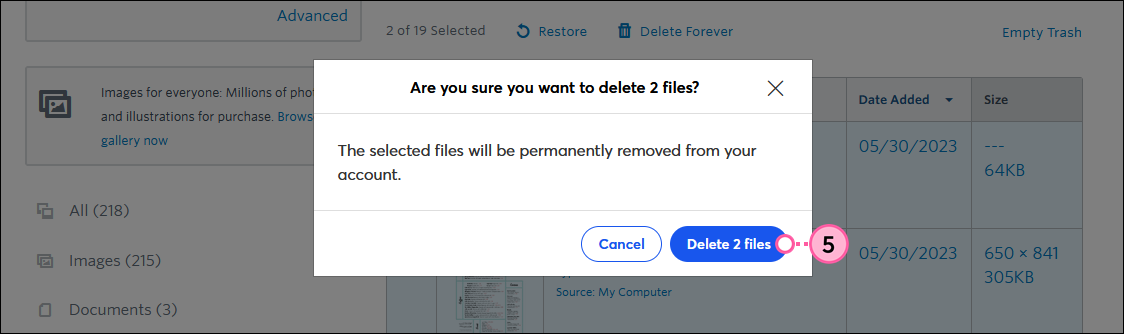
| Did you know? Images and files that are permanently deleted can't be restored, but you can upload them into the Library again at any time, as long as you have the storage space. |
If you’re using Constant Contact on your mobile device's web browser (versus your desktop computer or Constant Contact's mobile app), it’s easy to delete a file from your Library:
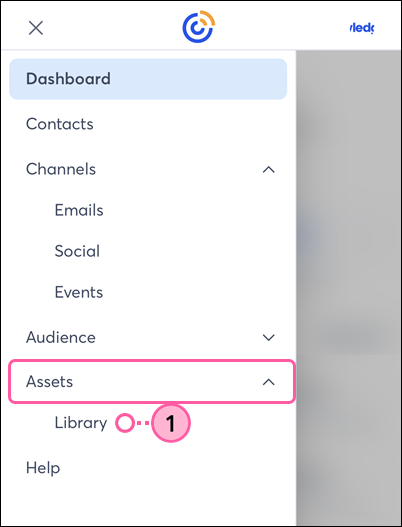
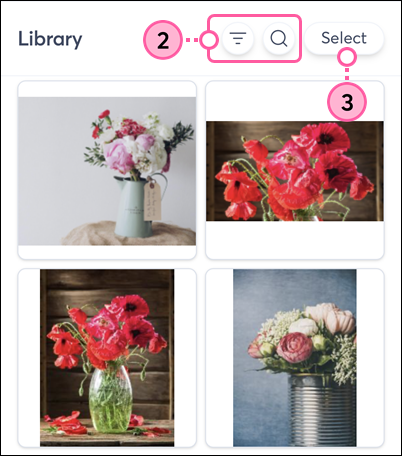
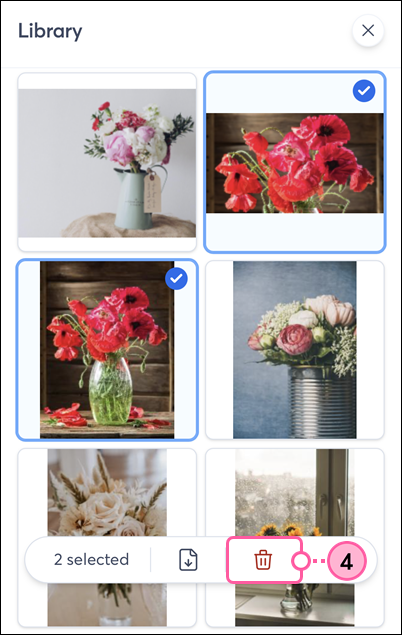
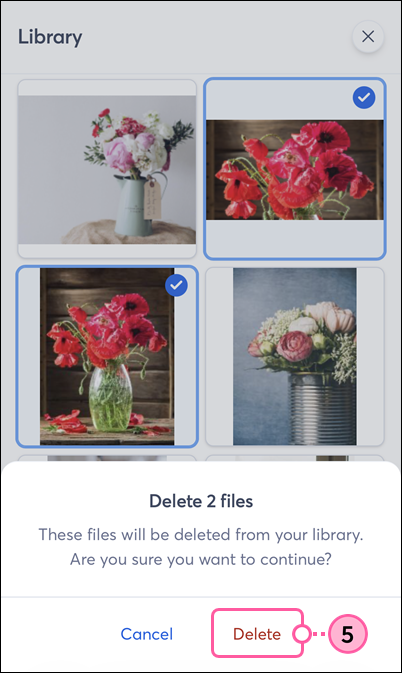
Your files are moved to the Trash, where you can permanently delete them when working on a desktop.
Copyright © 2026 · All Rights Reserved · Constant Contact · Privacy Center