Email and Digital Marketing
How can we help you?
Search our help articles, video tutorials, and quickstart guides

You've got this. You've got us. Search our Knowledge Base to quickly find answers to your questions.

Getting started with Constant Contact Social

Article: 000055243
Updated: June 30, 2026

Generate post ideas based on your business, get ready-to-publish content and captions, and schedule posts to your social media platforms

Exclamation point iconImportant: This article pertains to Constant Contact Social customers only. If you are an Email & Digital Marketing customer, please see this article instead.


Constant Contact Social is a social media tool that helps you generate post ideas based on your business, turn your photos and videos into ready-to-publish content, and schedule posts to Instagram, Facebook, and TikTok — all in one place.


Start your free trial

Set up your account

Your Home screen

Create posts from Ideas

Create posts from your own photos and videos

Edi your post

Publish and schedule posts

Manage your posts

AI Coach

Ideas page

Insights

Account settings

Plans


Start your free trial


Your free trial lasts 21 days with no credit card required. You can sign up with:

  • Google — Create your account with one click.
  • Email — Enter your name, email address, and a password (8+ characters, with at least one uppercase letter, one lowercase letter, and one number).


Set up your account


Once you've signed up, Post learns about your business so it can generate relevant post ideas for you. There are three ways to get set up:

  • Instagram handle — Enter your Instagram handle (no need to type the @) and Post will scan your profile automatically. This takes up to 15 seconds.
  • Website URL — Enter your website URL (including the .com or equivalent) and Post will pull your business information from your site. This takes up to 15 seconds.
  • Tell us about your business — Prefer to do it manually? Type a description of your business directly.


After scanning, Post shows you what it found — your business name, description, and industry. Review everything, edit anything that feels off, and tap Continue.


Your Home Screen


Once you're set up, your Home screen gives you two ways to start creating:

  • Top post idea for you — Post surfaces a personalized idea based on your business. Each idea shows the recommended platform, post format, suggested posting time, and effort level.
  • Turn your photos & videos into posts — Have content already? Upload your photos or videos and Post will generate post drafts from them.


Create posts from Ideas


Tap Ideas in the bottom navigation to browse all of your AI-generated post ideas.


Each idea shows:

  • A description of the post concept
  • The recommended platform (Instagram, Facebook, or TikTok)
  • The post format (feed post, reel, or story)
  • A suggested posting time
  • The effort level (Easy, Medium, etc.)


Tap any idea to open it. From there, you can:

  • Upvote or downvote — upvoting saves the idea to your liked list; downvoting hides it so it won't show up again
  • See What to Capture — specific photo or video suggestions to bring the idea to life
  • Upload media — add photos or videos from your device, your library, or your connected Canva account


When you're ready, tap Draft post and Post will write your caption using the idea and your uploaded media.
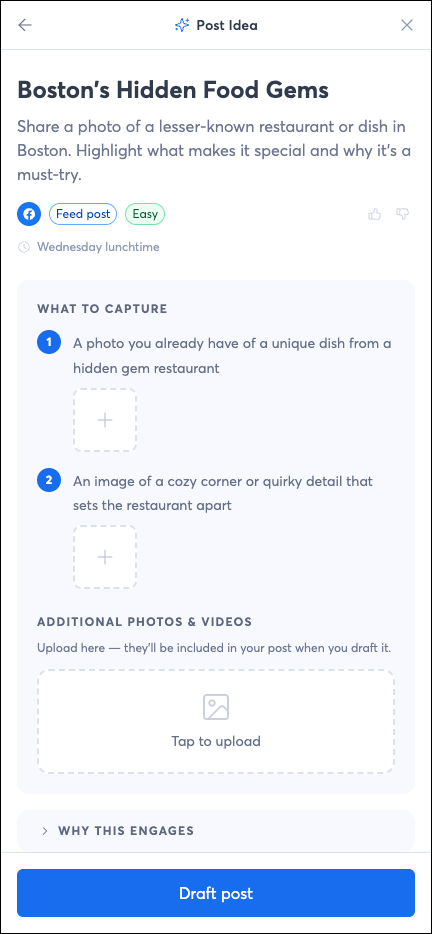


Post Idea Page


Create posts from your own photos and videos


From the Home screen, tap Turn your photos & videos into posts. Upload one or more photos or videos and Post will analyze your content and generate multiple themed post drafts — complete with captions and hashtags.


This can take up to 60 seconds. Once complete, you'll see a preview of the posts. Select the ones you want to keep and continue to the editing experience.


Edit your post


The post editor is where you finalize your content before publishing.

  • Switch platform — Use the platform selector at the top to switch between Instagram, Facebook, and TikTok. The post preview updates to match each platform's format.
  • Change format — Tap the format label (e.g., "Feed post") to switch between feed post, reel, or story. Note that reels can only contain one video, and stories can only contain one image or video.
  • Edit your caption — Tap directly on the caption to edit it manually. A character count shows how much space you have left.
  • Rewrite with AI — Tap Rewrite with AI to open the caption rewrite tool. You can choose a tone (Friendly, Enthusiastic, Inspirational, Professional, or Casual), adjust the length (Shorter or Longer), and add context to guide the rewrite. Use the microphone icon to speak your context instead of typing.
  • Level Up tips — Scroll down to see suggestions for making your post more engaging, additional images worth adding, and an explanation of why this post format works.
  • Connect your account — If you haven't connected a social account yet, you can do it directly from this screen.


Publish and schedule posts


When your post is ready, tap Post. You'll see two options:

  • Post to [platform] from here — Publish or schedule directly from Post without switching apps. If your account isn't connected yet, you'll be prompted to connect it by going through the Instagram, Facebook, or TikTok authentication flow. Once connected, you can choose to post immediately or schedule for a specific date and time.
  • Post manually — Copy your caption and follow the provided steps to post on the app yourself.


Manage your posts


Tap Posts in the bottom navigation to see all of your content in one place. Posts are organized into three tabs:
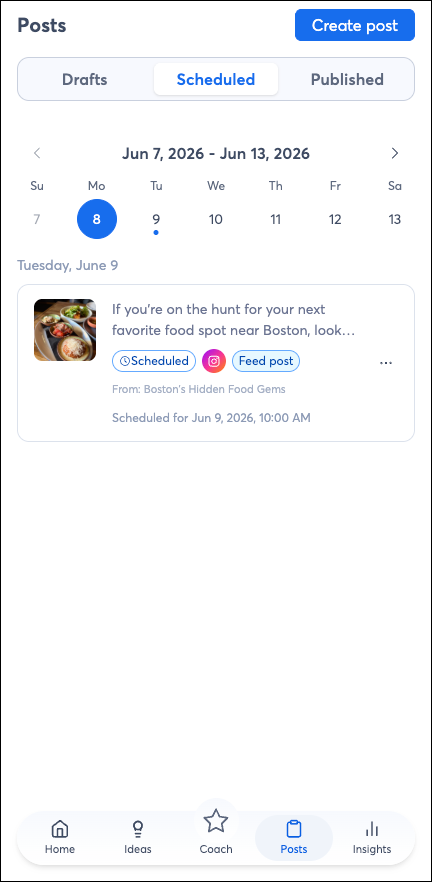
  • Drafts — posts you've saved but not yet published or scheduled
  • Scheduled — posts queued for future publishing, shown in a calendar view
  • Published — posts that have already gone live


Manage Posts Draft, Scheduled, and Published tabs


AI Coach


Tap Coach in the bottom navigation to chat with your AI social media coach. The Coach opens as a chat panel and greets you with quick-start prompts to get going fast — things like "Help me come up with post ideas," "What should I post this week?" or "I only have 10 minutes." You can tap any of these or type your own question in the text field. Use the microphone icon to speak instead of type.

Ask the Coach to generate new post ideas, build a weekly content plan, or get general social media advice. You can also access the Coach from within the post editor to rewrite or refine your caption.


Ideas page


Tap Ideas to access all of your AI-generated ideas and content you've created. Ideas are organized into four tabs:

  • New — fresh AI-generated ideas for your business
  • Liked — ideas you've upvoted for easy reference later
  • Yours — ideas you've created yourself
  • Used — ideas you've already turned into posts


At the top of the Ideas page, there's also a text field where you can describe what you want to post about. Type your idea (or tap the microphone to speak it), then tap Create this post and Post will generate a draft for you.


Insights


After connecting a social account, you'll unlock your Insights page. Tap Insights in the bottom navigation to see:

  • What's Working Well — what's resonating with your audience
  • Opportunities to Level Up — areas to improve
  • Posting Frequency — how consistently you're posting


Below those summaries, you'll find your account metrics for the selected time period:

  • Followers — your total follower count
  • Total interactions — likes, comments, shares, and other engagement
  • Profile views — how many times your profile was visited
  • Reach — how many unique accounts you've reached


Filter all metrics by the last 7, 30, or 60 days using the selector at the bottom of the page.
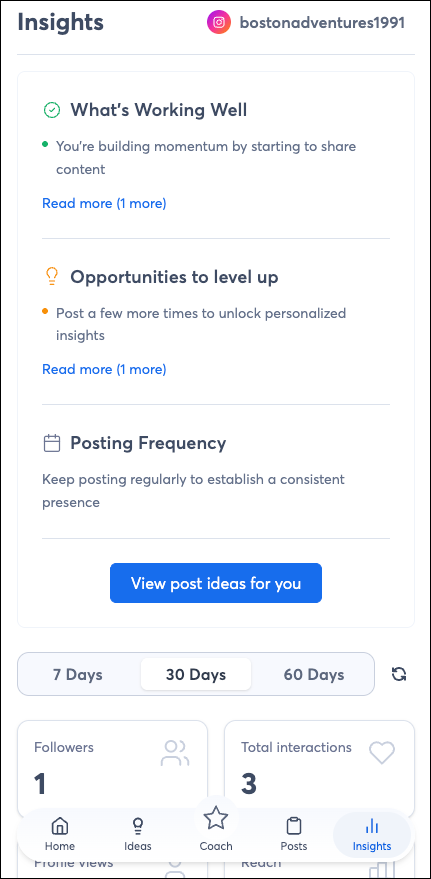

Insights page


Account settings


Tap your profile icon in the top right to access your account settings.


Personal info — Update your name, phone number, email address, and timezone.


Your Voice — A description of your communication style, built from your onboarding. Post uses this to generate captions that sound like you. You can edit it at any time.


Caption preferences — Set your preferred caption length (Short, Medium, or Long) and voice tone (Professional, Casual, Funny, or Inspirational). These apply to all AI-generated captions.


About your business — Review and update your business name, business type, target audience, business description, and content goals.


My library — Browse all the photos and videos you've uploaded to Post.


Email preferences — Manage the emails you receive from Post.


Account management — View and manage all connected social accounts. Connect Instagram, Facebook, TikTok, and Canva from here.


Help & Feedback — Submit feedback or get help from the Post team.


Legal — Access Terms of Service, Acceptable Use Policy, Anti-Spam policy, Privacy Center, and other legal information.


Reset onboarding — Start the onboarding experience over to update your business profile from scratch.


Delete account — Permanently delete your account and all your data.


Plans


Post offers a 21-day free trial with no credit card required. After your trial, choose the plan that fits your needs:


Starter

Pro

Price

$5/month

$15/month

AI post generation

Included

Included

AI coaching

Included

Included

Posting, captions & scheduling

Included

Included

Social connections

2

All platforms


The only difference between plans is the number of social accounts you can connect — everything else, including AI generation, coaching, captions, and scheduling, is included on both.


Questions?

Ask the Community

Did this article answer your question?


Constant Contact Logo

Copyright © 2026 · All Rights Reserved · Constant Contact · Privacy Center