Email and Digital Marketing
How can we help you?
Search our help articles, video tutorials, and quickstart guides

You've got this. You've got us. Search our Knowledge Base to quickly find answers to your questions.

Generate ready-to-post social content [for Constant Contact Social users]

Article: 000055174
Updated: February 27, 2026

Use our Social tool to create a week's worth of auto-generated social content and gain insight into what's performing best with your social audience

Grow your business on social media with Constant Contact Social, our AI-powered social marketing experience. Connect your social media account and use the tool to generate on-brand content for the upcoming week. Gain insights into what's working and what's not so you can increase your audience and reach more customers. Additionally, access and customize a Link in Bio landing page, download its QR code, and share the direct link.


Get Started


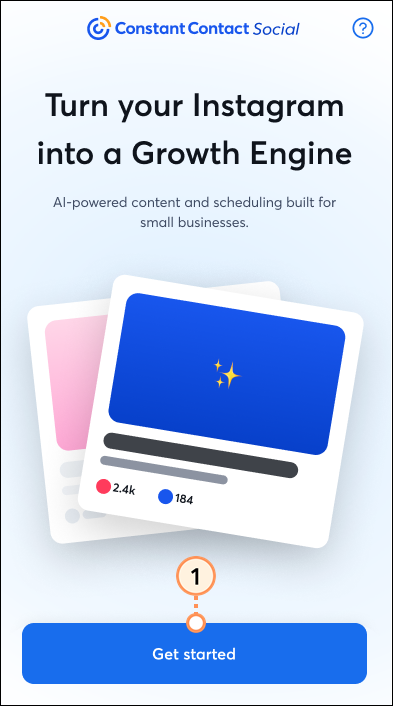
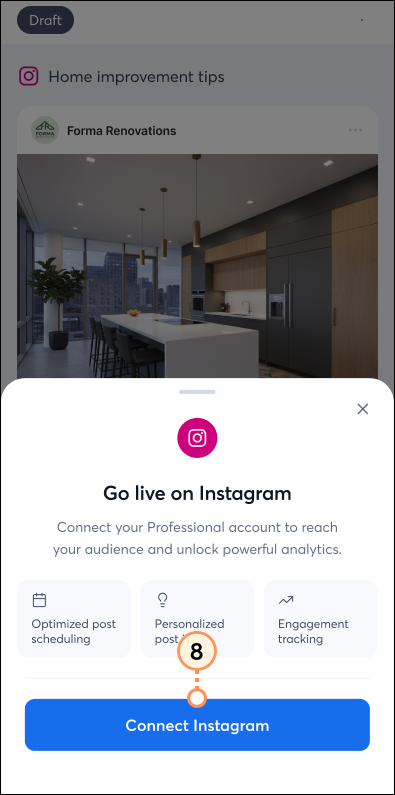
Begin by connecting your Instagram account to your Constant Contact Social account.
 

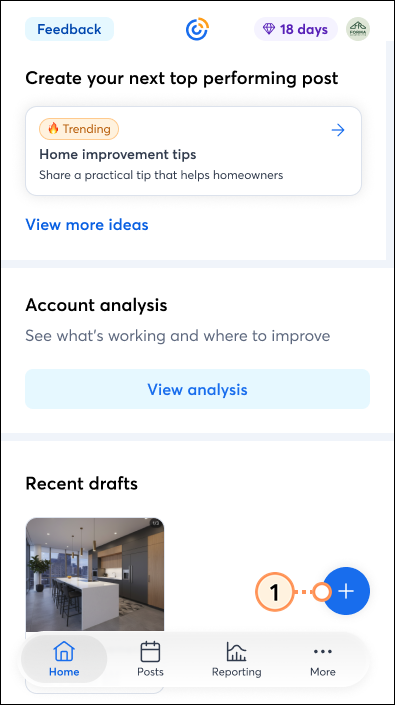
  1. Tap the + icon within the "Connect Instagram" box.

    Plus sign to connect Instagram

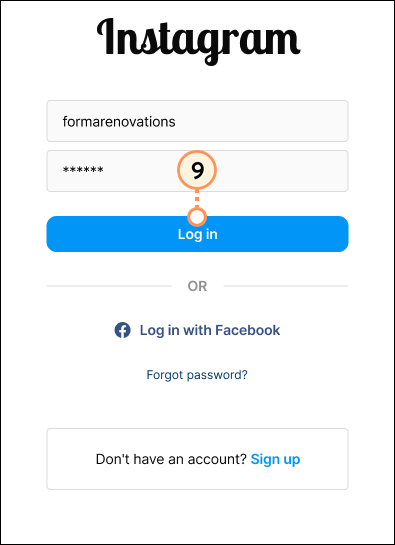
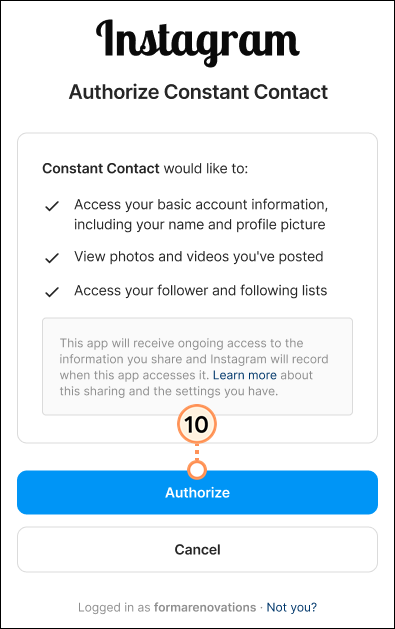
  2. Log in to your Instagram account and then tap Continue.
    Note: If you are connecting an Instagram account with two or more profiles, you will next be prompted to select the profile you'd like to connect.

    Instagram login confirmation Continue button

  3. You will see a confirmation that your account has been connected. Tap Continue.

    Account Connected confirmation continue button

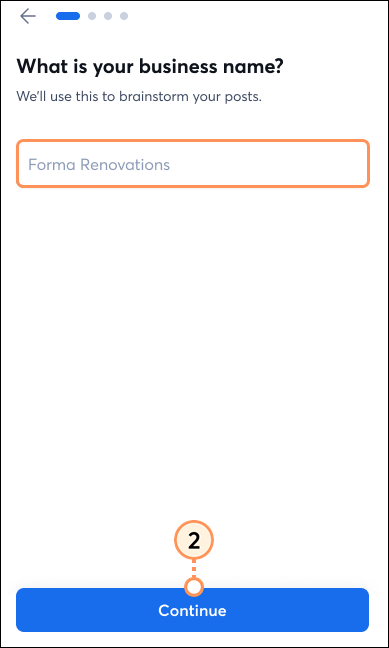
  4. Confirm your business name and then tap Continue.

    Business name and continue button

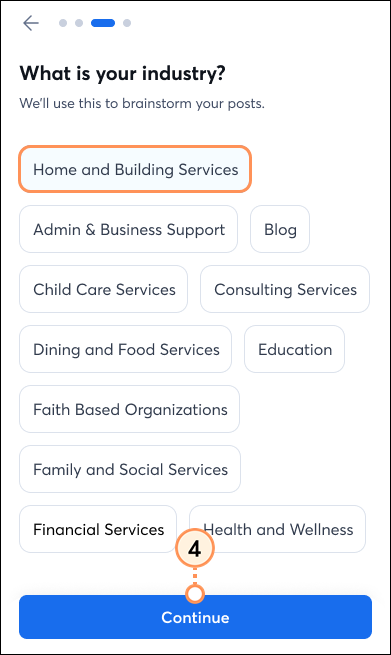
  5. Confirm your industry and then tap Continue.

    Industry list and continue button

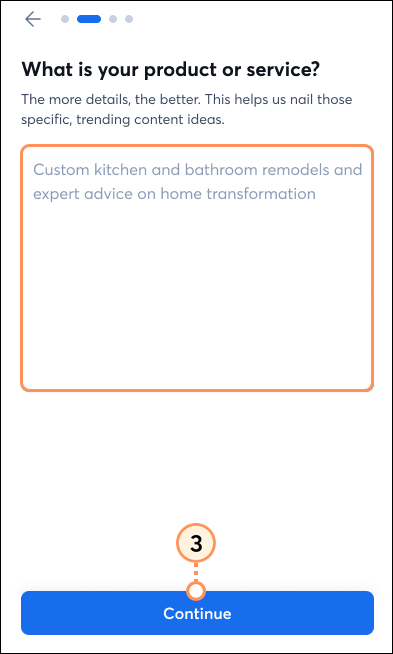
  6. Add details about your business and then tap Continue.

    Business details text field and continue button

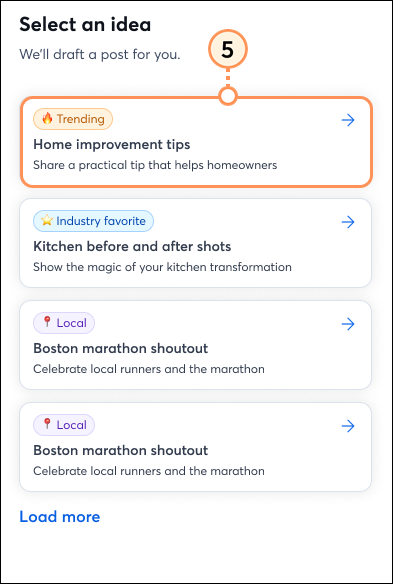
  7. A list of post ideas will be generated for you. Select an idea to get started. Once you've selected an idea, you can edit and schedule it.

    Ideas list


Create and schedule social posts


  1.  From the Dashboard, tap + Create Social Posts.

    Dashboard Create Social Posts button

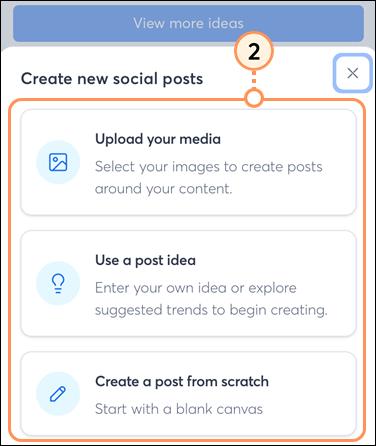
  2. Choose to:
    • Upload your media - Add your media first to create posts around your existing content.
    • Use a post idea - Enter a prompt or select a suggested idea to begin creating posts.


    Upload your media or use a post idea options


Create from uploaded media


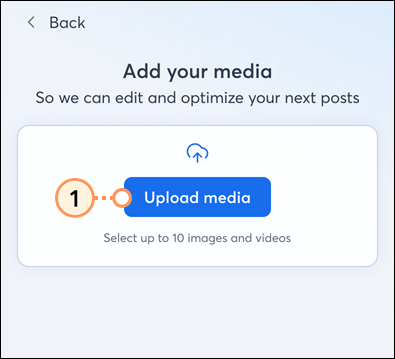
  1. Tap Upload Media.

    Upload Media Button

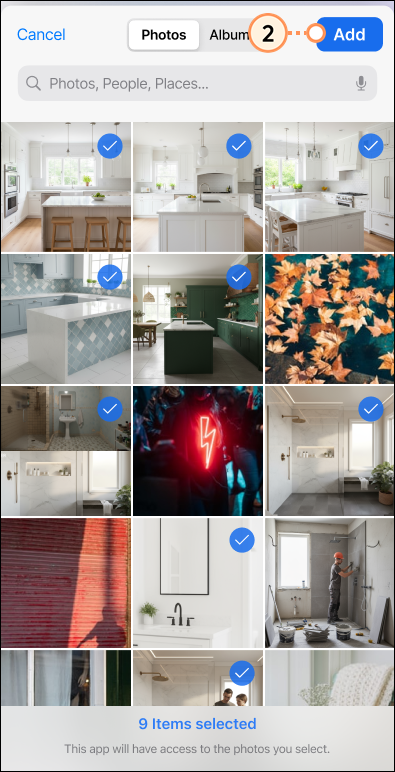
  2. Checkmark the media you’d like to include in your posts and then tap Add.

    Checkmarked images and add button

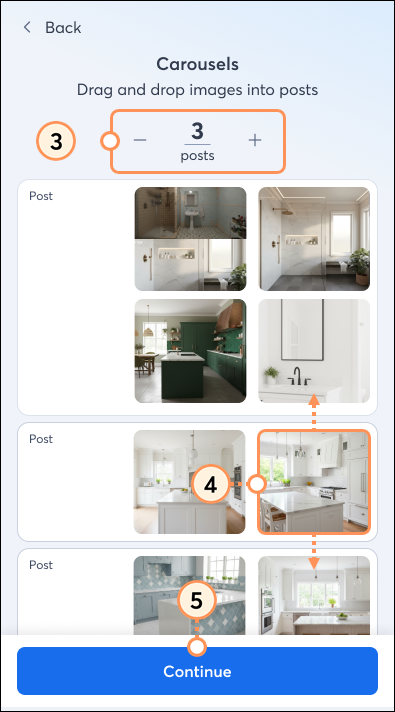
  3. Tap the + and - buttons to indicate how many posts you’d like to schedule.
  4. If generating more than one post, drag and drop the images as desired to organize your posts.
  5. Tap Continue.

    Set number of posts and arrange photos and continue

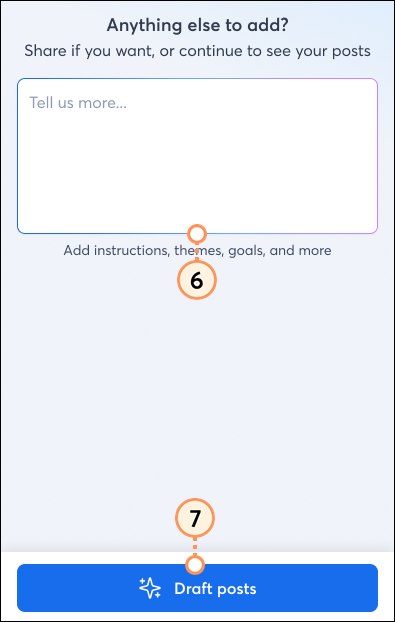
  6.  (Optional) Share anything additional, such as instructions, themes, or goals, that should be incorporated into your generated posts.
  7. Tap Draft posts.

    Add detail section and draft post button


Scroll down the page to review the generated draft posts, and then edit and schedule the ones you like.
 

Use a post idea to create


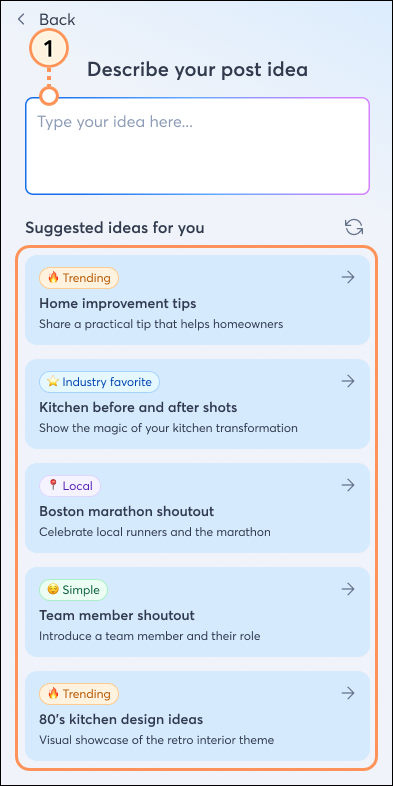
  1. Enter your own idea or select a suggested idea.

    Enter prompt into box or select idea from list

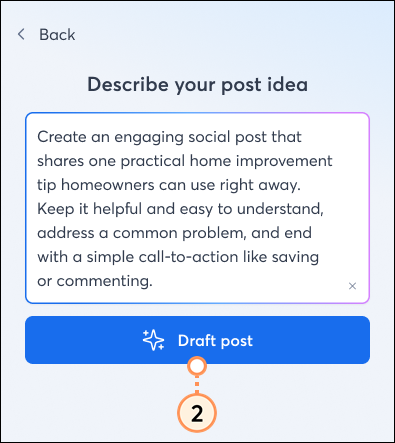
  2. Tap Draft post.

    Draft post button


Scroll down the page to review the generated draft posts, and then edit and schedule the ones you like.
 

Edit and schedule your posts


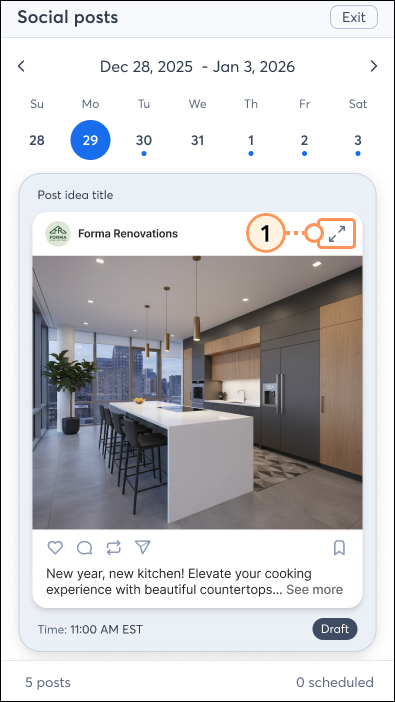
  1. Tap on a post to expand it.

    Expand draft post

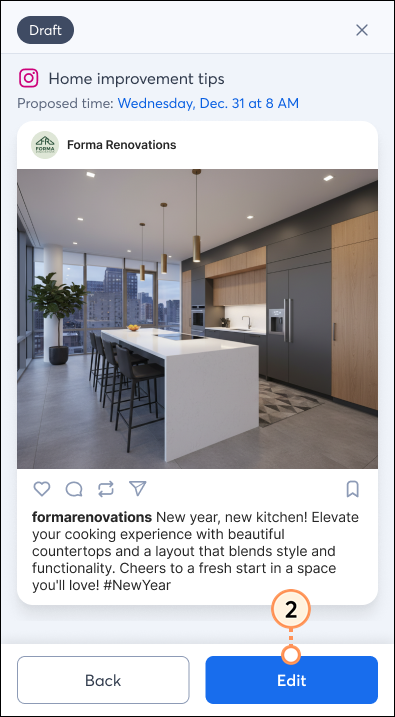
  2. Within the post, tap Edit.

    Draft post edit button

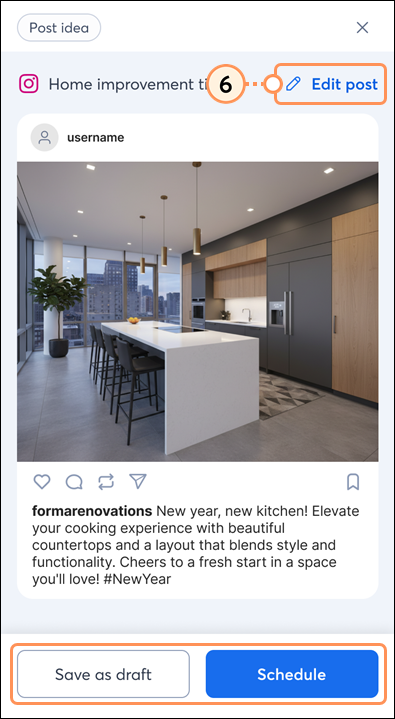
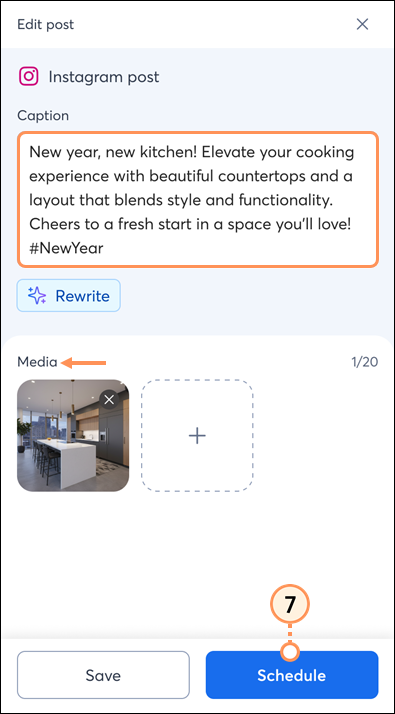
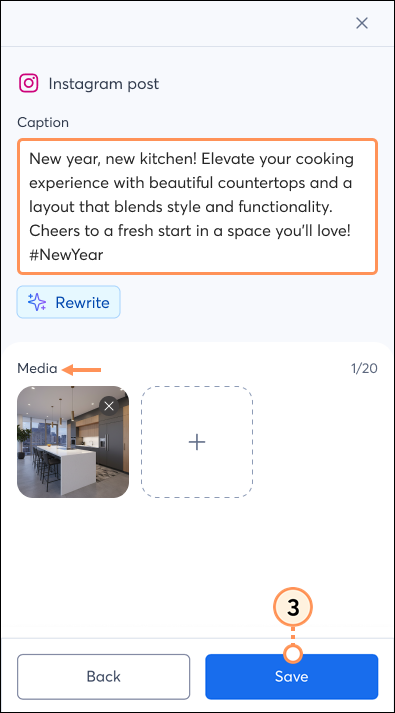
  3. Update the caption and/or media, and then tap Save.

    Edit caption and media and save

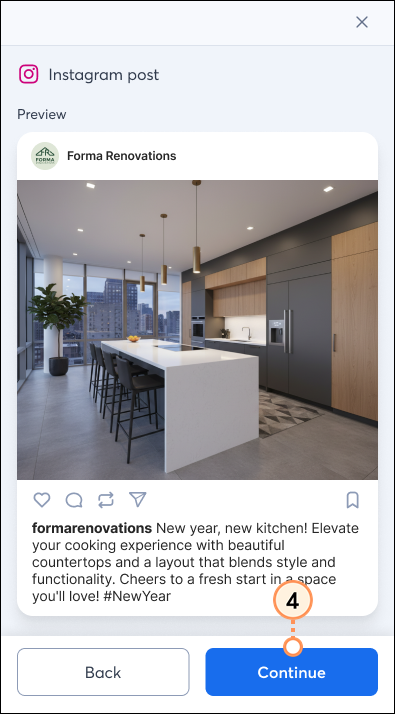
  4. Review the preview of the post and then tap Continue.

    Post preview and continue button

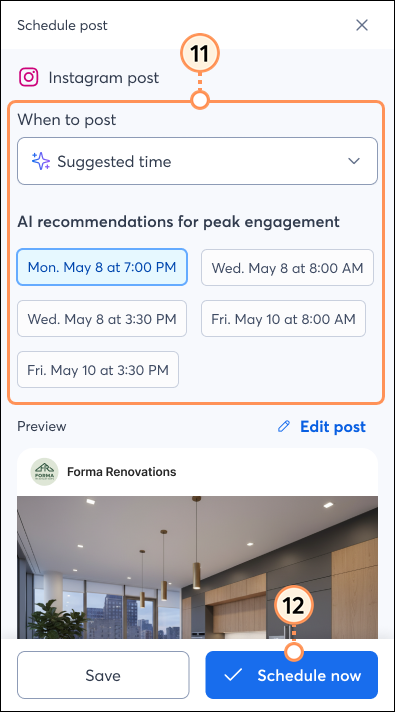
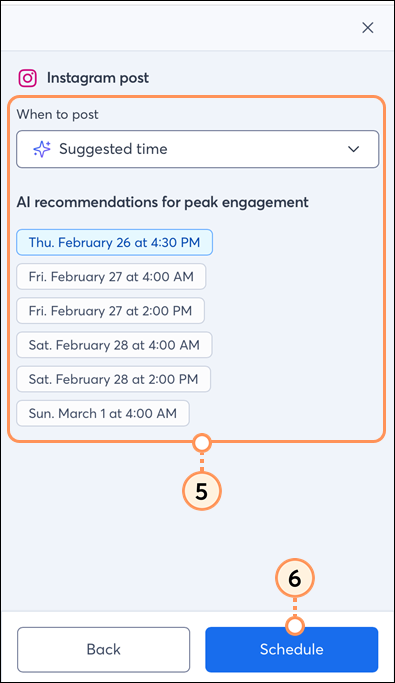
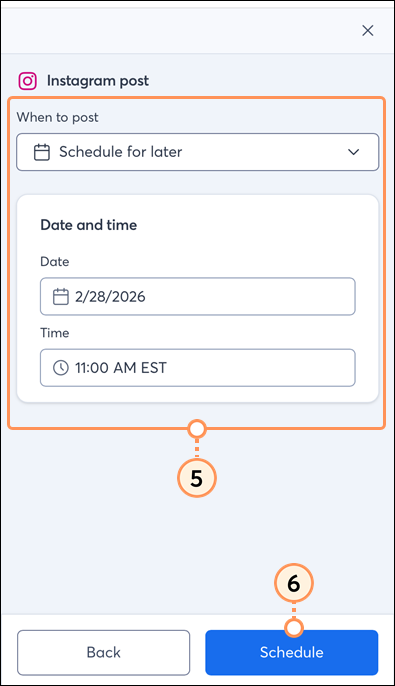
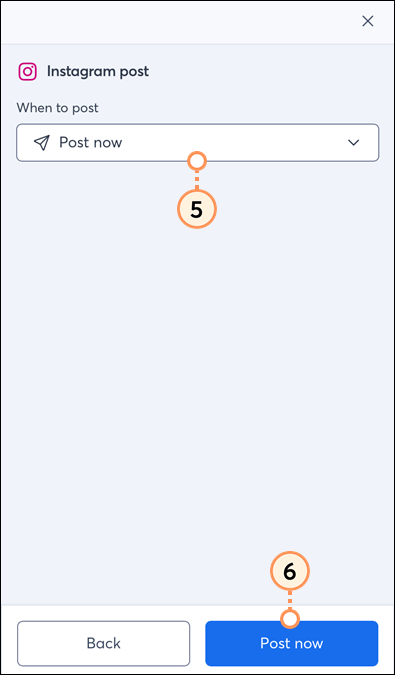
  5. Choose to schedule your post for:
    • Suggested time - Select a time that is recommended for peak engagement
    • Manually set date and time - Select your desired date and time
    • Now - Post immediately.
  6. Tap Schedule or Post now, depending on your selection.

    Suggested time options and Schedule buttonEnter date and time and Schedule buttonPost now button


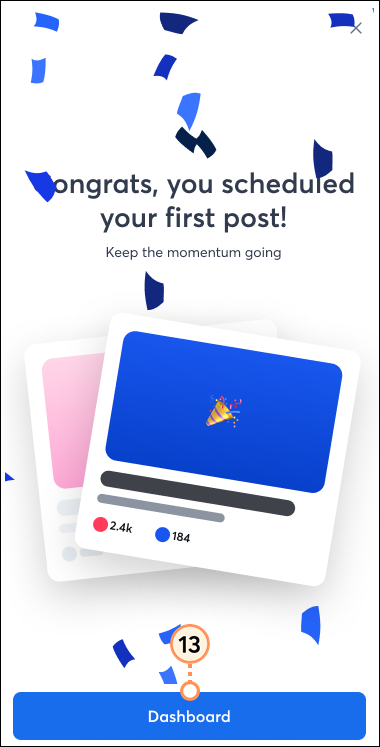
A confirmation banner will appear to confirm that your post has been scheduled/posted. Scroll through the additional recommended posts to review and schedule them.
 

Review your upcoming, drafted, and posted content


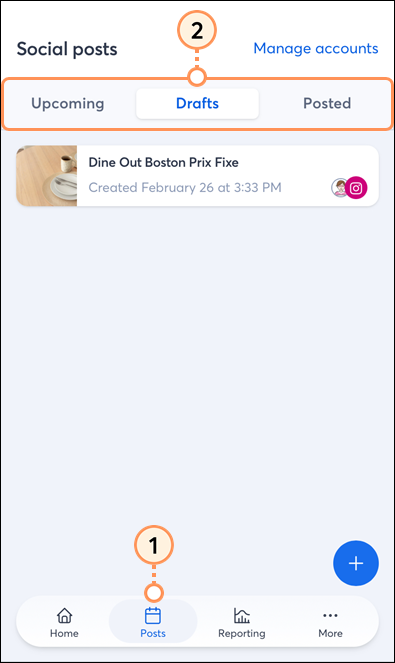
  1. From the left navigation menu, tap the Social tab.

    Left navigation menu Social tab

  2. Tap the Upcoming, Drafts, and Posted tabs to review the content.

    Upcoming PostsDraft postsPosted posts


Edit your Link in Bio landing page


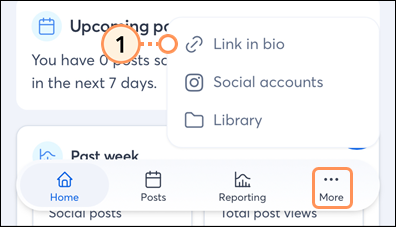
  1. From the left navigation menu, tap the Link in bio tab.

    Left navigation menu link in bio tab

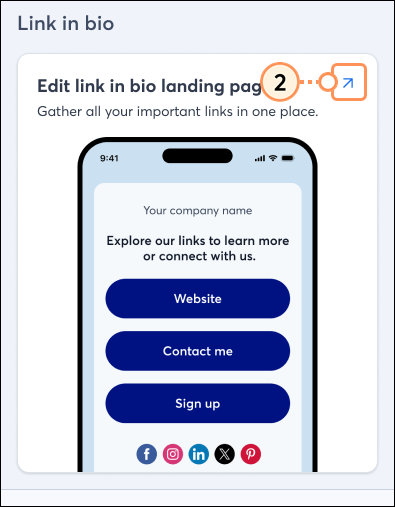
  2. Tap the arrow icon.

    Edit Link in Bio page

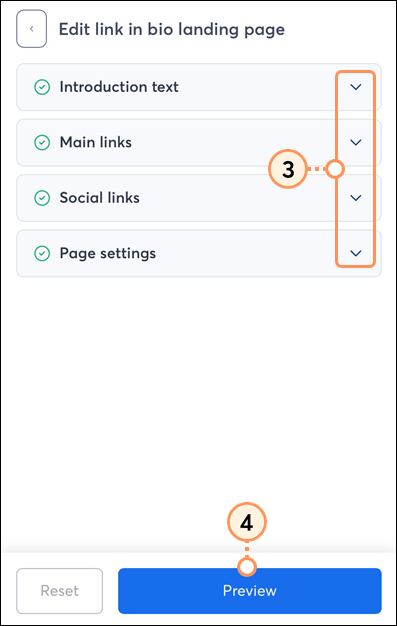
  3. Tap the down arrows to edit the introduction text, main links, social links, and page settings.
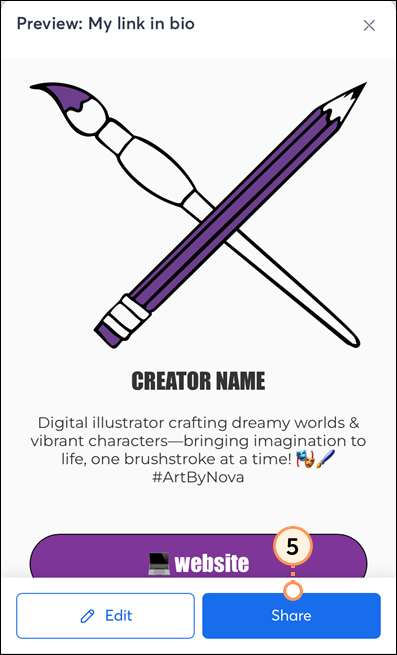
  4. Tap Preview to see what your link in bio page looks like.

    Edit page and preview

  5. Tap Share to download the QR code or copy the direct link.

    Share button

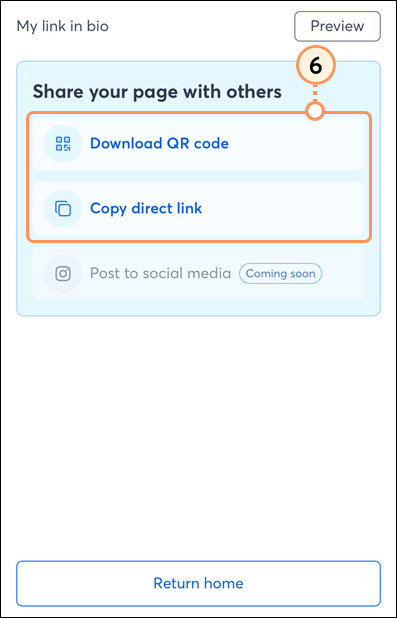
  6. Tap Download QR code and/or Copy direct link.

    Share options


View reporting


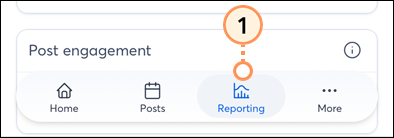
  1. From the left navigation menu, tap the Reporting tab.

    Left navigation Reporting tab

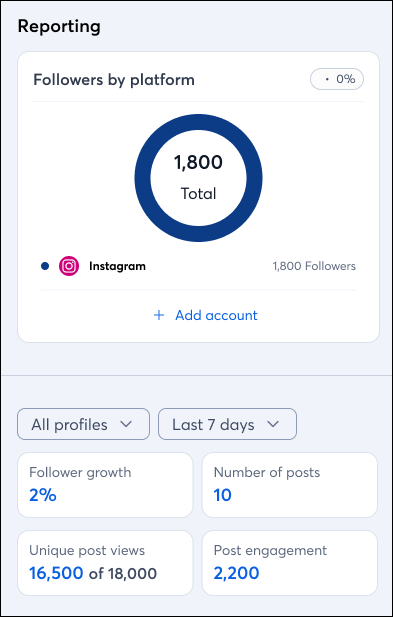
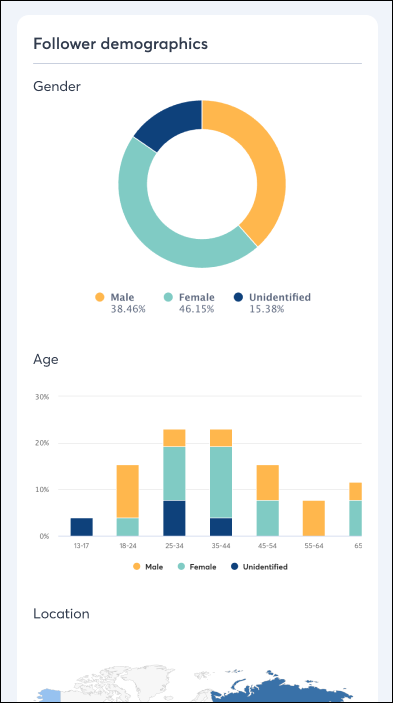
  2. At the top of the page, review your total followers by platform. Scroll down to see your follower growth, number of posts, unique views, and engagement. Additionally, see the breakdown of your follower demographics.

    Reporting PageFollower demographics


Questions?

Ask the Community

Did this article answer your question?


Constant Contact Logo

Copyright © 2026 · All Rights Reserved · Constant Contact · Privacy Center