Email and Digital Marketing
How can we help you?
Search our help articles, video tutorials, and quickstart guides

You've got this. You've got us. Search our Knowledge Base to quickly find answers to your questions.

Available Soon: Connect your Pipedrive account to Constant Contact

Article: 000053928
Updated: February 13, 2026

Sync your Pipedrive contacts and products into your Constant Contact account.

Our integration with Pipedrive allows you to auto-sync contact and lead data into Constant Contact to save you time and send more targeted emails. There are three methods available for import: by Contacts List, Leads List, or Campaign List.

The sync is one-way, and data—including unsubscribes and contact activity—isn't sent back to your Pipedrive account. 
Note: This integration is still in progress and will be available soon.


Connect your Pipedrive account

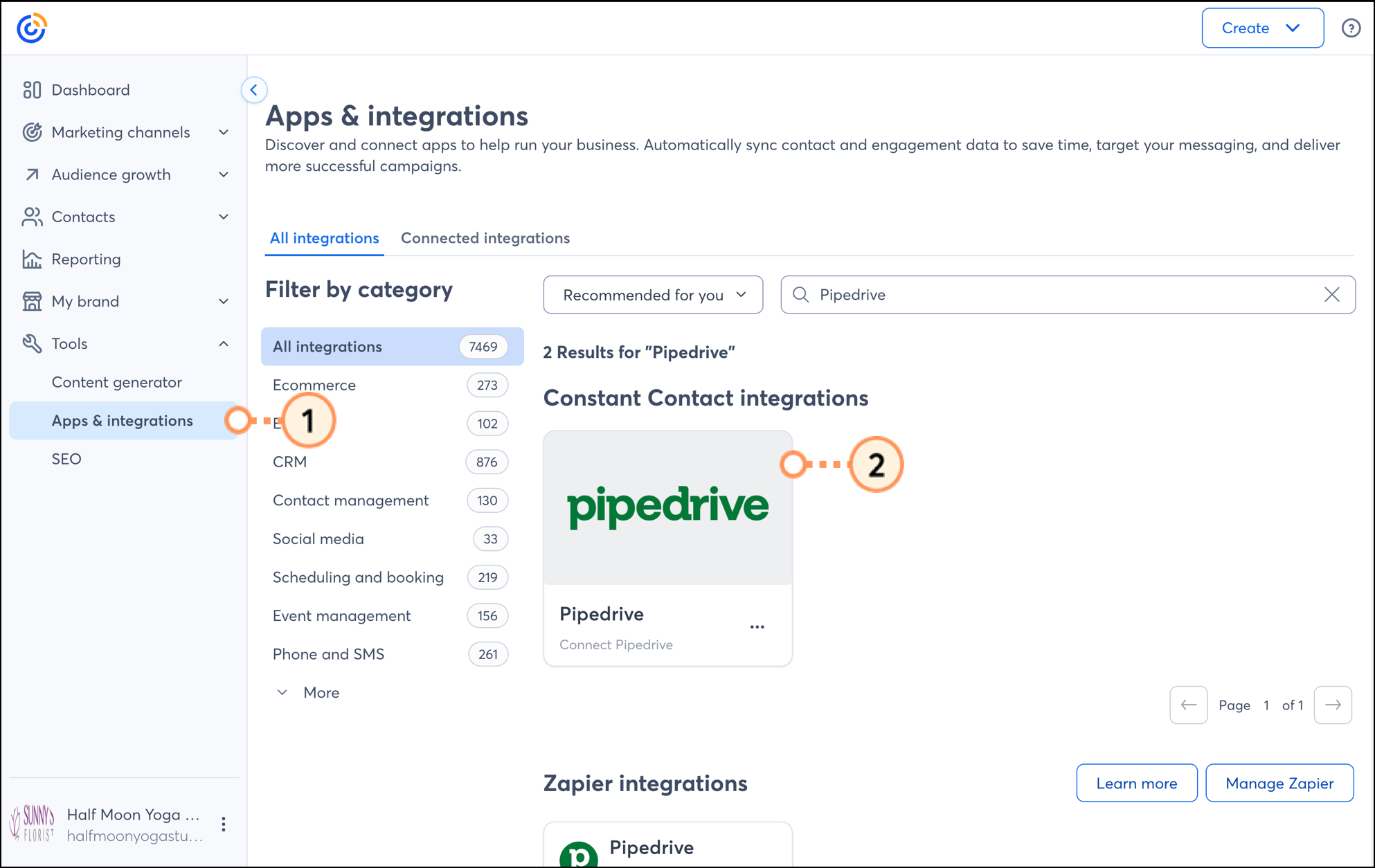
  1. Click Tools > Apps & Integrations.
  2. Under the "All Integrations" tab, either search for Pipedrive or scroll through the list to locate it. Then click on the block.


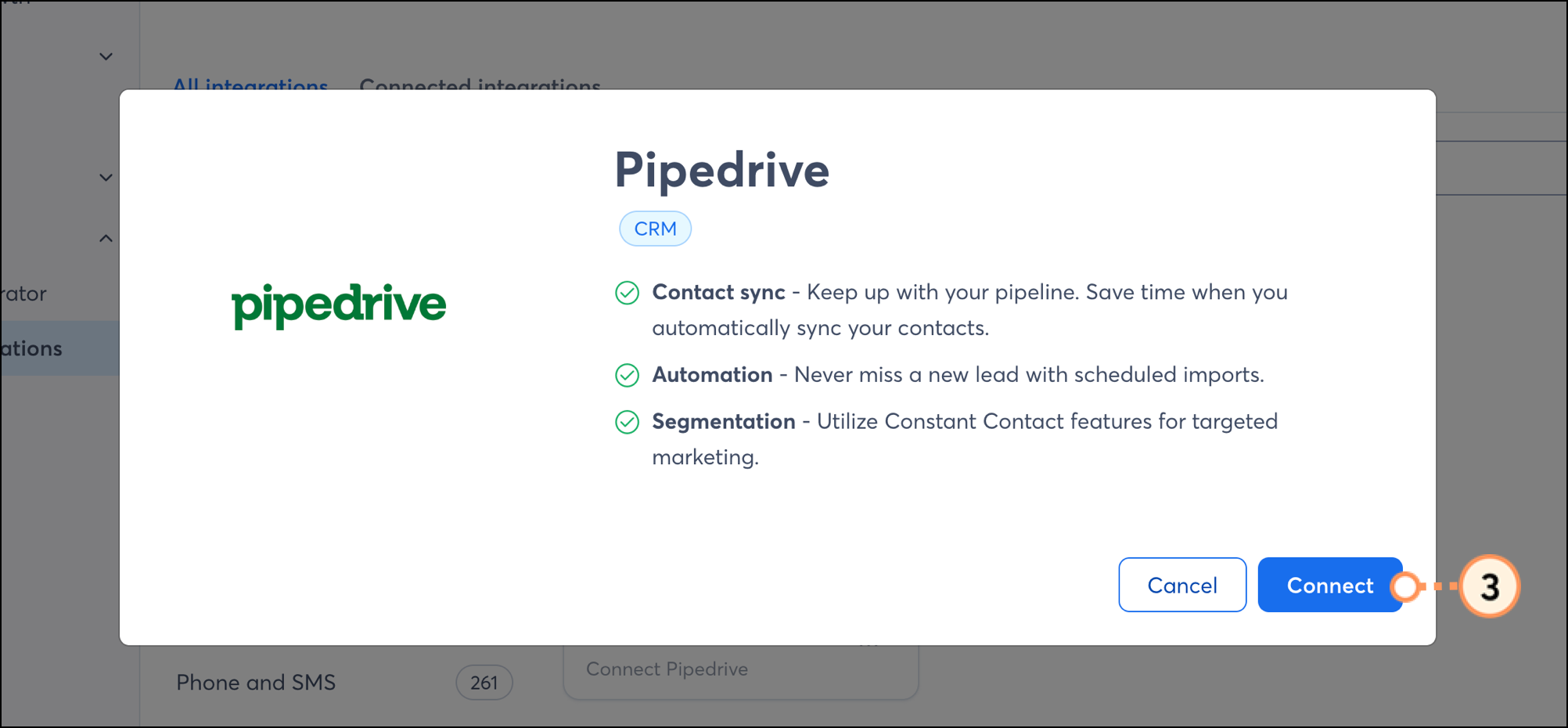
  3. Click Connect.


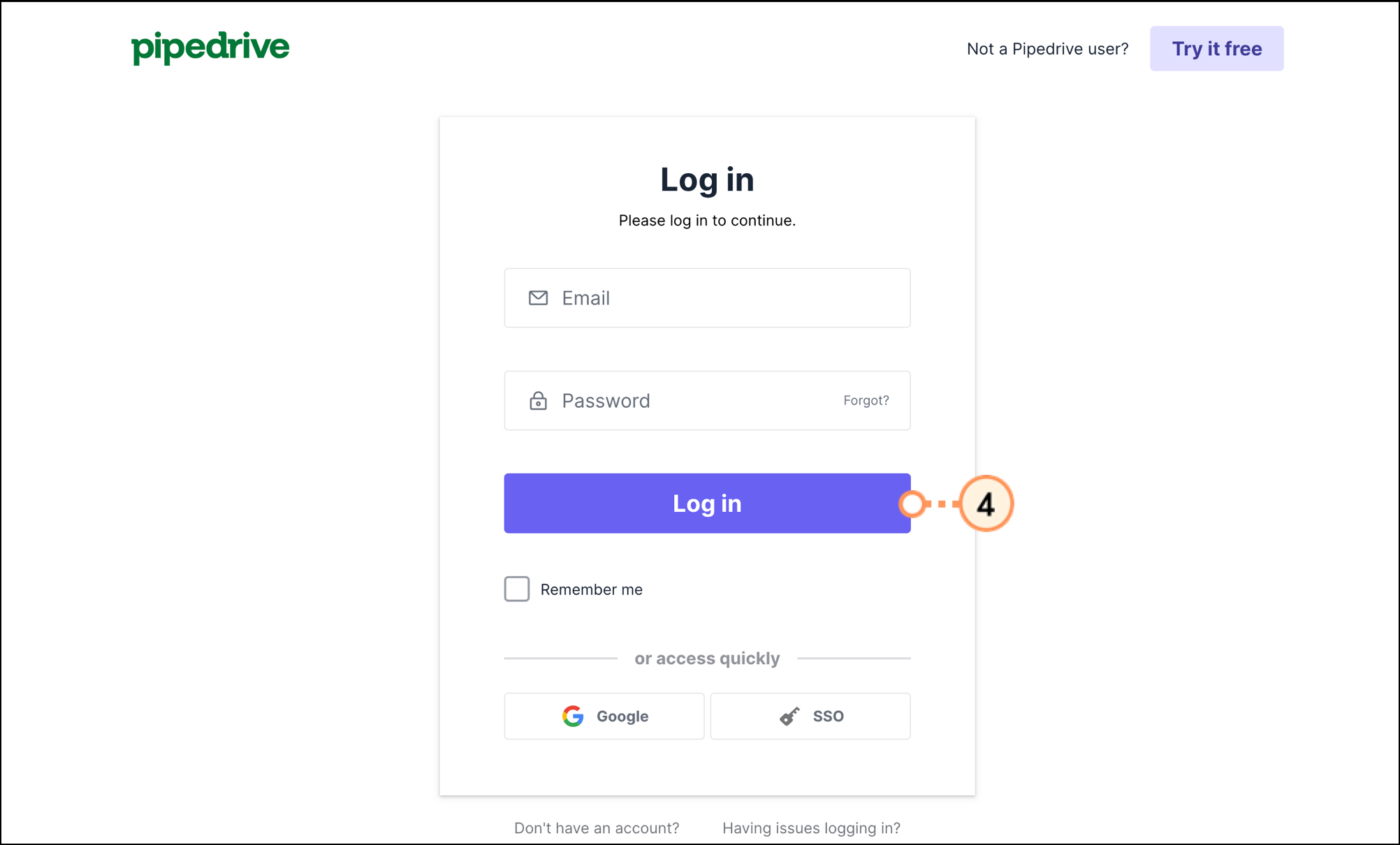
  4. Log into your Pipedrive account.


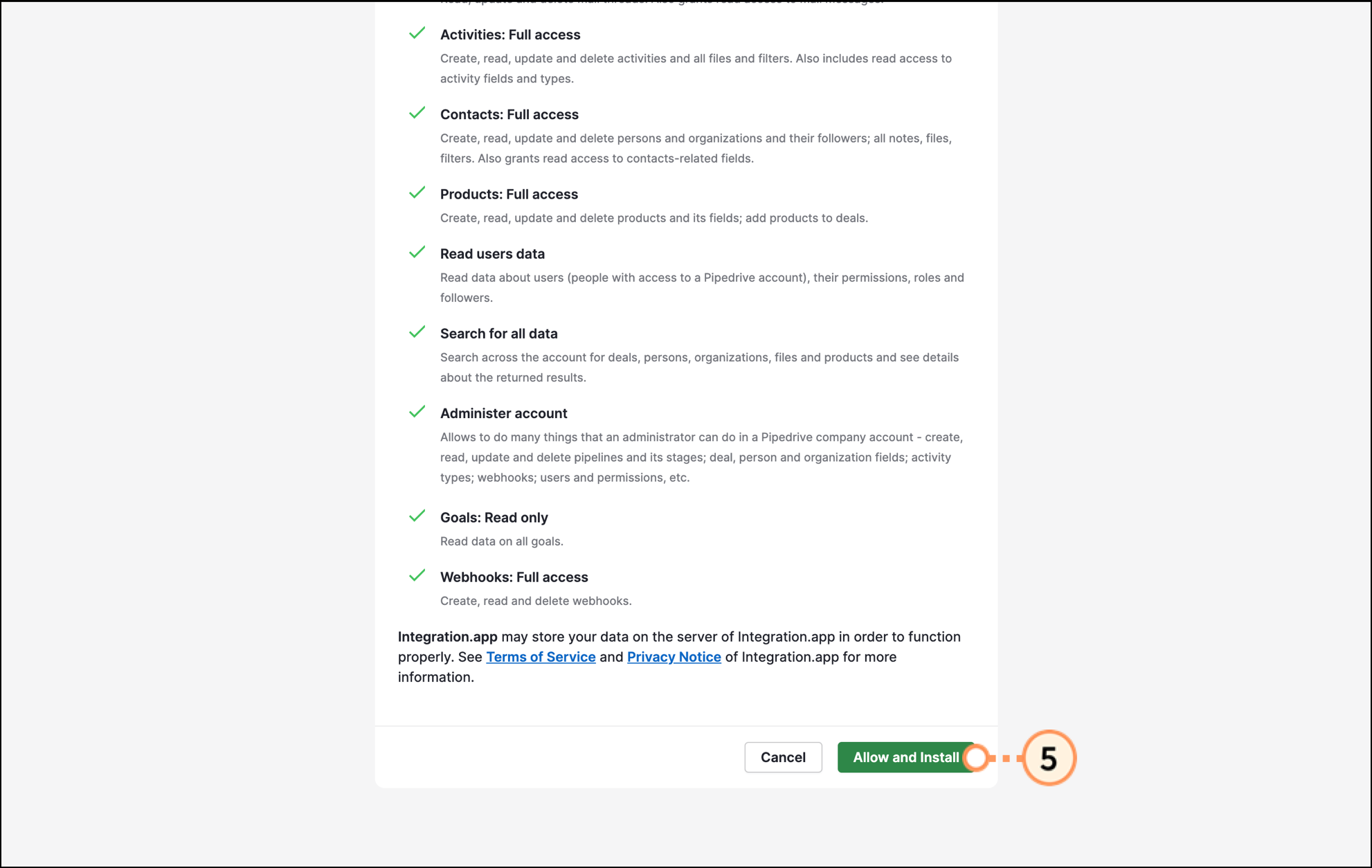
  5. Review permissions and click Allow and Install.


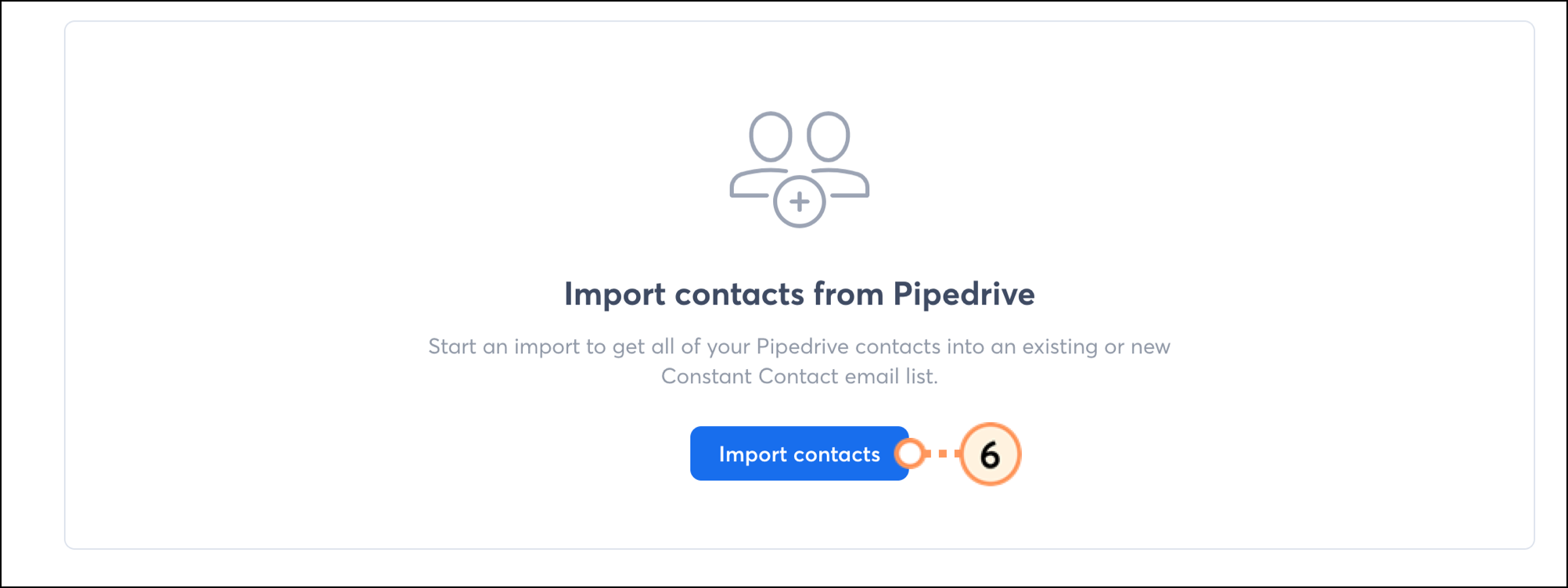
  6. Click Import Contacts


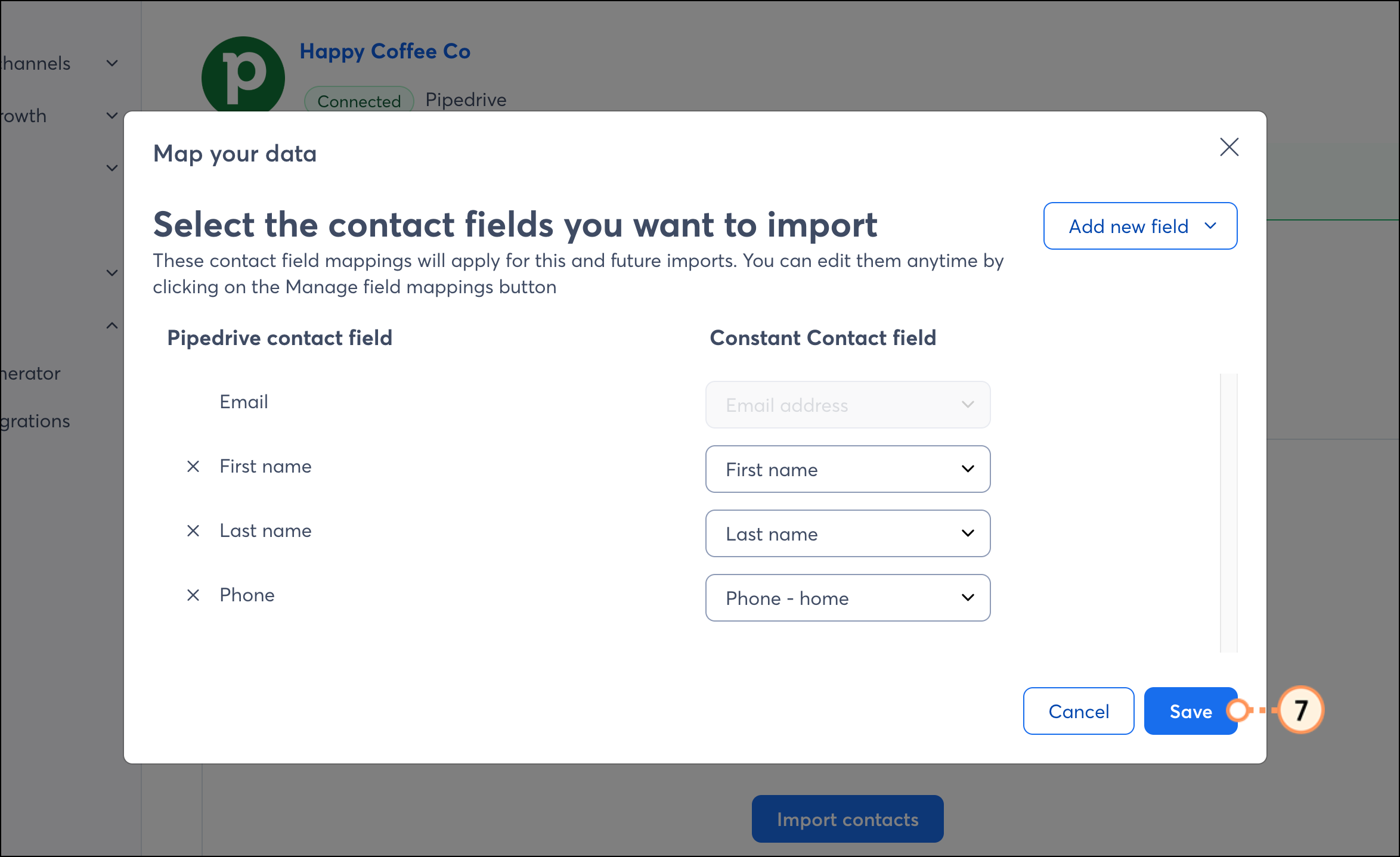
  1. Manage which fields you'd like to import. Click the X to remove a field. Click the "Add a new field" dropdown to add a field. Make sure that each Pipedrive field corresponds with the appropriate Constant Contact field. When ready, click Save.


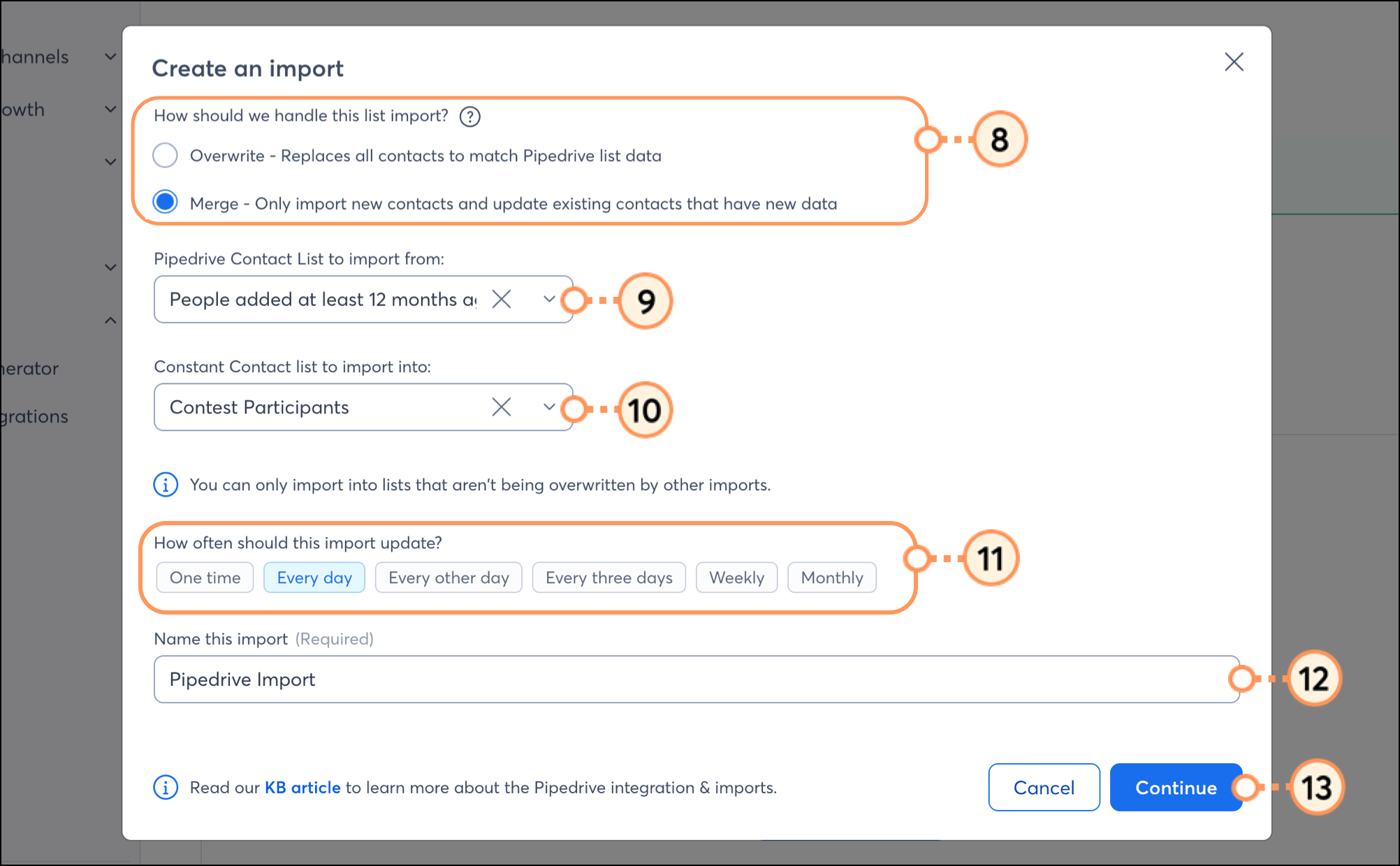
  2. Select an Import Type:
  • Overwrite - Overwrite any existing contacts
  • Merge - Merge new contacts with existing contacts
  1. Select the Pipedrive contact list to import from. To import all contacts, select "All Contacts" from the dropdown menu.
  2. Select the Constant Contact list to import contacts into, or create a new list.
  3. Select the frequency for which the contact lists should update.
  4. Enter a name for the import.
  5. Click Import.


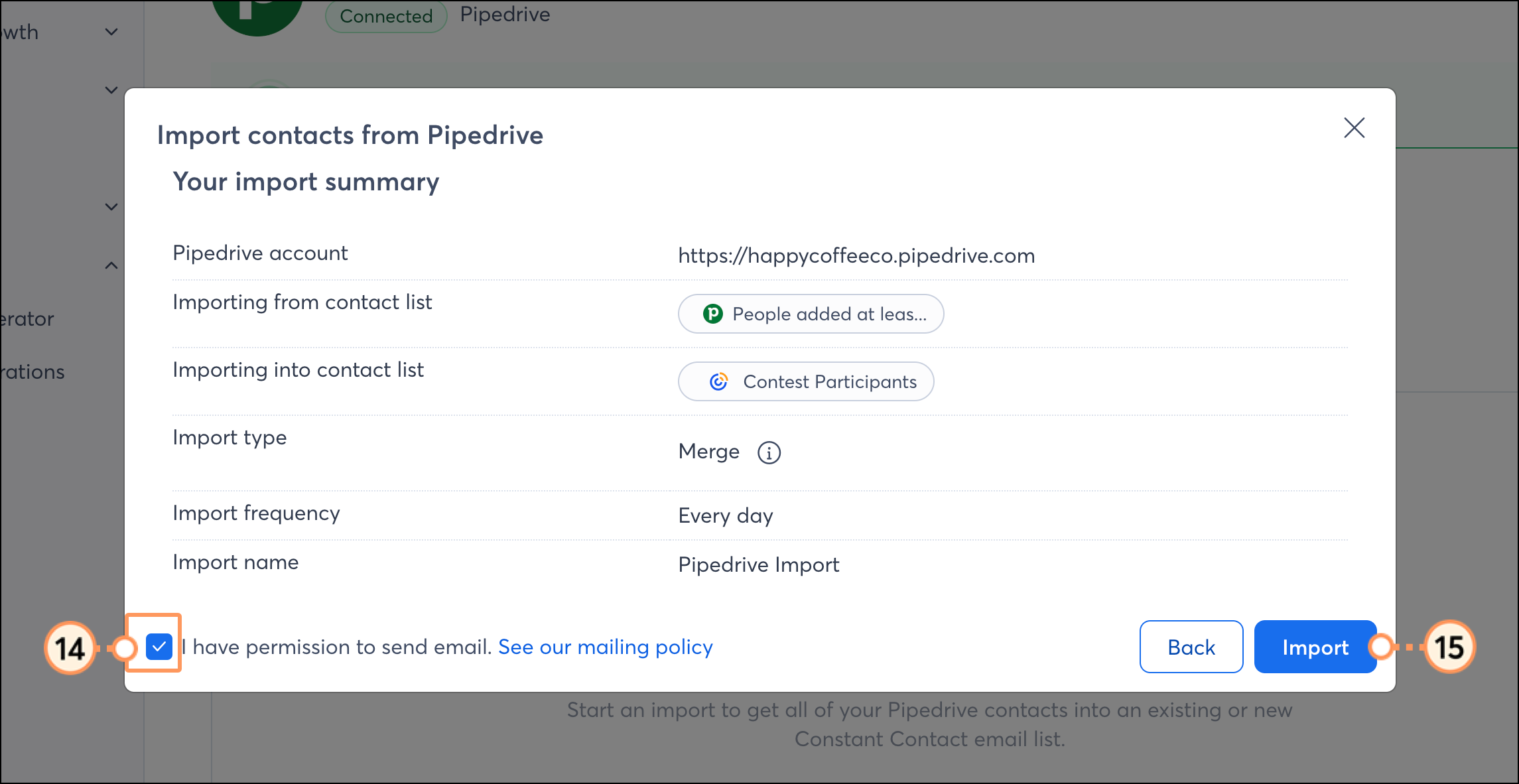
  6. Checkmark the box to confirm that you have permission to send these contacts email.
  7. Review the summary and then click Import.


You can have multiple scheduled imports. If necessary, to create additional imports and segment your contacts, repeat steps 5-13.

You'll then be brought to your Pipedrive integration dashboard, where you can see a list of all your imports, along with the status and details of each. When you create a new import, it will initially be listed in an In Process status. 

Once the import is complete, the status will update to Success.


Boost your marketing with the Pipedrive integration

Once you've set up your imports and your Pipedrive contacts are successfully syncing into Constant Contact, there are a variety of ways to target those contacts with customized messaging.

Create a customized contact segment

When importing from Pipedrive, you have the flexibility to choose which contact, lead, or campaign list you'd like to sync into a Constant Contact list. But maybe you want to segment these contacts even further, to send specific, targeted messaging. You can do so by creating a custom segment of contacts.


Send automated communications

Create personalized automated communications via email and SMS for your customers based on their actions, including welcome emails, thank you series, requests for review, and more.


Any links we provide from non-Constant Contact sites or information about non-Constant Contact products or services are provided as a courtesy and should not be construed as an endorsement by Constant Contact.


Questions?

Ask the Community

Did this article answer your question?


Constant Contact Logo

Copyright © 2026 · All Rights Reserved · Constant Contact · Privacy Center