Email and Digital Marketing
How can we help you?
Search our help articles, video tutorials, and quickstart guides

You've got this. You've got us. Search our Knowledge Base to quickly find answers to your questions.

Customize the subdomain for your “From” email address

Article: 000053013
Updated: November 6, 2026

Create a custom .ccsend subdomain for your rewritten "From" address to maintain strong email deliverability while presenting a professional, branded look to your contacts

With the industry's email authentication requirements for email senders, we're here to make sure your emails get delivered to your contacts, even if you don't have your own domain or can't update your DNS records to be able to send from your custom domain email address.

To ensure there's no interruption in your email delivery, we automatically rewrite your “From” email address with our shared ccsend.com domain. For example, if you currently send from <carlscoffee@gmail.com>, your “From” address is rewritten to <carlscoffee-gmail.com@shared1.ccsend.com> when you send your email. We also recommend that you customize a subdomain for this rewritten email address to better reflect your organization and look more professional to your contacts, such as <carl@carlscoffee.ccsend.com>.


View examples of rewritten email addresses with customized subdomains

  • marsha@halfmoonyoga.ccsend.com
  • sales@mikeslandscaping.ccsend.com
  • boston@brickyardcafe.ccsend.com
  • shop@4alleyes.ccsend.com
  • bookings@oliviassalon.ccsend.com
  • adoptions@heartsandtails.ccsend.com
  • lessons@ventureguitars.ccsend.com
  • designs@annasinteriors.ccsend.com


Customize the subdomain used for your rewritten “From” address

  1. Access your account settings.
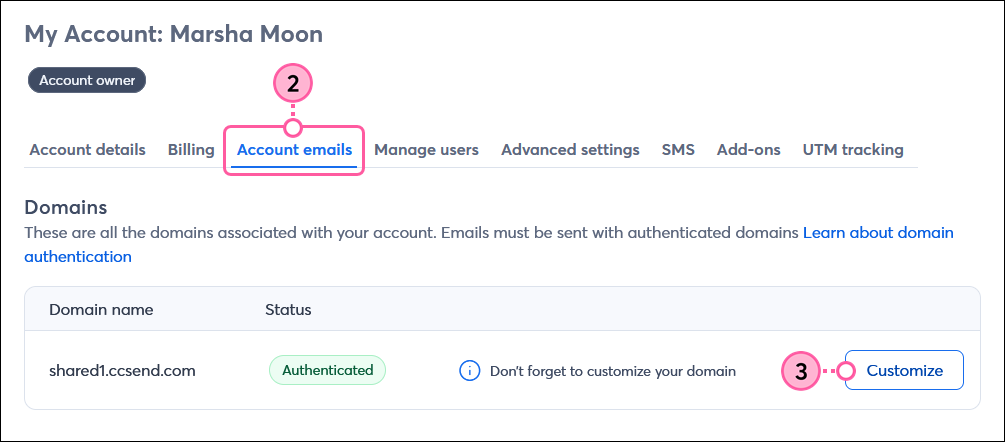
  2. Click the Account emails tab.
  3. In the Domains section, click the Customize button.

    My Account, Account Emails tab, Domains table, and Customize button

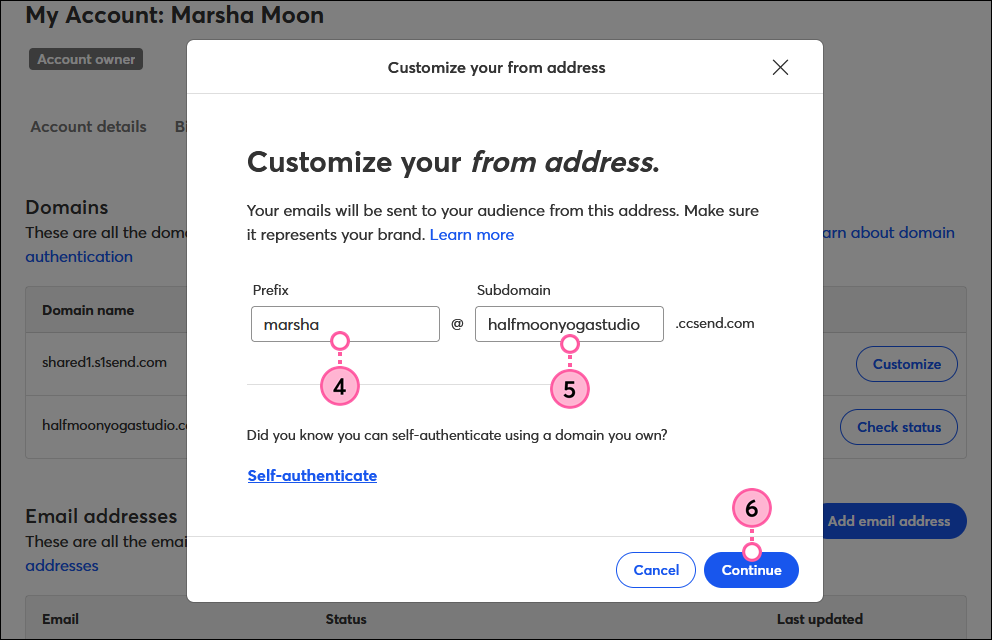
  4. (Optional) Update the prefix for your “From” address. This can be your name, department, location, etc.
  5. (Optional) Update the subdomain you want to use. This should represent your organization’s name, such as @halfmoonyoga, @brickyardcafe, etc. Your subdomain can be up to 63 characters long and can contain letters (a-z) and numbers (0-9). It cannot contain spaces or special characters, except for hyphens (-).
    Important: You won't be able to edit this customized subdomain once you save it, but you can create multiple “From” addresses with it. If you need to change your customized subdomain later, please contact our Support team.
  6. Click the Continue button.

    Customize your from address, prefix field, subdomain field, and Continue button

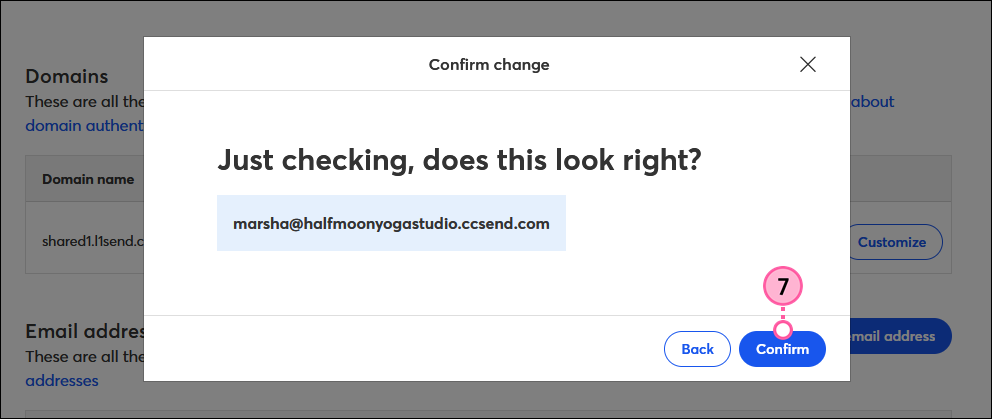
  7. Review the email address to make sure it looks how you want it, then click the Confirm button.

    Confirm customized from address

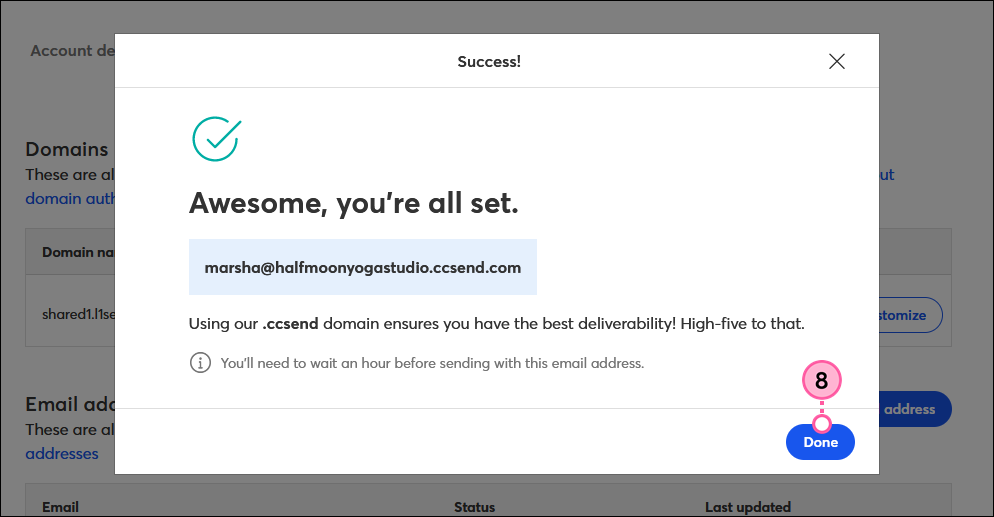
  8. Click the Done button.

    Customized from address success message and Done button


Create additional addresses with your customized subdomain

At this time, you can only customize one subdomain to use, but you're able to create multiple “From” addresses with your customized subdomain within your account. This is helpful if you have multiple people, departments, or locations sending emails to different contact lists.
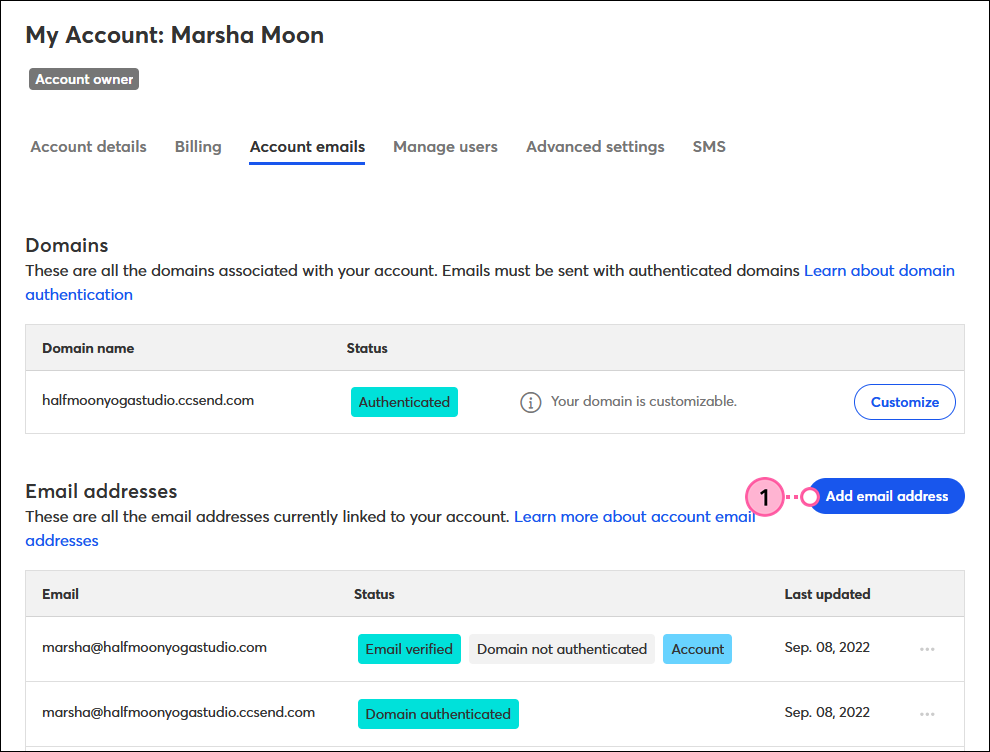
  1. Click the Add email address button.

    My Account, Account Emails tab, and Add Email Address button

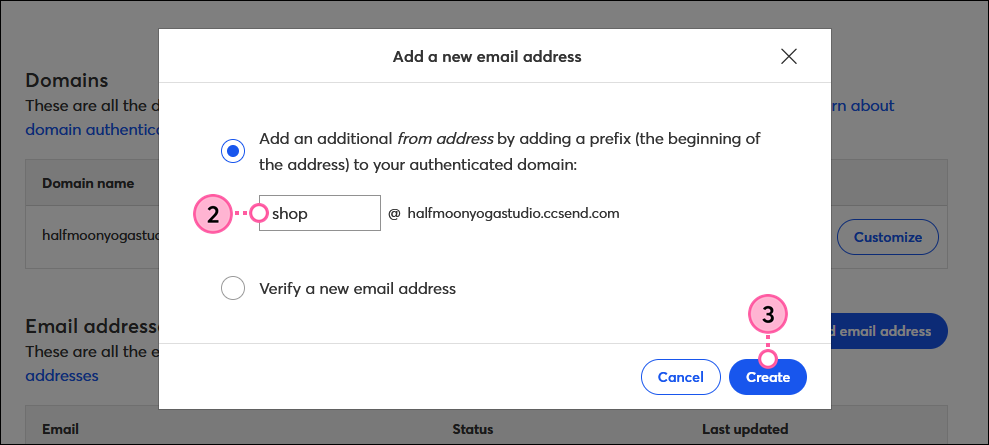
  2. Enter a prefix for the new email address.
  3. Click the Create button.

    Add New Email Address overlay, Prefix field, and Create button


Compare the rewritten "From" address and "Reply-to" address while editing your email header

Rewritten "From" address:

You'll see these customized addresses as options in the “From address” drop-down when editing your email header, including automated emails and event-related emails. Since you can't send from an unauthenticated address, these will be the only options available for your "From" email address.
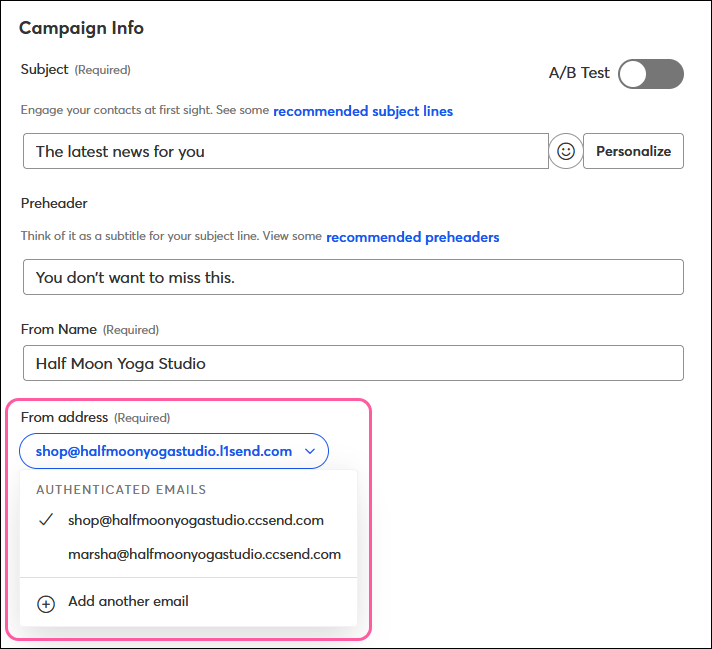
Email schedule page From Address drop-down with Authenticated Emails


"Reply-to" address:

Your “Reply-to” addresses, as well as the email addresses you use for your account and billing contacts, will not be impacted. This will allow you to continue receiving replies from your contacts and communications from Constant Contact regarding your account.
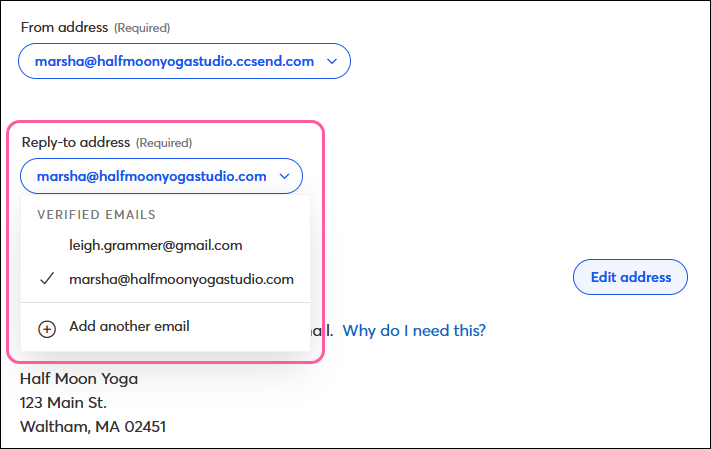
Email schedule page Reply-to Address drop-down with Verified Emails and Unverified Authenticated Emails


Questions?

Ask the Community

Did this article answer your question?


Constant Contact Logo

Copyright © 2026 · All Rights Reserved · Constant Contact · Privacy Center