Email and Digital Marketing
How can we help you?
Search our help articles, video tutorials, and quickstart guides

You've got this. You've got us. Search our Knowledge Base to quickly find answers to your questions.

Add a missing Tracking Pixel tag to a custom code email

Article: 000034514
Updated: July 23, 2025

Insert a tag to track the email opens for your custom HTML code email if it gets deleted while editing your content

When you create an email in the Custom Code editor, a transparent, single-pixel image (or Tracking Pixel tag) is automatically included within the placeholder HTML. This tracking pixel is used to track email opens—when a contact opens your email, a call is made to our server to load the email content, including the image pixel, and it’s counted as a unique open. If the Tracking Pixel tag is accidentally deleted, you receive an error and won’t be able to send your email until it’s resolved, but it's very easy to add back into the email:
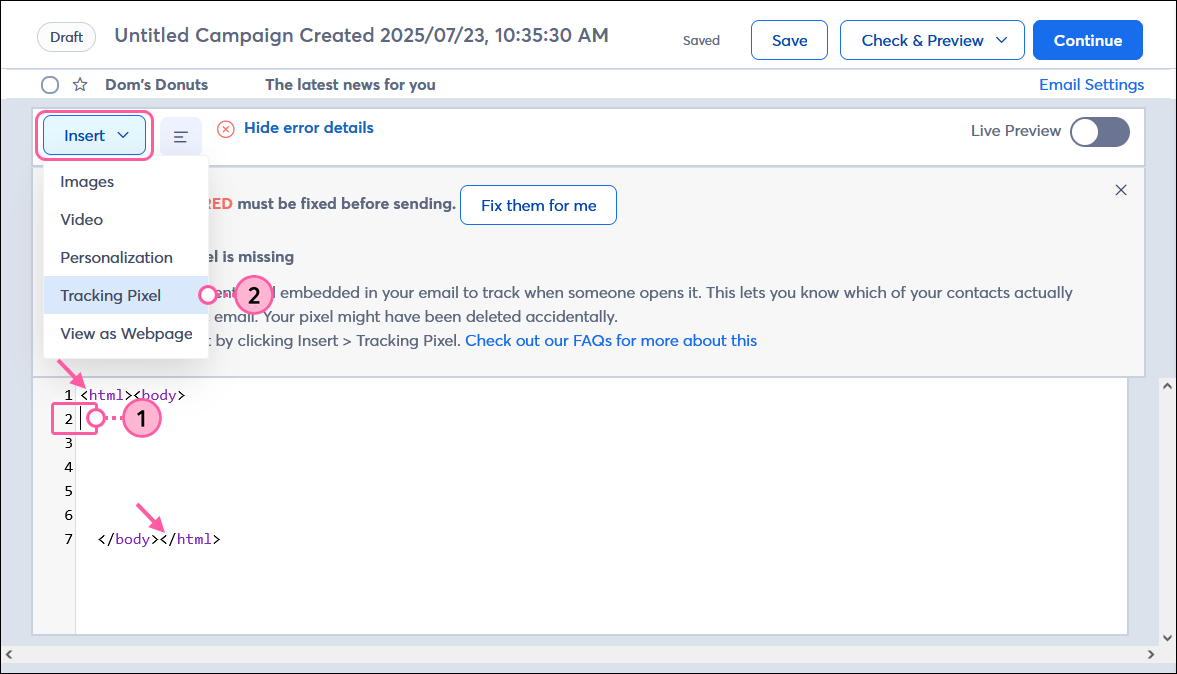
  1. Place your cursor where you want to add the Tracking Pixel tag. Since the Tracking Pixel is invisible, it doesn’t matter where you insert it in the code, as long as it’s within the <html> opening and closing tags.
  2.  Click Insert > Tracking Pixel.

    Custom code editor with missing Tracking Pixel and error message, Insert menu expanded and Tracking Pixel option selected

The [[TrackingImage]] tag is now inserted into the code and when contacts open your email, they are included in the open rate.


Exclamation Point IconImportant: Even though your email includes a Tracking Pixel, there are a few instances when email opens aren’t trackable.


Questions?

Ask the Community

Did this article answer your question?


Constant Contact Logo

Copyright © 2025 · All Rights Reserved · Constant Contact · Privacy Center