Email and Digital Marketing
How can we help you?
Search our help articles, video tutorials, and quickstart guides

You've got this. You've got us. Search our Knowledge Base to quickly find answers to your questions.

Manage account logins with the Constant Contact mobile app

Article: 000024811
Updated: September 10, 2026

Add multiple Constant Contact accounts and toggle between them as needed, or remove an account from the app


Add another Constant Contact account

If you work with more than one Constant Contact account, you can add them to the app after you've installed it.


On Android, complete the following steps: 

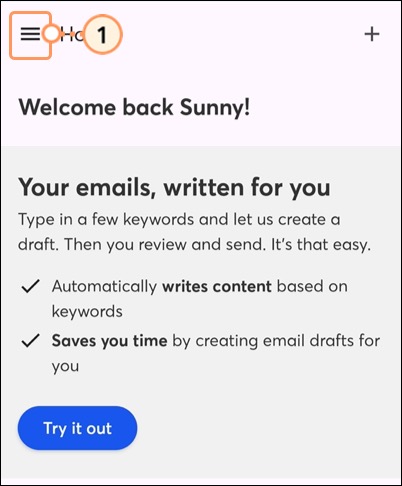
  1. Tap the Hamburger Menu IconMenu.

    Hamburger menu in the top left corner of the app 

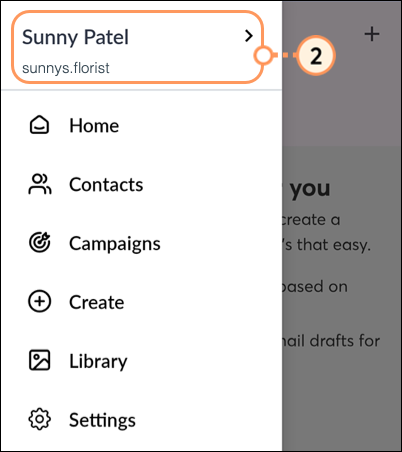
  2. Then, tap on your account name at the top of the menu.

    First name, last name, and username in the top of the left-side pop-up profile menu  

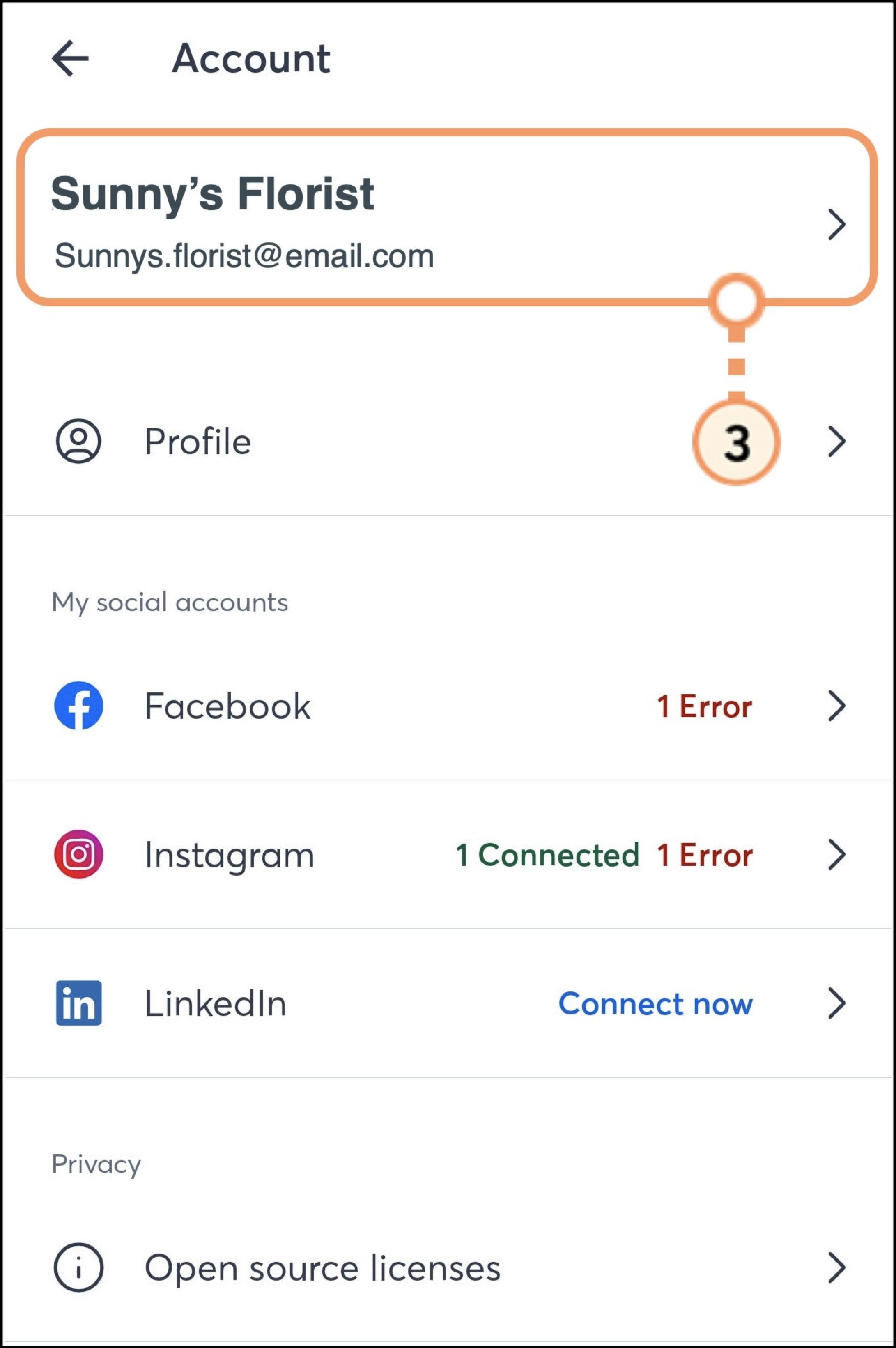
  3. Tap on your account name once again. 

    Account page with name, email, and connected social platforms 

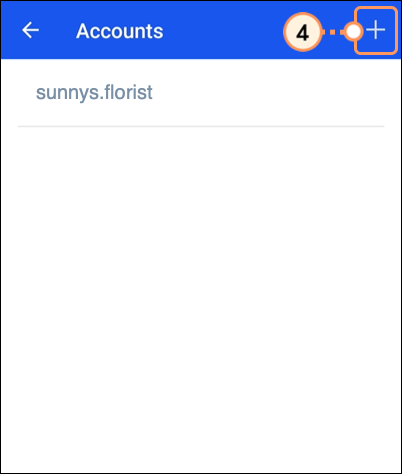
  4. Tap the + plus icon in the top-right of your screen.

    Plus icon in the top right corner of the screen 

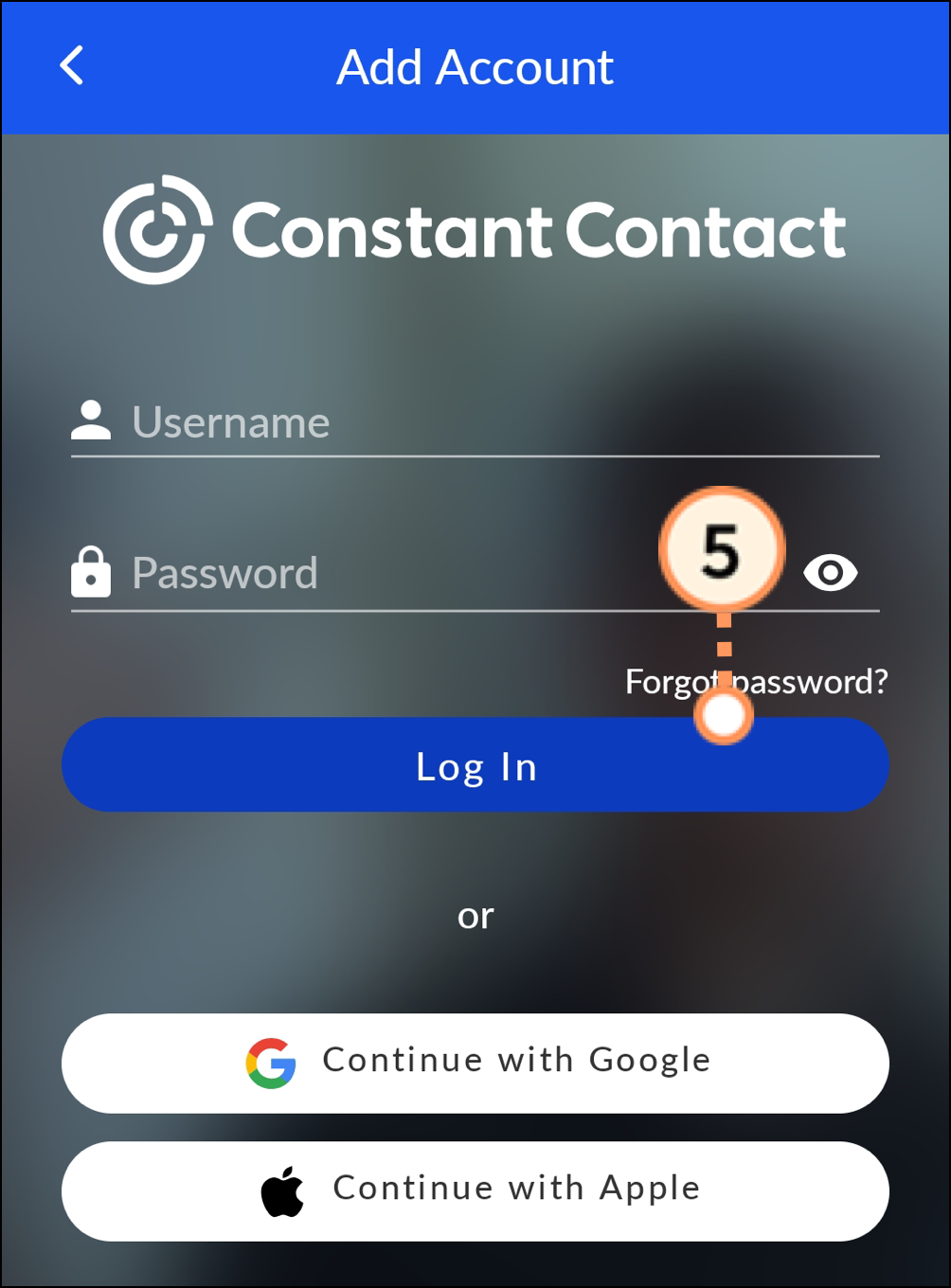
  5. Enter your username and password and then tap Log in

    Username and password fields above Log In and SSO buttons  


On iOS, complete the following steps: 
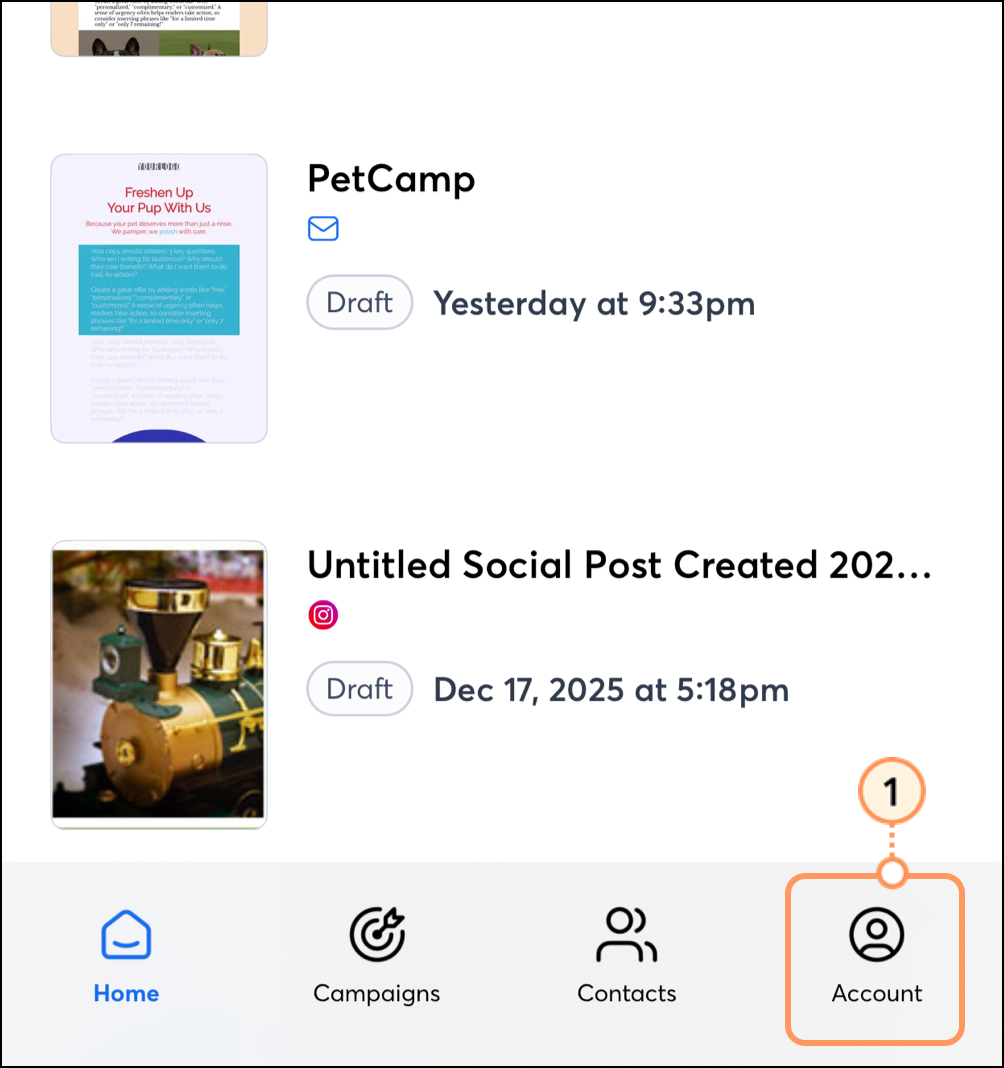
  1. Tap Account in the navigation menu at the bottom of the screen.

    Account section in the far right of the bottom navigation bar 

  2. Then, tap on your account name at the top of the screen. 

    Account page with name, username, and Plans button  

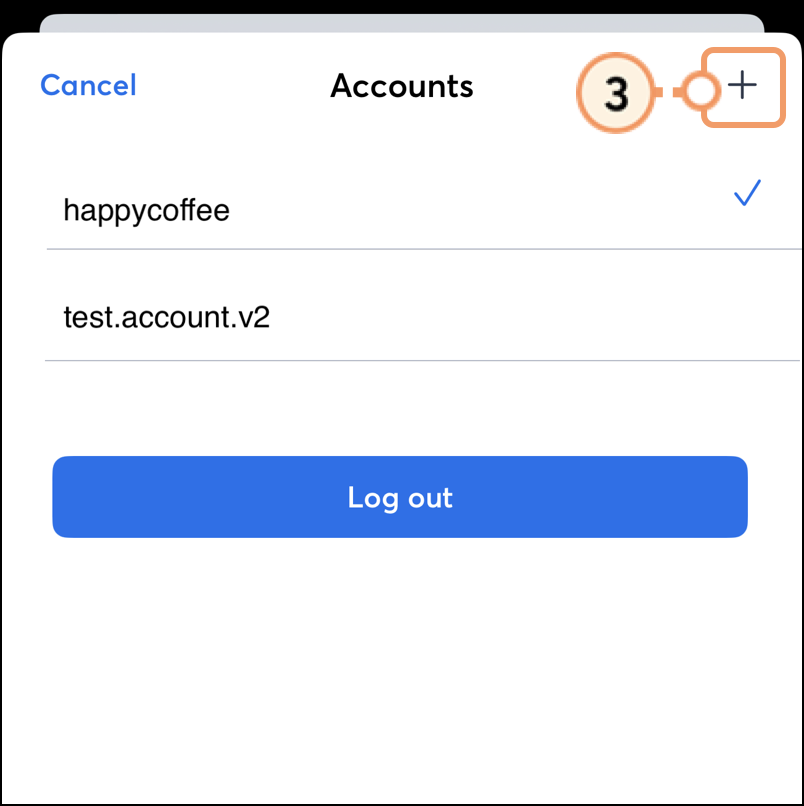
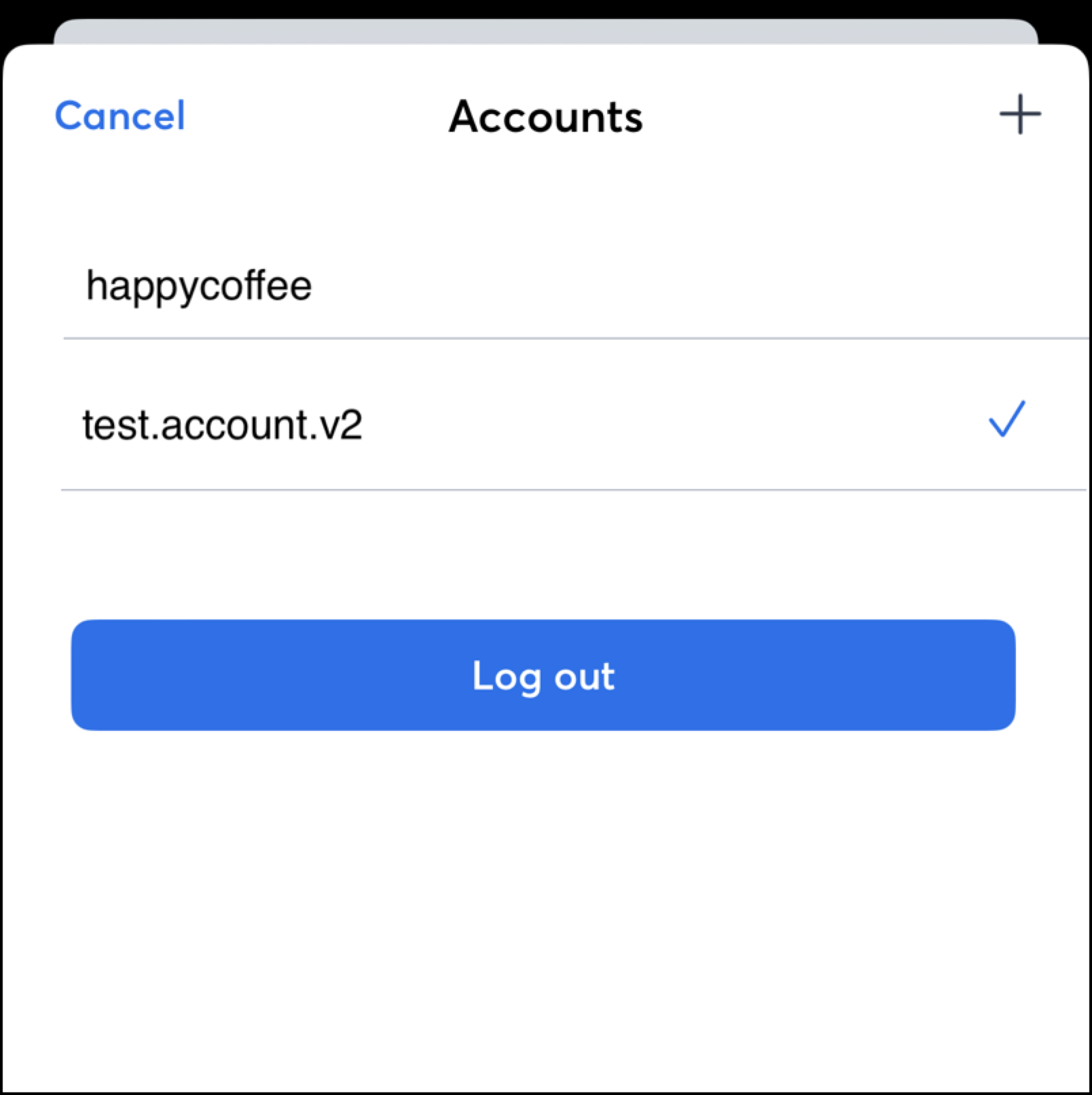
  3. Tap the + plus sign in the top right corner. 

    Plus sign in the top right corner of the screen, profiles, and blue Log out button    

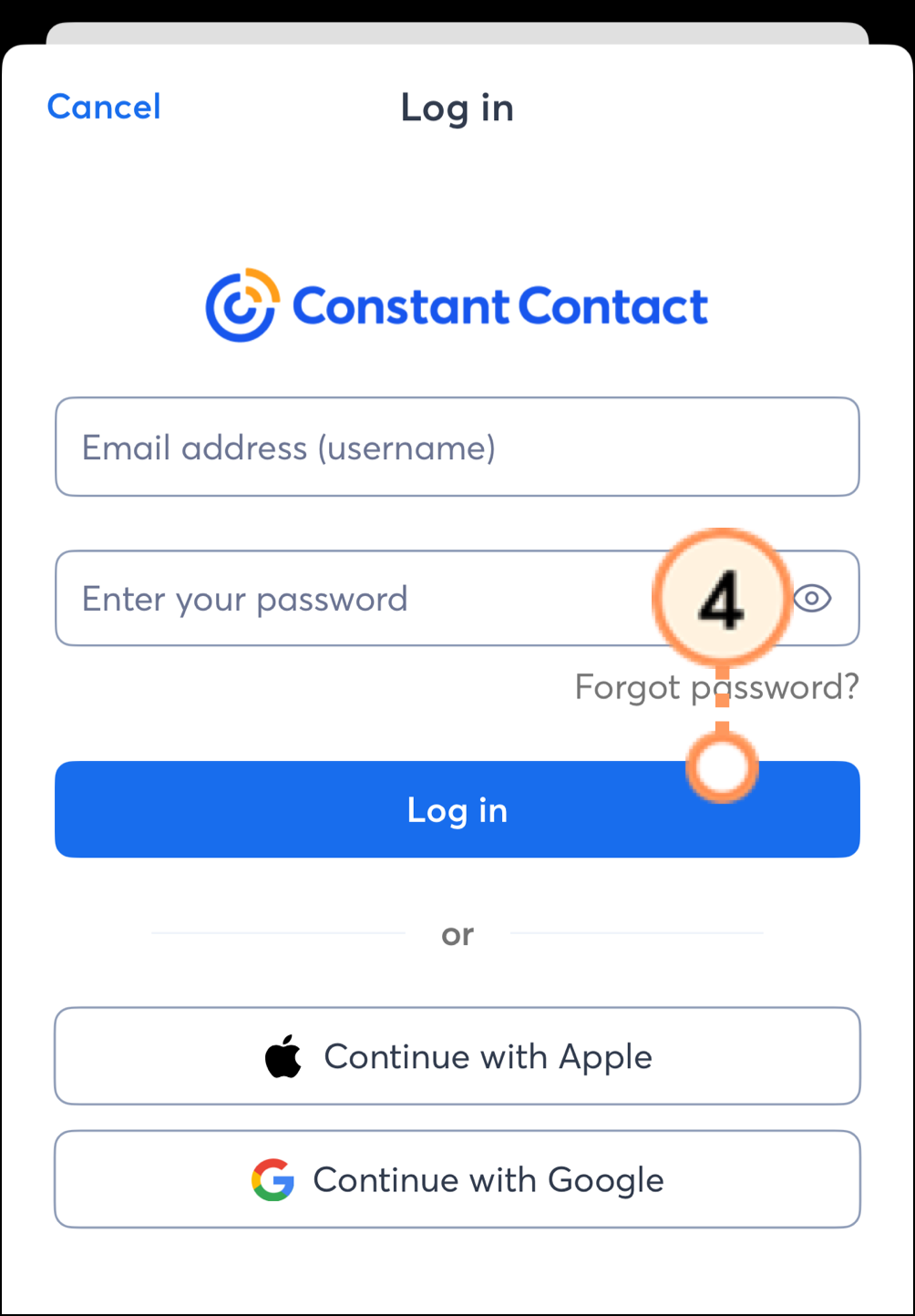
  4. Enter your username and password and tap Log in. 

    Email address or username field and password field above blue Log In button and SSO buttons   


Switch accounts

You can switch between accounts in the mobile application once you have logged in. 

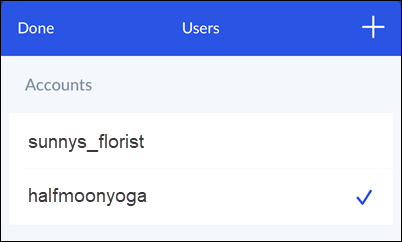
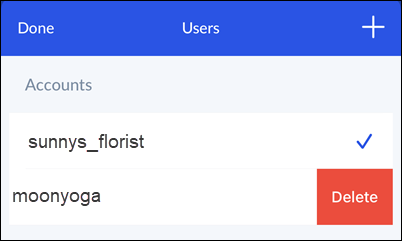
On Android, tap on the username of the account you'd like to switch to. The checkmark appears next to the selected account. 

Users page with list of profiles and checkmark next to the logged in profile 


On iOS, tap the username of the account you want to switch into. The checkmark appears next to the selected account. 

Accounts page with list of profiles and checkmark next to the logged in profile 


Remove accounts

If you no longer need an account in your application, you can remove it. 

On Android, swipe left on the account you want to remove and then tap Delete.

Right to left swipe of profile with Delete button displayed 

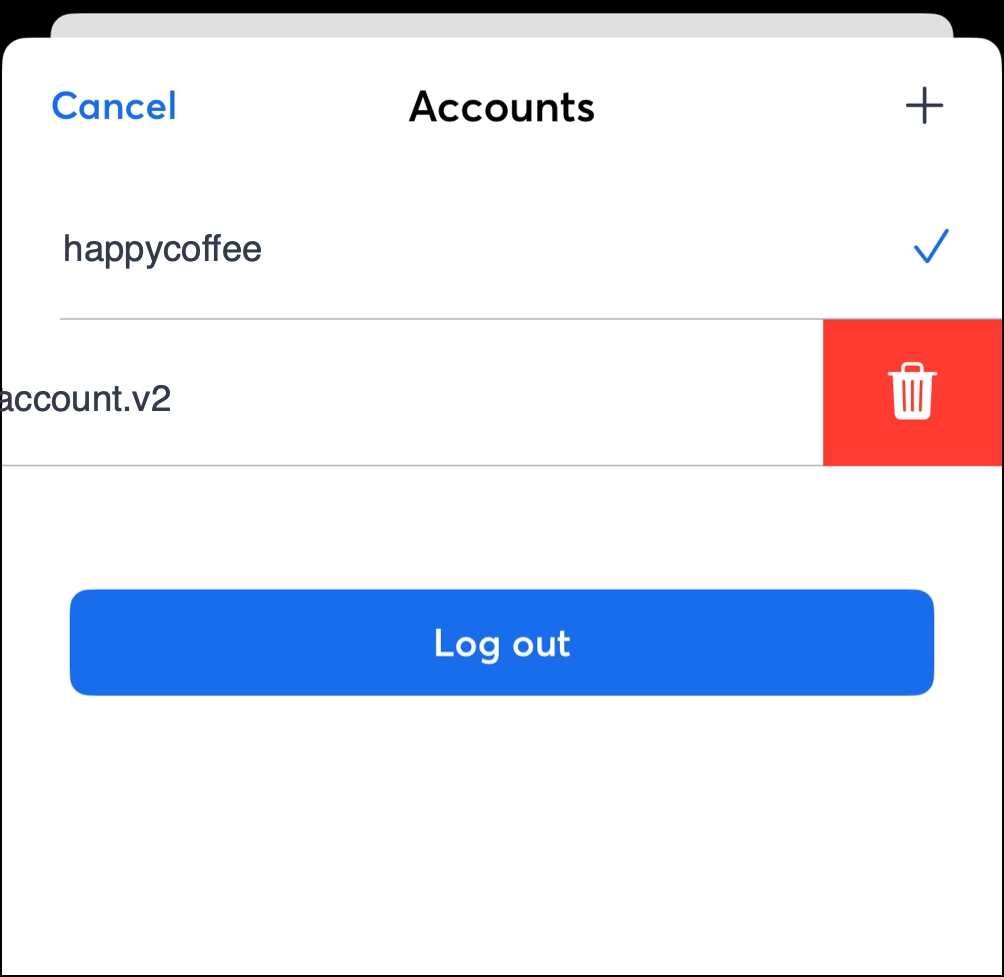
On iOS, swipe left on the account you want to remove, then tap the trash can icon.

Right to left swipe of profile with trash can button displayed


Log out of the app

You can log out of the application altogether.

On Android, complete the following steps: 

  1. Tap the Hamburger Menu IconMenu.

    Hamburger menu in the top left corner  

  2. Then, tap on your account name at the top of the menu.

    First name, last name, and username in the top left corner 

  3. Tap on your account name once again. 

    Account page with user's name and email address 
      
  4. Tap Log Out.

    Blue log out button 


On iOS, complete the following steps: 
 

  1.  Tap Account in the navigation menu at the bottom of the screen.

     Account icon in the bottom right corner 

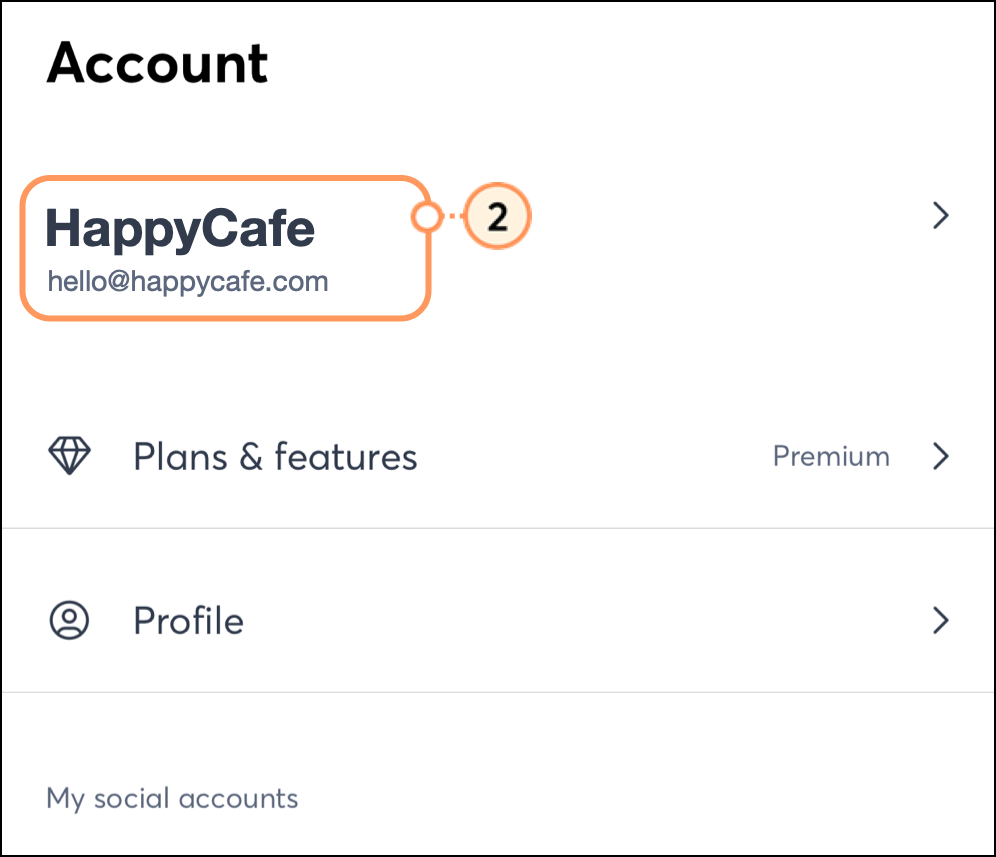
  2. Tap on your account name

    Account name and email address at the top of the account page  

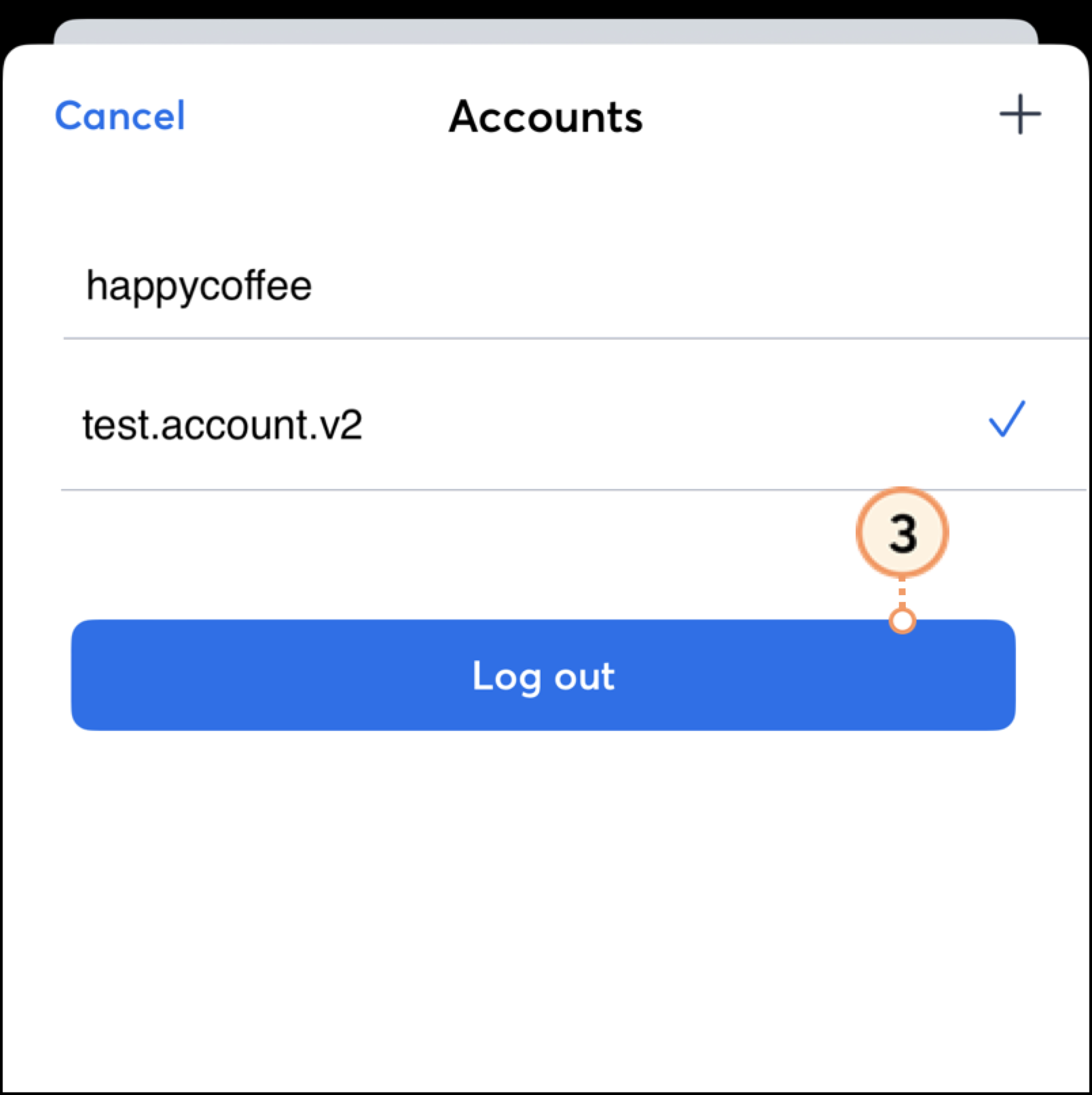
  3. Tap Log Out.

    Accounts page with various profiles and blue Log out button  


The next time you open the app, you'll be prompted to enter the username and password for any accounts previously associated with the application. 


Questions?

Ask the Community

Did this article answer your question?


Constant Contact Logo

Copyright © 2026 · All Rights Reserved · Constant Contact · Privacy Center