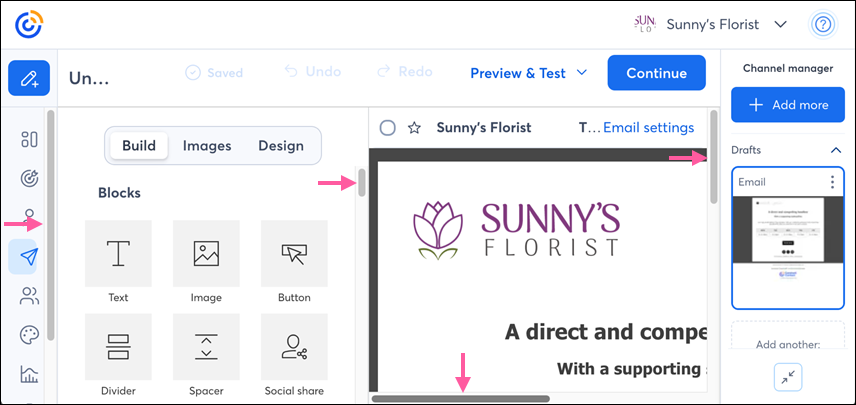
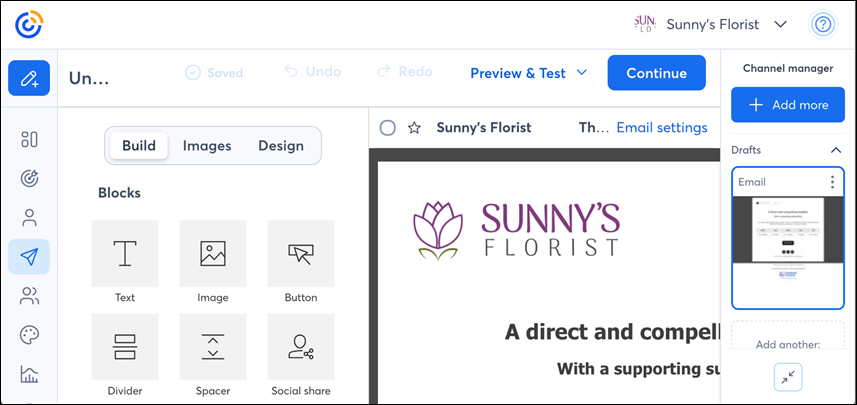
Scroll bars are very handy when the window you're working in is set to a specific size, but you still want to access features and content that fall outside of the window dimensions. Clicking in the area you want to scroll in and dragging your finger up and down on the mouse (Mac), using the mouse's scroll wheel (PC), or using the directional arrows on your keyboard lets you see the scroll bar, but it's not always apparent where to click. A more permanent option is to change the settings on your Mac or PC so that the scroll bars are always visible. This ensures that no matter what window or drop-down menu you're viewing, even outside of Constant Contact, you always have access to the scroll bars:
When the scroll bars are disabled, it can be confusing how to navigate around the page. Sometimes the scrollbars show themselves when you put your mouse where they should be, and sometimes they're disabled altogether, depending on your computer's settings.
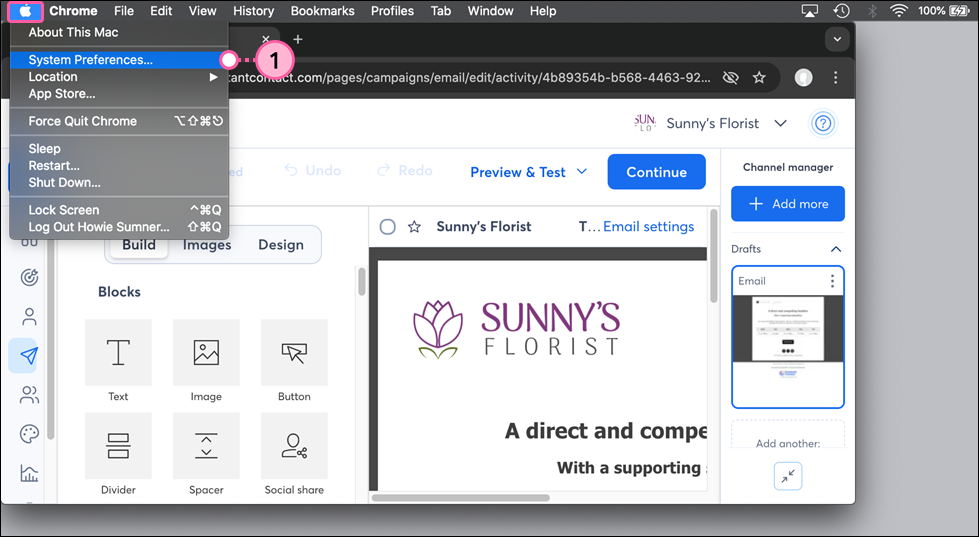
On a Mac, the scroll bar settings can be found in your System Preferences.
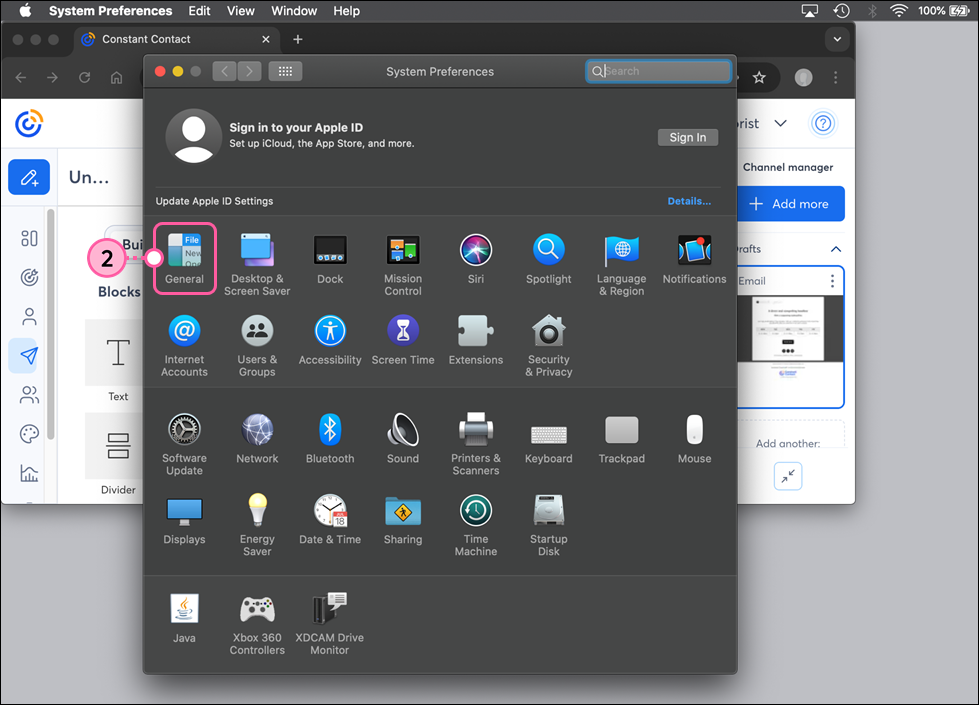
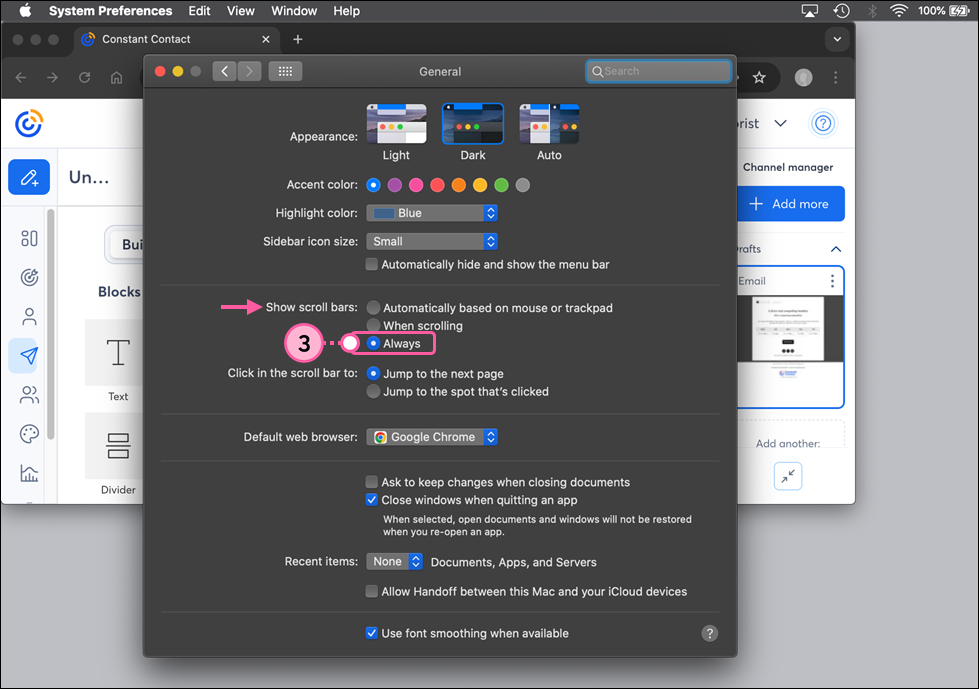
For more help setting up your preferences on a Mac, please see Apple's Support.
On a Windows PC, the scroll bar settings can be found in your System Settings.
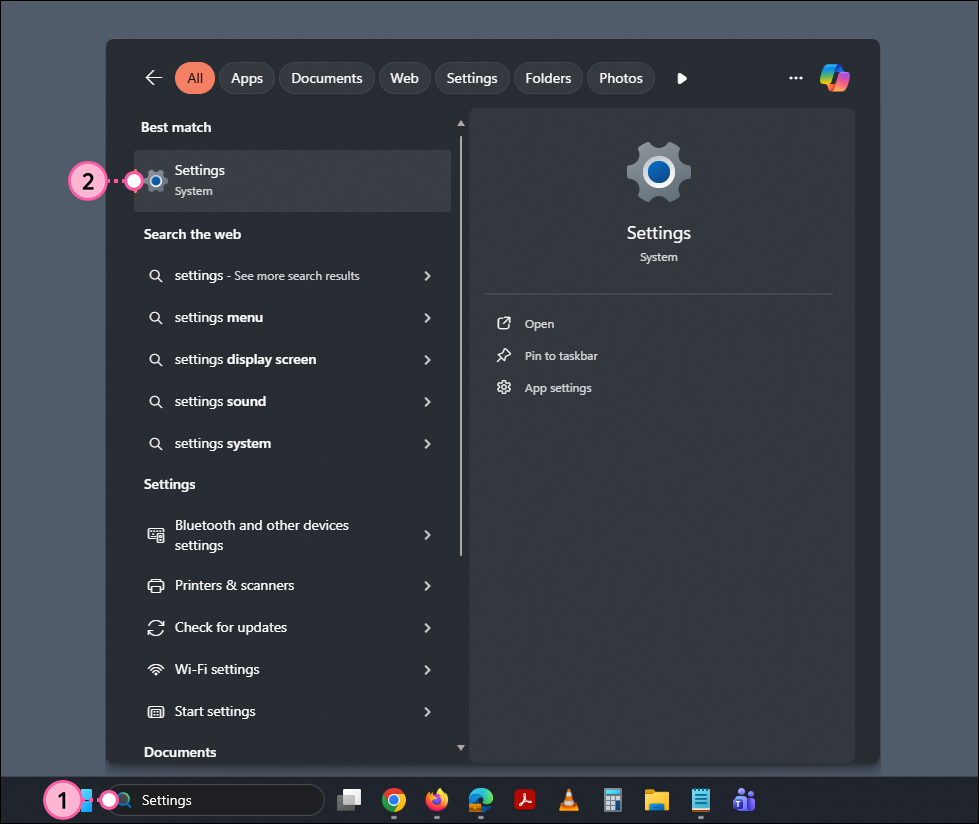
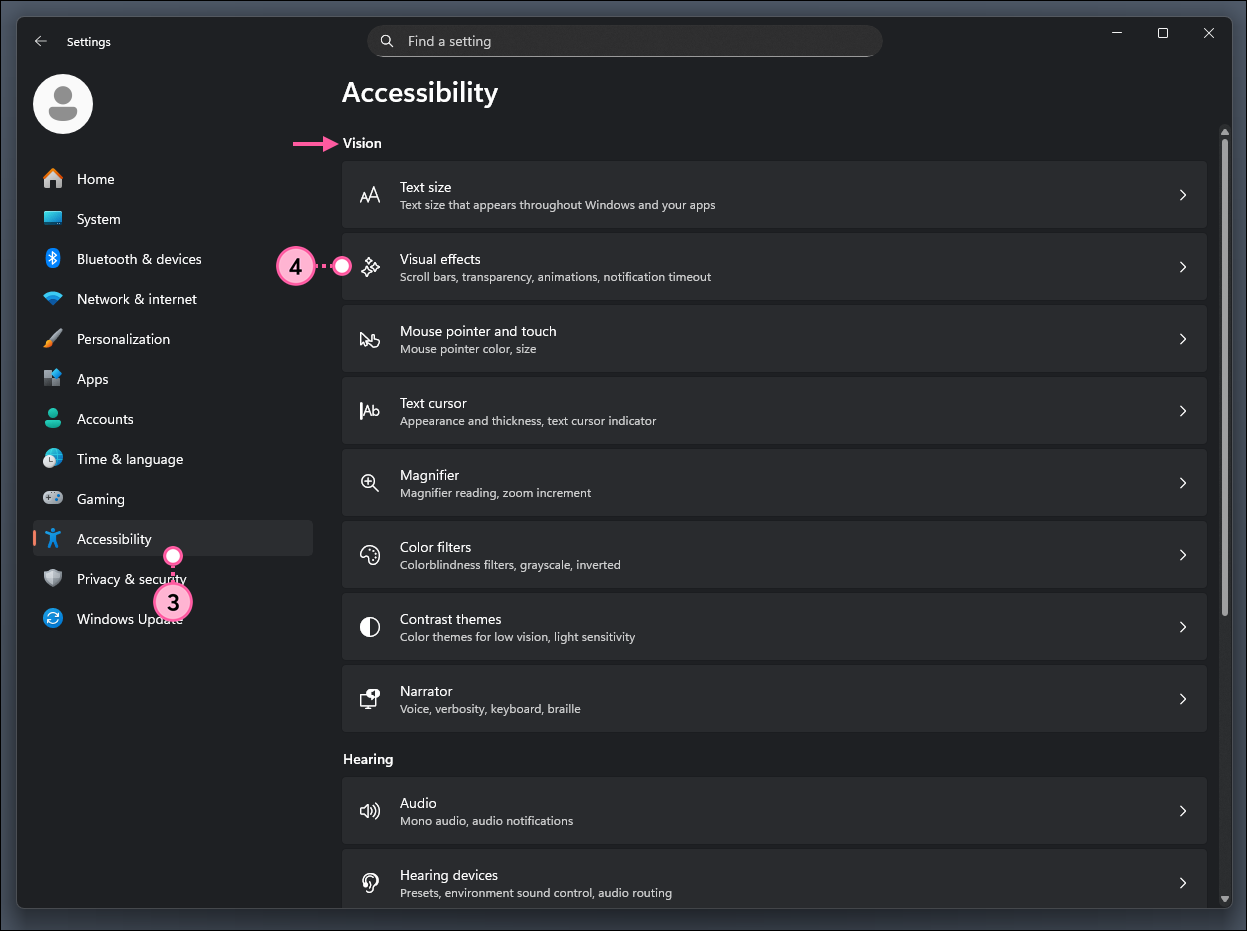
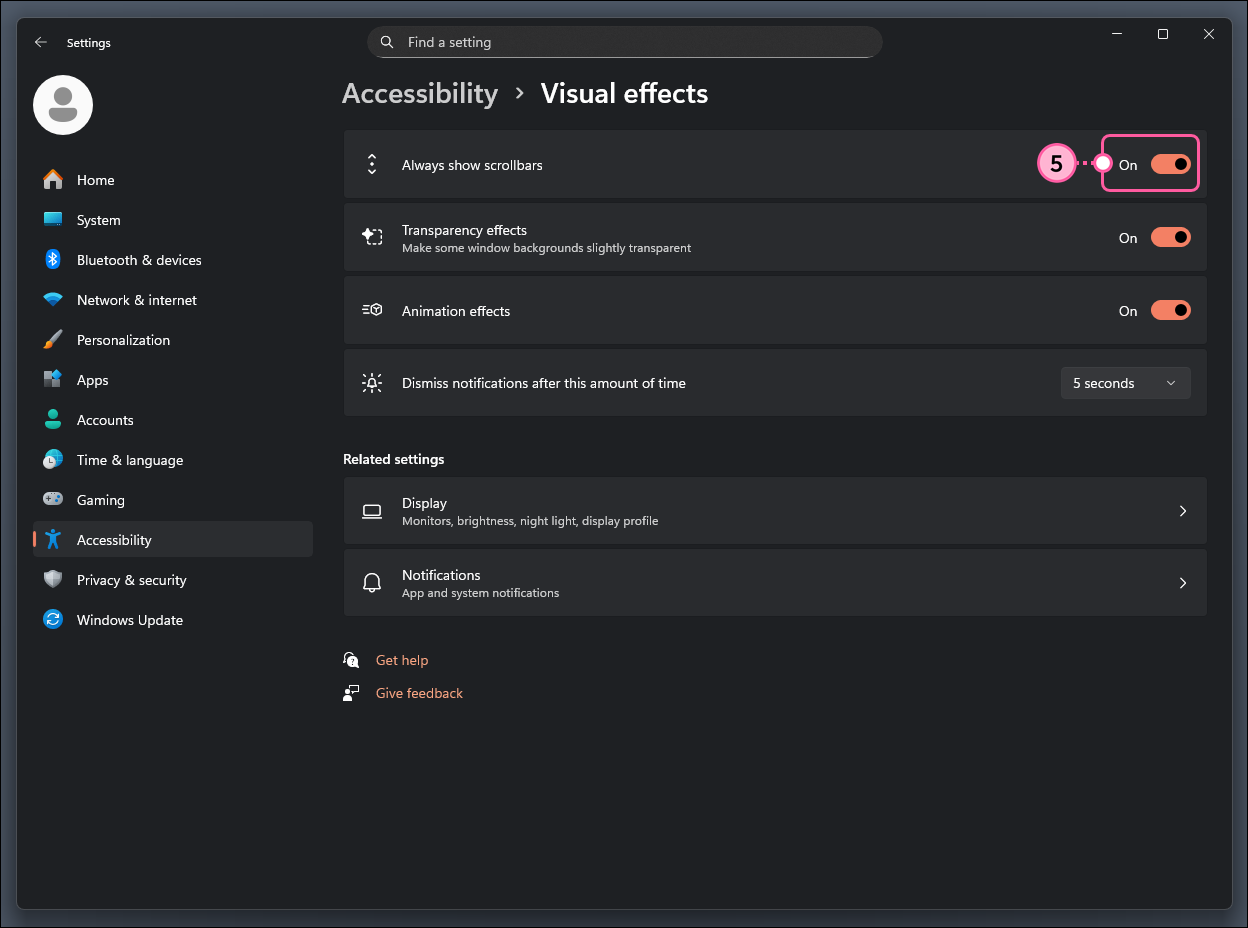
For more help setting up your preferences on a Windows PC, please see Microsoft's Support.
Any links we provide from non-Constant Contact sites or information about non-Constant Contact products or services are provided as a courtesy and should not be construed as an endorsement by Constant Contact.
Copyright © 2026 · All Rights Reserved · Constant Contact · Privacy Center