Domain-based Message Authentication, Reporting & Conformance (DMARC) is a policy that a domain (or website) publishes in its public Domain Name System (DNS) to let a receiving mailbox provider know how email sent from that domain should be authenticated and whether it should be delivered to the spam folder or rejected if it fails that authentication. DMARC was first introduced to protect domains from being the victims of spoofing and phishing.
Yahoo!, Google, and Microsoft announced that they are tightening requirements on inbound email to their users. One of these requirements is that all emails sent to their users must come from a domain that is authenticated and has a published DMARC policy.
 | Note: If you haven't yet authenticated your domain, be sure to set up self-authentication within your Constant Contact account, in addition to publishing a DMARC policy, to comply with the latest authentication requirements. |
A DMARC policy is also good for your brand, as a strong policy helps protect you from phishing attacks. If you want to quickly check whether your domain already has a DMARC policy in place, you can do a lookup here.
What you should include in your DMARC record depends on a lot of factors. If you’re just looking to get something published to comply with the latest requirements, Constant Contact recommends that the following TXT record be added to your DNS settings:
| Hostname | Value |
| _dmarc.yourdomain.com | v=DMARC1; p=none; |
For a DMARC record, the hostname will always start with “_dmarc.” followed by your domain. This is standardized so that the receiving mailbox providers can easily look up if you have a record.
The “p=” tag within the Value tells the receiving server what to do if the message fails a DMARC alignment check. There are three possible values:
Note: This is just a “bare necessities” type of record. If you have other email streams that are not yet authenticated, using this example record with a p=none value should not cause them any harm.
 | Important: For additional information about drafting a DMARC policy, please see dmarc.org. If you need help publishing your DMARC policy, your IT department or webmaster can assist you. |
If you want to take more control over your DMARC policy, you can choose to create the record with additional optional tags. For example, there are two types of reporting tags that allow the receiving domains to send reports back to an address you select regarding any alignment failures. You would use that, combined with p=none, to track down all the systems that are sending email on your behalf. Once you know that all legitimate emails sent using your domain will pass a DMARC alignment check, you can upgrade the policy to p=reject.
If you want to start receiving DMARC reports to identify all the systems sending email from your domain, so you can lock them down and upgrade to a strict (p=reject) policy to prevent phishing and spoofing of your domain, then you should consult with an IT professional or your hosting provider.
For more detailed information on the various tags and how you may use your record, please check out these additional resources:
Once you have your DMARC record, you need to enter it in your DNS settings at your hosting provider. If you’re not sure where that is, try this handy tool at MXtoolbox to look up your domain and find out who hosts your DNS settings. You should have a login for that provider, but if not, reach out to your IT department or the person who helped you set up your website.
Every provider has a slightly different interface, so you’ll need to log in and follow the support prompts for that provider. Our article on updating your DNS records may help you find the support pages for adding records with the top providers.
Once you find where you need to enter the information, there are three things you need to select or enter:
Note: Some hosting providers automatically add your domain to the record, in which case you’ll only need to enter “_dmarc” for the hostname. Also, please be aware that the record information is case sensitive.
When a mailbox provider receives a message, they’ll first look at the domain in the visible “friendly From” email address of a message. This domain is the foundation of DMARC. To pass a DMARC check, the “From” domain must match the domain found in the DKIM signature. Within Constant Contact, this can be accomplished using self-authentication via CNAME or TXT record.
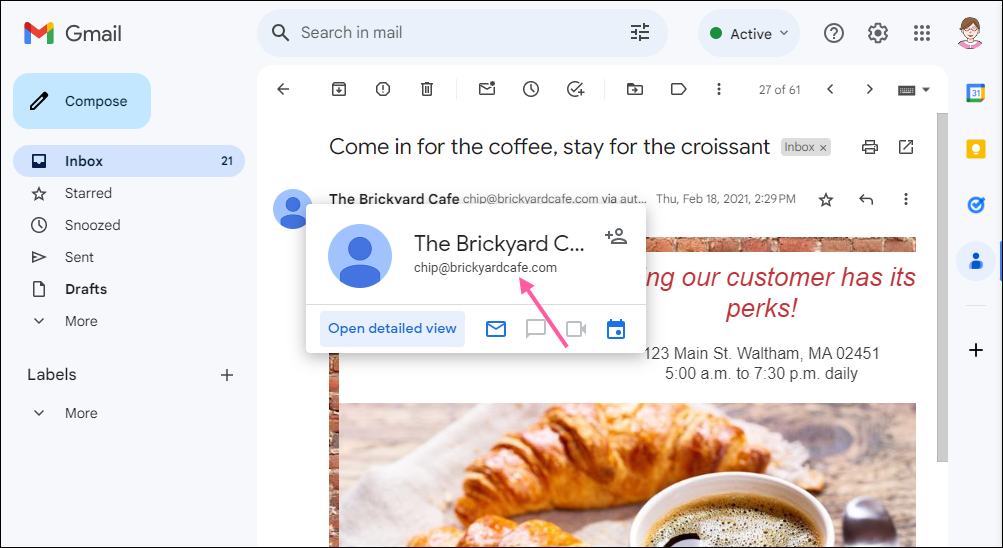
Bounces caused by DMARC mean that the domain you’re sending from has implemented a stronger DMARC policy (p=quarantine or p=reject), and the email must be DKIM signed with that domain. If you own the domain you’re sending from and can update your DNS records, then you’ll need to set up self-authentication within Constant Contact.
If you do NOT own the domain you’re sending from (free webmail or ISP domain), you have some choices to make. If you own a custom domain for your business but haven’t set up email with it yet, then it might be time to do that! If you’re not able to send from a domain you can authenticate (i.e., update the DNS records), we'll automatically rewrite your "From" email address with our shared ccsend.com domain to make sure it complies with the latest guidelines, which you can choose to customize to help improve your brand recognition.
|
|
Be a better marketer: Using a custom domain email address is a best practice and makes you look more professional. The address can be created after you purchase your own domain. |
Any links we provide from non-Constant Contact sites or information about non-Constant Contact products or services are provided as a courtesy and should not be construed as an endorsement by Constant Contact.
Copyright © 2026 · All Rights Reserved · Constant Contact · Privacy Center
