When you import a file of contacts, we recognize characters and special characters that are common to email addresses, such as:
- Capital letters (A - Z)
- Lower-case letters (a - z)
- Numbers (0 - 9)
- At symbol ( @ )
- Dash ( - )
- Period ( . )
- Plus sign ( + )
- Underscore ( _ )
However, extra spaces, hidden fields, special characters, or symbols that can't be recognized sometimes find their way into an email address. You can check you file before importing it to make sure your email addresses are compatible by using "Find and Replace":
Outside of the email address, accented and foreign language alphabet characters (Â â, Č č, É é, Ģ ģ, Ñ ñ, Ø ø, Ü ü, etc.) can be used in names, company names, and physical addresses.
 | Did You Know? Not all errors prevent your file from being imported. After you upload a spreadsheet of contacts, you can check for errors that are keeping contacts from being added to your list, and correct them if you have any. |
Microsoft Notepad
To check the formatting of your email addresses, open your TXT or CSV file in Notepad.
- Click Edit > Replace.
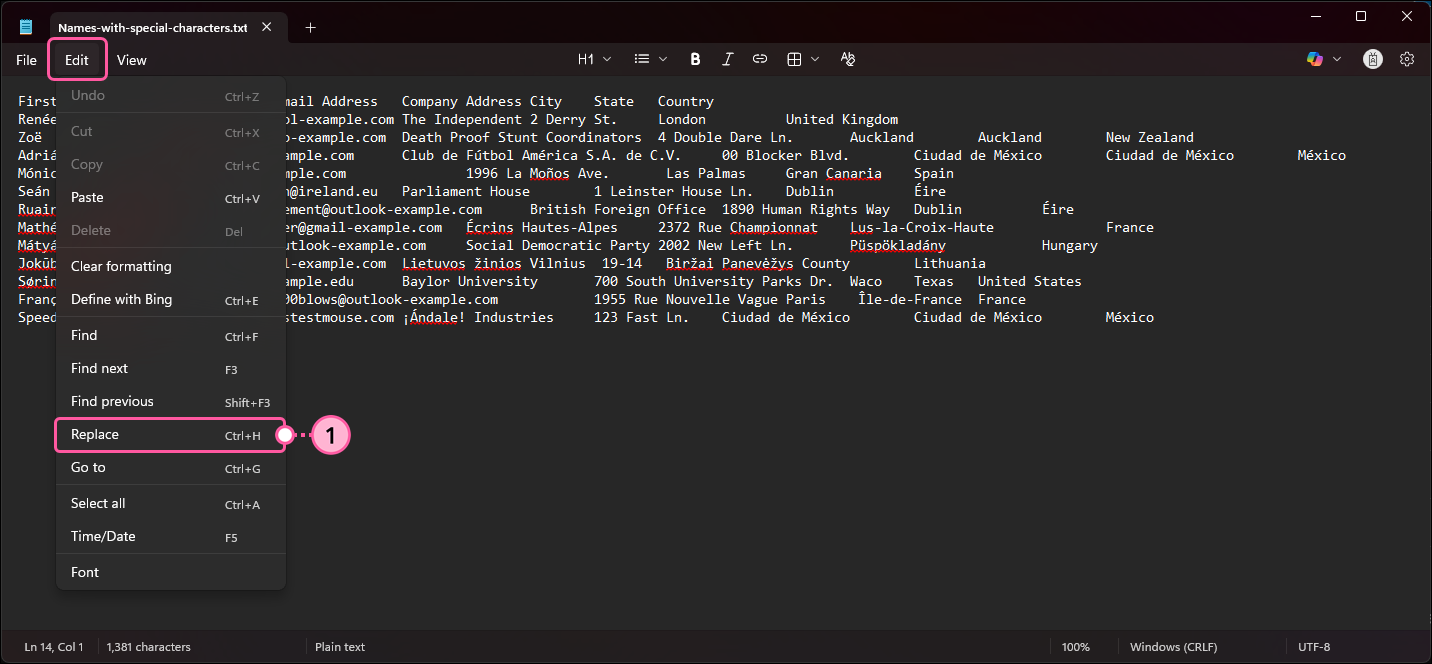
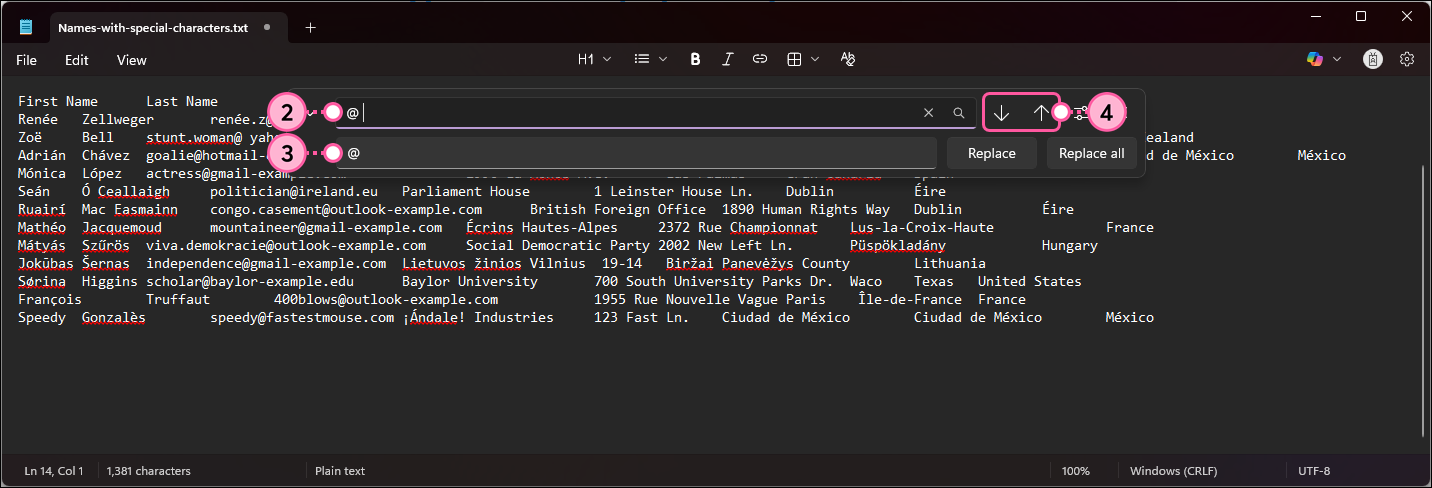
- In the top field, enter the character you want to search for. For example, search for spaces before or after the "@" in an email address by entering either "@ " with a space following it or " @" with a space preceding it.
- In the Replace with field, enter the correct character. For example, enter "@" without any spaces.
Note: Leaving the field blank deletes whatever is in the first field from your file when you get to step 6. - Click the up or down arrow to search through the file for all the instances of your special character.
Note: The search begins from the point where your cursor is in the file. Clicking somewhere in the upper left-hand corner prevents your from missing any potential results.
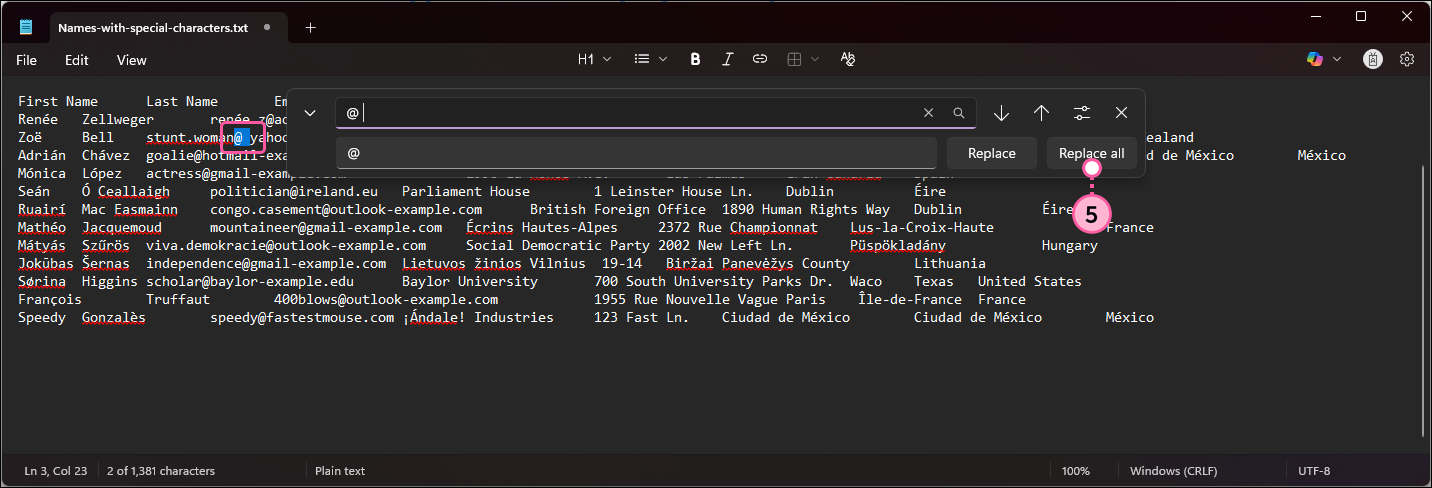
- Review the highlighted result. To:
- Replace All Instances in the File - Click the Replace All button. Only use the "replace all" option if you're certain it won't affect other areas of your file. For example, the "@" only appears within the email addresses and won't interfere with other contact details in your file.
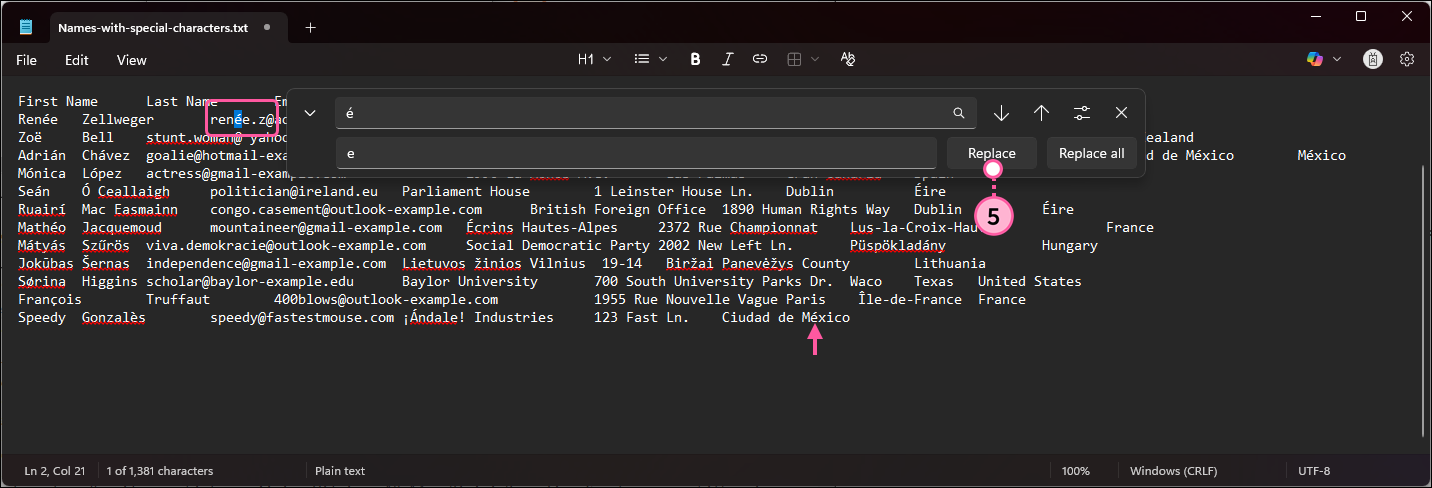
- Change Only the Highlighted Result - Click the Replace button and repeat to review each result individually. For example, an accented character in an email address needs to be removed, but since the accented character appears in other areas outside of the email address, Replace All isn't used.
- Click File > Save.
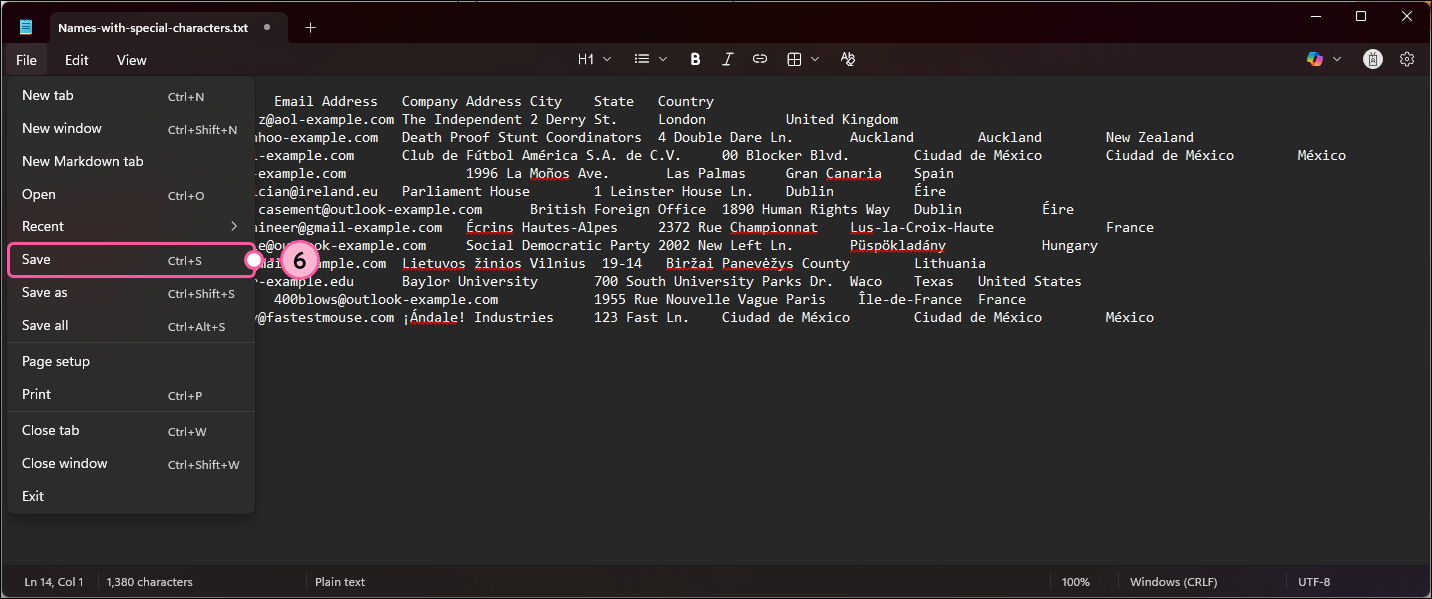
Repeat as necessary for each special character or spacing that you want to check for. Once your text characters are in good shape, make sure your file is formatted so that it's compatible with Constant Contact before uploading your contacts.
For more help using the Search and Replace tool in Notepad, please see Microsoft's support.
Microsoft Excel
To check the formatting of your email addresses, open your XLS, XLSX, or CSV file in Excel.
- Click the Home tab.
- Select the column of email addresses by clicking on the letter about the column header. This restricts the search to the column and leaves the rest of your data in the other columns as-is.
- Click Find & Select > Replace.
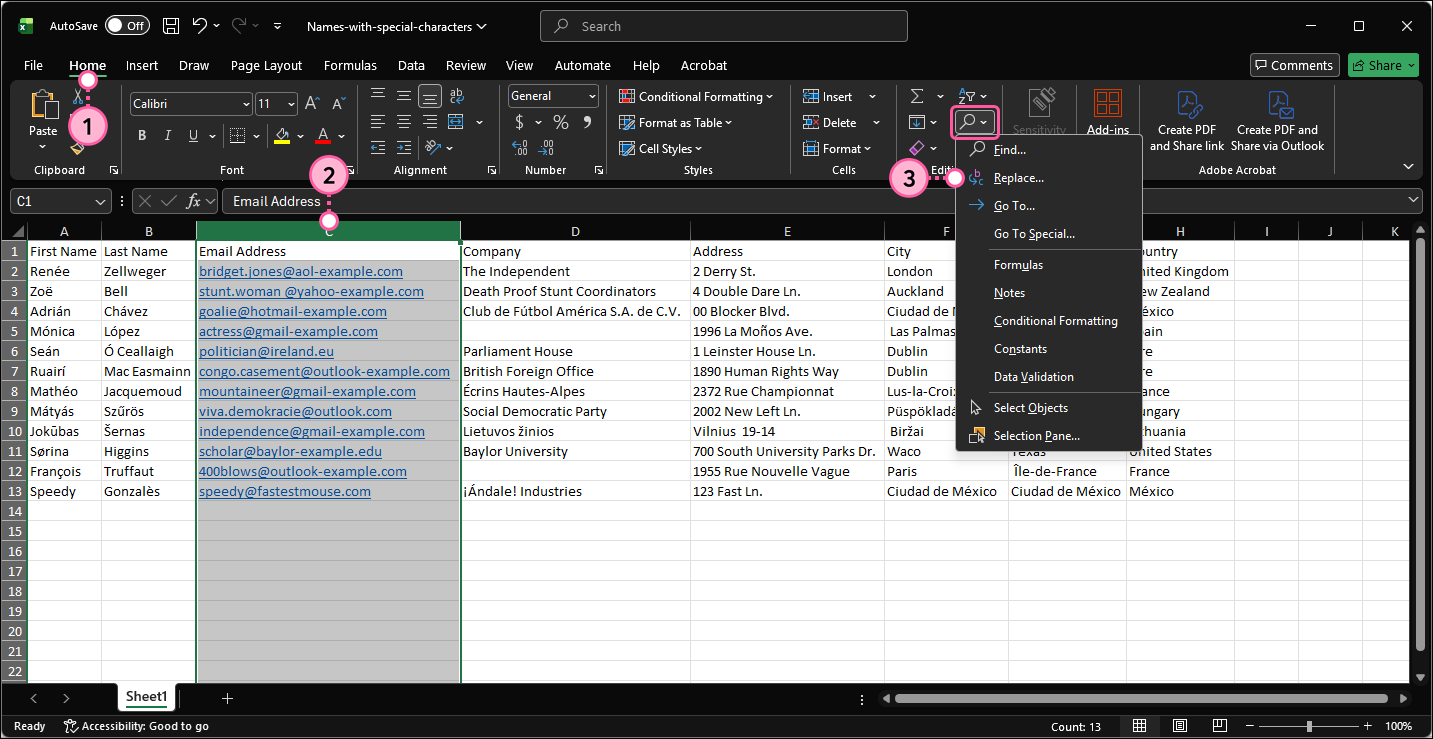
- On the Replace tab, enter the character you want to search for in the Find what field. You can search for spaces before or after the "@" in an email address by entering either "@ " with a space following it or " @" with a space preceding it.
- In the Replace with field, enter the correct character. For example, enter "@" without any spaces.
Note: Leaving the Replace with field blank deletes whatever is in the Find what field from your file in step 7. - Click the Find All button to highlight all of the instances of the special character.
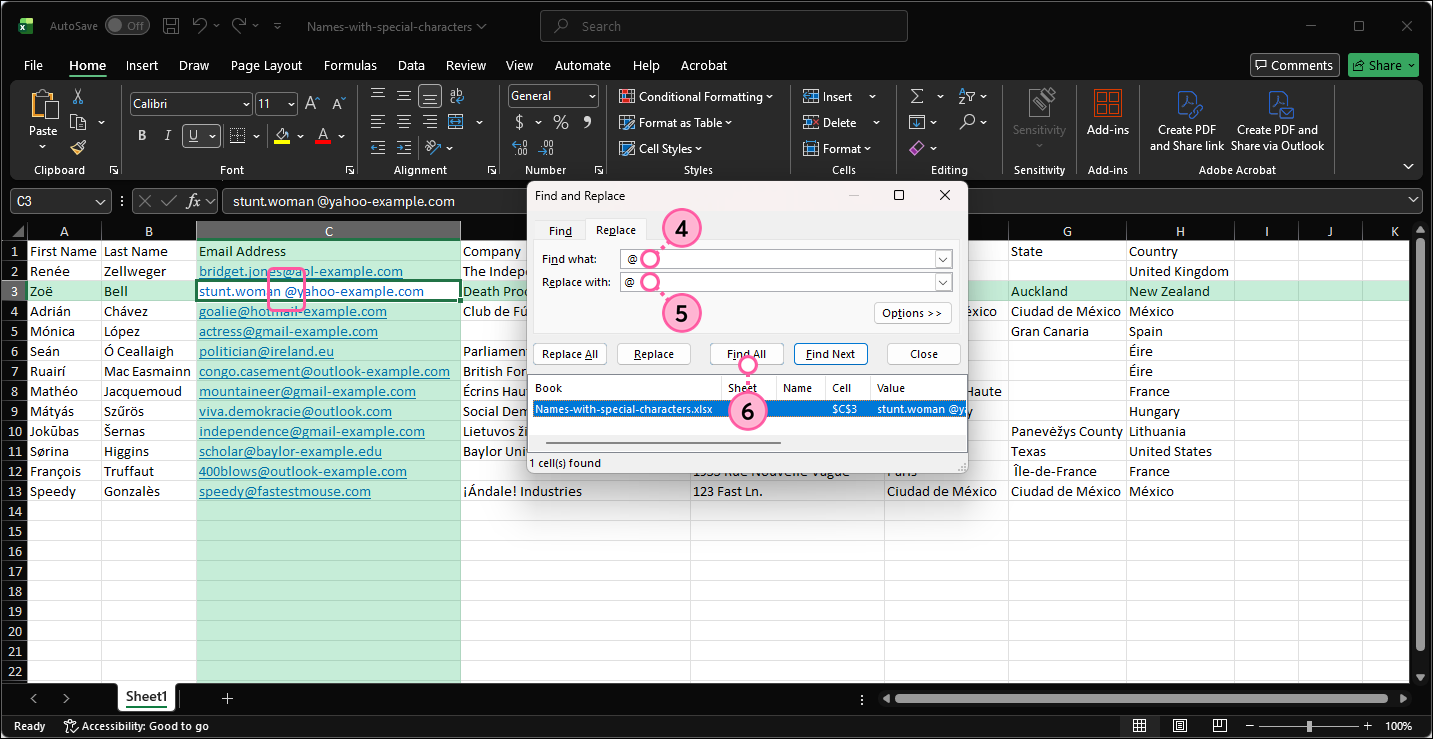
- Review the highlighted results and click the Replace All button.
- Click the OK button.
- Click the Save button in the upper left-hand corner.
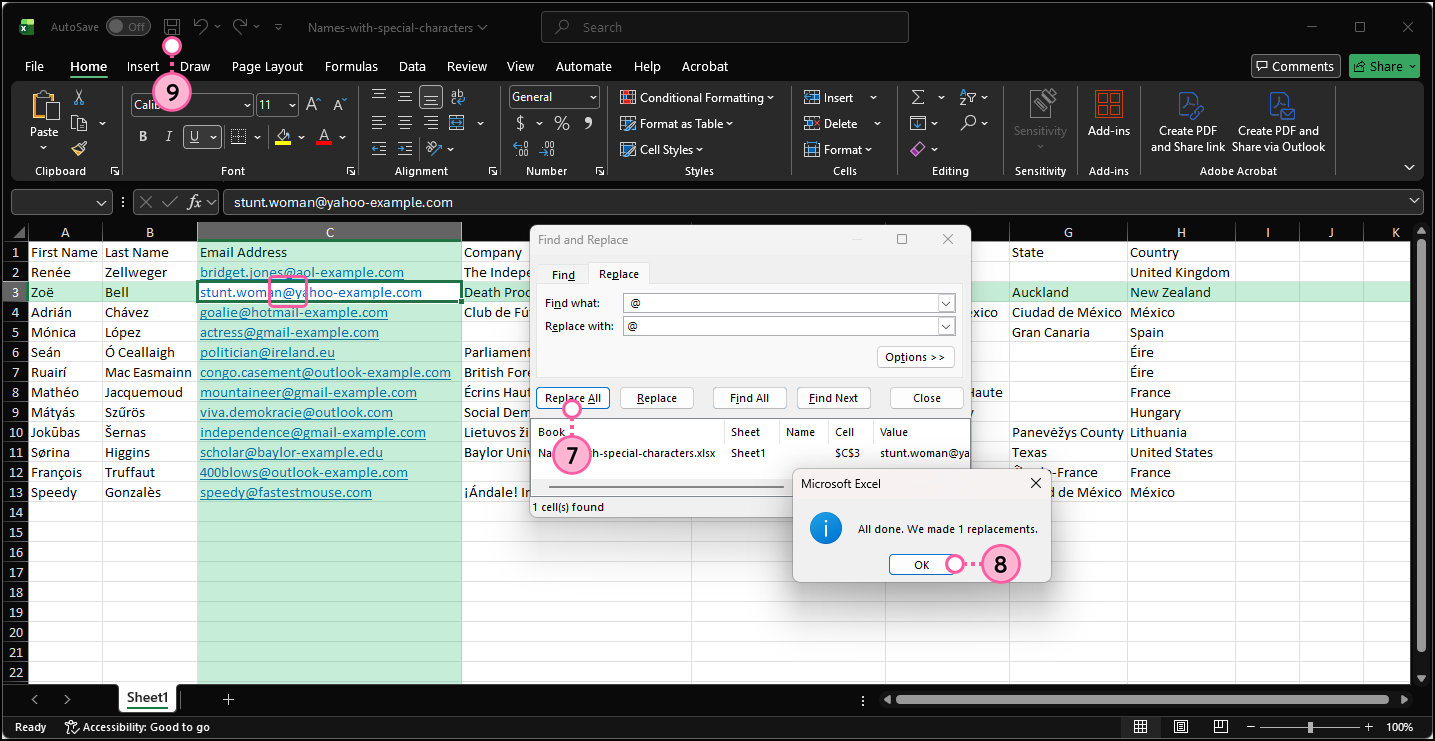
Repeat as necessary for each special character or spacing that you want to check for. Once your text characters are in good shape, make sure your file is formatted so that it's compatible with Constant Contact before uploading your contacts.
For more help using Search and Replace in Excel, please see Microsoft's support.
Google Sheet
Google Sheets can't be imported into Constant Contact, but you can search for and replace special characters that could interfere with your import befor exporting the Google Sheet as a file format that can be imported (CSV or XLSX).
- Click Edit > Find and replace.
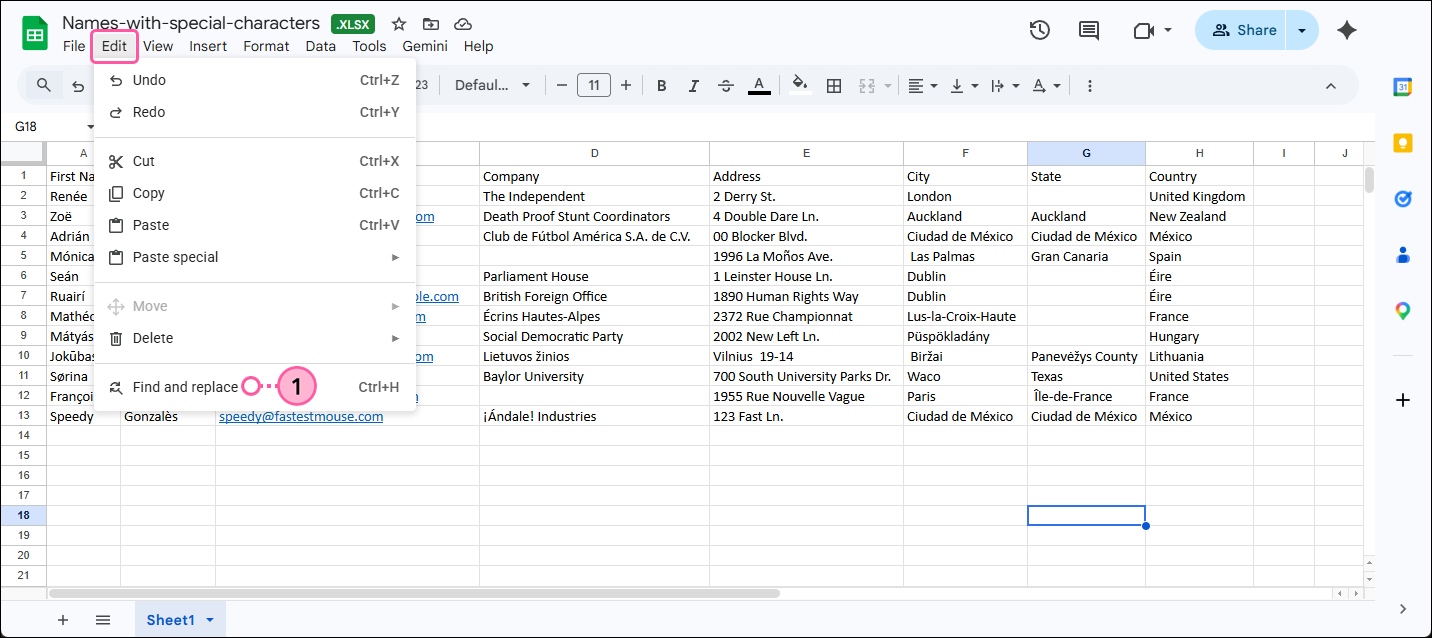
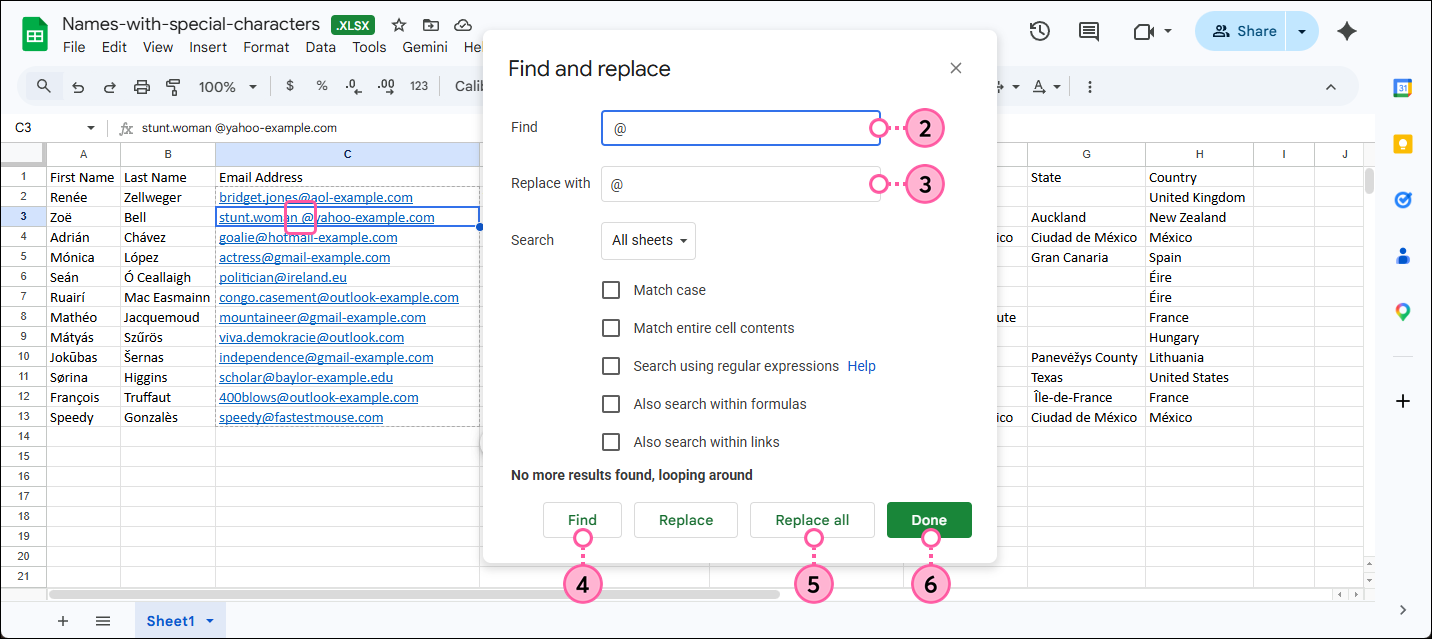
- In the Find and replace overlay, enter enter the character you want to search for in the Find field.
- Enter the corrected character in the Replace with field.
- Click the Find button.
- Review the highlighted results and click the Replace all button.
- Click the Done button when finished.
Repeat as necessary for each special character or spacing that you want to check for. Once your text characters are in good shape, save your Google Sheet as an Excel file or CSV file and then you can import it into your Constant Contact account.
For additional help converting a Google Sheet into a CSV file, please see Google's support.
Any links we provide from non-Constant Contact sites or information about non-Constant Contact products or services are provided as a courtesy and should not be construed as an endorsement by Constant Contact.