Before you import a file of contacts into Constant Contact, it's a good idea to make sure you have the correct file type and that the data is formatted correctly. To ensure all contacts get imported, each one needs at least an email address or an SMS phone number and consent date.
 | Did You Know? If you're having trouble importing your file, there are steps you can take to troubleshoot. Not all errors prevent your file from being imported. After you upload a spreadsheet of contacts, you can check for errors that are keeping contacts from being added to your list, and correct them if you have any. |
Compatible file types
The following file types are compatible for upload into Constant Contact:
- .XLS (Microsoft Excel)
- .XLSX (Microsoft Excel open format)
- .CSV (Microsoft Excel, Open Office Calc, Google Spreadsheets)
- .VCF (vCard electronic business card)
- .TXT (Microsoft Notepad)
If your list is saved in a different file type, use the "Save as type" drop-down menu to choose a compatible file type, or copy the data into a new compatible file. A list saved in a Google sheet must be converted to a compatible file type before it can be imported.
File organization
To prevent file import errors, there are a couple of things to look for before uploading your file:
- Email addresses - If you are importing contacts only for email marketing, each contact is required to have an email address. Contacts without an email address won't be imported into Constant Contact. If you are importing contacts for email marketing and SMS marketing, each contact must have either an email address or an SMS phone number and consent date. If your contacts have both email and SMS information, that's fine too! Make sure that each email address is formatted correctly.
- SMS number and consent date - If you are importing contacts only for SMS marketing, each contact is required to have an SMS phone number and consent date. If you are importing contacts for SMS and email marketing, each contact must have either an SMS phone number and consent date or email address. If your contacts have both SMS and email information, that's fine too! Make sure each SMS number and consent date are formatted correctly; a phone number with all zeros or using "N/A" in the consent date field prevents contacts from being imported.
- Column headings - Column headings make it easier for our system to match your file information to the corresponding contact fields within your Constant Contact account. Each column in your spreadsheet needs a unique label. Labeling your headings to match our standard contact fields or creating your own custom fields ahead of time makes the import process go more smoothly. If you don't use column headings, you'll need to label each column manually before the file can be fully imported. Use the standard fields by default and create custom fields only when a matching standard field doesn't exist; having a custom field that is similar to a standard field can cause issues during import and issues later on when you try to personalize content or segment your contacts.
- Hidden fields - Hidden fields in your spreadsheet can cause errors when we try to process the information. Show all fields, or delete the fields you don't want imported.
- Blank first row - Make sure that the first row of your spreadsheet or file isn't left blank. Your data should sit right under your header row.
- Multiple worksheets - If you've got information on multiple worksheets (or tabs), make sure you consolidate it into the first worksheet and delete the extras.
- Special characters or extra spaces - Special characters or extra spaces in the middle of an email address won't prevent you from uploading your contact list, but you have to remove them before you can finish uploading the affected contacts.
- Tags - In order to import a contact list that includes a column for tags, you have to create the tags in your account first. If you have new tags included in your spreadsheet, they're ignored during the import process.
- Data generated by a formula - Data in a cell that is generated through a formula won't import correctly. If you're using formulas, please convert them to values before importing.
File headings, email addresses, contact names, and any other content in your file isn't case sensitive when you import it. Names that start with lowercase letters won't be autocorrected and are imported exactly as you have them in your spreadsheet.
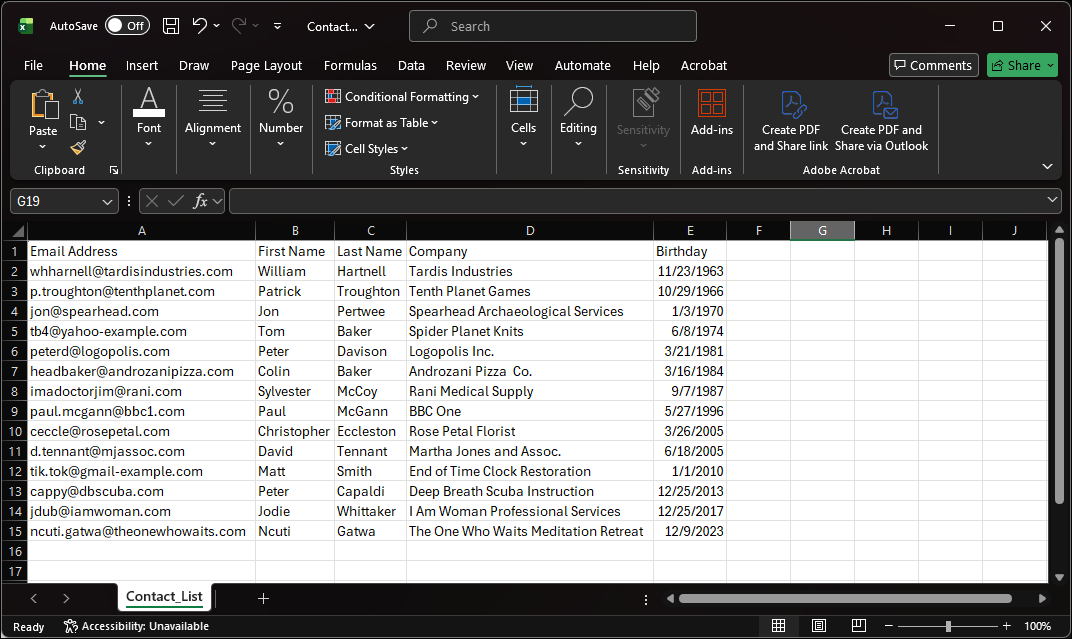
Spreadsheet (.XLS, .XLSX, .CSV, .VCF) example
- Each contact should have its own row.
- Each column should include a single piece of information. For example, don't combine First Name and Last Name into the same column. Columns with multiple pieces of contact information can be split from one cell into two manually.
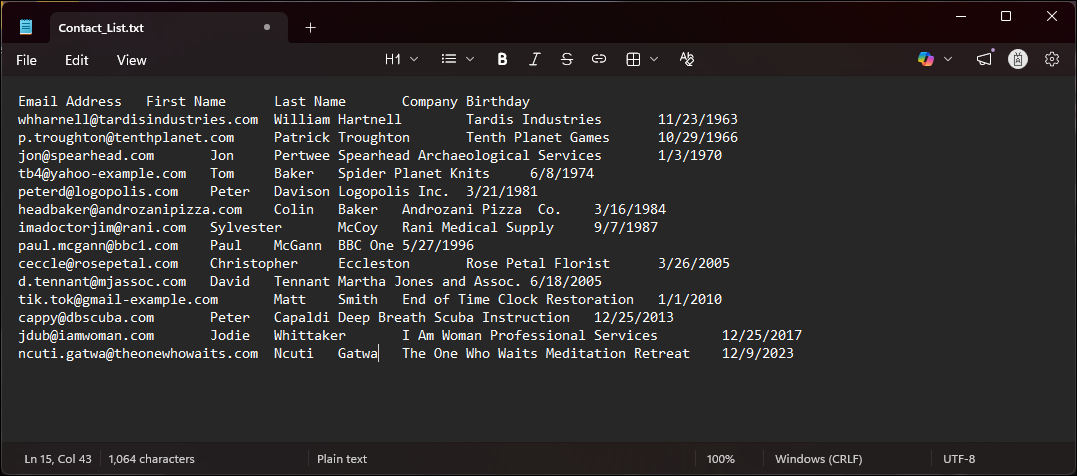
Text File (.TXT) example
- The first line should be the column headings.
- Following the headings, each contact should have its own line.
- Different types of information should be separated by tabs. Don't worry if the information doesn't line up as nicely as it does in a spreadsheet.
File name
Using Special Characters in your file name can prevent the file from importing. The most common culprits are:
To separate words or format dates in your file name, use an underscore. For example: new_clients_2026
File size
The largest file sizes that can be imported into your Constant Contact account are:
- XLS or XLSX - 25MB with 500,000 rows of data or less
- CSV - 50MB with up to 1,000,000 rows of data or less
- VCF - 2MB with 40,000 rows of data or less
- TXT - 2MB with 40,000 rows of data or less
 | Important: Excel spreadsheets that are larger that 25MB can cause import errors. If you have an extra large Excel file, convert it to a CSV file or split it into separate files before importing. You can combine the separate XLS/XLSX files again by adding them to the same list during the import process. |
Any links we provide from non-Constant Contact sites or information about non-Constant Contact products or services are provided as a courtesy and should not be construed as an endorsement by Constant Contact.