 | Review your plan: Full access to this report is not available in all Constant Contact plans. If you don’t have full access, you may need to upgrade your plan. |
The click rate (or click-through rate) for an email measures the proportion of unique recipients who clicked any link in the email. This is an important number because it shows how interested or engaged your contacts are. When you know what links are being clicked, it can help you design better emails, too!
 | Important: We don't track links to Constant Contact or PayPal. If you include links to these sites in your email, you won't see their results in your reporting. |
How the click rate is calculated
Your email's click rate is calculated by dividing the unique number of recipients who clicked a link in the email by the number of emails that were successfully delivered, or didn't bounce. This gives you the percentage of your contacts who received the email and then clicked.
Click rate = [ Unique clicks / (Sends - Bounces) ] x 100
Your click rate isn't static and can change over time as your contacts engage with your email. For example, after sending your email:
- After the first hour, you have 250 successful sends and 2 unique clicks, giving you a 0.8% click rate.
- After 24 hours, you have 10 unique clicks, giving you a 4% click rate.
- After 48 hours, you have 25 unique clicks, giving you a 10% click rate.
View your email's click rate
Your Clicked report gives you the click rate for your email and also lets you compare it to both the average click rate for your last 10 emails and to the average click rate for your industry:
 | Did you know? You can learn more about the top-performing clicked links in your emails in our View your email reporting article. Explore information about each section of the reporting page, including your top and low-performing links by total clicks, your top and low-performing campaigns by open rate, and more. |
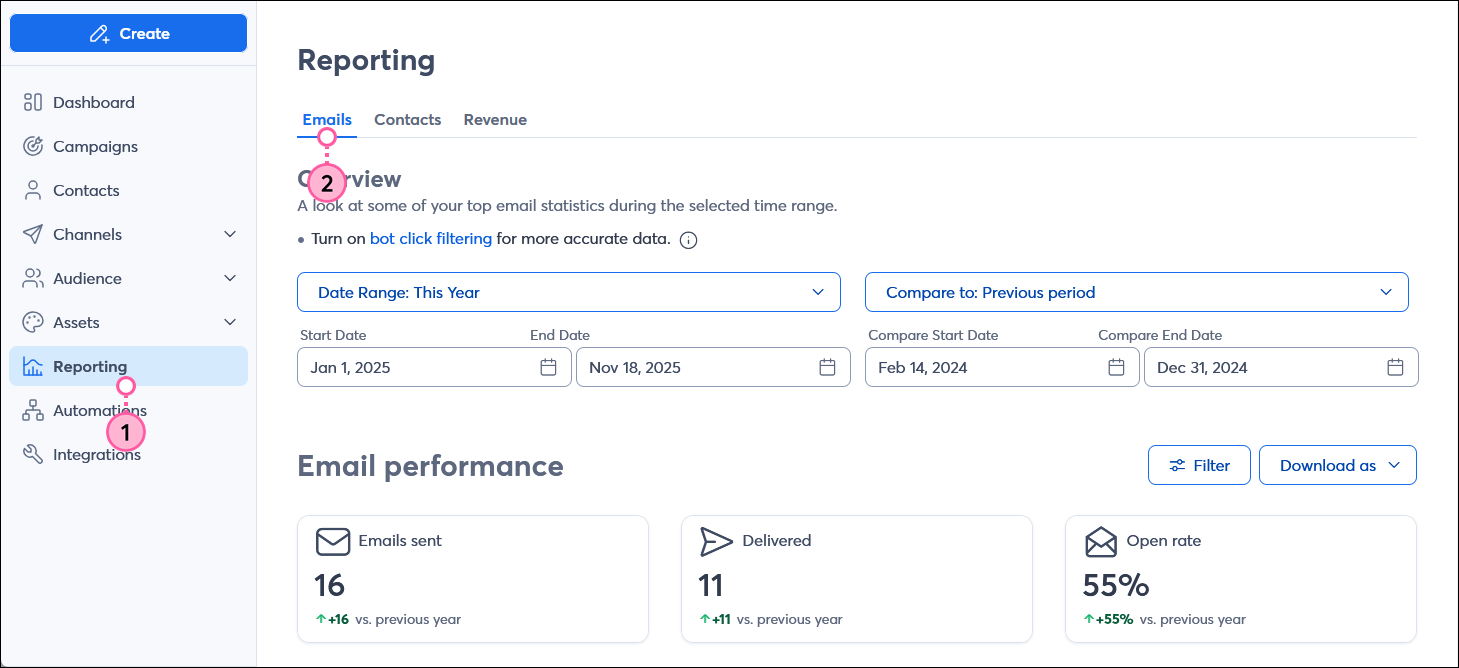
- From the menu on the left-hand side, click Reporting.
- Click the Emails tab.
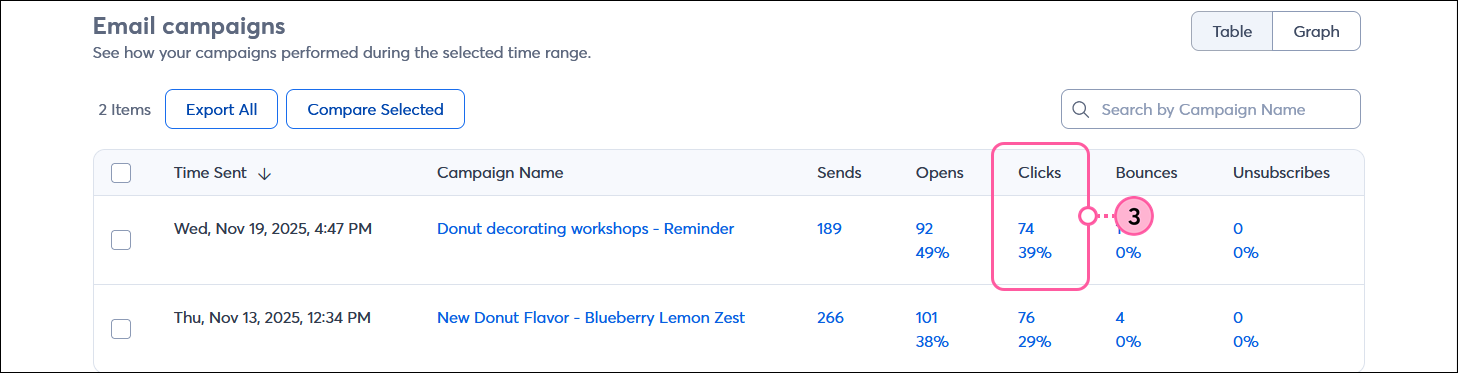
- Scroll down to the Email campaigns table and view the Clicks column next to the email. The number at the top is the total unique clicks for your email, and the percentage below is the click rate. Clicking on either number brings you to the Unique Clicks report.
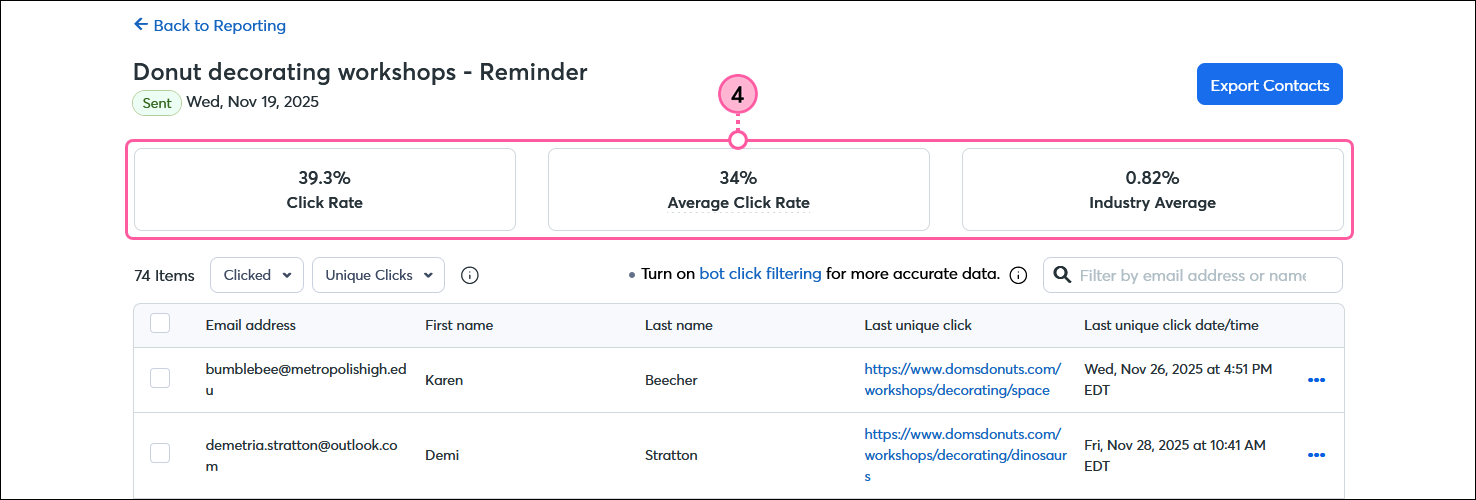
- At the top of the page, you can view the:
- Click Rate - The click rate for your email shows the percentage of recipients who clicked a link in your email. If a contact clicks more than one link in your email, or clicks on the same link multiple times, they're only counted once.
- Average Click Rate - The average click rate for your last 10 sent emails.
- Industry Average - The average click rate for your industry based on Constant Contact customers who chose the same industry in their account.
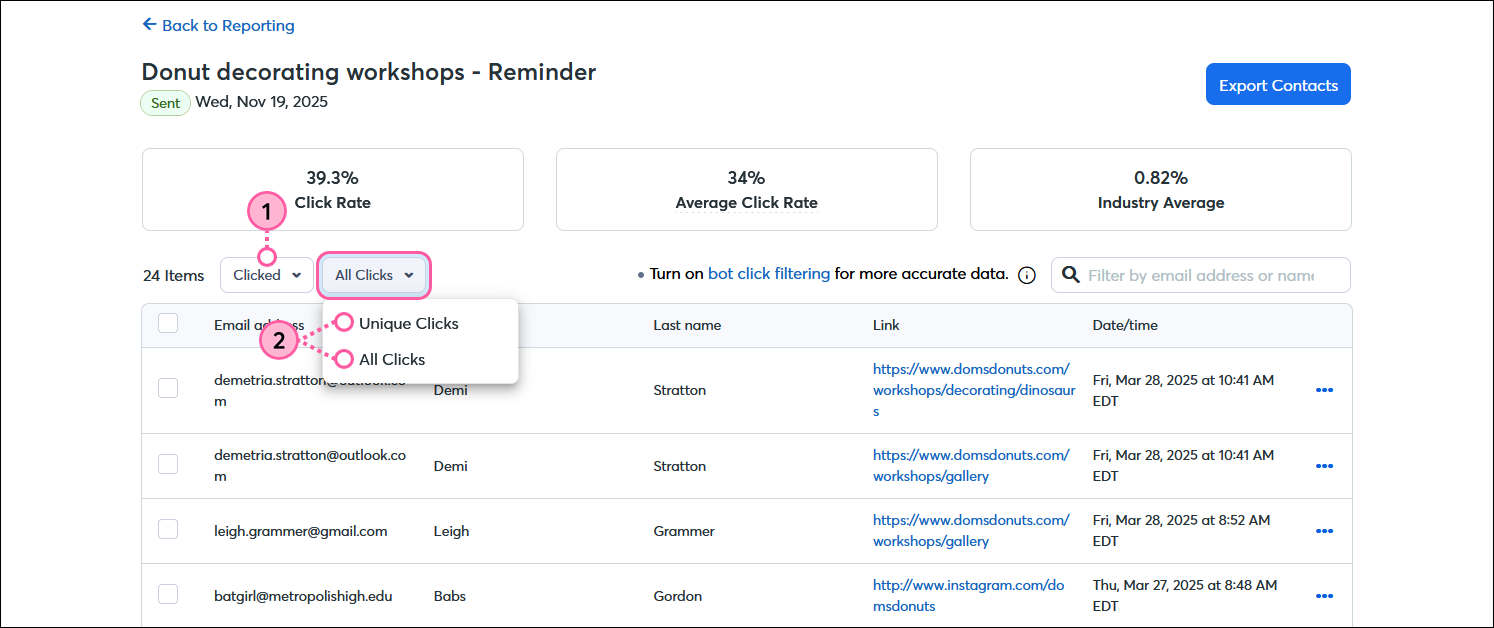
Switch between the unique clicks and total clicks for an email and view the associated contacts
To dive deeper into the results, you can view your total clicks and unique clicks for each email. Total clicks count every time a contact clicks a link in your email, even if they click the link more than once, while the unique clicks remove duplicate clicks from the same contact.
- From within any of the reports for your email (Sent, Opens, Clicked, Links, etc.), click the Report type drop-down menu and select the "Clicked" option.
- Click on the drop-down menu beside the Report type menu and select either the "All Clicks" or "Unique Clicks" option.
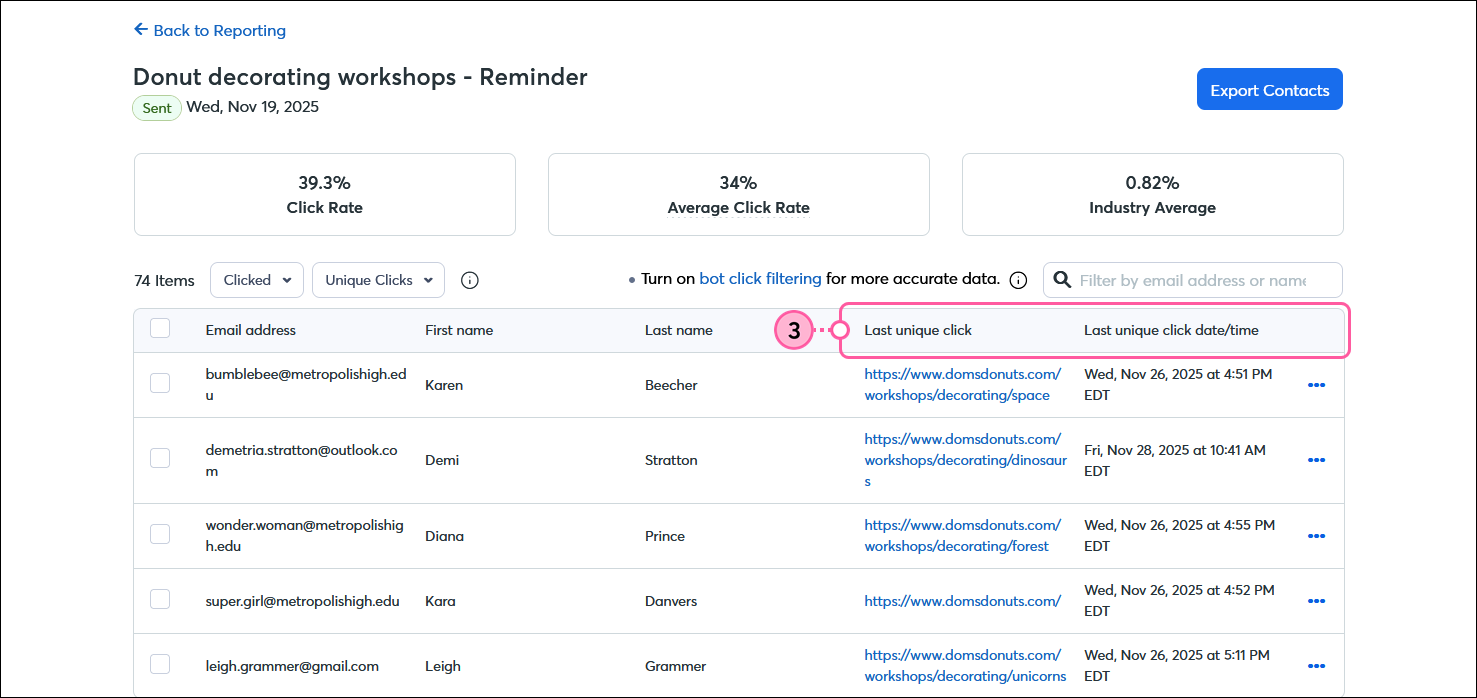
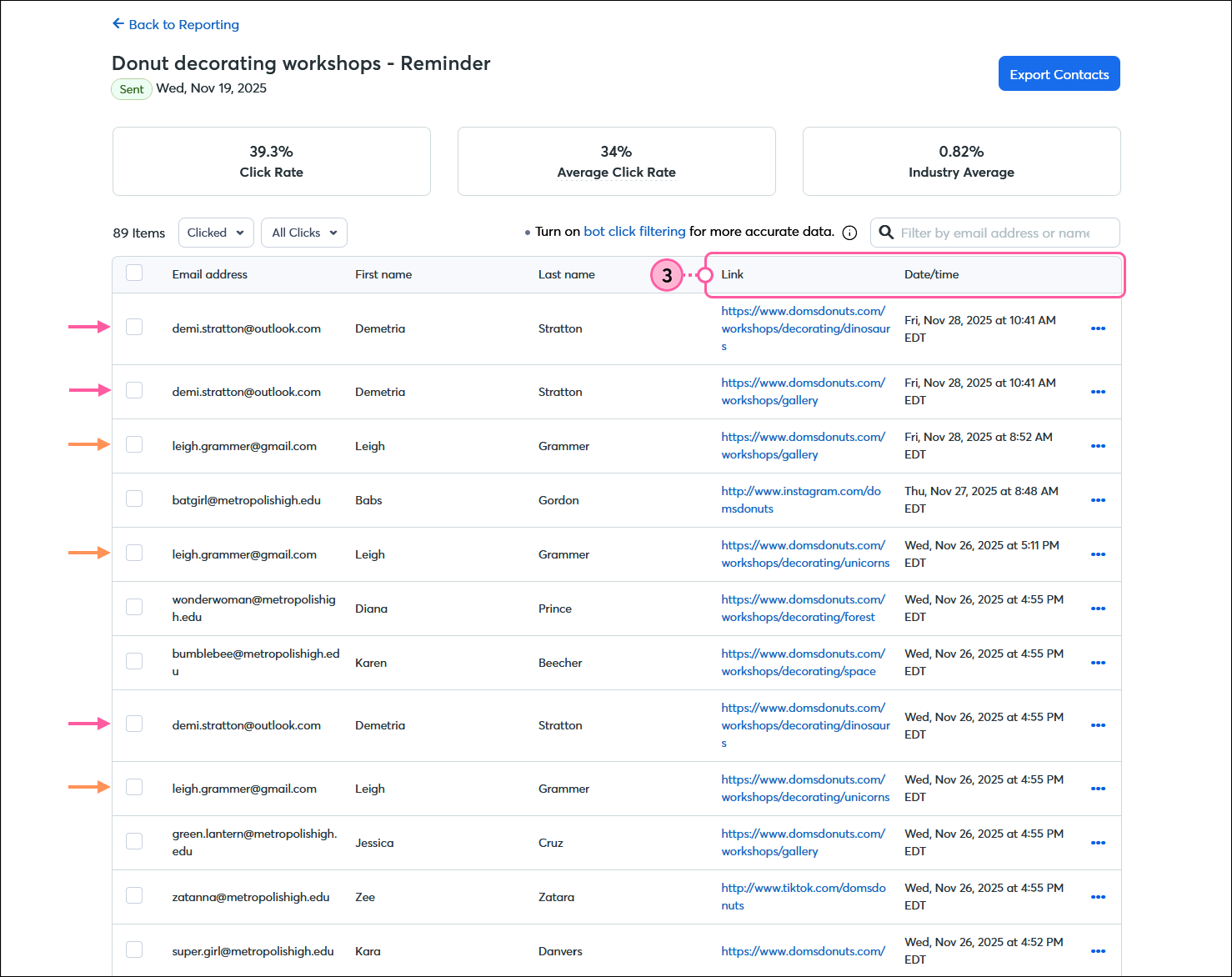
- The Clicked report shows you:
- Unique Clicks - Your Unique Clicks report shows you the most recent link each contact clicked in your email, along with the date and time they clicked it. Each contact who clicked a link appears in this report once.
- All Clicks - Your All Clicks report shows you every link click your contacts make, along with the dates and times they clicked. If your contacts click multiple links or the same link at different times, the report shows all instances, and your contacts can appear multiple times.
View the unique clicks that each URL received
Where the Clicked report shows you the email addresses associated with each click, the Links report shows you the unique number of clicks for each URL within your email.
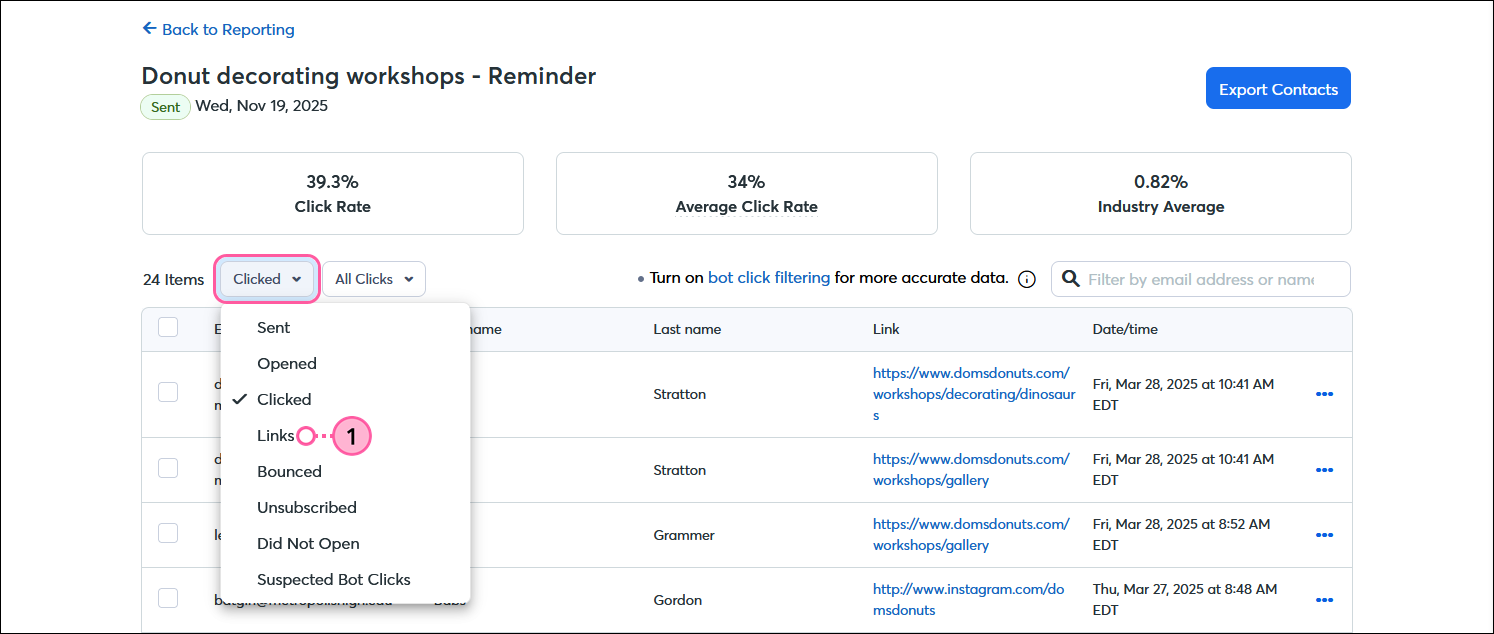
- From within either Clicked report (All Clicks or Unique Clicks), click the Report type drop-down menu and select the "Links" option.
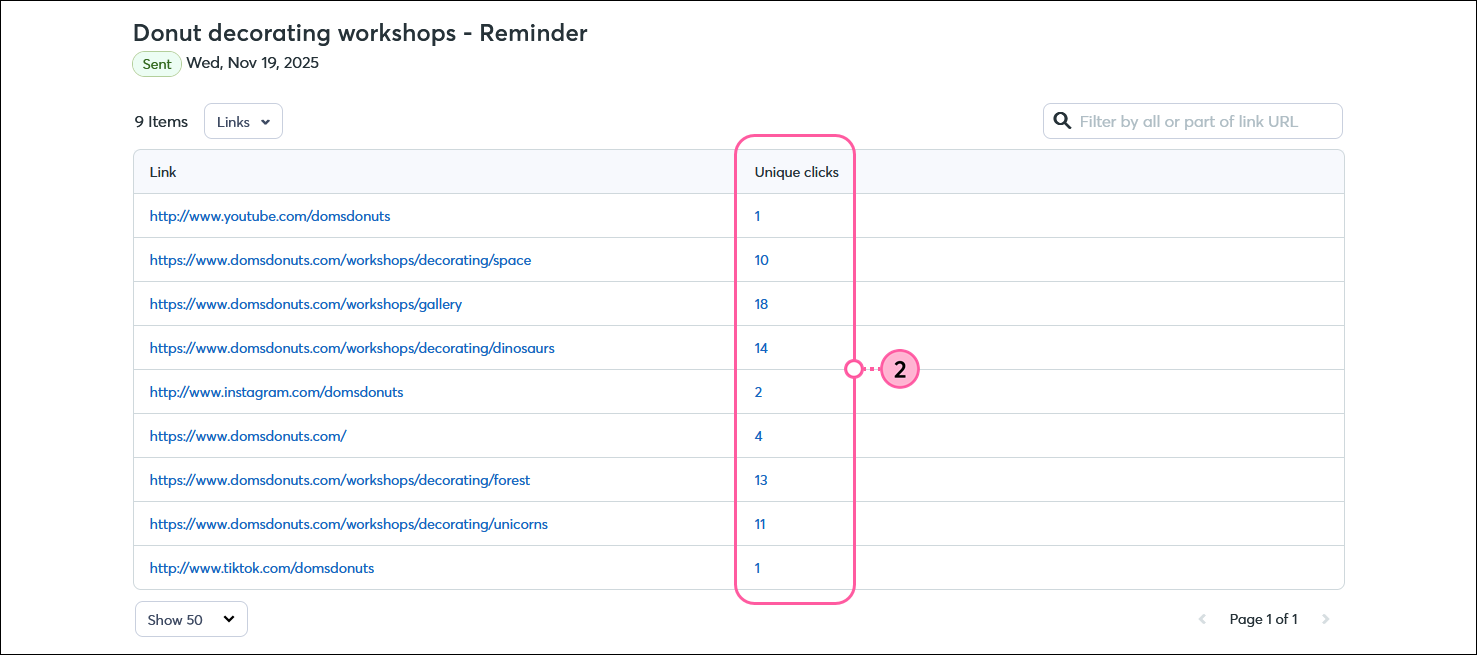
- The Links table displays the links within your email that have been clicked, and the Unique clicks column shows you how many clicks each link received.
Note: There may be additional links in your email that were not clicked. Those unclicked links will not appear in the Links table.
If a link appears twice in your email, it only appears once in the table. Clicking any of the hyperlinked numbers in the Unique clicks column shows you the specific contacts who clicked on the link. Clicking the URL in the Links column opens the URL.
 | Did you know? If you're more of a visual person, you can see where people are clicking within your email using the heat map on your email's Details page. Knowing where your contacts are clicking can help you place links better in future emails! |
Using the click information
Now that you know what your contacts are clicking on, you can use that information to create more targeted emails for contacts with similar interests. Segmenting your contacts helps encourage engagement:
- Add the contacts from your reporting to a list - While viewing the Total Clicks or Unique Clicks report, you can select all contacts or just a few, then click Actions > Add to list.
- Enable click segmentation in your email - You can automatically add contacts to a specific list when they click a link in your email. When you add the URL to your text link or button, make sure the "Enable Click Segmentation" option is checked.
- Create a custom segment - Our Segment Builder helps you group contacts into a segment based on different criteria, including the links they click in your emails.
If you want to improve your click rate, there are ways to optimize your links to make them more enticing:
- Call-to-action - Give your email a single call to action and reduce the overall number of links to help your contacts stay focused on what you want them to accomplish.
- Buttons - With bright colors and the right placement, buttons make your call-to-action stand out.
- Text links - Text links can be a little subtler than buttons. Design your text links to grab your reader's attention.
- Social media icons - You can style social media icons to stand out as a call-to-action or blend into the background so they don't detract from your call-to-action.