Email and Digital Marketing
How can we help you?
Search our help articles, video tutorials, and quickstart guides

You've got this. You've got us. Search our Knowledge Base to quickly find answers to your questions.

Update your email and sign-up form footer settings

Article: 000042712
Updated: April 21, 2026

Include an “Update Profile” link in your email footer, allow for unsubscribing contacts to leave feedback, link to your privacy policy, or update the fine print that displays in your sign-up form footer

The footer contains standard information that always displays, depending on whether you're viewing an email, a landing page, or a website sign-up form. Some of the footer content can't be changed, but some parts can be edited from within your account settings:


Light Bulb IconDid you know? If you need to update the physical address that appears in your footer, the address can be found in the Business details section in your account settings.


Edit your footer settings

Not all of the content in an email or sign-up form footer is editable, but you're able to customize a few things:
  1. Access your account settings
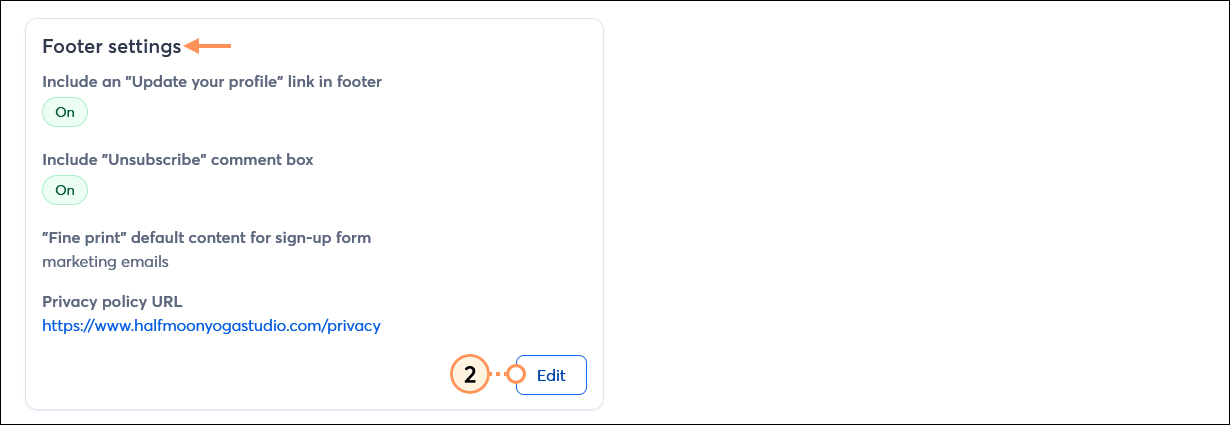
  2. Scroll down to the Footer settings section and click the Edit button.

    Footer settings section with Edit button 

  3. Update your profile link - Click the toggle to enable or disable the "Update Profile" link in your email footer. This gives your email recipients the ability to edit their contact details and choose which mailing lists they want to be on.
    Note: The "Update Profile" link isn't available in landing page or website sign-up form footers.
  4. Unsubscribe comment box - Click the toggle to enable or disable the comment box for the "Unsubscribe" link in your email footer. This gives your contacts the opportunity to provide feedback about why they're unsubscribing.
    Important: You can't remove the "Unsubscribe" link from your footer. To comply with Constant Contact’s anti-spam policy and the CAN-SPAM Act, every email is required to contain a link that allows contacts to opt out of future mailings.
  5. Fine print text - Update the default fine print that displays in your email and website sign-up form footers. This is where you explain what your contacts are consenting to when they subscribe. For example:
    By submitting this form, you are consenting to receive marketing emails from Half Moon Yoga Studio.
    Important: Sign-up Landing Pages include similar content, but it isn't part of the footer and can't be edited.
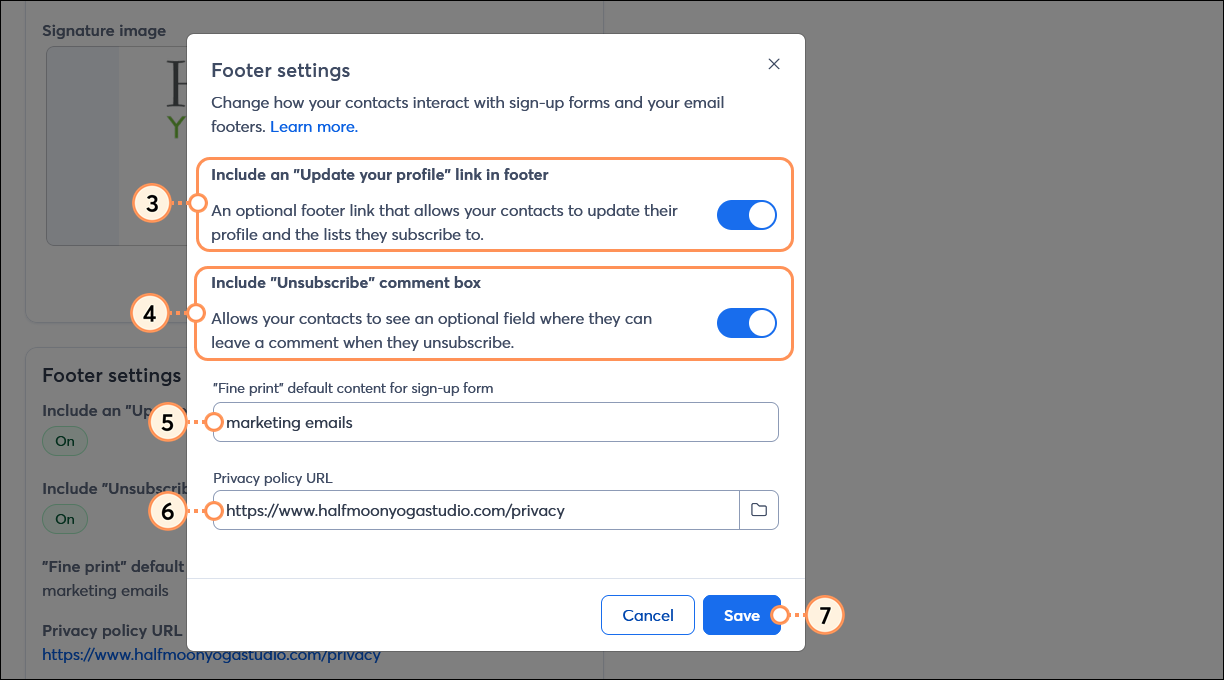
  6. Privacy Policy link - Enter a link for your privacy policy, or click the folder icon to upload a privacy policy document to your Library.
    Note: The "Privacy Policy" link isn't visible while editing an email, but can be seen when you preview the email.
  7. Click the Save button.

    Footer settings overlay with Include an "Update your profile" link toggle, Include "Unsubscribe" comment box toggle, Fine print field, Privacy policy URL field, and Save button


View an email footer

By default, your email footer contains:
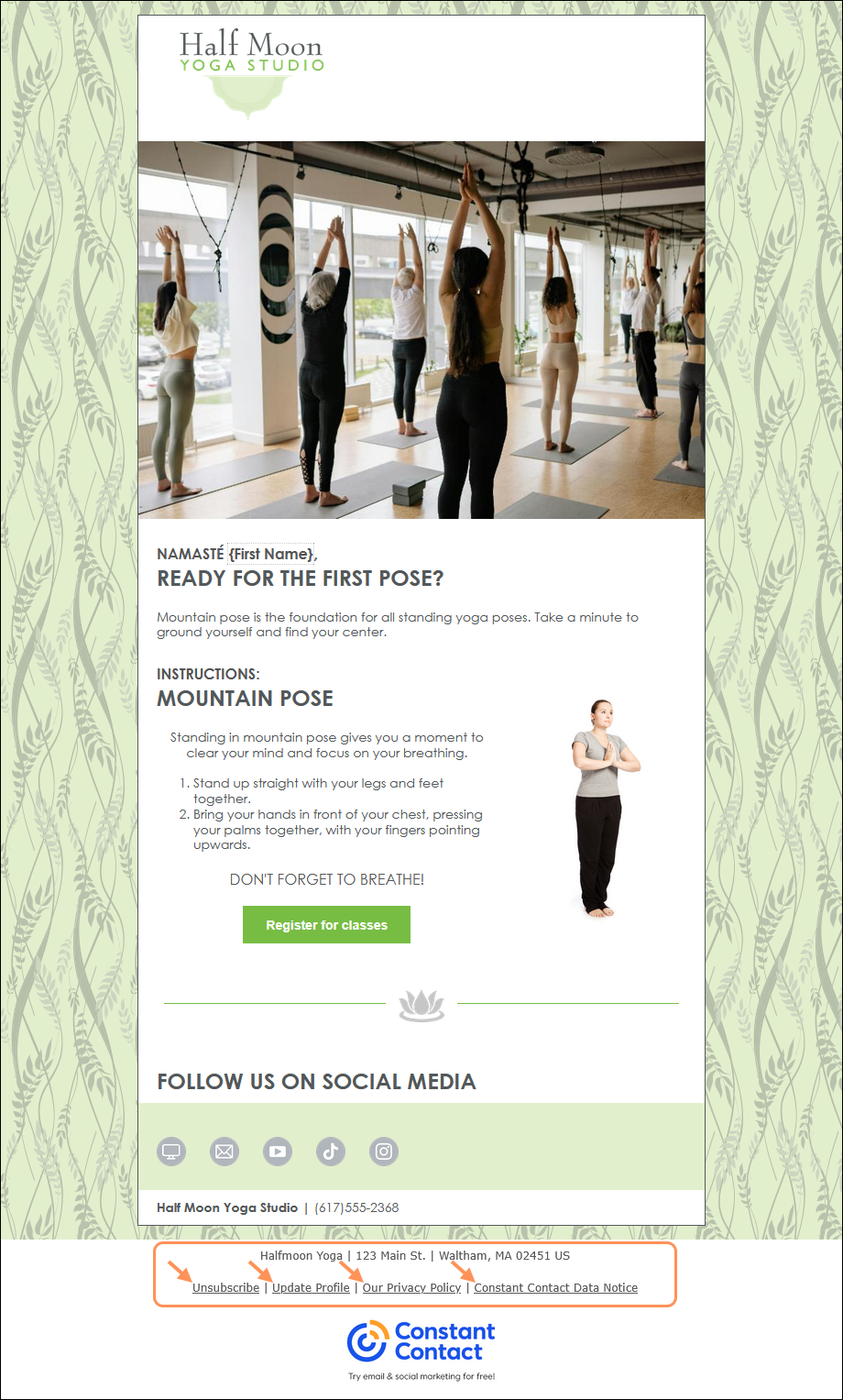
  • Your organization's name and physical address.
    Tip: You can customize the organization details in the footer of an individual email without changing your account settings. This is handy if you have multiple locations or different departments within your organization that better fit your content.
  • "Unsubscribe" link for revoking consent for future emails.
  • "Update Profile" link. (See step 3 above.)
  • "Our Privacy Policy" link. (See step 6 above.)
  • "Constant Contact Data Notice" link.

    User-added image


View a website sign-up form footer

By default, your website sign-up form footer contains:
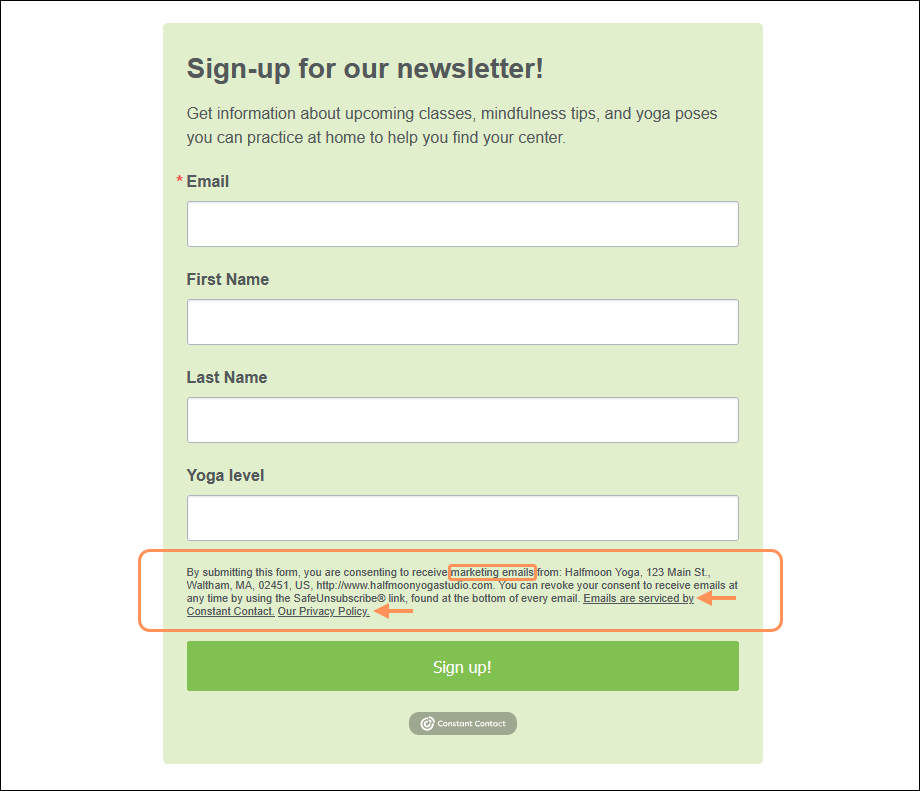
  • Your organization's name and physical address.
  • Fine print language. (See step 5 above.)
  • Instructions for revoking consent through the "Unsubscribe" link in an email footer.
  • "Emails are serviced by Constant Contact" link.
  • "Our Privacy Policy" link. (See step 6 above.)

    User-added image


View a landing page footer

By default, your landing page footer contains:
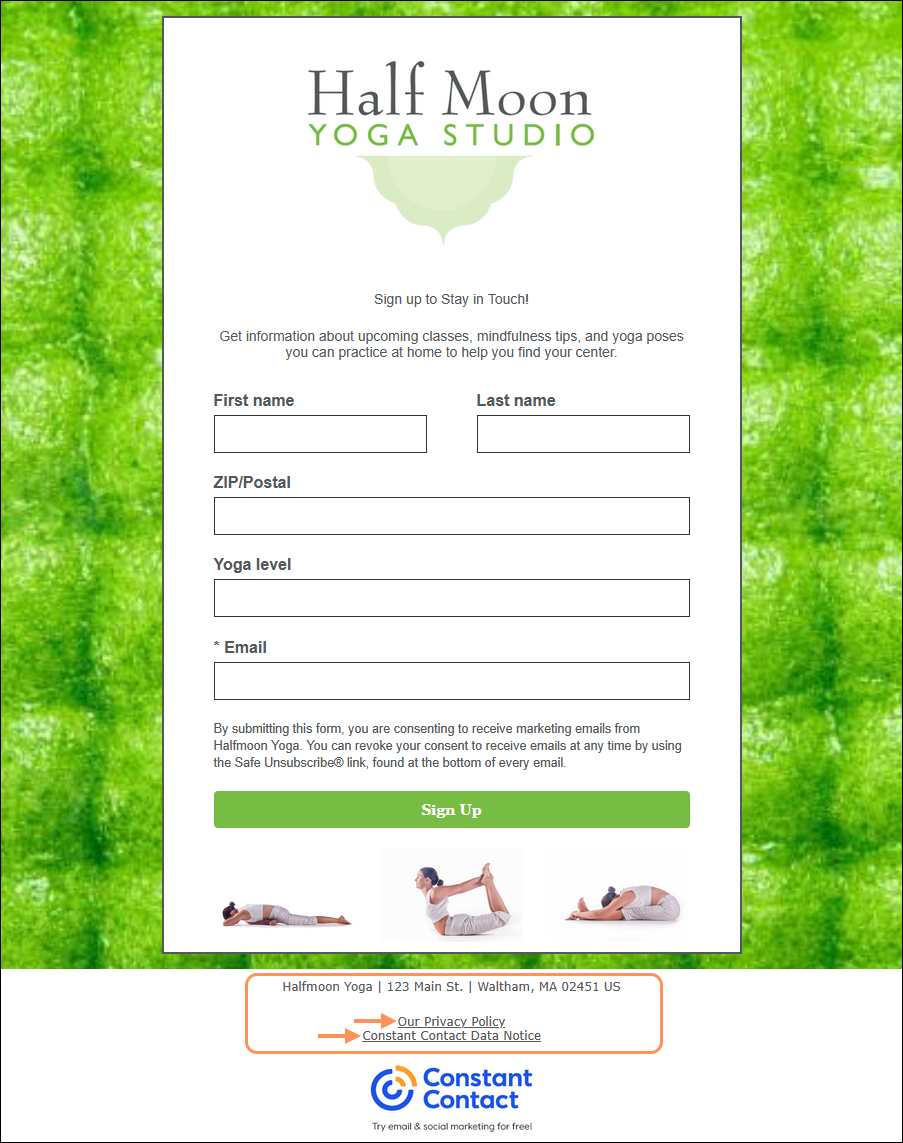
  • Your organization's name and physical address.
    Important:
    The physical address is pulled from your settings every time you create a new Sign-up Landing page. If you change your physical address, it doesn't apply to previously created landing pages, and you must manually update the landing page footer with the new address.
  • "Our Privacy Policy" link. (See step 6 above.)
  • "Constant Contact Data Notice" link.

    Example Sign-up Landing Page with footer

Exclamation Point IconImportant: The opt-in content within the Sign-up landing page includes fine print language, but it isn't part of the footer and can't be edited.


Questions?

Ask the Community

Did this article answer your question?


Constant Contact Logo

Copyright © 2026 · All Rights Reserved · Constant Contact · Privacy Center