Email and Digital Marketing
How can we help you?
Search our help articles, video tutorials, and quickstart guides

You've got this. You've got us. Search our Knowledge Base to quickly find answers to your questions.

Add a captcha service to your WordPress sign-up form to prevent spam entries

Article: 000017880
Updated: February 26, 2026

Prevent malicious bots from abusing your sign-up form with fake sign-ups by installing a Google reCAPTCHA, hCaptcha, or Cloudflare Turnstile captcha service in the Constant Contact Forms plugin for WordPress

A simple precaution to prevent fraudulent sign-ups through your WordPress sign-up form is to use a captcha service. This adds an "I'm not a robot" checkbox to the bottom of your form, ensuring everyone who signs up for your list is a real person.


Why a captcha service is a good idea for your sign-up form

A bot is just a computer program that performs a repetitive task over the internet. Though not all bots are bad, malicious bots are designed with the intent to disrupt or cause harm. For example, a bot could exploit a contact sign-up form to create hundreds or thousands of fake email list sign-ups to bog down the system and cause you an administrative headache trying to weed out the valid email addresses from the bad ones.

If you're using the Constant Contact Forms plugin in your WordPress account, there is a hidden "honeypot field" included in the form that isn't visible to people, but bots can see it. If the hidden field is filled in, Constant Contact rejects the form submission. The "honeypot field" isn't a foolproof method, but it does a good job of combating false sign-ups. Adding Google reCAPTCHA gives you an extra layer of protection against malicious bots.


Which captcha services are compatible with the Constant Contact Forms plugin

The following captcha services are supported within the plugin:


How to generate a site key and secret key for Google reCAPTCHA

Exclamation Point IconImportant: If you are not using Google reCATCHA, please see the instructions to obtain a site key and secret key using hCapthca or Cloudflare Turnstile.

Google reCAPTCHA is a commonly used captcha service. In order to create a reCAPTCHA key, you need to log into your Google account and visit the reCAPTCHA admin console.
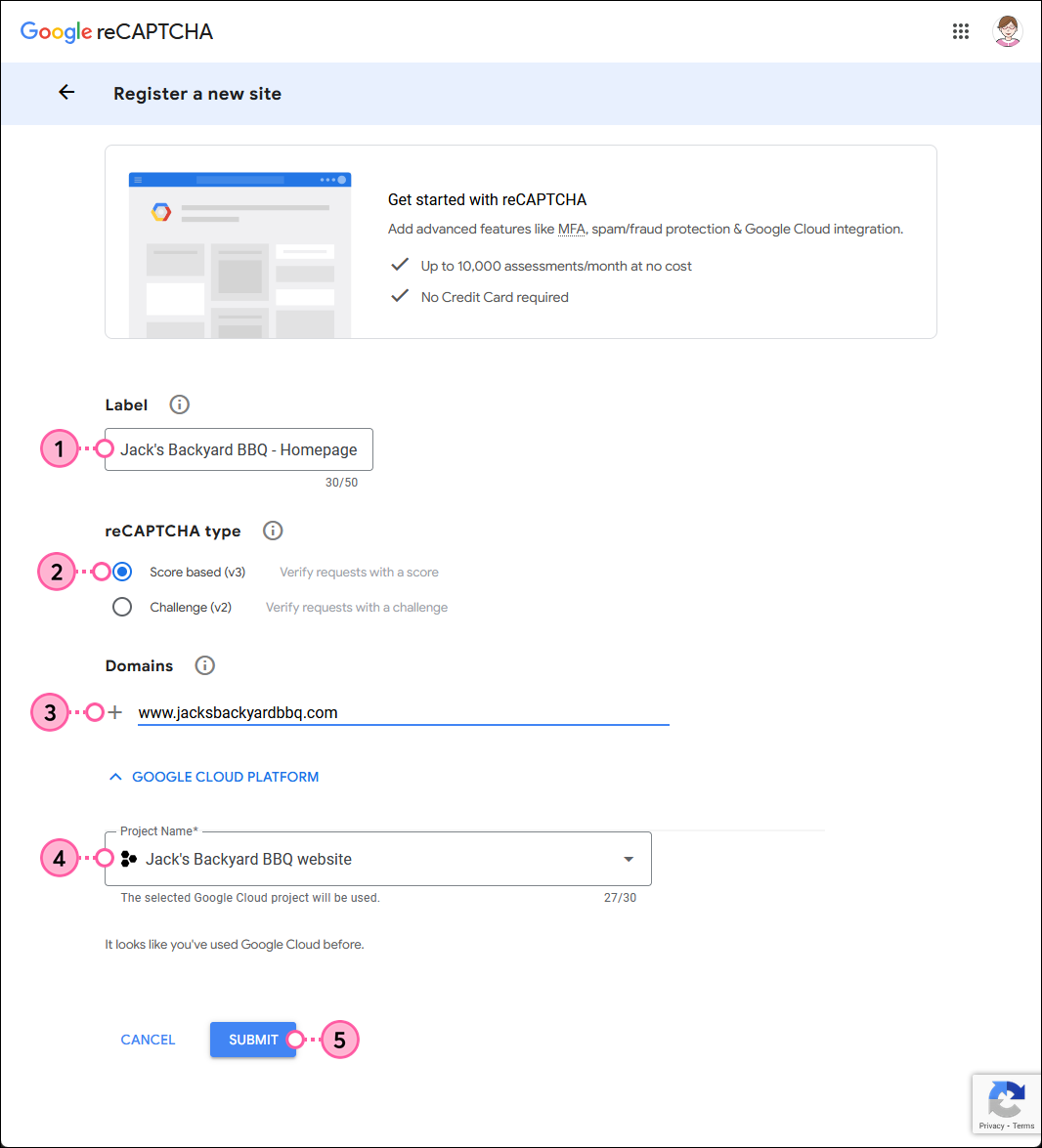
  1. In the Label field, give your reCAPTCHA a unique label that you can easily recognize later. You can create multiple reCAPTCHA for different parts of your website, and you'll want to be able to tell them apart.
  2. In the reCAPTCHA type section, select the "reCAPTCHA v3" option.
  3. In the Domains section, enter the domain for the website you want to enable with the reCAPTCHA. This registers your website domain and any sub-domains associated with it. If you have multiple domains, add each one separately.
  4. Give your Google Project a name or select an existing project from the drop-down menu.
  5. Click the SUBMIT button.

    reCAPTCHA Admin Console with Label field, ReCAPTCHA type options with reCAPTCHA v3 selected, Domains field, Project Name field, and SUBMIT button

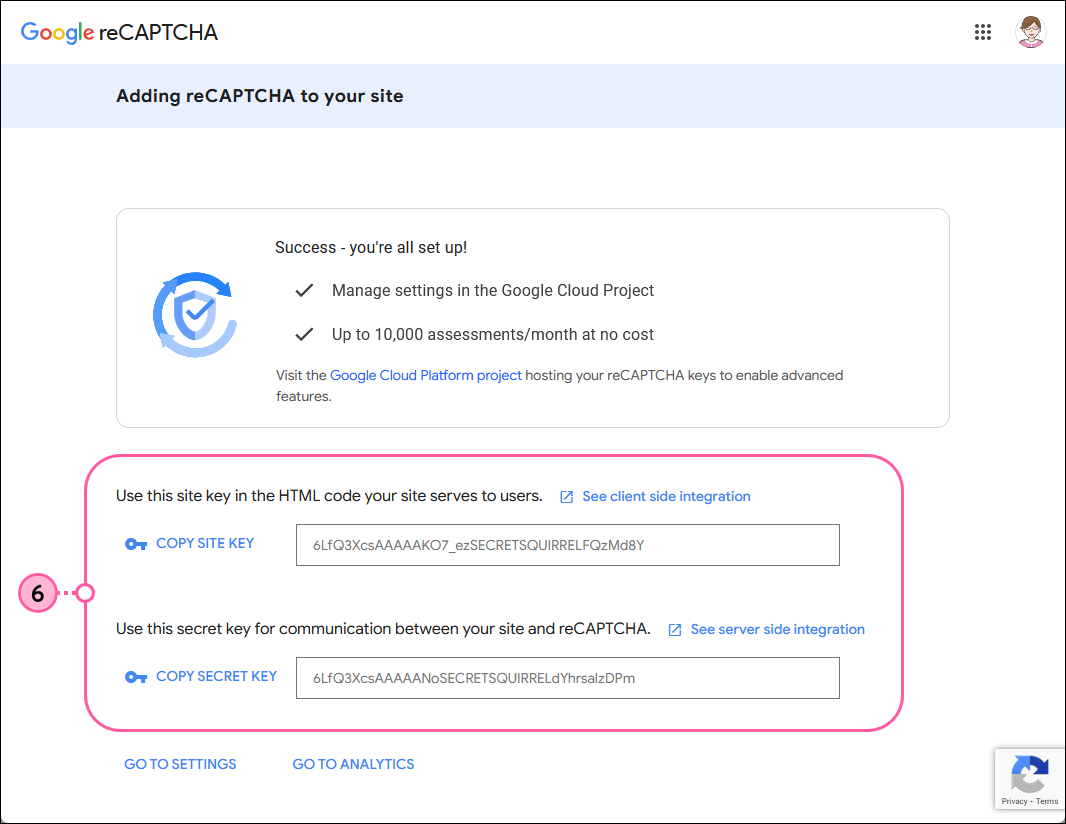
  6. Copy the Site Key and Secret Key.
    Tip: Having a second browser window open for your WordPress account makes the copying and pasting much easier!

    Site Key and Secret Key fields

For more help creating a reCAPTCHA key in Google, please see Google's Support.


How to install a captcha service in the Constant Contact Forms plugin for WordPress

When you have a site key and secret key for your Google reCAPTCHA, hCaptcha, or Cloudflare Turnstile captcha service, you're ready to add them to the Constant Contact Forms plugin in WordPress.
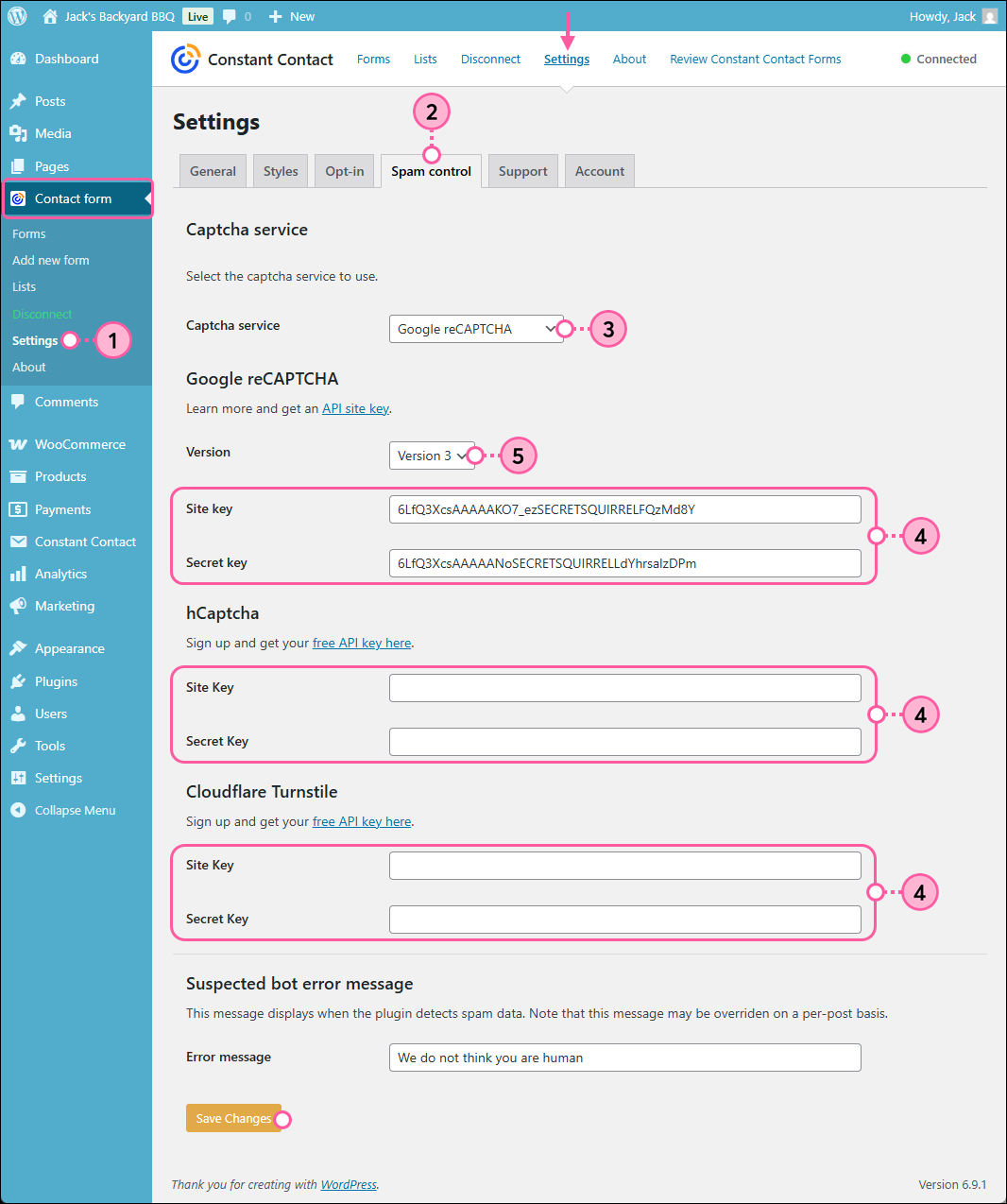
  1. Sign into your WordPress account and click Contact Form > Settings.
  2. Click the Spam Control tab.
  3. In the Captcha service section, select the Captcha service you want to use from the drop-down menu.
  4. In the Google reCAPTCHA, hCaptcha, or Clourflare Turnstile section, paste the Site Key and Secret Key into their fields.
  5. (Optional) Only if using the Google reCAPTCHA service, select "Version 3" from the Version drop-down menu.
  6. Click the Save Changes button at the bottom of the page.

    Wordpress Contact Form menu expanded and Settings option, Spam Control tab, Version drop-down menu, Site Key and Secret Key fields, and Save Changes button

Your sign-up form now has the "I'm not a robot" reCAPTCHA checkbox at the bottom, and can't be submitted until the box is checked.

To remove Google reCAPTCHA from your WordPress Sign-up Form, return to the Spam Control tab, delete the site key and secret key so that the boxes are blank, and then click Save Changes.


Any links we provide from non-Constant Contact sites or information about non-Constant Contact products or services are provided as a courtesy and should not be construed as an endorsement by Constant Contact.


Questions?

Ask the Community

Did this article answer your question?


Constant Contact Logo

Copyright © 2026 · All Rights Reserved · Constant Contact · Privacy Center