Email and Digital Marketing
How can we help you?
Search our help articles, video tutorials, and quickstart guides

You've got this. You've got us. Search our Knowledge Base to quickly find answers to your questions.

Insert a phone link into an email

Article: 000041485
Updated: April 1, 2026

Add a link to a phone number in your email so contacts can easily click to call


With more people opening and reading emails on mobile devices, you can help drive more business by making it easy for contacts to click-to-call you right from your email. When you create an email, you can add a telephone link to any text or button and customize it to match your email design.

While editing your email:
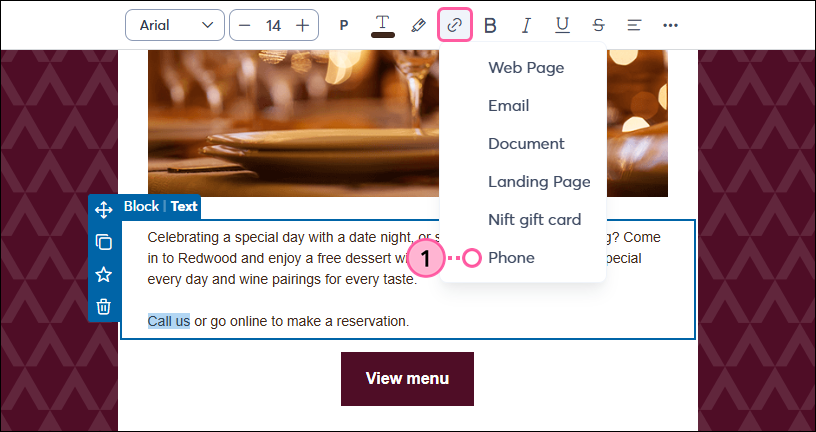
  1. Click on the button or highlight the text you want to link to a phone number, then click the link icon and select Phone.
    Note: For buttons, the link icon is located in the left-hand panel.

    Email editor with text highlighted, toolbar with Link icon drop-down, and Phone option selected
     
  2. (Optional) Edit the text that displays as the link.
  3. Enter the phone number in the field.
    Note: For international numbers outside of the United States, be sure to enter the phone number with the appropriate country code, and that it's in the E 164 format (up to 15 digits, no dashes or spaces):
    E 164 format: [international prefix][country code][area code/national destination code][local phone number/subscriber number]
    Example: +447911123456
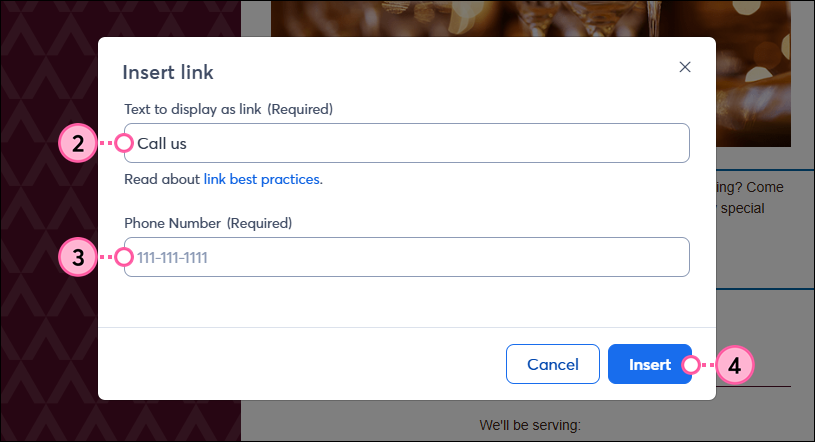
    
  4. Click Insert.

    Insert Link pop-up with Text to Display as Link and Phone Number fields, and Insert button


Like with any other link, you can style the hyperlinked text or customize the button to match the rest of your email design. When contacts click the link, it will automatically pull up the option to call the number from their phone.


Any links we provide from non-Constant Contact sites or information about non-Constant Contact products or services are provided as a courtesy and should not be construed as an endorsement by Constant Contact.


Questions?

Ask the Community

Did this article answer your question?


Constant Contact Logo

Copyright © 2026 · All Rights Reserved · Constant Contact · Privacy Center