Email and Digital Marketing
How can we help you?
Search our help articles, video tutorials, and quickstart guides

You've got this. You've got us. Search our Knowledge Base to quickly find answers to your questions.

Enable cookies in your web browser

Article: 000005908
Updated: January 5, 2026

Enable cookies in Chrome, Edge Firefox, Opera, or Safari

Constant Contact uses cookies for authentication purposes, more efficient site navigation, and to provide more accurate reporting. If you don't have cookies enabled in your browser, here's how to enable them:


Exclamation Point IconImportant: Please ensure you are using a web browser and version that is compatible with Constant Contact. They can become outdated as new versions of the browser are released.


Chrome

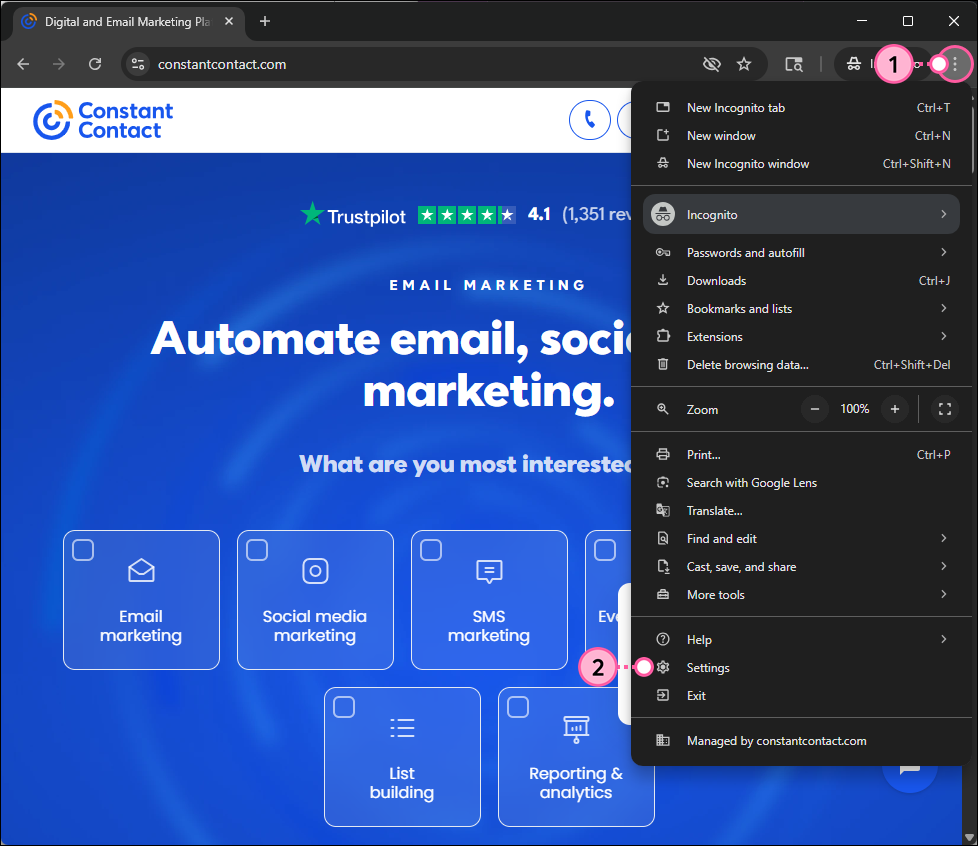
  1. Click the Customize and control Google Chrome menu button in the upper right-hand corner of the browser bar.
  2. Click the "Settings" option.

    Chrome browser with Customize and control Google Chrome menu expanded and Settings option selected

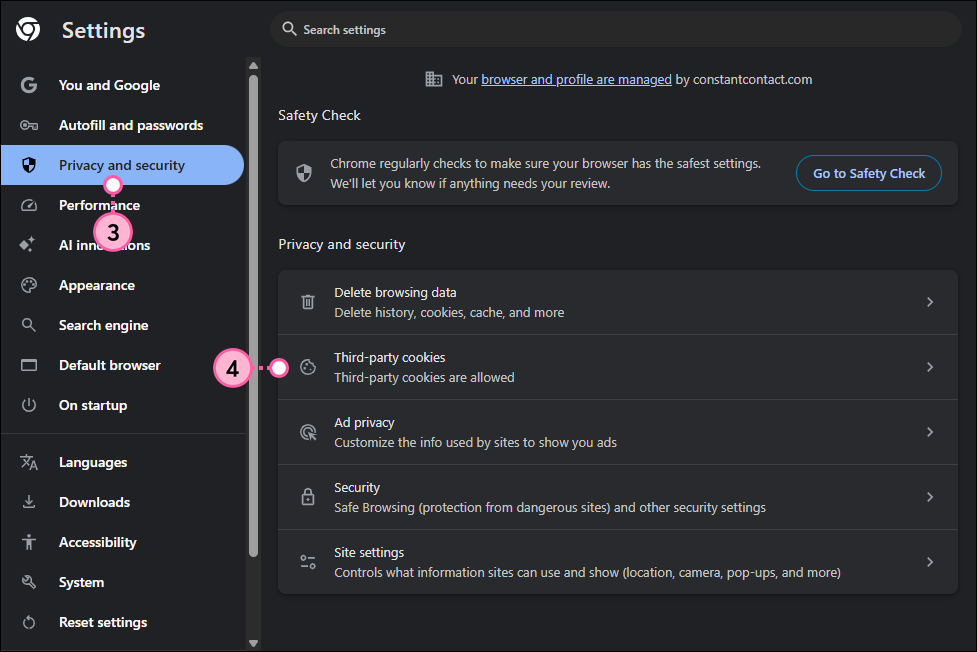
  3. In the Settings menu on the left-hand side, click Privacy and security.
  4. Click the Third-party cookies option.

    User-added imageChrome Settings with Privacy and security option selected, Privacy and security section with Third party cookies option selected

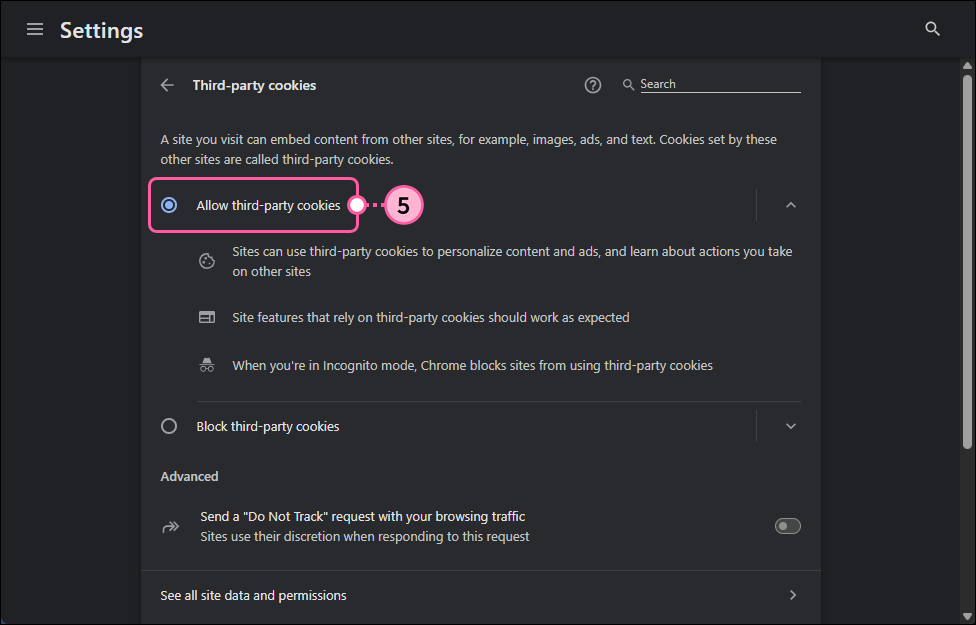
  5. Select the "Allow third-party cookies" option.

    Chrome Settings with Third-party cookies options and Allow third-party cookies option selected

For additional help with Chrome, click "Help" in your browser menu or please see Google's support.
 

Edge

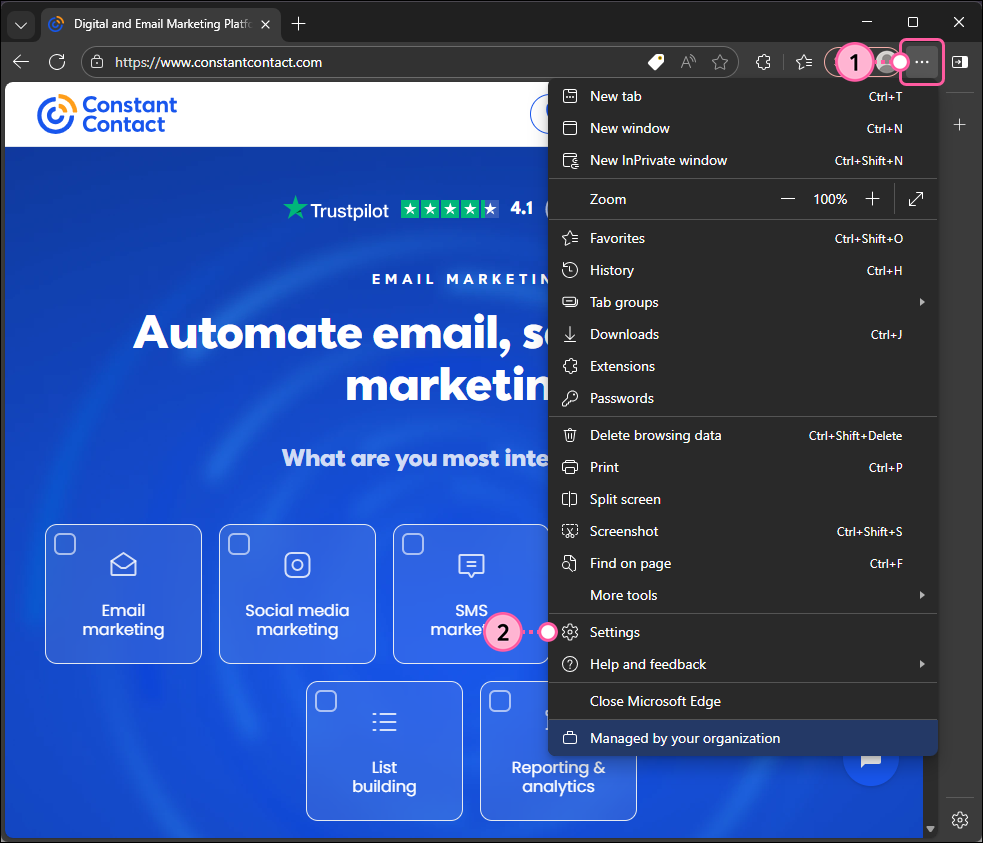
  1. Click the Settings and more button in the upper right-hand corner of the browser bar.
  2. Select the Settings option.

    Edge browser with Settings and more menu expanded and Settings option selected

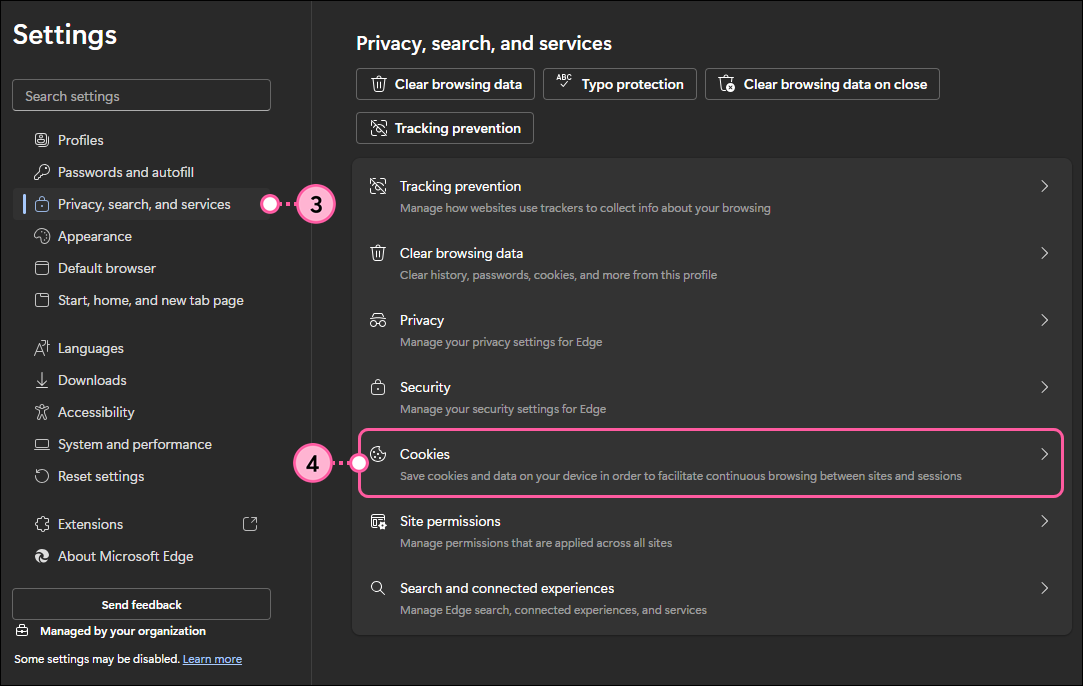
  3. In the Settings menu on the left-hand side, click the Privacy, search, and services option.
  4. Click the Cookies option.

    Edge Settings menu with Privacy, search, and services option selected, and Cookies option selected

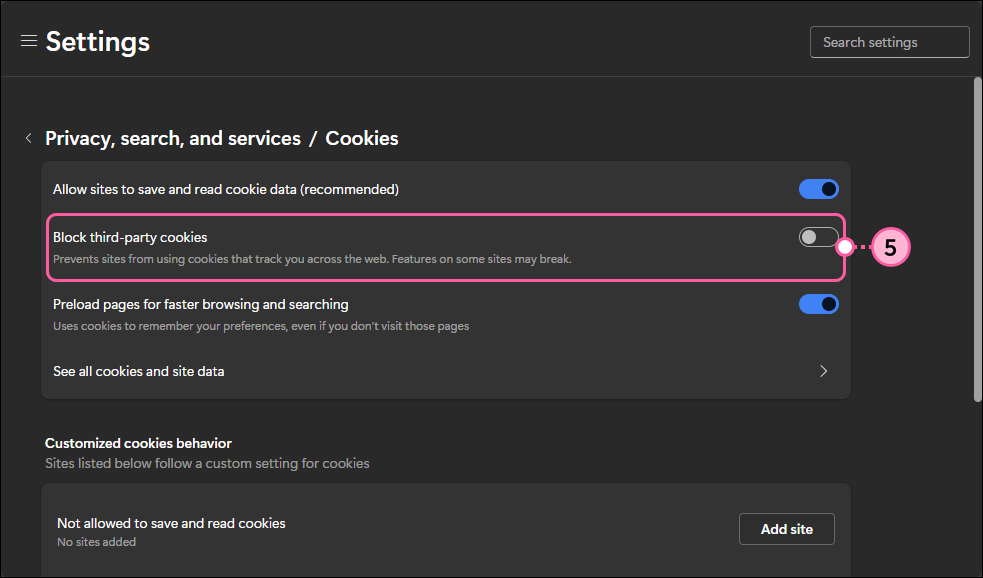
  5. Click the toggle switch next to the Block third-party cookies option to disable it.

    Edge Settings with Privacy, search, and services/Cookies page and Block thrid-party cookies toggle switched off 

For additional help with Edge, click Help & Support > Help in your browser menu, or please see Microsoft's Support.
 

Firefox

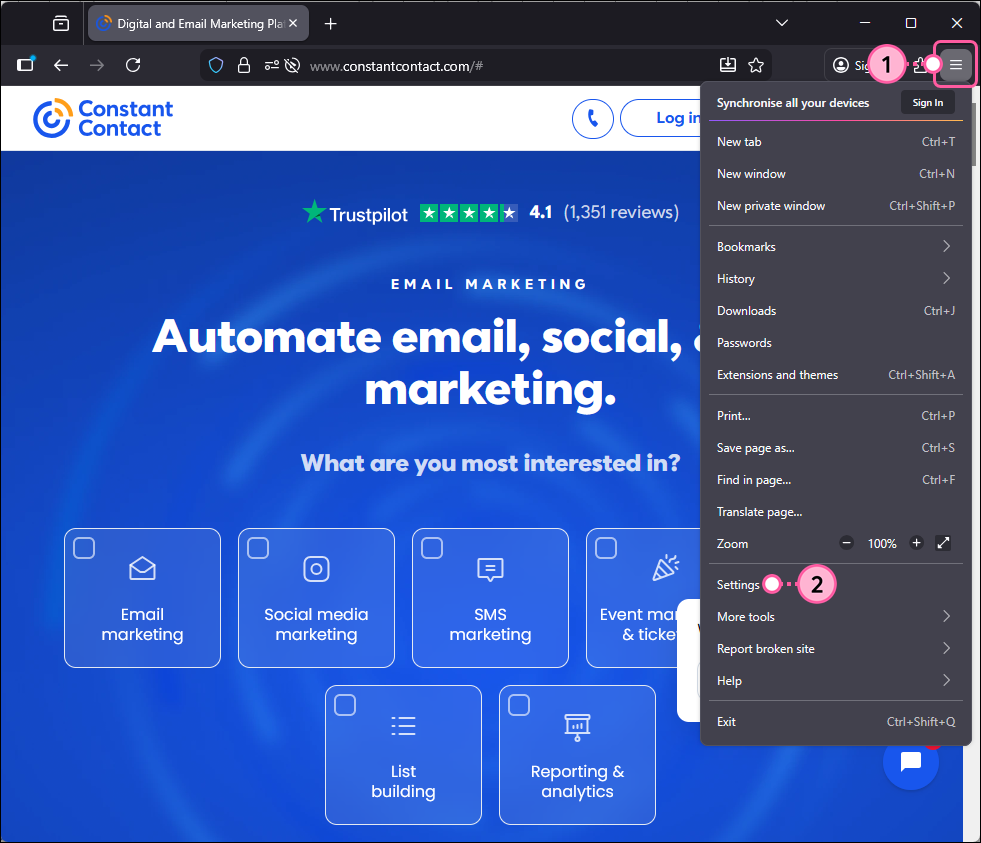
  1. Click the Open application menu button in the upper right-hand corner of the browser bar.
  2. Click the Settings option.

    Firefox browser with Open application menu expanded and Settings option selected

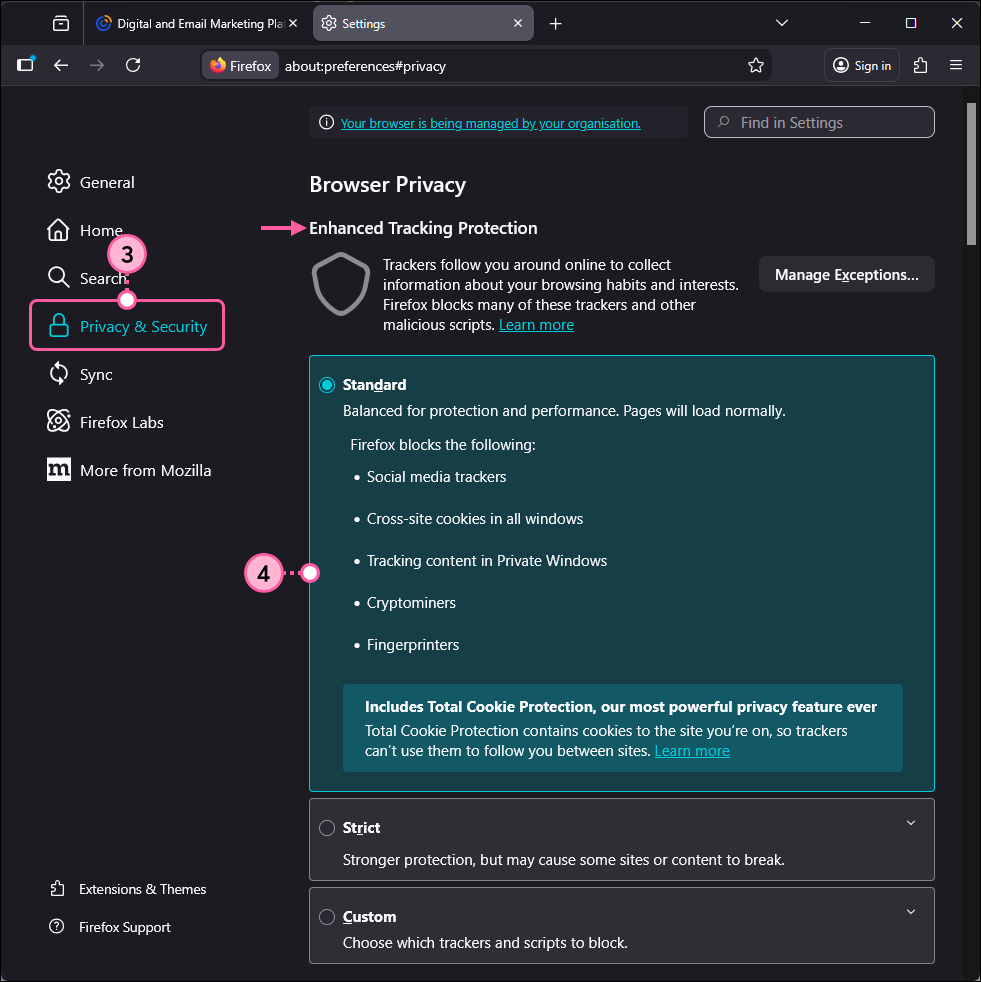
  3. Click Privacy & Security.
  4. In the Enhanced Tracking Protection section, select the "Standard" option.

    Firefox Settings page with Privacy and Security option selected, Browser Privacy options and Enhanced Tracking Protection section with Standard option selected

For additional help with Firefox, click "Help" in your browser menu or please see Mozilla's Support.


Opera

  1. Click on the Opera logo in the upper left-hand corner of the browser.
  2. Click the Settings option.
  3. In the left-hand menu, click Privacy & security.
  4. Scroll down to the Privacy & security section and click the Third-party cookies option.
  5. Select the "Allow third-party cookies" option.

For additional help with Opera, please see Opera's Support.
 

Safari

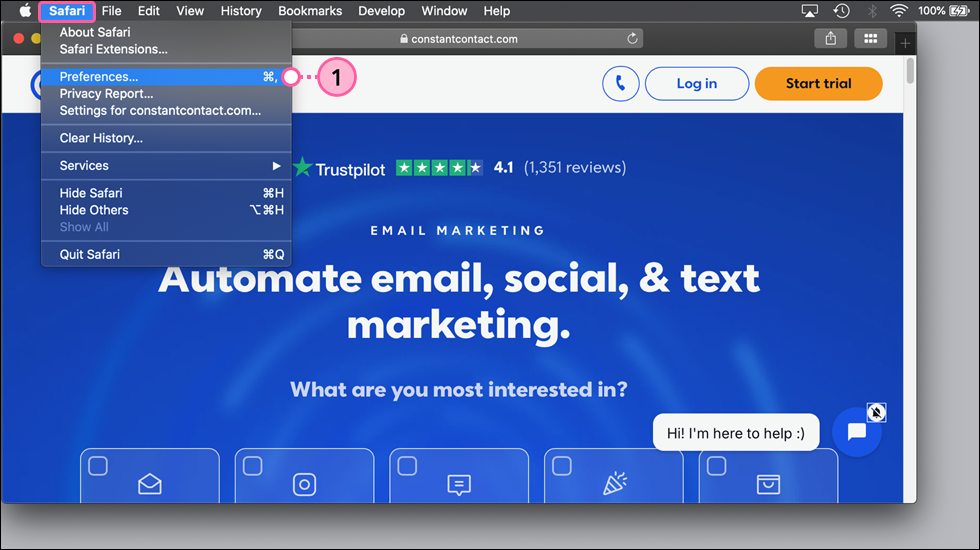
  1. Click Safari > Preferences.

    Safari browswer open with Safari menu expanded and Preferences option selected

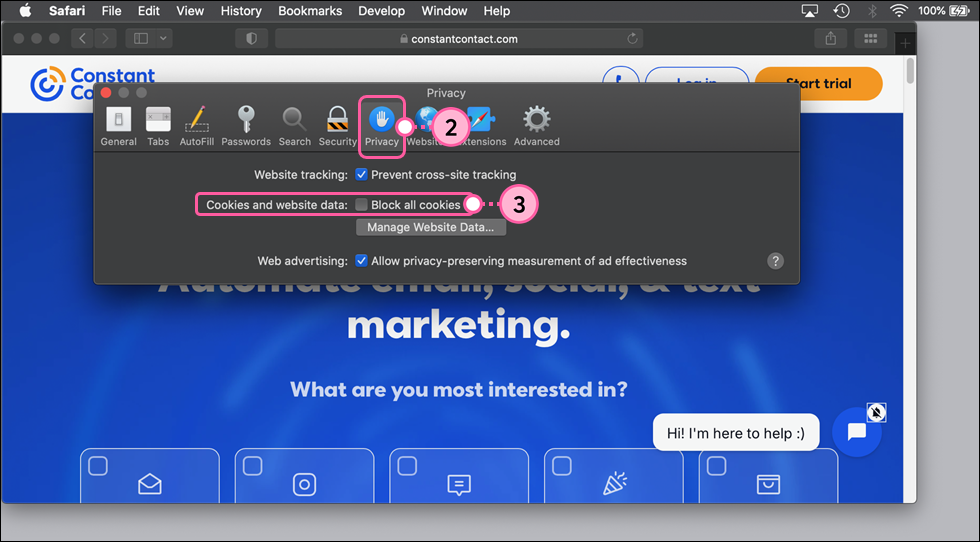
  2. Click on the Privacy tab.
  3. In the "Cookies and website data" section, make sure that "Block all cookies" is unchecked.

    Safari Preferences options with Privacy option selected, Cookies and website data section with Block all cookies option deselected

For additional help with Safari, click "Help" in your browser menu or please see Apple's Support.


Any links we provide from non-Constant Contact sites or information about non-Constant Contact products or services are provided as a courtesy and should not be construed as an endorsement by Constant Contact.


Questions?

Ask the Community

Did this article answer your question?


Constant Contact Logo

Copyright © 2026 · All Rights Reserved · Constant Contact · Privacy Center