When copying text from a webpage or document, you can inadvertently bring in hidden code that can cause formatting issues while editing your email or increase the size of your email, triggering email clipping in your contacts' inboxes. Though our email editor strips out some formatting, it's a good idea to remove any problematic formatting before you paste it into your email, and it's easy to do:
In our email editor, you can easily remove any formatting from pasted text by highlighting the text and clicking the “Clear Formatting” icon in the toolbar.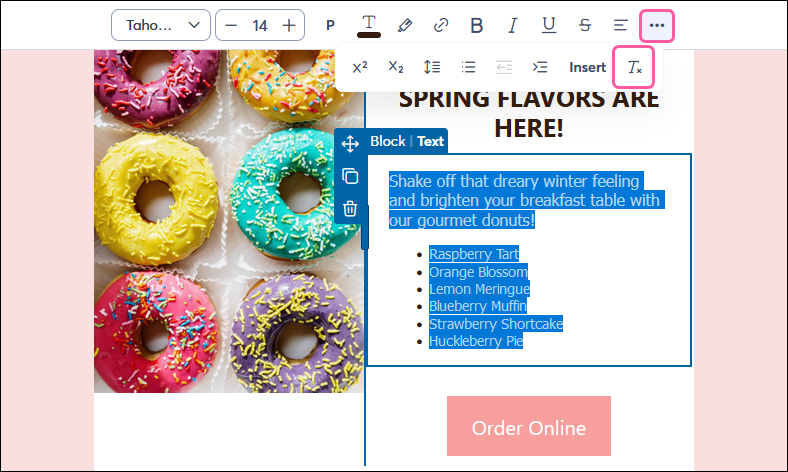
You can also paste copied content into your email template without styles or formatting using basic keyboard commands:
After you copy content from a document or webpage, you can paste it into Notepad, and then copy it from Notepad to paste into your email without formatting.
By pasting into Notepad, you strip any complicated formatting, leaving you with clean, unformatted text. You can now copy your text from Notepad and paste it into your email as usual.
For more information on opening and using Notepad, please see Microsoft's support.
After you copy content from a document or webpage, you can paste it into TextEdit, and then copy it from TextEdit to paste into your email without formatting.
By pasting into TextEdit, you strip any complicated formatting, leaving you with clean, unformatted text. You can now copy your text from TextEdit and paste it into your email as usual.
For more information on opening and using TextEdit, please see Apple's support.
Any links we provide from non-Constant Contact sites or information about non-Constant Contact products or services are provided as a courtesy and should not be construed as an endorsement by Constant Contact.
Copyright © 2026 · All Rights Reserved · Constant Contact · Privacy Center