Email and Digital Marketing
How can we help you?
Search our help articles, video tutorials, and quickstart guides

You've got this. You've got us. Search our Knowledge Base to quickly find answers to your questions.

Enable logging in the Constant Contact Forms for WordPress Plugin

Article: 000018491
Updated: February 26, 2026

Enable logging for debugging purposes to deduce the sources of issues with the Constant Contact Forms for WordPress plugin

did you knowWordPress plugin users only: The following instructions are for customers who are using Constant Contact Forms for WordPress on their WordPress site. This plugin will let visitors to your WordPress site join your mailing list through a form that is synced to your Constant Contact account.


If you're having trouble with form submissions through the Constant Contact Forms plugin for WordPress, you can enable debugging. This gathers information that our developers can use to help troubleshoot problems to get your form working correctly.


Enable debugging

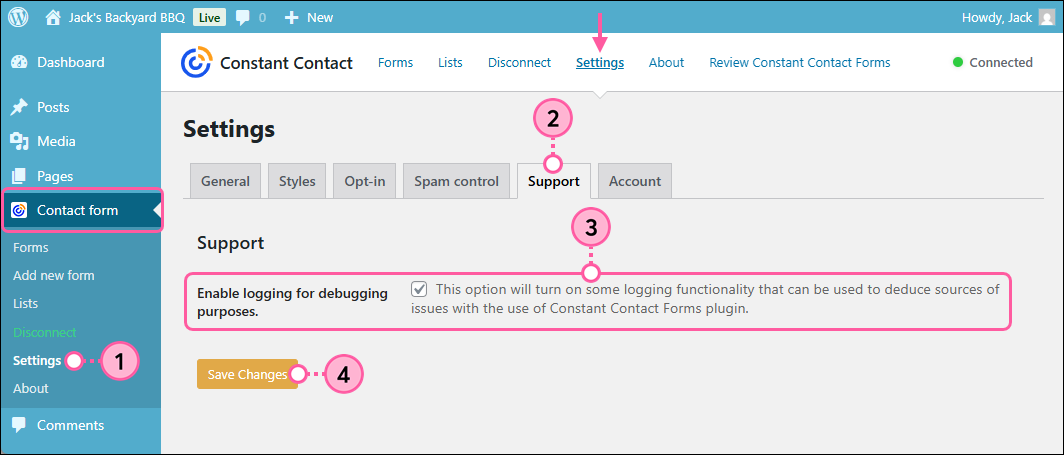
  1. In your WordPress account, click Contact Form > Settings.
  2. Click the Support tab.
  3. Check the box next to the "Enable logging for debugging purposes" option.
  4. Click the Save Changes button.

    Wordpress dashboard, Constant Contact Form menu expanded and Settings option selected, Support tab selected, Enable logging for debugging purposes option selected, and Save Changes button

Once the debugging is enabled, the next time someone tries to submit your form and triggers an error, it's tracked in your debug log.


View debug logs

After the debugging is enabled, you can create a post in our WordPress Support Forum and share your debug logs so that we can help you fix the problem.
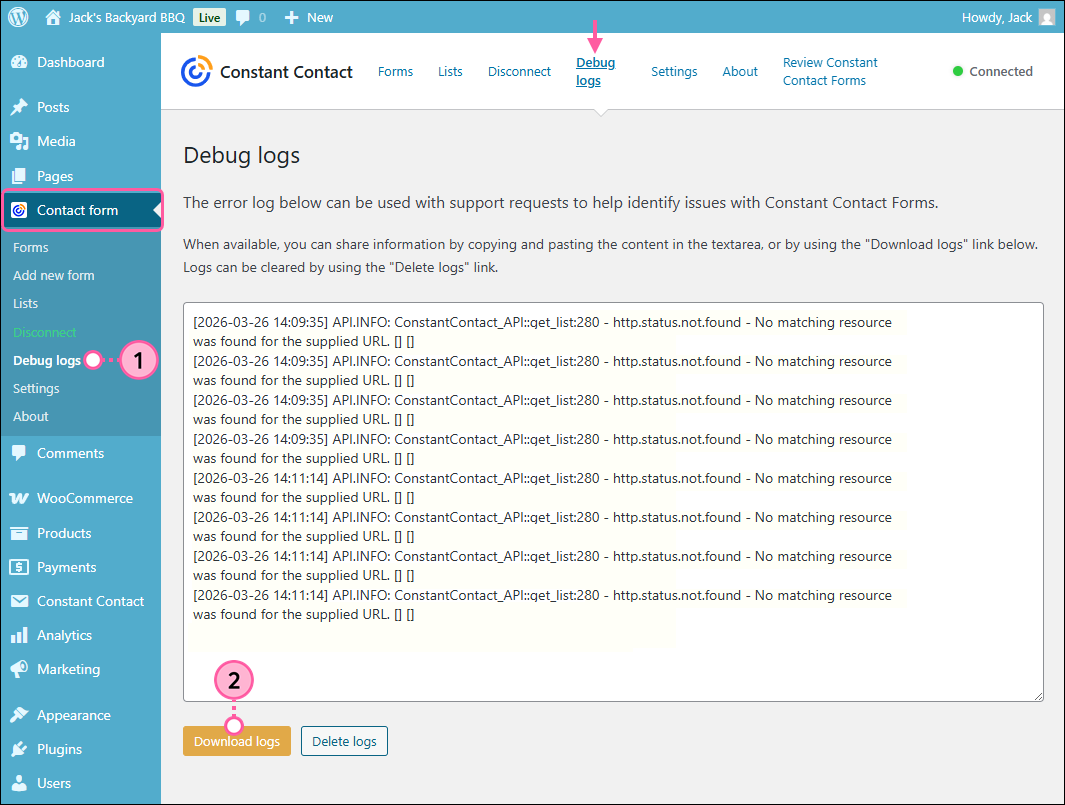
  1. In your WordPRess account, click Contact Form > Debug Logs. The Debug Logs option is only visible if logging has been enabled.
  2. Click the Download logs button.

    WordPress dashboard, Constant Contact Form menu expanded and Debug Logs options selected, error log, and Download logs button


Questions?

Ask the Community

Did this article answer your question?


Constant Contact Logo

Copyright © 2026 · All Rights Reserved · Constant Contact · Privacy Center