Email and Digital Marketing
How can we help you?
Search our help articles, video tutorials, and quickstart guides

You've got this. You've got us. Search our Knowledge Base to quickly find answers to your questions.

Install the Constant Contact Forms plugin for WordPress to gather sign-ups and feedback

Article: 000010054
Updated: February 24, 2026

Gather new contacts, contact information, or visitor feedback directly from your WordPress webpage with the Constant Contact Forms plugin

Gathering new email addresses, contact information, or visitor feedback from your website visitors is simple when you have a customized form on your WordPress site! With the Constant Contact Forms for WordPress plugin, you can build mobile-responsive forms that pull your branding from your current WordPress theme, and can be customized with the data fields that work best for your organization. Your Constant Contact contact lists are even synced to your WordPress account so that any new email addresses you collect are automatically captured on a list of your choosing.


Important information about the Forms plugin

Exclamation Point IconImportant: This section includes important information if you're installing the Constant Contact Forms plugin for the first time or updating your existing plugin to a newer version.

To use the Constant Contact Forms plugin, you need WordPress version 5.2.0+ or the supported PHP version 7.4+. This plugin isn't available in a free WordPress account. If you are a Blue Host user with a paid account, this plugin may already be installed for you. Additionally, only the WordPress administrator can access the plugin's settings.

If you have the plugin already installed and need to update it, it's necessary to take the following steps:

  1. Download the updated plugin and reinstall it in Wordpress.
  2. Edit your existing forms in Wordpress and reselect the contact list the form should sync to.


Install the Forms plugin

Here's how to get started:

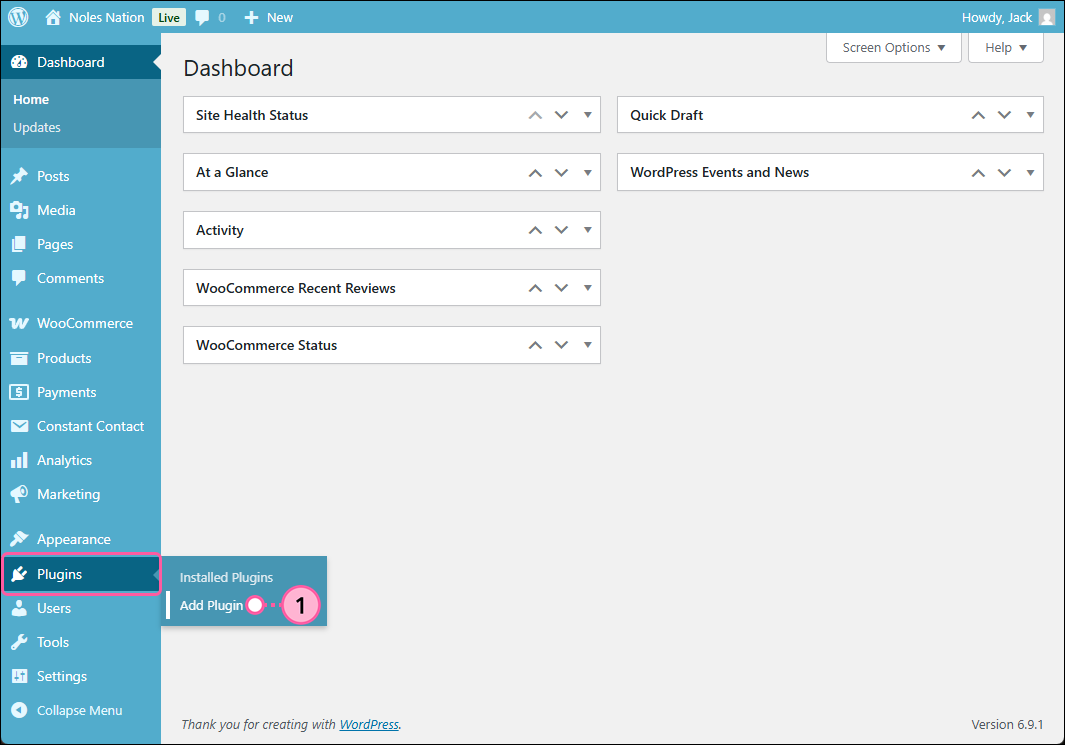
  1. Log into WordPress and in the menu on the left-hand side, click Plugins > Add New.
    Note: Only the WordPress administrator can access all the plugin's settings. If you don't see "Appearance" as an option in your dashboard menu, you're not logged in as an administrator. Please contact your WordPress administrator to help you.

    Wordpress dashboard with side menu epanded, Plugins menu expaned and Add plugin option selected

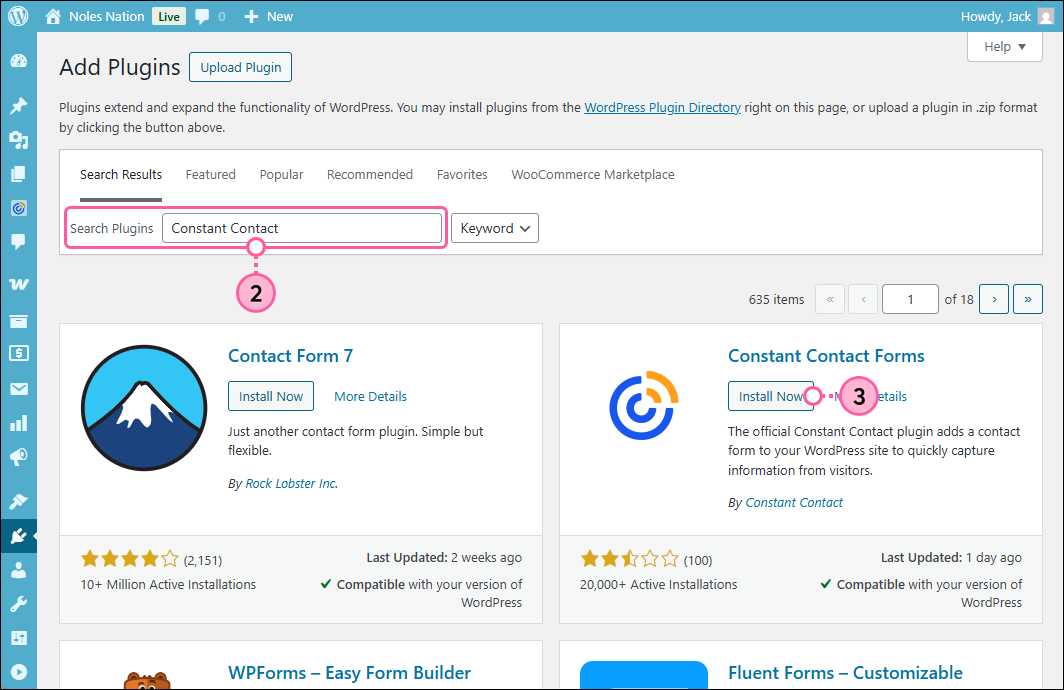
  2. Search Plugins for "Constant Contact."
  3. On the Constant Contact Forms option, click the Install Now button.

    Add Plugins page, Search Plugins field with Constant Contact as search term, and Constant Contact Forms plugin with Install Now button

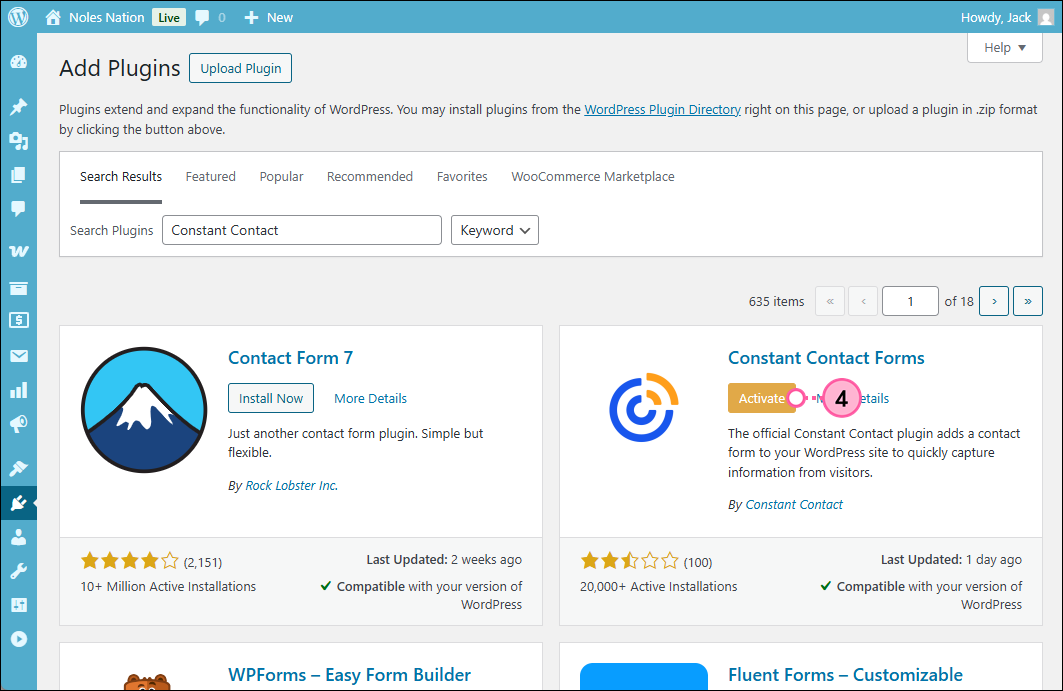
  4. Click the Activate button.

    Add Plugins page with Constant Contact Forms plugin and Activate button

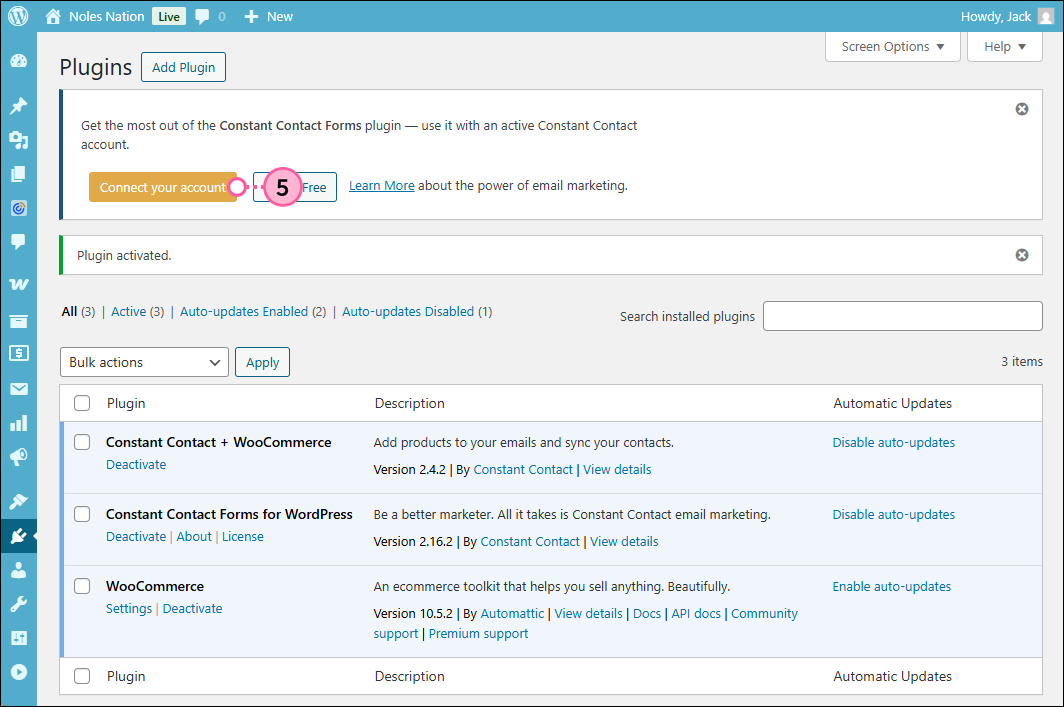
  5. Click the Connect your account button.

    Plugins page with Constant Contact Forms plugin and Connect your account button

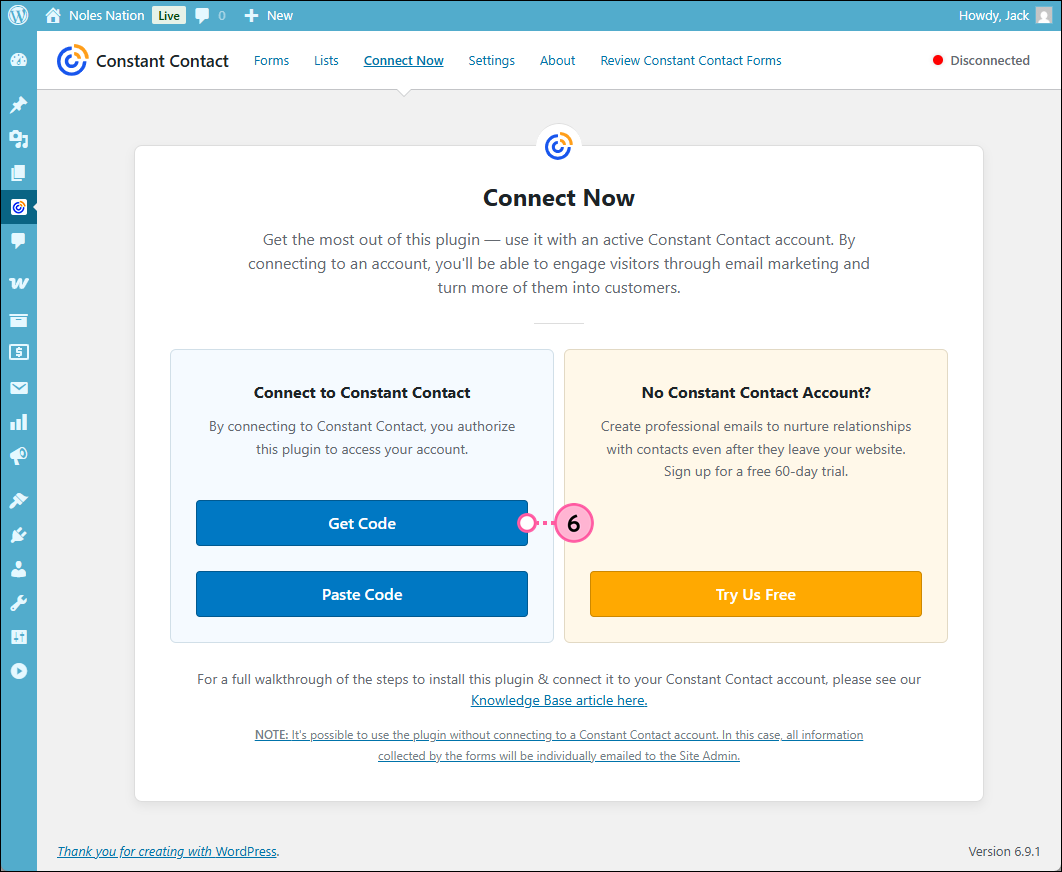
  6. On the Connect Now page, click the Get Code button.
    Note: Once the authentication code is generated, it is valid for 5 minutes.

    Constant Contact Forms plugin page with Connect Now tab selected, Connect to Constant Contact tile with Get Code button

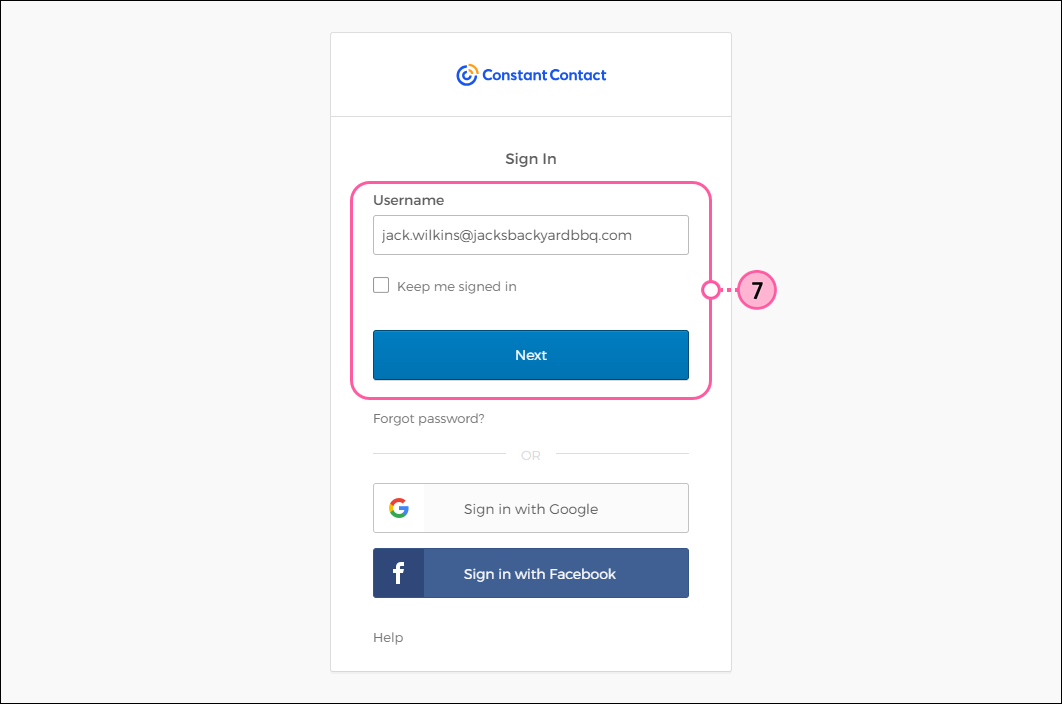
  7. Log into your Constant Contact and perform your 2-factor authentication process.

    Constant Contact Sign In page with Username field and Next button

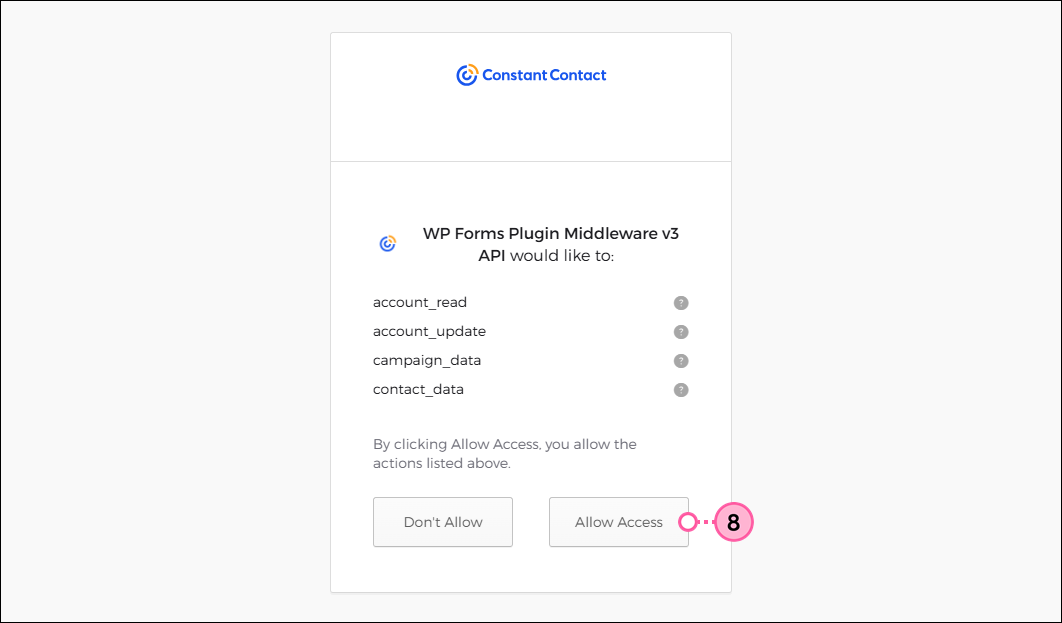
  8. Review the permissions and then click the Allow Access button.

    Constant Contact WP Forms Plugin Middleware v3 API permissions and Allow Access button

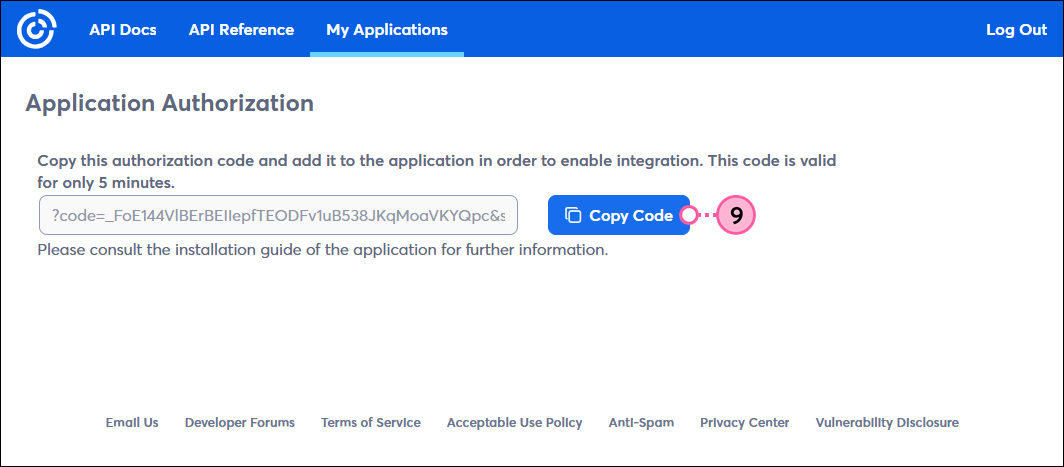
  9. You're automatically brought to the Application Authorization page within your account. Click the Copy Code button.

    Constant Contact My Applications tab with Application Authoriztion page, authorization code field, and Copy Code button

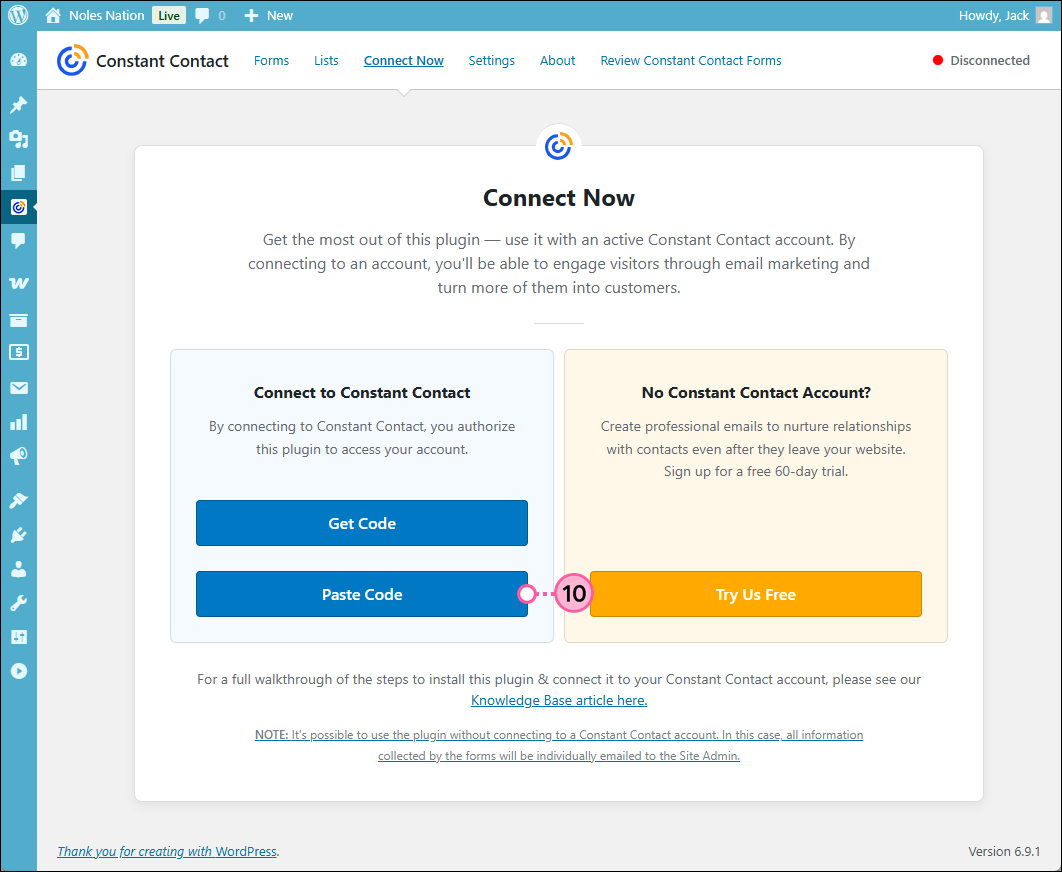
  10. You are returned to the Connect Now page. Click the Paste Code button.

    Constant Contact Forms plugin page with Connect Now tab selected, Connect to Constant Contact tile with Paste Code button

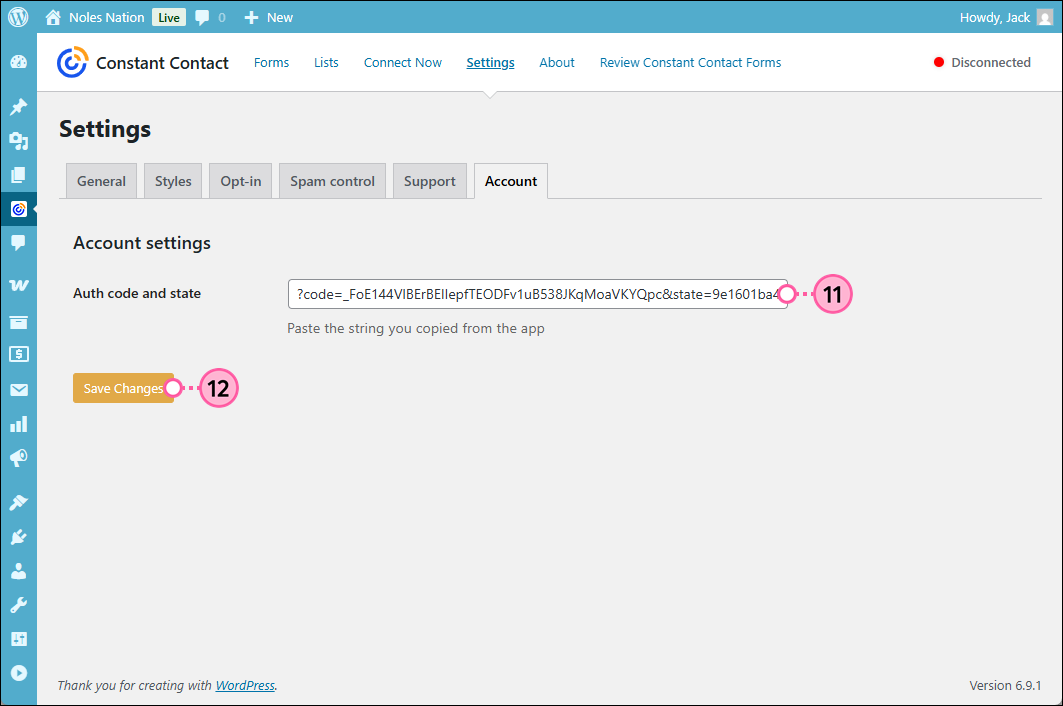
  11. Paste the code into the Auth code and state field.
  12. Click the Save Changes button.

    Constant Contact Forms plugin Settings with Account tab selected, Account settings with Auth code and state field, and Save Changes button

Now that you've installed the plugin, you're ready to start collecting new email addresses and visitor information. Start by creating a new sign-up form or "contact us" form, then sync your contact lists, and finally, add your form to a webpage or post in your WordPress account.

Your WordPress admin can also set up your WordPress server to receive an email whenever someone subscribes to your list. If you're having issues receiving a general email about sign-ups, check your WordPress email address by clicking Settings > General. Your WordPress admin must set up your WordPress server to use this notification feature; we cannot troubleshoot this functionality on the Constant Contact side.

If you need help, please visit our Constant Contact Forms Plugin Support Forum.


Get permission to send tip.Get Permission: Using this sign-up form ensures that you receive and document express consent from your contacts, which satisfies Constant Contact's email permission policy as well as GDPR and CASL regulations.


Any links we provide from non-Constant Contact sites or information about non-Constant Contact products or services are provided as a courtesy and should not be construed as an endorsement by Constant Contact.


Questions?

Ask the Community

Did this article answer your question?


Constant Contact Logo

Copyright © 2026 · All Rights Reserved · Constant Contact · Privacy Center